To compress a OneNote PDF, turn on a smaller file option so the converter downsamples the images as it writes the file. The Univik ONE Converter shrinks a scan heavy notebook into a lighter PDF in one offline pass.
A OneNote PDF can balloon. A notebook full of scans and screenshots turns into a file too big to email, and the culprit is nearly always the pictures.
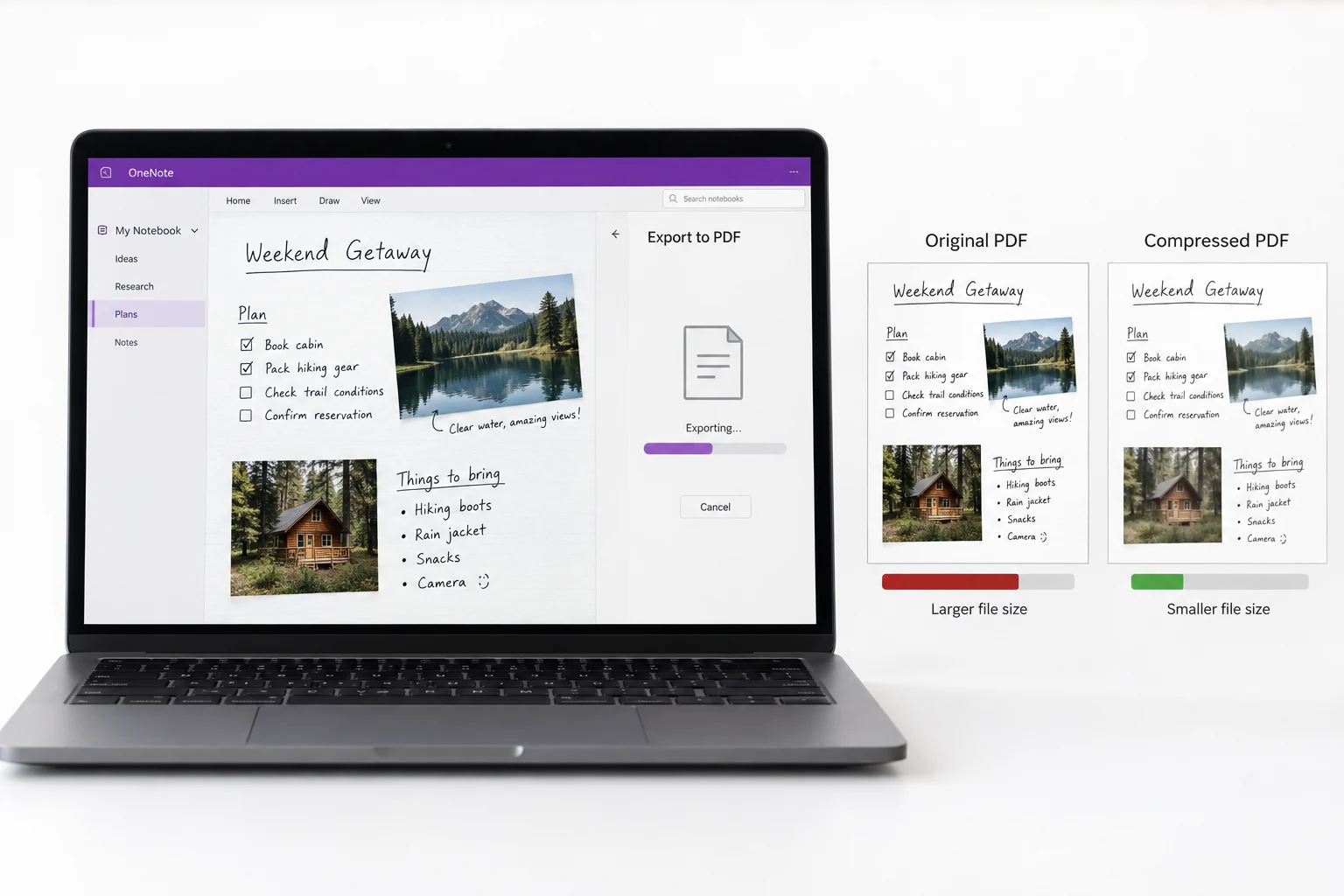
Compression brings the size back down by shrinking those images. This guide is about making the file smaller, the base conversion itself lives in the OneNote to PDF guide.
Why a OneNote PDF Gets Big
The size of a notebook PDF is mostly its pictures. Text takes almost no room, but a page of high resolution scans, photos or embedded documents adds megabytes fast. A notebook of typed notes stays light on its own, and one packed with scanned pages is the one that needs trimming. That single fact tells you what compression can and cannot do. It works on the images and leaves the words alone.
Make a Smaller PDF as You Convert
The neat way to keep the file small is to compress it in the run that writes it. A converter with a smaller file option downsamples and recompresses the images while it builds the PDF. The Univik ONE Converter reads the .one (Microsoft's OneNote file format spec documents the format) and writes a lighter PDF in one go, offline.
- Add the notebookLoad the .one or .onepkg file.
- Pick PDFSet PDF as the format.
- Turn on smaller fileSwitch the compress option on.
- Convert to a lighter PDFThe file saves compressed.
The other PDF options the tool carries sit on the OneNote converter page.
The ONE Converter downsamples the images while it writes the PDF, so a bulky notebook comes out light, all offline in a single pass.
Free Download See All FeaturesSmaller Means Softer Images
Compression is a trade, not a free lunch. Shrinking an image throws away detail, so a heavily compressed scan looks softer and a photo can turn blocky. The text is untouched, since it is not an image, so the writing stays sharp while the pictures give a little. The skill is picking a level that saves space without leaving the scans hard to read.
What Shrinks in a Compressed PDF
Not every part of a PDF gives back space.
That is why a scanned notebook compresses well and a page of plain notes hardly moves.
Set the Compression for Screen or Print
How hard to compress comes down to where the PDF is going. For reading on a screen or sending by email, dropping the images to around 150 DPI is plenty and cuts the size a lot. For a copy you will print, keep them near 300 DPI so they stay sharp on paper. Match the level to the destination rather than always squeezing as hard as it goes.
Free Ways to Shrink a PDF
You can also make the PDF first and compress it after.
Acrobat's Reduce File Size command and its fuller optimizer downsample the images and drop hidden data, described on Adobe's own help page. For anything private, skip a tool that uploads the file and keep the work on your machine.
When to Keep the PDF Full Size
Compression is the wrong move when quality is the point. An archival master, a legal exhibit or a document heading to a professional printer all want the images at full resolution. Squeezing a scan too far can tip it into unreadable, the fine detail smeared away. When in doubt, keep an uncompressed original and compress a copy for sharing.
When a Smaller PDF Helps
A lighter file earns its place the moment size gets in the way. An email bounces off an attachment limit, a web form caps the upload, a shared drive fills up, a phone chokes on a huge file. A merged notebook is a common trigger, since combining every page makes a big PDF that a compress pass then tames. For everyday sharing, a smaller file moves faster and stores easier.
Smaller OneNote PDF Questions

Written and maintained by Leena Taylor Paul and the Univik team, developers of Windows data conversion and recovery software since 2013. Compression is all about the balance point, so this guide is honest that it works on the images and not the text, and that pushing too hard turns a readable scan into a smear, which is the mistake we see most. Last verified August 2026. Fighting an attachment limit with a heavy notebook? Contact our support team.