To merge a OneNote notebook into one PDF, use a converter with a merge option that lays every page into a single ordered file. The Univik ONE Converter combines the pages, adds section bookmarks and can even merge several notebooks at once.
Convert a notebook to PDF and you end up with a pile of files, one per page or one per section. Merging gives you the opposite, a single PDF with every page in order, simpler to read, send and file.
This guide is about combining the pages into one file. The base conversion is in the OneNote to PDF guide.
One PDF Instead of a Folder of Files
A per page export scatters a notebook across dozens of files you then have to keep together and open one at a time. A merge folds all of it into one document, so a whole notebook opens as a single thing you scroll through. For reading a project end to end, mailing a complete record or printing a bound copy, one file beats a folder.
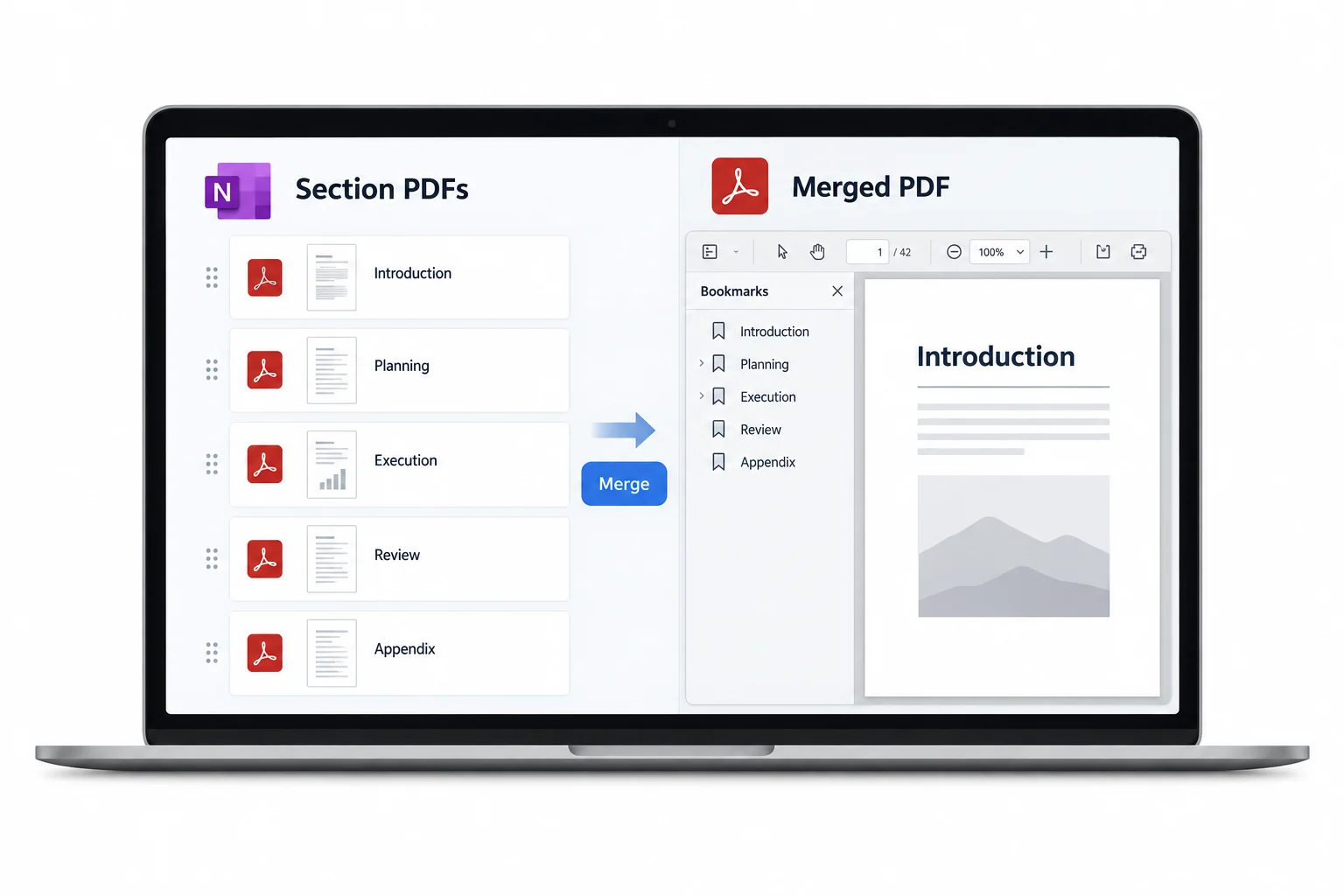
Merge the Notebook into a Single PDF
To combine the pages, run a converter that offers a merge option and aim it at the notebook. The Univik ONE Converter reads the .one, lays every page end to end in order and writes one PDF, with no OneNote needed.
- Add the notebook filesLoad the .one or .onepkg to combine.
- Pick PDFChoose PDF from the format list.
- Turn on merge into oneSwitch the single file option on.
- Convert to one PDFEvery page lands in one file.
The other PDF options that pair with a merge sit on the OneNote converter page.
The ONE Converter combines the pages of a notebook into one ordered PDF with section bookmarks and can lock or shrink it in the same pass, all offline.
Free Download See All FeaturesOrder and Bookmarks in the Merged PDF
The pages land in the order the notebook holds them, section by section and page by page (the .one keeps that arrangement, per Microsoft's OneNote file format spec), so the merged file reads the way the notebook did. A good merge also builds a bookmark outline, one entry per section, so a long single file is still easy to move around.
Merge Several Notebooks into One
The merge is not capped at a single notebook. Point it at several and they join into one PDF, one notebook after another, which is handy for pulling a year of separate monthly notebooks into a single archive. OneNote's own export takes one notebook per run, so combining more than one is where a converter pulls ahead.
What OneNote's Own Export Merges
To be fair, OneNote can make one PDF of a notebook by itself. In OneNote 2013 or 2016 on the desktop, File then Export lets you pick Notebook and save it as a single PDF. The limits are why people look past it. It handles one notebook per run, it is desktop only so neither the read only Windows 10 app nor OneNote for the web will do a whole notebook, and it needs the notebook open in OneNote, which leaves out an orphaned .one file. A converter fills those gaps and folds order, bookmarks and a password into the same run.
A Merged PDF Gets Big
Putting everything into one file makes a bigger file, and a notebook full of scans and embedded documents can run heavy. When the merged PDF is too large to email, a smaller file setting brings the size down by recompressing the images, which trades away some sharpness. Weigh the file size against how crisp the pictures need to stay.
When to Keep the Pages Separate
A merge is the wrong move when you want the pages apart. Sending one page to one person, sharing a single section or wanting each page as its own picture all call for separate files. Per page output or rendered images suit that better than one large PDF you would only have to split again.
Where One Merged PDF Helps
A single file earns its place when the notebook is really one document. A research log read start to finish, a project handed over as one record, a set of meeting notes filed for an audit, a manual printed and bound. Anywhere the whole notebook needs to travel together, a merged PDF is cleaner than a folder the other person has to piece back together.
Merged OneNote PDF Questions

Written and maintained by Leena Taylor Paul and the Univik team, developers of Windows data conversion and recovery software since 2013. A merge is easy to get half right, so this guide is honest that OneNote can already make one PDF of a single notebook and focuses on where a converter earns its keep, several notebooks at once, working order and bookmarks and no OneNote in the way. Last verified August 2026. Rolling a stack of notebooks into one record? Contact our support team.