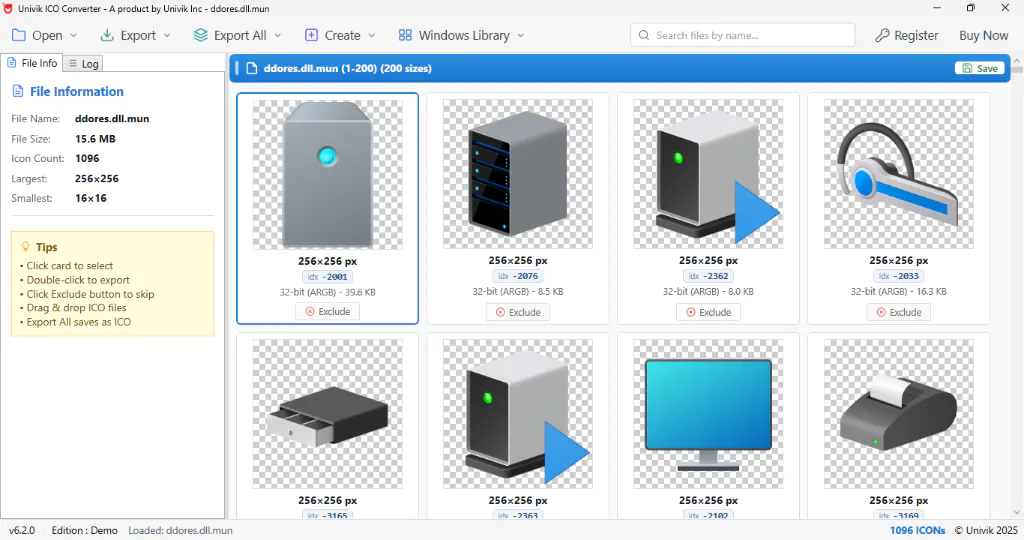
ddores.dll is the Windows file that holds the generic device icons, the speaker, printer, camera and drive pictures you meet in Devices and Printers. It is a narrow, device only set, kept apart from the general icons in shell32.dll and imageres.dll. This page sorts out what is inside it by device type and how to read the list on your own PC. The Univik ICO Converter opens ddores.dll and shows each device icon with its number.
You went looking for a clean printer or speaker icon, dug through the usual Windows files and turned up nothing. The device art you were after has its own home, and most people never hear its name.
That home is ddores.dll. This guide covers what the file is for, which devices it draws, why the icon on your own gadget sometimes differs and how to read and save any picture inside it.
What ddores.dll Handles
To see these icons for yourself, an online ICO viewer opens the DLL right in your browser and shows every icon inside, with nothing to download.
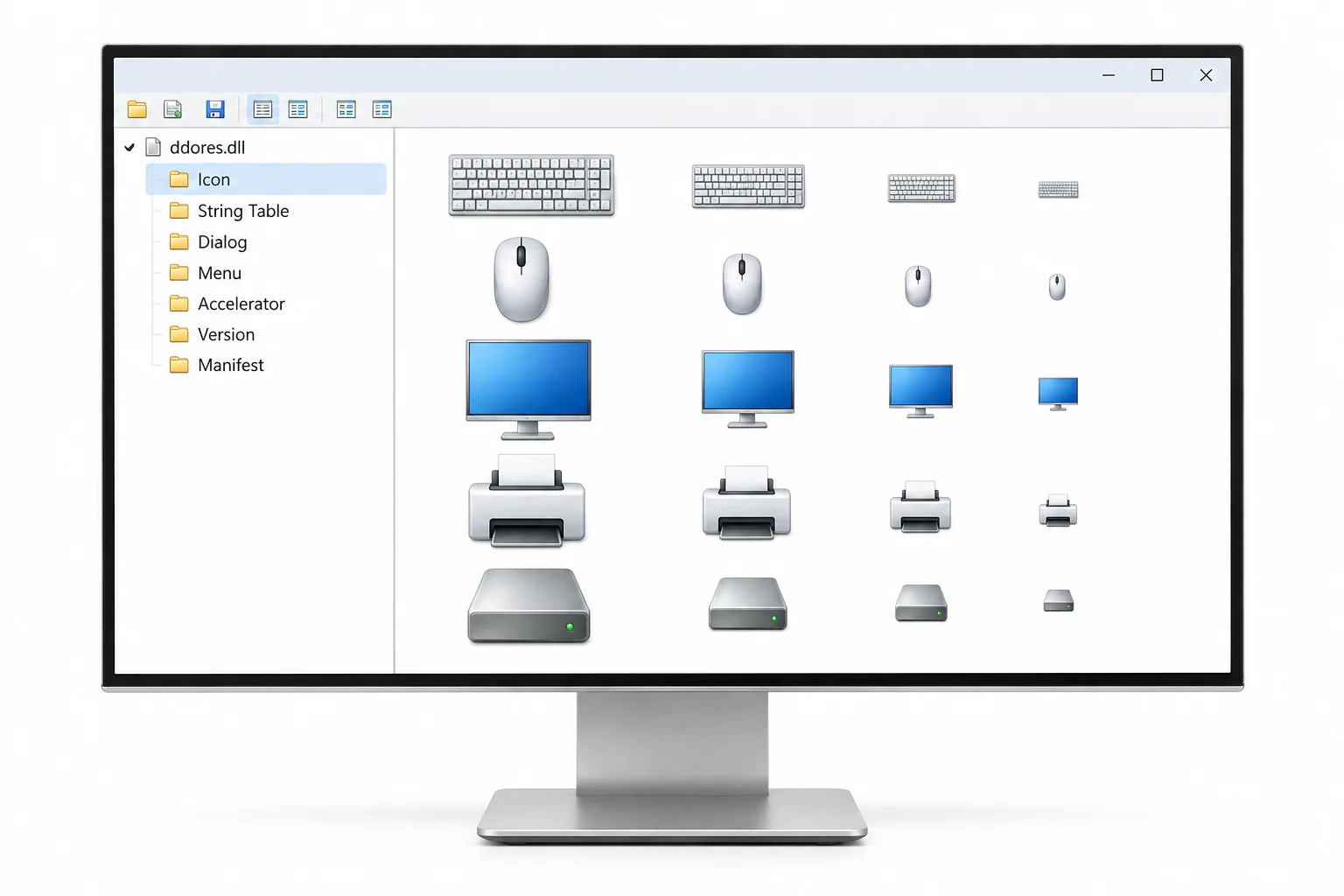
ddores.dll is the Device Category resources file, and its whole job is hardware. When Windows needs a picture for a class of device, a speaker, a printer, a camera, a generic drive, it reaches into this file. That is why you see it behind Devices and Printers and the small dialogs that appear when a gadget connects. Community catalogues of the native Windows icons place the speaker, camera and printer art squarely in this file.
It stays deliberately narrow. shell32.dll and imageres.dll carry the broad system art, folders and actions and the rest, while ddores.dll sticks to devices. Keeping the device set in one place lets Windows show a sensible fallback picture for almost any hardware, even a model it has never seen before.
The Device Types Inside ddores.dll
Think of the file as a drawer of hardware pictures, one per class of device. Community extractions of a recent build count around 134 icon entries in ddores.dll. Here are the groups you will meet and what each covers.
| Device group | Pictures it covers | Seen in |
|---|---|---|
| Audio | Speakers, headphones, microphones | Sound settings and prompts |
| Displays | Monitors, projectors, screens | Display setup and detection |
| Computers | Desktops, laptops, servers | This PC and network views |
| Input | Keyboards, mice, game pads | Device pages and pairing |
| Imaging | Cameras, webcams, scanners | Camera and scan dialogs |
| Printers | Printers, multifunction units, fax | Devices and Printers |
| Storage | Disks, USB sticks, card readers | Drive and removable media views |
| Sensors | Location, light, motion sensors | Sensor and privacy pages |
Here is the ddores.dll device set rendered straight from the file, so you can read the actual pictures rather than a description of them.
Where Windows Shows These Icons
The clearest place to spot them is Devices and Printers, where every connected gadget without its own picture wears a ddores.dll icon. The same set turns up in AutoPlay prompts and This PC, in the wizards that run when hardware is added and in status dialogs for sound, display and storage.
Because these are class pictures rather than model pictures, they read as familiar without being specific. A user glances at a generic printer and knows what it is, which is the point. Windows uses this file so no device ever shows up as a blank box.
The Generic Icon and Your Actual Device
Here is the detail that confuses people. The printer icon you find in ddores.dll may not match the one on your own printer, and nothing is broken. ddores.dll holds the generic fallback, while the branded picture on a real device comes from device metadata the maker ships, cached on your PC under C:\ProgramData\Microsoft\Windows\DeviceMetadataCache.
Microsoft lets hardware makers supply their own art, and its guide on providing icons for a device spells out how a driver points at one. So think of it as a two layer system. Where a vendor has supplied an icon, Windows uses it, and where none exists, the ddores.dll class picture fills in.
ddores.dll or imageres.dll for a Device Icon
The two files overlap a little on hardware, so a quick rule saves searching. Reach for ddores.dll when you want a device as a device, a standalone printer or camera picture. Reach for imageres.dll, listed in our imageres.dll icon list, when the icon is part of the wider shell, like a drive shown inside This PC.
If neither has quite the right picture, it lives in a more specialised library. The whole set of icon libraries is gathered in our guide to where Windows stores its icons, which is the map to check before you give up.
Why These Numbers Shift Between Builds
Like every Windows icon file, ddores.dll gets reworked as Windows changes, and its device pictures have grown sharper across releases. As Windows adds support for new kinds of hardware, entries are inserted and shuffled, so a number that pointed at a webcam on one build can point elsewhere on the next.
The practical point is short. A published ddores.dll number is a snapshot, not a promise, so anything that pins one should be confirmed on the Windows version you are targeting. The only list that truly fits your machine is the one the file itself reports.
See the Device Set on Your Own PC
Reading the real set off your own copy takes about a minute.
- Open DDORes.dll in a viewerPoint an icon viewer at C:\Windows\System32\DDORes.dll. On current Windows the art lives in a SystemResources copy, and a capable viewer jumps there for you.
- Let the device grid fillThe viewer draws every device icon your build carries, in order, which is the accurate list no download can promise.
- Copy the index numberThe value beside an icon is its index, what a shortcut or the registry needs, and those rules are explained in our guide to finding an icon index.
- Export your pickSave the device icon as an ICO or a PNG to keep a clean copy.
The same technique works on any program file, shown step by step in extracting icons from EXE or DLL files.
Point the converter at the device set, read each hardware picture with its index and pull your chosen one out as a crisp transparent PNG.
Free Download See All FeaturesUse a Device Icon in Your Own App
A hardware tool or a device dashboard gains a lot from the icons users already read as printers, drives and cameras. Extracting one from ddores.dll for a mockup or your own study is the easy, low risk case. Shipping that Microsoft art in software you release is the part that needs care, since the rights are not yours and the numbers move between builds.
For anything you distribute, the steady path is your own icon file, drawn or licensed, so it never depends on a Windows version. You can turn your artwork into a proper icon with our guide on converting PNG to ICO, and the rights side of reusing any Windows icon is handled in our guide on whether extracted icons are legal to use.
A ddores.dll index is safe in a shortcut on your own machine, risky in shipped software. A feature update can renumber the device set, and the icon you pinned turns into the wrong hardware on machines that update. Ship your own icon file in the build instead.
Frequently Asked Questions

Written and maintained by Leena Taylor Paul and the Univik team, developers of Windows data conversion and recovery software since 2013. We kept hearing the same question, why a printer icon someone found in ddores.dll did not match the one on their own printer, so this guide draws the line between the generic device set and the vendor art. Last verified August 2026. Chasing a device icon? Contact our support team.