An OCX, CPL or SCR file is a small program that happens to carry an icon in its resource section, so the icon comes out by reading those resources, never by running the file. The Univik ICO Converter opens all three, lists the icons inside and saves the icon you choose as a PNG or a multi size ICO, without executing a line of their code.
You spotted an icon you want inside an .ocx, .cpl or .scr file, and your usual approach stalls. You cannot double click it like a picture, and running it feels risky. Both instincts are sound. These are not image files, they are programs.
This guide is about getting the icon out cleanly and safely. What these three formats really are, where each one keeps its artwork, how to lift it without running the code and how to turn the result into a proper Windows icon.
Why an OCX, CPL or SCR File Holds an Icon
Each of these three is a Windows program at heart. An OCX is an ActiveX control, a CPL is a Control Panel applet and an SCR is a screensaver. Three different jobs, one shared trait. Every one is compiled code, not a document you read.
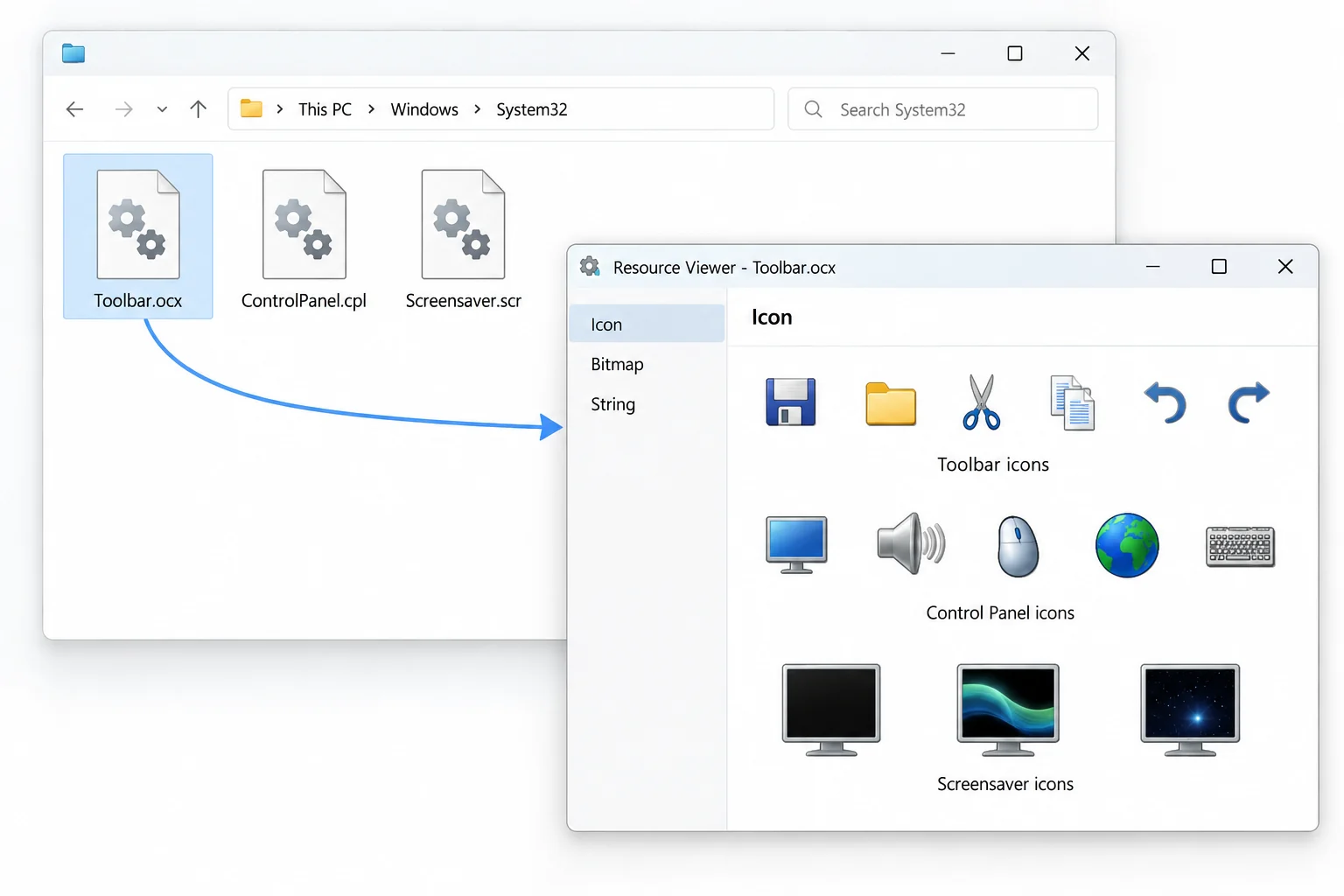
Any Windows binary can carry a resource section, a shelf inside the file for icons, bitmaps and dialogs. That shelf is where these formats keep whatever picture Windows shows for them, the control's glyph, the Control Panel tile, the screensaver thumbnail. The icon rides along inside the program, which is why an image viewer opens nothing and a resource reader opens everything.
Where Each Format Keeps Its Icon
All three store the icon the same way, in the resource section, yet you reach each file differently in normal use. Seeing the normal path shows why extraction takes a side door.
| Extension | Really a | Icon lives in | Normal way to open |
|---|---|---|---|
| .ocx | ActiveX control, a DLL | Resource section | Registered with regsvr32 |
| .cpl | Control Panel applet, a DLL | Resource section | Run by control.exe |
| .scr | Screensaver, an EXE | Resource section | Run with /s, /c or /p |
The pattern is plain. Two are libraries and one is an executable, and for icons that split does not matter. The resource section behaves the same in all of them, so a single tool reads every one.
How to Extract the Icon Without Running the File
Here is the part that keeps you safe. You never have to run an OCX, CPL or SCR to get its icon. A resource reader opens the file, lifts the icons out of the resource section and leaves the code sitting untouched. Nothing executes.
The Univik ICO Converter works this way by design. Point it at the file and it reads the resources, not the program.
This works because of how a Windows program is laid out. A PE file keeps its code in one part and its resources in another, so a reader can open the resource part and lift an icon while the code part is never loaded or run. The whole read runs offline on your own machine, and it works the same on Windows 11 and 10.
- Open the fileDrag the .ocx, .cpl or .scr onto the converter. It reads the resources and runs none of the code inside.
- Browse the iconsThe app lists every icon the file carries, each with its size and colour depth.
- Pick your iconChoose the size you need and the crisp version when a file holds more than one.
- Export itSave it as a PNG with its transparency intact or build a multi size ICO in the same step.
To look before you save, the free ICO viewer shows what is inside a file and saves nothing.
Open a .ocx, .cpl, .scr or .drv, watch its icons appear and send any of them out to a PNG or a finished ICO. The converter reads resources and executes no code.
Free Download See All FeaturesThe Free Way with 7-Zip and Resource Hacker
No purchase is needed to reach the icon. Two free tools read a resource section, and both leave the file unrun.
The shared method behind these tools, extracting icons from EXE and DLL files, works on any binary and applies here without change. The trade is convenience. You get raw icon resources with index numbers rather than a sorted preview, so you match them up yourself. One limit is age. A very old 16-bit .ocx or .drv is not a plain archive, so 7-Zip may not open it, and a reader built for the modern binary serves it better.
Pulling the Icon from a DRV File Too
A DRV file, the legacy device driver, sits in the same boat. A modern one is a library with a resource section, so the exact steps above lift its icon out with no fuss.
The oldest .drv files date to 16-bit Windows and carry little beyond driver code. If a reader opens one and shows no icons, the file simply has none to give, and that is normal for a driver of that age.
Turning a Pulled Icon into a Usable ICO
What comes out depends on the tool you used. The converter writes a finished ICO or a PNG on the spot. The free readers hand you the raw icon resource, which is usable as it stands or converts in a single step.
If you started from a PNG, or you want a multi size icon for a folder icon, a desktop shortcut or an app of your own, building a proper ICO file is a quick job, one converting PNG to ICO walks you through. Since the icon is the work of whoever wrote the control, applet or saver, putting it into something you sell raises a copyright question, and whether extracted icons are legal to use sets out the rules.
When a CPL or SCR File Looks Suspicious
There is a reason the read not run rule matters beyond neatness. A .cpl or a .scr is runnable code, and both rank among the favourite disguises for malware, a hostile program dressed as a harmless settings tool or screensaver. Double clicking one you did not expect is how the trouble starts.
Reading its resources is the calm alternative. A resource reader opens the file to pull an icon and executes none of it, so even a booby trapped file cannot act while you look. If a .cpl or .scr reached you by email or from a place you cannot vouch for, treat it as you would any unknown program. Scan it first, then read it rather than run it.
How These Differ from a Normal EXE or DLL
Here is the reassuring part. An OCX and a CPL are DLLs, and an SCR is an EXE. The odd extensions are labels for a job, not different file formats underneath. So anything that pulls an icon from a DLL or an EXE pulls one from these just as well.
That means the whole toolkit you would use on any binary fits without adjustment. The complete walk through, extracting icons from EXE and DLL files, goes over every tool and option in depth, and every step lands the same on an .ocx, .cpl, .scr or .drv.
Frequently Asked Questions

Written and maintained by Leena Taylor Paul and the Univik team, developers of Windows data conversion and recovery software since 2013. We built resource reading into the ICO Converter so a control, applet or screensaver gives up its icon without a single line of its code running, which matters most when the file came from somewhere you do not fully trust. Last verified August 2026. Stuck on an odd extension? Contact our support team.