To extract the original photos from one Publisher file, save it as a web page and Publisher drops every image into a support folder next to the HTML. That works one file at a time. To extract images from a whole batch of Publisher files at once, the Univik PUB Converter reads the publications directly and saves the pictures out folder by folder, with no copy of Publisher needed on the machine. To see the images in place first, the free Univik PUB File Viewer opens the PUB file on Windows without Publisher. First decide which job you actually want, since saving pages as images is a different thing.
Update, 1 October 2026: Publisher has left Microsoft 365
Microsoft 365 subscribers can no longer open .pub files in Publisher. The Save As Web Page and Save as Picture routes below run inside Publisher, so they only work if you still have a working copy, such as a perpetual Publisher 2021, 2019 or 2016. Your files and the photos inside them are not deleted, and Univik PUB Converter reads them with no Publisher installed.
You have a Publisher newsletter with forty photos in it, and you want those forty photos as separate files. Simple enough to ask for. Publisher makes it oddly hard, because it has no button that says save all pictures, and the tricks that work on Word files do not work here. There are good ways to do it, and which one fits comes down to whether you want the photos themselves or a snapshot of each page.
Extract Images or Save Pages: Two Different Jobs
People type extract images from Publisher meaning two different things, and mixing them up wastes an afternoon. Sort out which one you want first.
If you want the pictures to reuse elsewhere (a logo, a product shot or a headshot), you want the original photos. If you only need to show someone what a page looked like, a page snapshot is enough. Most of what follows covers the first job, with the page snapshots handled near the end.

“Our Publisher testing covers files from the oldest versions to the newest, and graphics are the part we check hardest, because a picture that survives as a blurry copy has not really survived. Extract the images at their stored resolution and compare one against the original before you do the rest.”
Nick Rogers
|Founder, Univik, building file conversion tools since 2013
Batch Extract Every Photo with Univik
Publisher has no batch export, so the native routes below run one file at a time. If you only want to see the images before extracting them, you can Open PUB files Online with no software installed. When you are staring at a folder of publications and want every photo out of all of them, that becomes the whole problem. To batch extract images from Publisher across a folder, the Univik PUB Converter reads each .pub file directly and saves its images out as separate files, doing a whole folder in one run. It does not need Publisher installed, since it reads the format itself rather than driving the app, so it keeps working on a machine that never had Publisher and now that Publisher has left Microsoft 365.
A folder full of publications to extract photos from?
Univik reads your Publisher files directly and saves every image out as a separate file, a whole batch at a time, with no Publisher installed.
The Free Way: Save As Web Page
The steadiest free route to the original photos from one file is to save the publication as a web page. Publisher writes the page as HTML and, alongside it, a support folder holding every image as its own file. This is the trick that beats right-clicking each picture. It needs a working copy of Publisher, which since 1 October 2026 means a perpetual Publisher 2021, 2019 or 2016, or a Microsoft 365 copy that still opens. Without Publisher, use the batch route above.
- Open the publication in Publisher.
- Click File then Save As and choose Web Page as the file type.
- Pick a folder and save. Publisher writes an HTML file and a support folder next to it.
- Open that support folder, named after the file or called index_files, to find the images as separate files.
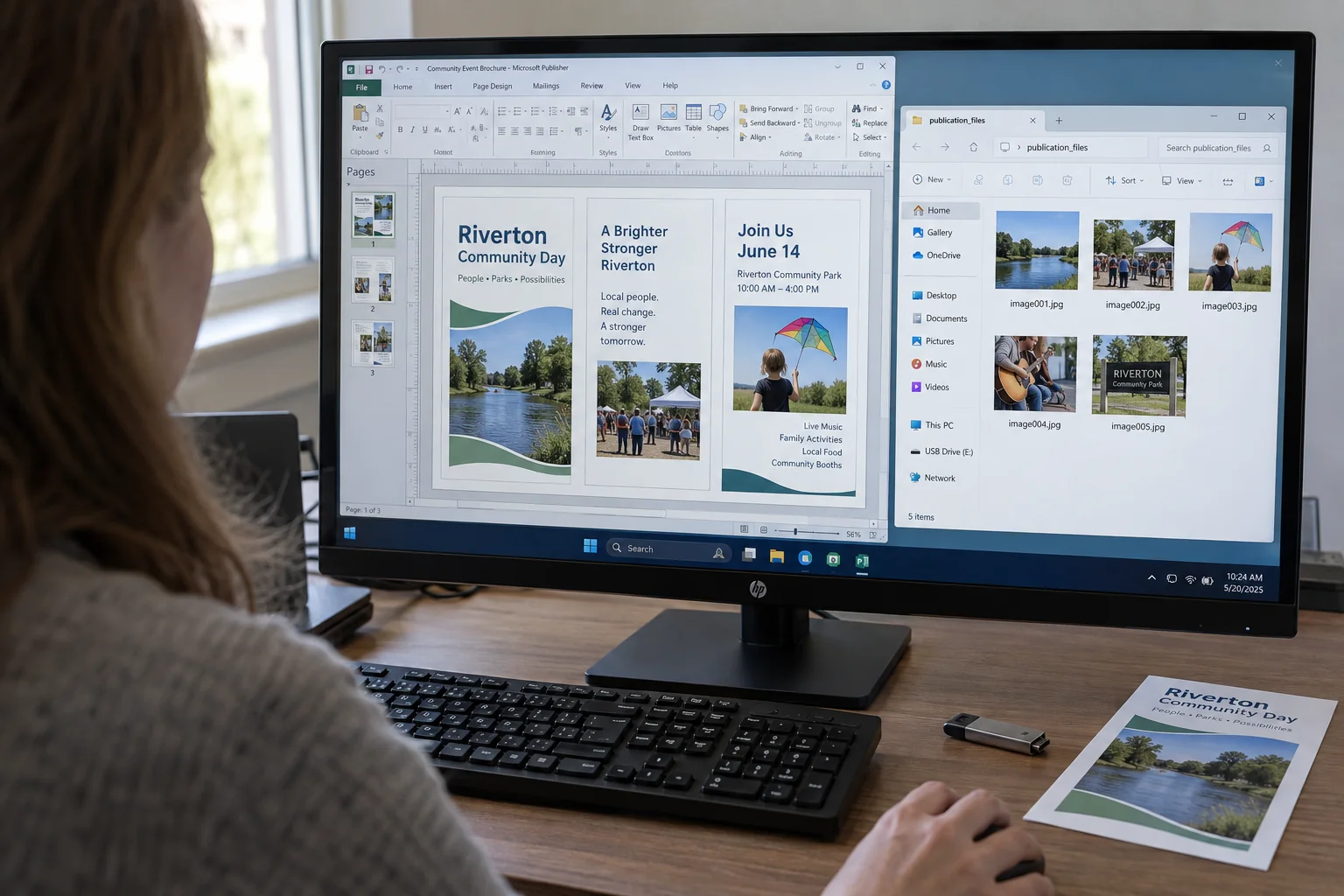
Two honest caveats. Publisher makes fresh copies of the images for the web, so they arrive with generic names like image001. Choose plain Web Page here rather than Web Page, Filtered, because the Filtered version drops every image to screen resolution near 96 ppi, while plain Web Page keeps more of the original detail. And it handles one publication per save, so a folder of files means repeating the whole thing for each one. For a single newsletter it is quick. For fifty, it is the long way round.
Saving One Picture at a Time
When you only want two or three pictures, the fastest route is to grab them directly. Right-click a picture in Publisher, choose Save as Picture, pick a format and a folder and save. Repeat for each image you want. Like the web page route, this needs a working copy of Publisher.
The catch is quality. Publisher recompresses the image on the way out, so a photo saved this way is not the untouched original that was placed in the file. For a web thumbnail that is fine. For print, or for a photo you plan to edit, the loss shows. If the pictures matter, the batch route or a Save As Web Page pass keeps them closer to their starting quality than clicking Save as Picture one by one.
Why You Cannot Rename a Publisher File to Zip
A popular tip for Word and PowerPoint is to rename the file from .docx to .zip, open it and lift the images out of a media folder. It works because those files are Open XML packages, which are really zip archives in disguise. People try the same trick on a .pub file and it fails every time.
A Publisher file is not a zip. It is a Microsoft Compound File, an older container that Windows does not unpack the way it opens a zip. Rename it to .zip and Windows either refuses to open it or shows nothing useful. The images are in there, but reaching them means a tool that understands the Publisher format rather than a file rename. That is the gap a reader or converter built for .pub fills.
Saving Whole Pages as JPEG Images
If a page snapshot is what you were after all along and you still have a working copy of Publisher, it handles that directly, and it is a different menu from the picture routes above. You have two built-in choices. Without Publisher, convert the publication to PDF with the batch converter and save the PDF pages as images from there.
For a single page, click File then Save As and pick JPEG File Interchange Format as the type. Publisher saves the current page as one JPEG. Under the hood this is the SaveAsPicture feature that arrived in Publisher 2007. For every page at once, click File then Export, choose Save for Photo Printing under Pack and Go, pick JPEG or TIFF and click Save Image Set. Publisher drops one image per page into a folder named after the publication. Remember these are flattened pages (text and pictures baked together), not the separate photos.
Keeping the Original Quality
Every route that goes through Publisher recompresses the images, which is worth knowing before you extract a whole archive. The picture that comes out is built from what Publisher holds on screen, not the exact file that was placed years ago.
There is a second reason quality varies. Publisher can compress the pictures inside the file itself, and its built-in presets are blunt. The Web setting drops pictures to 96 ppi, Desktop Printing to 220 ppi and Commercial Printing to 300 ppi. Anything already saved low cannot gain detail back on the way out, so a soft image after extraction points to compression baked in long before you touched it.
Two things help. Save to a lossless format like PNG or TIFF rather than JPEG where the option exists, so you do not stack one round of compression on another. And when a photo was placed at full size and then shrunk to fit the layout, its stored detail is higher than it looks on the page, so extracting it at full resolution recovers more than a screen grab would. For an archive where the photos are the point, a tool that reads the stored image rather than a re-rendered copy holds the most detail, which is the case for reaching past Publisher to the file itself.
Get Your Photos Out Now That Publisher Has Retired
Microsoft took Publisher out of Microsoft 365 on 1 October 2026, and for most subscribers the easy in-program routes (Save As Web Page and Save as Picture) went with it. Some Microsoft 365 copies still open for now with a “Publisher is retiring” banner, so if yours does, get the photos out today. Perpetual copies of Publisher 2021, 2019 and 2016 still run, though support for Publisher 2021 ends on 13 October 2026. Without Publisher, the photos are still inside the .pub files, reachable by a tool that reads the format directly. Univik does exactly that, so the images stay within reach.
So if those images matter, extract them while Publisher still opens or with a reader that does not need it. The same pass is a good moment to save the publications themselves in a lasting shape, whether that is converting PUB to PDF for the finished look or moving a publication into Word for the text. If a file will not even open to start with, Publisher cannot open this file covers that first, and readers keeping an old copy of Publisher can see how to save a file in an older version. The wider timeline sits in Microsoft Publisher end of life and what happens to PUB files after 2026, with Publisher alternatives for where the design work goes next.
Ways to Extract Images From Publisher
| Method | Handles many files? | What you get | Best for |
|---|---|---|---|
| Univik image extractor | Yes, a whole folder | Original embedded photos | Large archives |
| Save As Web Page | One file at a time | Original embedded photos | All photos from one file |
| Right-click Save as Picture | One picture at a time | The single picture | Two or three images |
| Save or Export as JPEG | Per page or all pages | Page snapshots | Whole-page images |
Frequently Asked Questions
How do I Extract All Images from a Publisher File?
The free route needs a working copy of Publisher. Open the publication, go to File then Save As and choose Web Page as the type. Publisher writes an HTML file and a support folder beside it, and that folder holds every image as a separate file. For many files at once, the Univik PUB Converter reads each publication and saves the images out in a batch, since Publisher has no built-in command to export all pictures from a folder of files.
Can I Batch Extract Images from Many Publisher Files at Once?
Not with Publisher itself, which handles one file per save and has no batch image export. For a whole folder, a dedicated tool does the job. The Univik PUB Converter reads each .pub file directly with no Publisher installed, then saves its images out as separate files sorted per publication, so a folder of newsletters or catalogues comes out together instead of one save at a time.
How do I Save a Single Picture from Publisher?
With a working copy of Publisher, right-click the picture, choose Save as Picture, pick a format and folder and save. This is quickest for two or three images. Keep in mind that Publisher recompresses the picture as it saves, so it is not the untouched original. For a handful of pictures that is fine. For a bigger set or for print work, the web page or batch route holds more of the detail.
Why Can I Not Rename a .pub File to .zip to Get the Images?
Because a Publisher file is not a zip archive. Word and PowerPoint files are Open XML packages, which really are zip files, so renaming them to .zip lets you open a media folder. A .pub file is a Microsoft Compound File, an older container Windows does not unpack that way. The images are inside, but it takes a tool that understands the Publisher format to reach them, not a file rename.
Does Extracting Images from Publisher Lower Their Quality?
It can, because every route that passes through Publisher recompresses the pictures. Saving as a web page or right-clicking Save as Picture rebuilds the image from what Publisher shows rather than the exact file placed originally. Saving to PNG or TIFF instead of JPEG avoids a second round of compression, and extracting images at full resolution recovers detail from photos that were shrunk to fit the page.
How do I Save Publisher Pages as JPEG Images?
For one page, click File then Save As and choose JPEG as the type to save the current page. For every page, click File then Export, choose Save for Photo Printing under Pack and Go, pick JPEG or TIFF and save. Publisher writes one image per page into a folder named after the file. These are flattened page snapshots with the text baked in, not the separate photos, so pick this only when a page image is what you want.