The old Windows icons never left, they sit in three legacy files, pifmgr.dll for the Windows 95 novelty set, moricons.dll for the old program icons and ieframe.dll for the Internet Explorer leftovers. Windows keeps them for backward compatibility, so a trumpet or a wizard hat from 1995 is still one click away. The Univik ICO Converter opens any of these files and saves a retro icon as a clean PNG.
Somewhere under a modern taskbar and rounded corners, Windows still carries the pixel art it shipped thirty years ago. A trumpet. A wizard hat. A little window with clouds behind it. None of it shows up on its own, but it is all still there, waiting in a handful of files most people never open.
This guide is the tour. Which files hold the old art, what is inside each one, why Windows keeps them around and how to lift a retro icon out for your own shortcuts or projects.
What Counts as an Old Windows Icon
Not every icon that looks dated counts here. The classic shell pictures, the ones that go back to Windows 95 but still do daily work, live in shell32.dll and have their own page, the shell32.dll icon list. This guide is about the files nothing in modern Windows really uses anymore, kept alive only so old references do not break.
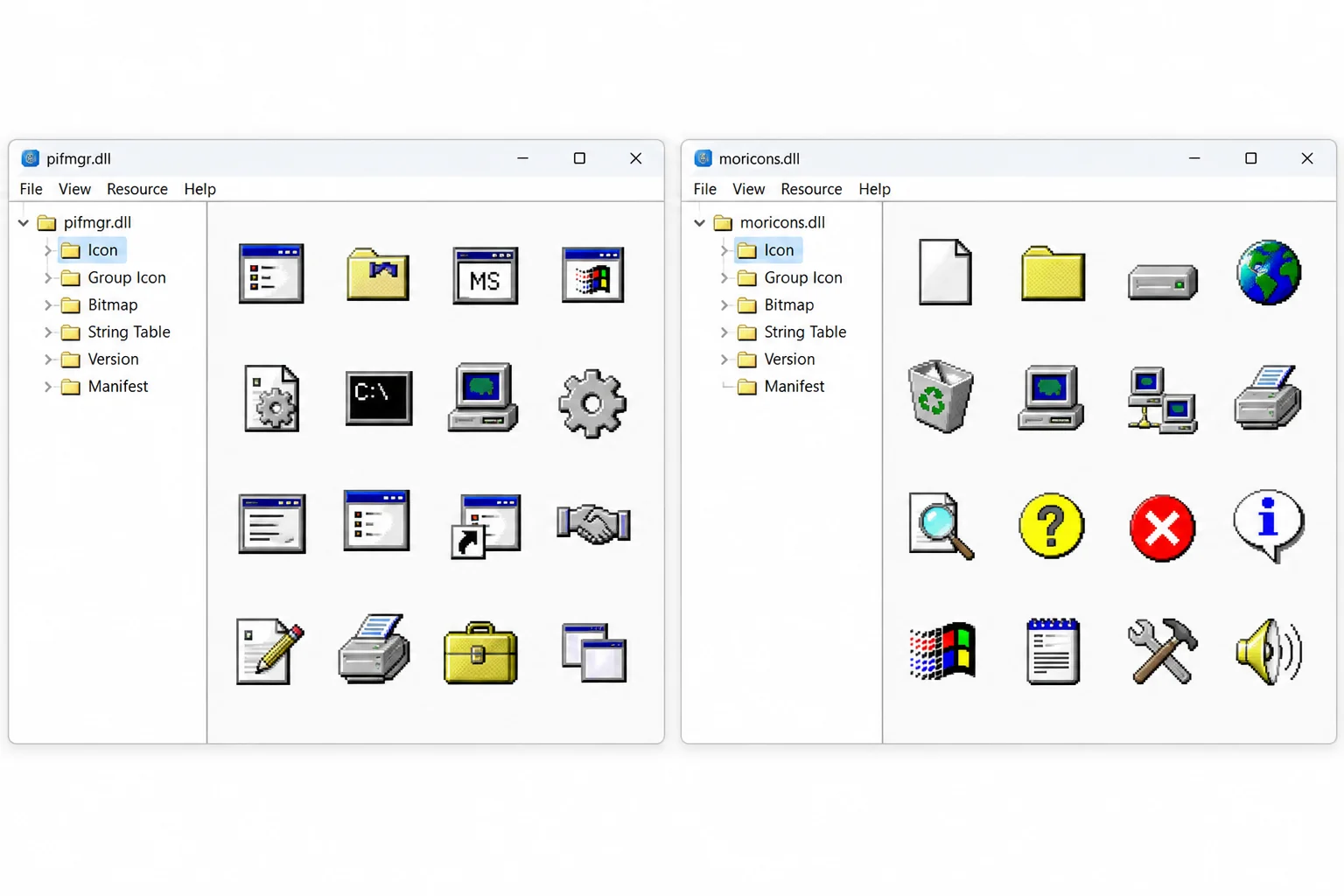
Three files carry the bulk of that history, each from a slightly different corner of the past.
| File | Era | What it holds |
|---|---|---|
| pifmgr.dll | Windows 95 | Fun novelty icons, a trumpet, a ball, a wizard hat |
| moricons.dll | Windows 3.x and 9x | Old MS-DOS and program icons |
| ieframe.dll | Internet Explorer years | Old browser shortcuts, buttons and menus |
pifmgr.dll, the Windows 95 Novelty Set
pifmgr.dll is the charming one. Microsoft added it in Windows 95 to manage Program Information Files, the little settings that told Windows how to run an MS-DOS application, and it came stocked with icons a user could slap on a homemade shortcut. According to Raymond Chen of Microsoft, these icons were created just for fun rather than for any specific program.
That is why the contents feel random in the best way. A trumpet, a ball, a wizard hat, an apple, a window with clouds behind it, small blocks with letters. All of it drawn in sixteen colours on a tiny grid, the house style of the era. The file still ships in Windows 11, unchanged and quietly waiting.
moricons.dll, the Old Program Icons
moricons.dll is the practical cousin. Where pifmgr was whimsy, this file was built with real software in mind. It holds icons for MS-DOS applications and a scattering of old programming tools, Turbo Pascal and FoxPro among them, from the Windows 3.x and 9x days.
The look is pure early Windows, chunky pixel folders, floppy disks, boxy monitors and application symbols that used literal metaphors because a small low colour grid left no room for subtlety. For a project chasing a genuine retro feel, this is a richer source than any modern pack imitating the style.
ieframe.dll, the Internet Explorer Leftovers
ieframe.dll is the ghost of a browser. It carries the icons Internet Explorer used for its shortcuts, buttons and menus, the small pictures that once filled a toolbar most of us spent years staring at. Internet Explorer itself is retired, yet the file remains.
This is what ieframe.dll still holds, the Internet Explorer icons Windows kept after the browser itself went away.
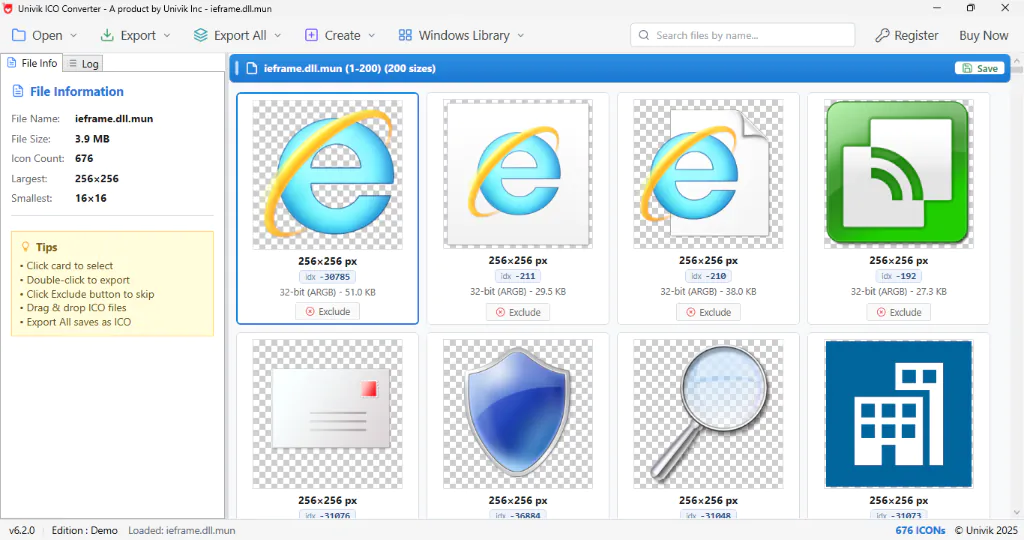
It stays for the same reason the others do. Something out there, an old shortcut, an installer, a third party app, may still ask for one of these icons by path, and pulling the file would leave a blank square in its place. So the browser is gone, but its wardrobe hangs on.
Why These Files Survive at All
The short answer is compatibility, and the mechanism is worth knowing. A shortcut or an installer does not embed an icon, it points at one by a file path and a number, the index. Delete or empty the file and every reference to it turns into a generic blank. That index mechanic is the same one our finding an icon index guide explains for any Windows file.
So Windows takes the careful route. When a feature retires, it stops pointing at the old icons but leaves the artwork in place, which is why, as roundups of the icons buried in Windows 11 point out, these files keep every picture they have ever carried. Seeing a Windows 95 icon in pifmgr.dll does not mean an old shell is running underneath, it just means Windows never throws anything away.
See the Old Icons on Your Own PC
You do not need any download to look. Windows can show you these libraries through the built in Change Icon dialog.
- Open a shortcut's propertiesRight click any desktop shortcut, choose Properties, then click Change Icon on the Shortcut tab.
- Paste a legacy file pathClear the box and enter C:\Windows\System32\pifmgr.dll or C:\Windows\System32\moricons.dll, then press Enter.
- Ignore the no icons warningIf Windows says the target contains no icons, that is about the shortcut, not the library you typed. Click OK and carry on.
- Pick one and applyChoose an icon, click OK, then Apply to see the retro art land on your shortcut.
That method sets an icon in place but does not give you a file. To keep a copy you can reuse or edit, an icon viewer that exports is the better route, covered next.
Load pifmgr.dll, moricons.dll or ieframe.dll, scan the retro art by number and grab a clean transparent PNG or ICO of the one you like.
Free Download See All FeaturesUse a Retro Icon Without Breaking Things
Two cautions keep a nostalgia project out of trouble. First, do not pin a legacy icon by its index in software you ship, because a file that survives today can still be trimmed tomorrow, and the number can land on the wrong picture after an update. Grab the artwork, do not hard reference the file. Second, the art is Microsoft's, so reusing it in a product you sell needs care, and the rules sit in our rights guide, whether extracted icons are legal to use.
For a personal touch there is more room. You can drop a retro icon onto a folder by following changing a folder icon in Windows 11. To build a fresh icon in the old style from your own art, see converting PNG to ICO, and to lift one out as a portable file first, the method is walked through in extracting icons from EXE or DLL files.
A retro icon set by index is fine on your own desktop and risky in shipped software. An old file can be thinned in a future release, and a hard reference to it then shows the wrong art or none at all. Bundle the icon in your build instead of pointing at a system file.
The Modern Icons Live Elsewhere
If you came here wanting a current folder, drive or device picture rather than a period piece, these files are the wrong drawer. The modern set File Explorer uses now is in the imageres.dll icon list, and the classic shell pictures that still see use are in the shell32 set.
To see how every icon library fits together, old and new, the whole layout is charted in where Windows stores its icons, which is the map to keep open while you hunt.
Frequently Asked Questions

Written and maintained by Leena Taylor Paul and the Univik team, developers of Windows data conversion and recovery software since 2013. We put this together after the recent wave of interest in the Windows 95 era icons still hiding in Windows sent readers hunting for the trumpet and wizard hat, so it maps the three retro files and how to save an icon from each. Last verified August 2026. Chasing a vintage icon? Contact our support team.