 Email Settings Guide
Quick answer: Armstrong Zoom Internet email on zoominternet.net uses imap.zoominternet.net on 993 for IMAP or pop3.zoominternet.net on 995 for POP3, each over SSL. Sending goes through smtp.zoominternet.net on 587 with STARTTLS and authentication. Sign in with your full zoominternet.net address and your Zoom email password. Armstrong recommends IMAP over POP. See why POP loses mail.
What Changed Recently#
Related email providers: Astound email settings, Breezeline IMAP settings, Buckeye email settings, Hawaiian Telcom IMAP settings, Midco email settings, PenTeleData IMAP settings
Armstrong Zoom Internet uses a separate host for each protocol. Here is the current status and what a zoominternet.net address needs today.
Worth knowing
Each protocol has its own host. Incoming IMAP uses imap.zoominternet.net, incoming POP3 uses pop3.zoominternet.net and outgoing uses smtp.zoominternet.net.
Worth knowing
Keep SSL on incoming. IMAP is 993 and POP3 is 995, both over SSL. Outgoing is 587 with STARTTLS and authentication.
Worth knowing
Armstrong recommends IMAP. POP removes mail from the server, which causes trouble across devices. IMAP keeps everything in sync.
Before You Begin#
Handle these two basics before anything else. Skip them and your email app will reject the connection even when every server value is correct.
1. Create the mailbox
Incoming is imap.zoominternet.net for IMAP or pop3.zoominternet.net for POP3. Outgoing is smtp.zoominternet.net. All take your full address.
Where: Any email app
2. Know your Zoom password
The login is your full zoominternet.net address. The password is your Zoom Internet email password.
Where: Find your settings →
About Armstrong Zoom Internet#
Armstrong is a family owned cable and internet provider whose internet service is branded Zoom Internet. Email addresses end in zoominternet.net and run on Armstrong servers.
Armstrong serves communities across Pennsylvania, Ohio, West Virginia, Maryland, Kentucky and New York from its base in Butler, Pennsylvania. For email the thing to remember is the three hosts. Incoming uses imap.zoominternet.net or pop3.zoominternet.net, while sending uses smtp.zoominternet.net. Armstrong points people to IMAP so a phone and a laptop stay in step.
| Service Name | Zoom Internet Email |
| Email Domain | zoominternet.net |
| Owned By | Armstrong |
| IMAP Host | imap.zoominternet.net |
| Based In | Butler, PA |
| Email Type | zoominternet.net, such as you@zoominternet.net |
| Webmail | armstrongmywire.com |
| SMTP Host | smtp.zoominternet.net |
| Protocols Supported | IMAP, POP3, SMTP |
| App Password Needed | No, mailbox password |
| Username | Full email address |
Zoom Internet Webmail Login#
You can always read your mail in a browser. The official Armstrong pages are:
Find Your Settings#
Armstrong settings use three hosts. Incoming picks imap.zoominternet.net or pop3.zoominternet.net, while outgoing always uses smtp.zoominternet.net.
- Open your email app and add a new account.
- Choose IMAP for imap.zoominternet.net.
- Set incoming to 993 for IMAP or 995 for POP3.
- Set outgoing to smtp.zoominternet.net on 587 with authentication.
Zoom Internet IMAP Settings#
IMAP keeps a Zoom Internet mailbox in sync. Mail stays on the server, so a laptop and a phone read one shared inbox. The incoming host is imap.zoominternet.net over 993.
| IMAP Server | imap.zoominternet.net | |
| Port | 993 | |
| Encryption | SSL/TLS (required) | |
| Username | Your full zoominternet.net address | |
| Password | Your mailbox password | |
| Authentication | Required |
Zoom Internet POP3 Settings#
POP3 downloads mail to 1 device. Pick it only if you want a local copy on a single computer. Not sure? See the comparison below.
| POP3 Server | pop3.zoominternet.net | |
| Port | 995 | |
| Encryption | SSL/TLS (required) | |
| Username | Your full email address | |
| Password | Your mailbox password |
Zoom Internet SMTP Settings#
SMTP handles outgoing mail. If you can read mail but not send it, the problem is here.
| SMTP Server | smtp.zoominternet.net | |
| Port (SSL) | 465 | |
| Port (STARTTLS) | 587 | |
| Encryption | SSL or STARTTLS (required) | |
| Username | Your full email address | |
| Password | Same as incoming mail | |
| Authentication | Required. Switch on outgoing server authentication in the client. |
465 with SSL. Many home connections block port 25. Armstrong uses 587 with STARTTLS for outgoing. Confirm outgoing authentication is on.
Check Zoom Internet Settings Online#
You don't need to download anything to check Armstrong settings online. This page is the lookup: every value is verified, current and copyable straight from your browser. Not sure your address is a Zoom Internet one? Enter it below to check in a moment.
Does my email address use these settings?
Runs in your browser only. Your address is never sent anywhere or stored.
Want to verify the account itself before configuring an app? Sign in at Zoom Internet webmail, which confirms your address and password work. If webmail opens, any email app connects with the tables above.
Look Up IMAP Settings for Any Email Domain#
This page covers Armstrong Zoom Internet. For every other address, work email on a company domain included, we run a free online lookup database: imapsettings.com.
imapsettings.com
Complete email settings database, by Univik
Enter any email address and get the incoming and outgoing server settings for that domain in 1 step:
Your address is used only to find the settings for that domain. Nothing is stored or shared.
Username and Password#
Both come from your Armstrong account. The username is your whole zoominternet.net address and the password is your Zoom Internet email password. There is no separate app password.
Username is the full address
Type you@zoominternet.net in full, with the part after the at sign. Armstrong turns down a bare mailbox name.
Put that same address on both incoming and outgoing.
Password is the mailbox one
This is your Zoom Internet email password, the same one that opens Zoom Internet webmail. Reset it from your Armstrong account if an app keeps refusing it.
Armstrong uses one password for webmail and for an email app, so there is nothing extra to generate.
Set Up Zoom Internet in Email Clients#
The servers and ports are always the same. Only the menus differ. Jump to your app:
Outlook (Windows and Mac)
- In Outlook select Add Account, then turn on manual setup under Advanced options.
- Choose IMAP and set incoming to
imap.zoominternet.neton 993 with SSL. - Set outgoing to
smtp.zoominternet.neton 587 with STARTTLS. - Enter the full address and mailbox password when Outlook prompts you.
- Send a test message to yourself to prove both paths.
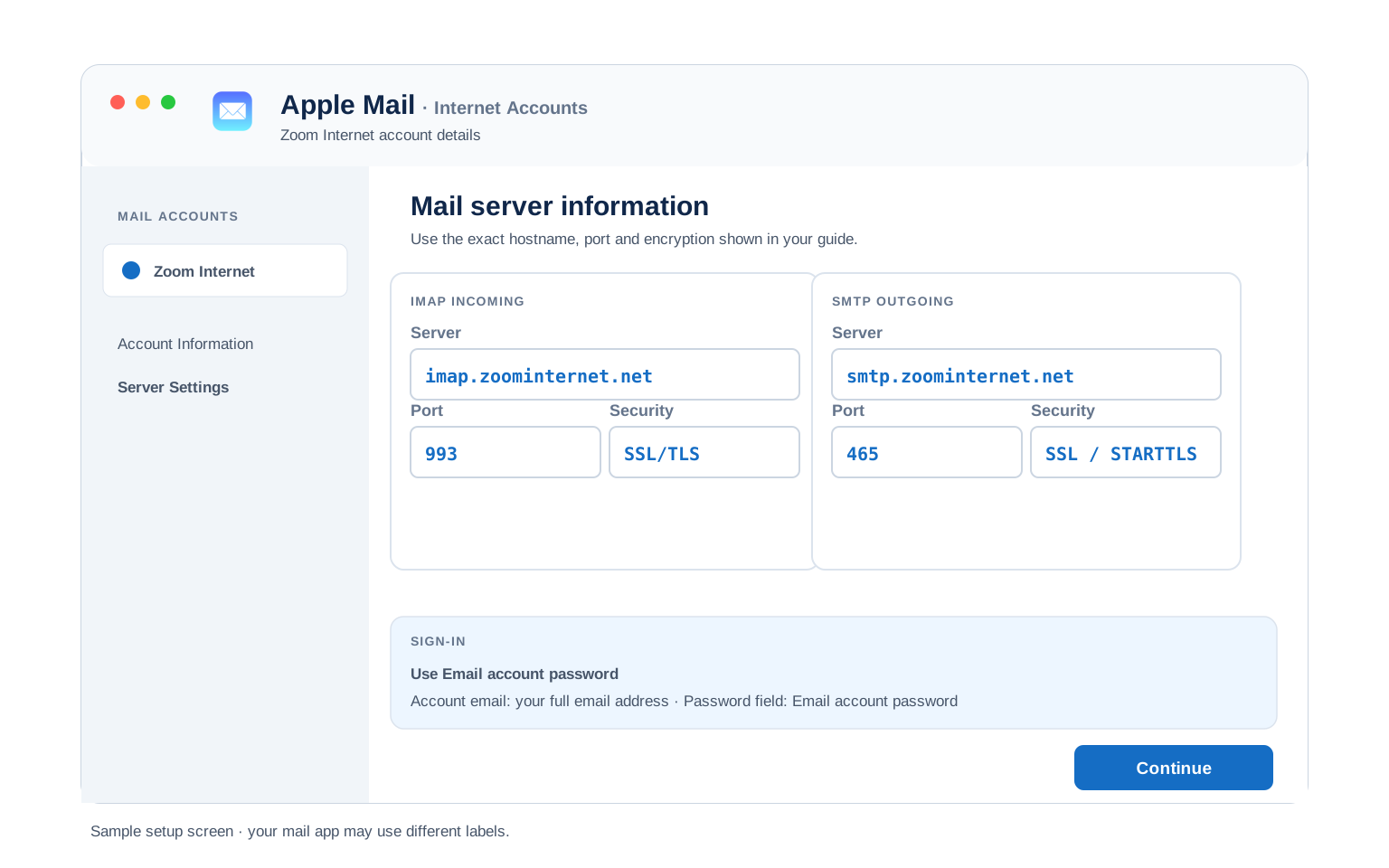
Apple Mail (macOS)
- In Mail select Add Account, then pick Other Mail Account.
- Give your name, zoominternet.net address and Zoom password, then continue.
- Enter imap.zoominternet.net for incoming and smtp.zoominternet.net for outgoing.
- Keep the SSL ports so nothing sends in plain text.
- Save and wait for the mailbox to load.
iPhone and iPad
- In Settings open Mail, then tap Mail Accounts and Add Account.
- Tap Other then Add Mail Account and fill your details.
- Keep IMAP chosen and put imap.zoominternet.net for incoming with smtp.zoominternet.net for outgoing.
- Leave the secure ports iOS fills, since Armstrong expects SSL.
- Tap Save and let iOS run its check.
Android
- Open your mail app and tap Add account, then Other or IMAP.
- Put in your address and password. Switch to manual setup if it stalls.
- For incoming use imap.zoominternet.net on 993 over SSL.
- For outgoing use smtp.zoominternet.net on 587 with STARTTLS.
- Save and swipe down to fetch your mail.
Thunderbird
- In Thunderbird pick Account Actions, then Add Mail Account.
- Type your name, zoominternet.net address and Zoom password, then Continue.
- Wait for detection, then make sure IMAP with SSL is picked.
- If detection fails, type imap.zoominternet.net and smtp.zoominternet.net in yourself.
- Hit Done and the folders fill in on the first sync.
Zoom Internet Webmail Settings#
Server settings connect your apps. These controls decide how the mailbox behaves on the server. They live in Zoom Internet webmail, reached by signing in at armstrongmywire.com and choosing Check Email.
Signature
Add one in the Zoom Internet webmail preferences. It rides on mail sent from the browser. A desktop app keeps its own signature.
Vacation Auto Reply
Turn on a vacation reply in Zoom Internet webmail. The Armstrong server sends it, so it goes out even when your computer is off.
Filters and Folders
Build filters in Zoom Internet webmail. A server side rule sorts a message before any device downloads it. An in app rule only runs while that app is open.
Spam and Blocked Senders
Armstrong screens incoming mail for spam. Block unwanted senders in Zoom Internet webmail. Flagged mail lands in the spam folder for a look.
POP3 vs IMAP#
| Feature | IMAP | POP3 |
|---|---|---|
| Where mail lives | On the Armstrong server | Downloaded to 1 device |
| Multiple devices | ✅ Everything stays in sync | ❌ Each device sees different mail |
| Sent and deleted mail | ✅ Synced everywhere | ⚠️ Stays only on that device |
| Offline reading | ⚠️ Cached mail only | ✅ Full local copy |
| Server storage used | Yes, counts against your quota | Can be freed after download |
| Best for | Phone + computer, everyday use | Single PC, local archives |
Zoom Internet Sending and Storage Limits#
A few details are worth knowing before you move a mailbox or bulk forward. Here is how Zoom Internet mail is set up:
| Setup protocol | IMAP or POP3 |
| Login name | Full zoominternet.net address |
| IMAP host | imap.zoominternet.net |
| POP3 host | pop3.zoominternet.net |
| SMTP host | smtp.zoominternet.net on 587 |
| Encryption | SSL incoming, STARTTLS outgoing |
Troubleshooting Zoom Internet Connections#
Find the exact error your email app shows, then apply the fix:
| Error you see | What it means | Fix |
|---|---|---|
| Username or password rejected | Short username or wrong password | Use your full zoominternet.net address with your Zoom password. A bare mailbox name is turned down. |
| Cannot send on port 25 | ISP blocks the default SMTP port | Switch outgoing to smtp.zoominternet.net on 587 with STARTTLS. Confirm outgoing authentication is on. |
| Not sure which incoming host | IMAP and POP3 use different names | IMAP is imap.zoominternet.net on 993. POP3 is pop3.zoominternet.net on 995. Sending is always smtp.zoominternet.net on 587. |
| Outgoing mail will not send | SMTP needs authentication | smtp.zoominternet.net requires outgoing authentication. Turn it on and use your full address with your Zoom password on 587. |
| Cannot connect to server | Wrong port or encryption | Set 993 with SSL incoming and 465 with SSL outgoing. A firewall on your own machine can block it as well. |
| Repeated password prompt | Short username or a typo | Clear the saved login, then put in the full address with the mailbox password. |
| Messages stuck in Outbox | SMTP authentication is off | Enable "outgoing server requires authentication" with the same login as incoming mail. |
| Mail missing on my phone but on my laptop | POP removed it from the server | POP downloads mail to one device and deletes it from the server. Switch to IMAP on imap.zoominternet.net so every device sees the same inbox. |
| Want to switch from POP to IMAP | Add IMAP before removing POP | Add the account again as IMAP with imap.zoominternet.net on 993, let it sync, then remove the old POP account. Leave a copy on the server first so nothing is lost. |
Reader Reported Fixes
Match the host to the protocol. IMAP takes imap.zoominternet.net and POP3 takes pop3.zoominternet.net. Sending always uses smtp.zoominternet.net.
Test the login in webmail first. Sign in at armstrongmywire.com and choose Check Email with your address and Zoom password. If webmail opens, the credentials are right and the issue is in the app settings.
POP or IMAP on Zoom Internet: Why IMAP Wins #
Armstrong is clear on this one. It recommends IMAP for Zoom Internet email. The reason is simple to picture. POP downloads your mail to one device and removes it from the server, so your phone and your laptop stop seeing the same inbox.
IMAP works the other way. Your mail stays on the Armstrong server. Every device reads the same copy. A message you file or delete on your phone looks the same on your laptop. This is why imap.zoominternet.net on 993 is the setting to reach for.
If you already use POP and want to keep it, turn on leave a copy on the server in your app. That way POP downloads your mail without wiping it from Armstrong. To switch cleanly, add the account again as IMAP with imap.zoominternet.net before you remove the POP one.
| Detail | Value |
|---|---|
| Armstrong recommends | IMAP |
| IMAP host | imap.zoominternet.net (993 SSL) |
| What POP does | Removes mail from the server |
| If you must use POP | Turn on leave a copy on the server |
| Best for multiple devices | IMAP |
Moving Mail In or Out?#
Zoom Internet mail speaks plain IMAP, so a mailbox moves in or out like any standard account. Each folder stays on the server until the copy finishes.
Take a copy first. Back up the mailbox before a move. A note that arrives mid switch can sit on either side. A copy keeps you safe.
Carrying mail across? The Univik Email Migration Tool moves each folder over an IMAP link. Give it imap.zoominternet.net with your Zoom password on this side and the other account opposite.
Rather hand it off? Our Email Migration Services team runs the whole move and verifies each folder arrived.
Use These Settings in Univik Email Backup#
The same IMAP settings above let you download your complete Zoom Internet mailbox to your computer. Univik Email Backup saves everything as PST, MBOX, EML or PDF files you keep forever, even if the account closes.
- Download Univik Email Backup and install it on Windows.
- Select Armstrong from the source list. If Armstrong is not listed, pick a plain IMAP account.
- Give the complete email address with your mailbox password. The login name is always the whole email address.
- When the backup tool wants server details, hand it imap.zoominternet.net on port 993 with SSL. Take those values straight from the IMAP table above, with port
993over SSL. - Pick a saving format and folder, then start the backup. Large mailboxes download in the background.
Univik Tools That Use These Settings#
Many people land here while migrating or archiving a mailbox. All 3 tools use the same IMAP settings from this page:

Email Backup
Download your complete Zoom Internet mailbox to PST, MBOX, EML or PDF before switching or closing the account.
Email Backup Tool →
Email Migration Tool
Copy every folder from Zoom Internet straight into Gmail, Microsoft 365 or any other account. No manual export needed.
Email Migration Tool →
Email Converter Tool
Already have MBOX, EML or OST files from an old export? Convert them to PST, PDF or any format your new app opens.
Email Converter Tool →Prefer to hand the whole migration to experts?
If the hostnames and passwords feel like busywork, you can let the tool handle it. Univik's migration team handles the complete project: planning, transfer, verification and a report showing every folder made it. Since 2013, for single mailboxes up to full company moves.
Email Settings Glossary#
IMAP
Internet Message Access Protocol. Reads mail that stays on the server, so all your devices see the same inbox, folders and read status.
POP3
Post Office Protocol version 3. Downloads mail to 1 device and can remove it from the server. Older method, still useful for local archives.
SMTP
Simple Mail Transfer Protocol. Sends your outgoing mail. Every account needs it next to IMAP or POP3, which only receive.
SSL / TLS / STARTTLS
Encryption for the connection. SSL/TLS encrypts from the start (ports 993, 995, 465). STARTTLS upgrades a plain connection (port 587).
Zoom Password
Your Zoom Internet email password, the same one that opens Zoom Internet webmail. Your email app uses this. There is no separate app password.
imap.zoominternet.net
The Zoom Internet incoming host for IMAP. It runs on 993 over SSL and keeps mail on the server.
pop3.zoominternet.net
The Zoom Internet incoming host for POP3. It runs on 995 over SSL and downloads mail to one device.
smtp.zoominternet.net
The Zoom Internet outgoing host. It sends on 587 with STARTTLS and always needs authentication.
Armstrong
The family owned cable company behind Zoom Internet. Its email domain is zoominternet.net.
Zoom Internet Webmail
The browser inbox reached at armstrongmywire.com. It reads the same mail your app does.
STARTTLS
The encryption Zoom Internet uses on outgoing mail. It upgrades the connection on port 587 to a secure one.
Zoom Internet
The name of the Armstrong internet service. Email addresses on it end in zoominternet.net.
Leave a Copy on Server
A POP setting that keeps a copy of downloaded mail on the Armstrong server. It stops POP from wiping your inbox from the server.
armstrongmywire.com
The Armstrong site where you sign in and read Zoom Internet webmail. Select Check Email after you log in.
Port 25 Retired
Armstrong no longer supports port 25 for sending. Use smtp.zoominternet.net on 587 with STARTTLS instead.
How We Verify These Settings#
Univik builds email backup, migration and converter software since 2013. Our tools sign in to Zoom Internet over IMAP and SMTP every day for thousands of users, so a changed server, port or login rule shows up in our connection logs before most guides notice it.
Every value on this page is confirmed with three checks: a live IMAP and SMTP connection from Univik Email Backup, a comparison against the Armstrong guides and a sign in with a real mailbox using the full address. We re verify after any provider announcement and at least once a quarter.
Found something that no longer matches what Armstrong shows you? Tell us and we will retest and update the page, with the change logged in what changed recently.
 Help & Support
Frequently Asked Questions
Incoming uses imap.zoominternet.net on 993 for IMAP or pop3.zoominternet.net on 995 for POP3, each over SSL. Sending uses smtp.zoominternet.net on 587 with authentication. Sign in with your full zoominternet.net address and your Zoom email password. The IMAP settings section holds the full table.
Check the username first. It must be the complete address rather than the part before the at sign. Use your full zoominternet.net address as the username, not a bare mailbox name. The password is your Zoom Internet email password, the same one that opens webmail.
Armstrong recommends IMAP on imap.zoominternet.net. It keeps mail on the server so every device matches. POP on pop3.zoominternet.net removes mail from the server, which can lose it across devices. Full comparison here.
Yes. The server, ports and encryption match on iPhone, Android and Windows. Only the path to the settings screen shifts by app, which the client setup guides spell out.
Armstrong gives each protocol its own host. IMAP uses imap.zoominternet.net, POP3 uses pop3.zoominternet.net and sending uses smtp.zoominternet.net. The ports differ but the login is the same on all three.
Yes. Keep SSL on incoming and STARTTLS on outgoing so your sign in never travels in the open. Armstrong uses 993 or 995 for incoming and 587 for outgoing.
An email client with IMAP downloads mail as it syncs, but a dedicated backup tool is faster and saves standard files you can open anywhere. See how to back up your Zoom Internet mailbox. If you already exported files in another format, an email converter changes them to PST, PDF or whatever your new app opens.
With Zoom Internet the usual cause is an outgoing setting. Confirm smtp.zoominternet.net has outgoing authentication turned on with your full address. Keep incoming on imap.zoominternet.net over 993 and leave SSL on.
A migration tool copies mail across the two accounts on an IMAP link. Give the Zoom Internet IMAP settings with your Zoom password on this side and the destination details on the other. Each folder lands with its dates intact.
If setting this up feels risky or you have many accounts to move, our managed email migration service does the entire job for you.
POP downloads mail to one device and removes it from the Armstrong server, so other devices cannot see it. Switch to IMAP on imap.zoominternet.net so your mail stays on the server and every device matches. Turn on leave a copy on the server if you keep POP. The POP or IMAP section explains this.
Other Email Provider Settings
Summary: Zoom Internet Settings at a Glance
- IMAP: imap.zoominternet.net, port 993, SSL/TLS
- POP3: pop3.zoominternet.net, port 995, SSL/TLS
- SMTP: smtp.zoominternet.net, port 587, STARTTLS
- Username is always your full email address
- Armstrong recommends IMAP over POP
- Pick IMAP for phone + computer sync
- Full address as the username
- Username is always the full email address