 Email Settings Guide
Quick answer: the iCloud IMAP server is imap.mail.me.com, port 993, SSL. SMTP is smtp.mail.me.com, port 587, SSL with authentication on. Use an app-specific password for both. The catch that costs people an evening: Apple wants the name part of your address as the incoming username and the full address as the outgoing one. And iCloud has no POP option at all.
What Changed Recently#
Related email providers: AOL email settings, Mail.com IMAP settings, CompuServe email settings, Netscape IMAP settings, Gmail email settings, Outlook IMAP settings
Apple has kept iCloud Mail unusually stable. The servers below have not moved in years. What has tightened is who gets in.
Standing rule
An app-specific password is the only password a third party app will accept. Your Apple Account password is refused outright and the error your client shows will claim the username or password is wrong. Apple also requires two factor authentication on the Apple Account before app-specific passwords exist at all, so accounts without it have no route in.
No POP and there never was
iCloud Mail supports IMAP and SMTP only. Apple states plainly that POP is not supported. Guides listing a pop.mail.me.com server are inventing one. If you need a downloaded local copy, that is a backup job rather than a protocol choice.
The Gmail change
Gmail stopped collecting iCloud mail. Google removed the POP fetching that pulled outside accounts into Gmail and since iCloud never offered POP anyway, anyone who had that working was on borrowed time. Connect iCloud directly in an app with the settings below or move the mail properly.
Before You Begin#
Two things decide whether an iCloud setup works and the second one is the reason so many of them receive mail but refuse to send it.
1. Turn on two factor authentication, then make the password
Apple hides app-specific passwords behind two factor authentication. Without it the option does not exist and your normal Apple Account password will be refused every time.
2. Check the mailbox exists at all
An Apple Account can exist without iCloud Mail ever being switched on and no @icloud.com address created. With Mail off, the IMAP server refuses every connection no matter what you type. Confirm Mail is enabled in your iCloud settings first.
3. Know that the 2 username fields differ
Apple asks for the name part of your address on incoming and the full address on outgoing. Fill both the same way, as most people do and you get a mailbox that syncs perfectly and cannot send.
Where: The username rule →
About iCloud Mail#
iCloud Mail is the email service attached to an Apple Account and it covers addresses ending in icloud.com, me.com and mac.com.
Those 3 domains are the same mailbox under different eras of Apple branding and any of them can be your address today. Apple's design assumption runs through everything here: iCloud Mail expects to be used on Apple devices, where it configures itself and you never see a server name. Everything on this page exists for the other case, where you want that mailbox inside Outlook, Thunderbird or an Android phone.
| Service Name | iCloud Mail |
| Owned By | Apple |
| Email Domains | @icloud.com, @me.com and @mac.com |
| Webmail URL | icloud.com/mail |
| Protocols Supported | IMAP and SMTP only. Apple does not support POP |
| Password for Email Apps | App-specific password, which needs two factor authentication first |
| Free Storage | 5 GB, shared across everything in iCloud rather than mail alone |
| Message Size | 20 MB or up to 5 GB when Mail Drop handles the attachment |
iCloud Webmail Login#
Two Apple pages cover everything this guide needs and neither is where people usually look:
Webmail
App-Specific Passwords
account.apple.com → Sign-In and Security
The Two Usernames Apple Asks For#
This is the iCloud detail that costs people an evening and it is documented by Apple rather than folklore. The incoming server and the outgoing server want your username in different formats. Fill them in the same way, which is what everyone does and you build an account that syncs mail beautifully and cannot send a single message.
Apple adds 1 useful escape hatch. If your client cannot connect using the name alone on incoming, it says to try the full address there as well. So the safe order is: name only on incoming first, full address on outgoing always and if incoming refuses, switch it to the full address too. Never the other way round, because the outgoing field genuinely does need the whole thing.
iCloud Mail IMAP Settings#
IMAP is the only incoming protocol iCloud offers, so there is no decision to make here. Watch the username row, because this is the field Apple wants as the name part alone.
| IMAP Server | imap.mail.me.com | |
| Port | 993 | |
| Encryption | SSL/TLS (required) | |
| Username | The full address, including @icloud.com, @me.com or @mac.com | |
| Password | App-specific password | |
| Authentication | Required |
There Is No iCloud POP Server#
Every other major provider offers POP as an option. Apple does not and says so directly: iCloud Mail supports IMAP and SMTP only. That matters here because most email guides are built from a template with a POP row in it. You will find pages confidently listing pop.mail.me.com or pop.icloud.com. Neither exists. Typing one in produces a server that never answers and the error rarely says why.
If POP was what you wanted for a reason, the reason is usually a local copy you keep. A backup tool does that better anyway: it brings every folder rather than the Inbox alone and it writes files you can open without Apple.
iCloud Mail SMTP Settings#
SMTP handles outgoing mail and on iCloud this is where setups break. Apple requires authentication here and wants the full address as the username, unlike the incoming server.
| SMTP Server | smtp.mail.me.com | |
| Port | 587, the only outgoing port Apple publishes | |
| Encryption | SSL required. Apple says to try TLS or STARTTLS if your client errors on SSL | |
| Encryption | SSL or STARTTLS (required) | |
| Username | The name part only, so johnappleseed rather than johnappleseed@icloud.com. Full address as a fallback if it refuses | |
| Password | Same as incoming mail | |
| Authentication | Required. Apple requires outgoing authentication, so that box stays ticked. |
Check iCloud Mail IMAP Settings Online#
Reading iCloud IMAP settings online needs nothing beyond this page, where every value comes from Apple and copies in 1 tap. Not sure whether your address is an Apple one? Check it below.
Does my email address use these settings?
Runs in your browser only. Your address is never sent anywhere or stored.
Two checks prove the account is ready. Sign in at icloud.com/mail, then confirm you can reach the App-Specific Passwords screen, which only appears once two factor authentication is on. Pass both checks and every value above will work.
Look Up IMAP Settings for Any Email Domain#
These tables cover icloud.com, me.com and mac.com addresses. Configuring something that is not an Apple address too? try our free lookup at imapsettings.com, which covers every domain we know of.
imapsettings.com
Complete email settings database, by Univik
Enter any email address and get the incoming and outgoing server settings for that domain in 1 step:
Your address is used only to find the settings for that domain. Nothing is stored or shared.
iCloud App-Specific Password Setup#
Apple calls its version an app-specific password and it is the only password a non Apple email client will accept. Your Apple Account password is refused, which your client will report as a wrong username or password rather than as a policy.
- Turn on two factor authentication for your Apple Account if it is not on already. App-specific passwords do not exist without it.
- Sign in at account.apple.com and open Sign-In and Security.
- Choose App-Specific Passwords, then Generate an app-specific password.
- Name it after the app that will use it, so the list stays readable when you have several.
- Copy the password and paste it into your email client. Apple shows it once and you use the same code for both the incoming and outgoing server.
Set Up iCloud Mail in Email Clients#
On an Apple device you never see any of this, since the system configures the account for you. These walkthroughs are for everywhere else. Choose your client:
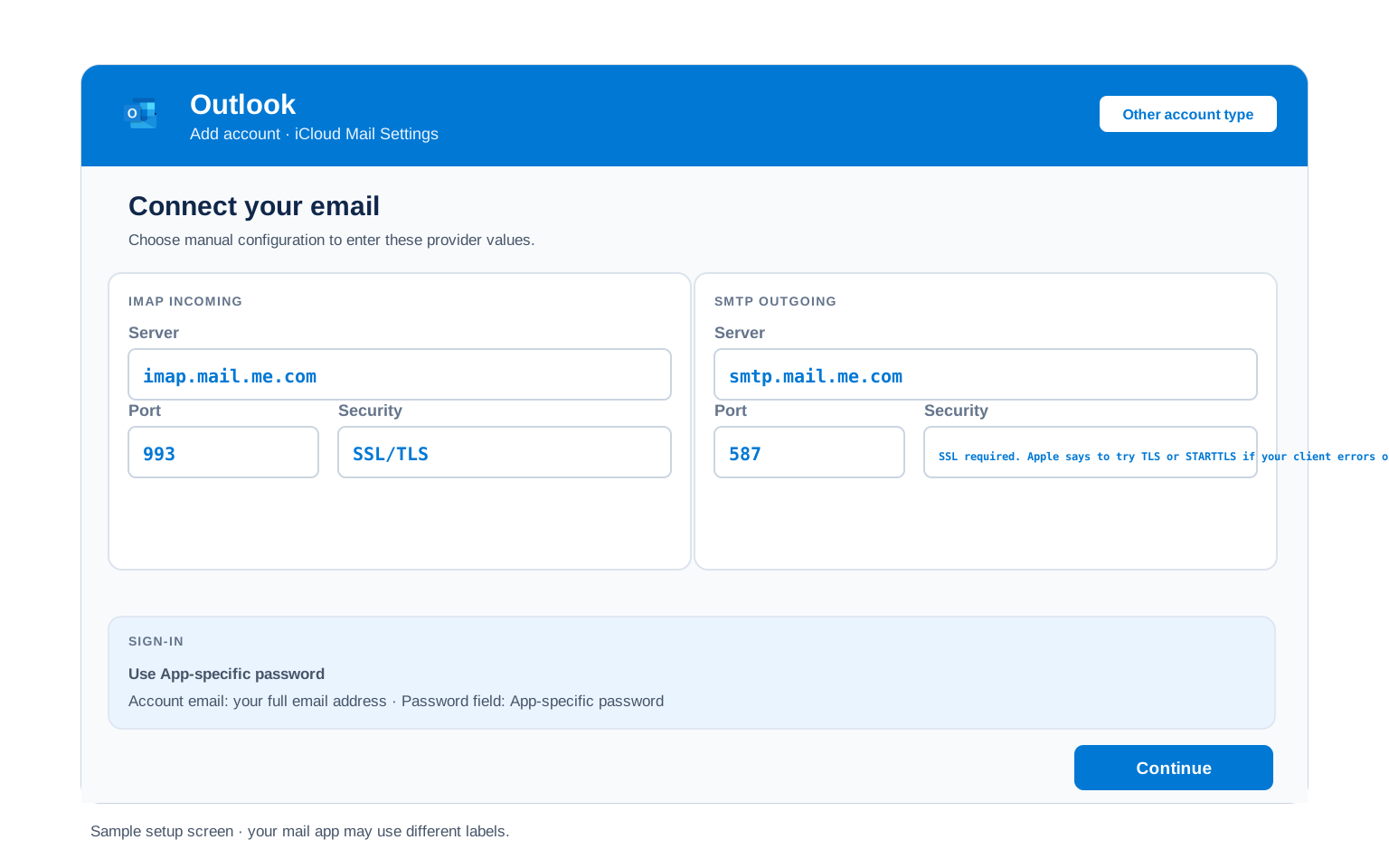
Outlook (Windows and Mac)
- Outlook: File → Add Account or Settings → Accounts → Add account in new Outlook.
- Enter your iCloud address, open Advanced options and tick "Let me set up my account manually", then choose IMAP.
- Choose IMAP and enter
imap.mail.me.comport993(SSL) andsmtp.mail.me.comport587(STARTTLS). - Paste the app-specific password and set the incoming username to the name part alone, then the outgoing username to the full address.
- Send yourself a test before trusting it. Sending is where the username split shows up.
Apple Mail (macOS)
- On a Mac, the account list lives in Mail → Settings → Accounts.
- Pick iCloud from the list on a Mac and sign in with your Apple Account. Apple Mail authenticates through your iCloud session, so it needs no app-specific password at all, which is a common source of confusion.
- Only take Other Mail Account if you are deliberately setting it up by hand.
- Where server fields appear, they take imap.mail.me.com and smtp.mail.me.com.
- Enable Mail in the checkbox list and finish.
iPhone and iPad
- On an iPhone, open Settings → Apps → Mail → Mail Accounts and add one.
- Tap iCloud on an iPhone and sign in with your Apple Account and Apple handles the rest.
- Other → Add Mail Account is the manual path, where both username rules apply.
- Leave IMAP chosen and enter both servers, minding the 2 username formats.
- Tap Save and let iOS check the details with Apple.
Android
- On Android there is no Apple shortcut, so open your mail app and add an account manually.
- Choose Other or Personal (IMAP), since iCloud rarely appears by name.
- Enter the servers by hand and mind the 2 username formats, which Android setup screens make easy to miss.
- Enter the servers:
imap.mail.me.com993 SSL incoming,smtp.mail.me.com465 SSL outgoing. - Finish up, then swipe down once to bring your folders in.
Thunderbird
- Thunderbird users want Account Settings, then Account Actions and Add Mail Account.
- Give it your name, iCloud address and app-specific password, then Continue.
- Thunderbird fills the servers itself for iCloud, but set the authentication method to Normal password on both servers. Left on OAuth2 it will never accept your app-specific password.
- Select Done and give it a moment to pull your folders in.
- Select Done. Folders sync on first open.
iCloud Mail Webmail Settings#
Servers connect your apps. These settings shape the mailbox itself and they live at icloud.com/mail behind the settings icon.
Signature
Settings → Composing. Applies to iCloud webmail only, so Outlook and your phone keep whatever you set there.
Vacation Auto Reply
Found under Settings → Auto Reply. Apple answers from its own servers, so you can close every device. Set an end date or it runs indefinitely.
Filters and Folders
Settings → Rules. These run on Apple servers, so mail is already filed by the time a device syncs. Rules built inside a desktop client only run while that app is open.
Spam and Blocked Senders
Settings → Blocked. Apple files suspected spam on its own, so look in Junk before concluding a message never arrived.
What You Give Up Without POP#
Apple made this choice for you, so the useful question is what it costs. For nearly everyone the answer is nothing. For 2 specific cases it matters:
| What you might have wanted POP for | Where that leaves you on iCloud |
|---|---|
| Reading mail on 1 computer | IMAP handles this perfectly well. The only difference is that your mail also stays on Apple's servers, which most people prefer anyway |
| Keeping a permanent local copy | Use a backup tool over IMAP. It brings every folder, where POP would have brought the Inbox alone |
| Freeing space on the server | Delete in your client and IMAP mirrors that to iCloud. Take a copy first, because the deletion is real and immediate |
| An old device that only speaks POP | This is the genuine loss. That device cannot reach iCloud Mail at all and no server address will change it |
iCloud Mail Size and Sending Limits#
Apple is unusually direct about its limits, publishing real numbers where several providers stay vague:
| Message size | 20 MB in either direction, rising to 5 GB when Mail Drop carries the attachment instead |
| Recipients per message | 500 |
| Recipients per day | 1,000, counted across everything you send |
| Free storage | 5 GB, shared with photos, backups and everything else in iCloud rather than reserved for mail |
| Intended use | Apple states iCloud Mail is designed for personal use and prohibits unsolicited bulk sending |
Troubleshooting iCloud Mail Connections#
Find the exact error your email app shows, then apply the fix:
| Error you see | What it means | Fix |
|---|---|---|
| Mail arrives but nothing will send | The outgoing username is set to the name part instead of the full address | The signature iCloud failure. Open the outgoing server settings and put the whole address in, @icloud.com and all. The username rule explains why the 2 fields differ. |
| Username or password incorrect | The app sent your Apple Account password rather than an app-specific one | Apple refuses the account password from third party clients. Generate an app-specific password and use it in both server fields. |
| No App-Specific Passwords option on the Apple site | Two factor authentication is not on for the Apple Account | Apple only offers app-specific passwords to accounts with 2 factor enabled. Turn it on, then the option appears under Sign-In and Security. |
| Every connection refused, whatever you enter | iCloud Mail is not switched on for the Apple Account | An Apple Account without iCloud Mail enabled has no mailbox for IMAP to reach. Sign in at icloud.com and confirm Mail is on, then create the address if you have never had one. |
| Client keeps looping on sign in without accepting the code | The client is set to OAuth2 rather than password authentication | You type an app-specific password exactly like an ordinary one, so the authentication method has to read Normal password on both servers. Thunderbird in particular guesses OAuth2 for iCloud and then never asks for the code you generated. |
| Cannot connect to server | An encryption mismatch or a POP server that does not exist | Apple's advice is to try TLS where SSL errors. And check you have not been given a pop.mail.me.com address by an old guide, because iCloud has no POP server. |
| Cannot send message using the server iCloud | On a Mac this usually means a sending limit rather than a settings fault | Check the Outbox for stuck messages, then look at the limits. Repeatedly retrying a queued message digs the hole deeper. |
| Worked until I changed my Apple Account password | Password changes can invalidate existing app-specific passwords | Generate a fresh one and update each client. Revoking old codes you no longer recognise is worth doing at the same time. |
Reader Reported Fixes
Two fixes that come up again and again in real iCloud setups, for when the steps above leave you stuck.
Set the outgoing username by hand, even when setup looked automatic. Clients that detect iCloud usually get the servers right and then copy the incoming username into the outgoing field. Everything tests fine until the first message sits in the Outbox. Open the outgoing server settings and check that field yourself.
Some clients only take the code on the second attempt. Users report Thunderbird refusing an app-specific password until they first let a sign in fail with the Apple Account password, then retry with the generated code. It should not be necessary. When nothing else explains a rejection it is worth 30 seconds.
Generate the app-specific password before you open your email client. Apple shows the code once and the setup wizard will not wait. People start the wizard, realise they need a code, wander off to make one and come back to a timed out screen with half the fields cleared.
icloud.com, me.com and mac.com#
Three domains, one mailbox and no difference in the settings. Which one you hold mostly reveals when you joined:
@mac.com
The oldest of the 3, from Apple's earliest subscription era. Still works exactly as it always did.
@me.com
The middle generation. Plenty of long standing Apple users still send from one every day.
@icloud.com
What Apple issues now and what most accounts created in the last decade use.
Every setting on this page applies to all 3 without change, including the username split. The only thing that differs is what you type after the @ on the outgoing server, where the full address is required.
Moving off iCloud or onto it? Apple gives you no tool for copying a mailbox between providers, so this is a job for something that speaks IMAP on both ends. The Univik Email Migration Tool rebuilds your folder tree in the destination account and our Email Migration Services team will run the move and confirm what landed.
Use These Settings in Univik Email Backup#
With no POP option and 5 GB shared across all of iCloud, a proper backup is the only way to hold your mail outside Apple. A backup tool takes the same values printed above. Univik Email Backup writes the mailbox to PST, MBOX, EML or PDF on your own disk, which survives an Apple Account you lose access to.
- Open Univik Email Backup on a Windows PC.
- Pick iCloud in the source list or IMAP with imap.mail.me.com if it is not named.
- Sign in with an app-specific password and try the name part alone if the full address is refused.
- Typing servers by hand?
imap.mail.me.comon993with SSL, plus the name-only username from the table. - Choose the output format and where it lands, then run it. Large mailboxes download in the background.
Univik Tools That Use These Settings#
People usually arrive at this page mid move, off Apple or onto it. All 3 tools use the settings above:

Email Backup
Write the whole iCloud mailbox out as PST, MBOX, EML or PDF while you still have access to the Apple Account.
Email Backup Tool →
Email Migration Tool
Rebuild your iCloud folder structure inside Gmail, Microsoft 365 or any IMAP account automatically.
Email Migration Tool →
Email Converter Tool
Got mail sitting in an MBOX or EML export from years back? It converts to whatever opens today.
Email Converter Tool →Would rather not run the move yourself?
Not planning to learn Apple’s username rules tonight? You do not have to. They scope it, move it, count the folders on arrival and send the summary. Running since 2013, from 1 iCloud mailbox upward.
Email Settings Glossary#
IMAP
Internet Message Access Protocol. The protocol behind imap.mail.me.com and the only incoming option Apple offers. Mail stays on iCloud and every device mirrors it.
POP3
Post Office Protocol version 3. The protocol iCloud does not support at all. No Apple POP server exists, whatever an old guide tells you. Unavailable here, so a backup tool covers the same ground.
SMTP
Simple Mail Transfer Protocol. Sends your outgoing mail. The outgoing half, on smtp.mail.me.com. This is the server that wants your full address as the username.
SSL / TLS / STARTTLS
Apple requires SSL on both servers and suggests trying TLS or STARTTLS where a client throws an SSL error.
App Password
Apple calls its version an app-specific password. It stands in for your Apple Account password. You cannot create one until two factor authentication is on.
OAuth
A provider run sign in window. Apple uses this on its own devices, which is why an iPhone never asks you for a server name. On iCloud it is reserved for Apple software.
How We Verify These Settings#
Apple accounts have run through Univik software since 2013. iCloud mailboxes come through those tools constantly, usually from people moving to or from an Apple account, which is where the username split gets found the hard way.
Three checks stand behind these values. Univik Email Backup opens a real IMAP and SMTP session. Every line is matched against Apple's published server settings article. And a fresh app-specific password is created through the current account.apple.com flow to confirm the steps still read true.
Spotted a value Apple now shows differently? Flag it and the value runs the 3 checks again, with whatever we find written into what changed recently.
 Help & Support
iCloud Mail Settings: FAQ
Use imap.mail.me.com on port 993 with SSL and smtp.mail.me.com on port 587 with SSL and authentication for sending. The password is an app-specific password in both fields, but the username differs between them, which the username rule covers.
There is not one. Apple supports IMAP and SMTP only and says so directly. Any page listing pop.mail.me.com or pop.icloud.com made it up. If you wanted POP for a local copy, a backup over IMAP does the job better because it brings every folder.
Almost always the outgoing username. Apple wants the name part alone on the incoming server and the full address on the outgoing one. Fill both the same way and the account syncs perfectly while refusing to send. Open the outgoing server settings and put the whole address in.
Because third party email clients cannot use it. Apple requires an app-specific password instead and that option only exists once two factor authentication is on. Generate one at account.apple.com under Sign-In and Security.
No. The same code goes in both the incoming and outgoing password fields. It is the username that changes between them, which is the opposite of what most people assume when a setup fails.
No. All 3 are the same mailbox with different vintages of Apple branding and every server, port and rule on this page applies identically. Only the text after the @ changes on the outgoing username.
20 MB for the message as a whole, in either direction. Beyond that Apple hands the file to Mail Drop, which carries up to 5 GB by sending a link rather than the file. Sending limits sit at 500 recipients per message and 1,000 per day.
No and that is worth knowing before you start. Adding iCloud through Apple system settings configures everything invisibly, with no server names and no app-specific password. This page exists for Outlook, Thunderbird, Android and anything else outside Apple.
A backup tool signing in over IMAP will pull the mailbox down as PST, MBOX, EML or PDF. To move rather than copy, an email migration tool signs in to both accounts and rebuilds the folder tree. See the walkthrough.
Other Email Provider Settings
Summary: iCloud Mail Settings at a Glance
- IMAP: imap.mail.me.com, port 993, SSL/TLS
- POP3: pop.provider.com, port 995, SSL/TLS
- SMTP: smtp.mail.me.com, port 465 or 587
- Username is always your full email address
- App password required for third party apps
- Pick IMAP for phone + computer sync
- Message limit: 20 MB, 5 GB via Mail Drop
- Username is always the full email address