 Email Settings Guide
Quick answer: the Outlook.com IMAP and POP server is outlook.office365.com, on ports 993 and 995 with SSL. SMTP is smtp-mail.outlook.com on port 587 with STARTTLS. Two things trip people before any of that matters: POP and IMAP ship switched off and Microsoft now requires modern authentication rather than a typed password.
What Changed Recently#
Related email providers: Yahoo email settings, iCloud IMAP settings, AOL email settings, Mail.com IMAP settings, CompuServe email settings, Netscape IMAP settings
Outlook.com has moved further from typed passwords than any other consumer provider. If a guide tells you to paste a password into an IMAP field, it was written for a version of Outlook.com that no longer exists.
Latest update
Modern authentication is now the documented method for POP, IMAP and SMTP. Microsoft's own settings page lists OAuth2 against all 3 protocols. An app that cannot open a Microsoft sign in window has no supported way in. That is why so many older clients and scripts died quietly instead of showing a useful error.
The basic auth retirement
Microsoft support now answers SMTP basic auth questions with a flat no. Attempts return 5.7.139 Authentication unsuccessful, basic authentication is disabled and Microsoft's engineers state that applies even when an app password is used. That sits awkwardly beside Microsoft's own settings page, which still mentions app passwords for smart devices. The password section untangles which advice applies to you.
The Gmail change
Gmail stopped pulling Outlook.com mail across. Google removed the POP fetching that let Gmail collect outside accounts, so an Outlook.com address read inside Gmail just stopped updating. Mail already imported stays put. Connect the account directly with the settings below or move it properly if Gmail is where you actually read.
Before You Begin#
Outlook.com puts 2 gates in front of you and neither is a server value. Clear both and the rest takes 5 minutes.
1. Switch POP or IMAP on
Microsoft ships both protocols disabled. Your client connects to an account that is refusing the protocol and reports something unhelpful about the server or password instead.
Where: The 3 step fix below →
2. Pick a client that can sign in to Microsoft
Modern authentication means a Microsoft window opens and you approve access there. A client that only offers a plain password box has no supported route, whatever you type into it.
Where: Which password below →
About Outlook.com#
Outlook.com is Microsoft's consumer email service and it is the same mailbox behind addresses ending in outlook.com, hotmail.com, live.com and msn.com.
Those 4 domains carry decades of naming history and no technical difference at all. What does differ is Microsoft's business side. A Microsoft 365 work mailbox looks similar and shares the incoming server. It sends through a different host though. It also answers to an administrator who can switch protocols off entirely. This page is about the consumer service.
| Service Name | Outlook.com, previously Hotmail |
| Owned By | Microsoft |
| Email Domains | @outlook.com, @hotmail.com, @live.com, @msn.com and country variants |
| Webmail URL | outlook.com |
| Protocols Supported | IMAP, POP3 and SMTP, all switched off until you enable them |
| Authentication | OAuth2, described by Microsoft as Modern Auth |
| Incoming Server | outlook.office365.com for both IMAP and POP |
| Outgoing Server | smtp-mail.outlook.com, a different host from incoming |
Outlook.com Webmail Login#
Three pages between them fix almost every Outlook.com connection problem:
Webmail
The Access Switch
Settings → Mail → Forwarding and IMAP
Recent Activity
Turn On POP or IMAP First#
Microsoft ships every Outlook.com account with POP and IMAP switched off. Not restricted, not limited, off. Your email client dials a number that nobody is answering, then reports whatever generic failure it has to hand, which is usually about the password. This step takes 30 seconds and prevents an hour of blaming your settings.
- Open Settings in Outlook.com on the web, then Mail, then Forwarding and IMAP. Microsoft relabels this screen from time to time, so if you see Sync email instead, that is the same place.
- Under POP and IMAP, turn on either "Let devices and apps use POP" or "Let devices and apps use IMAP", depending on which your client will use.
- Select Save and give it a moment before you try connecting.
Outlook.com IMAP Settings#
IMAP keeps mail on Microsoft servers so every device shows the same mailbox. Note the hostname: incoming uses outlook.office365.com, which surprises people who expect it to say outlook.com.
| IMAP Server | outlook.office365.com | |
| Port | 993 | |
| Encryption | SSL/TLS (required) | |
| Username | Your full address, whether it ends @outlook.com, @hotmail.com, @live.com or @msn.com | |
| Authentication | OAuth2, called Modern Auth by Microsoft. See which password | |
| Authentication | Required |
Outlook.com POP3 Settings#
POP3 downloads mail to 1 device and uses the same hostname as IMAP, just a different port. It has its own switch in webmail, so turning IMAP on does not turn POP on. Not sure which you need? See the comparison below.
| POP3 Server | outlook.office365.com | |
| Port | 995 | |
| Encryption | SSL/TLS (required) | |
| Username | Your full email address | |
| Authentication | OAuth2 in a Microsoft sign in window. See which password |
Outlook.com SMTP Settings#
SMTP handles outgoing mail and this is the 1 place Outlook.com changes hostname. Incoming runs on outlook.office365.com while outgoing runs on smtp-mail.outlook.com. Microsoft's own settings page carries a line saying incoming and outgoing servers are the same, which its own table then contradicts. Follow the table, not the note.
| SMTP Server | smtp-mail.outlook.com | |
| Port | 587 with STARTTLS, the only combination Microsoft documents | |
| Microsoft 365 work accounts | Send through smtp.office365.com instead | |
| Encryption | SSL or STARTTLS (required) | |
| Username | Your full email address | |
| Password | Same as incoming mail | |
| Authentication | Required. Outlook.com refuses unauthenticated sending, so leave that box ticked. |
Check Outlook.com IMAP Settings Online#
Every current Outlook.com value is on this page already, where every value is verified and copies in 1 tap. Hotmail, Live and MSN addresses all land here too, so check yours below if you are unsure.
Does my email address use these settings?
Runs in your browser only. Your address is never sent anywhere or stored.
Two checks prove the account is ready. Sign in at outlook.com, then open Settings → Mail → Forwarding and IMAP and confirm the protocol switch is on. Clear both and any modern client will connect.
Look Up IMAP Settings for Any Email Domain#
These tables cover the 4 Outlook.com consumer domains. Setting up an address that is not a Microsoft one at the same time? our free lookup at imapsettings.com will find it.
imapsettings.com
Complete email settings database, by Univik
Enter any email address and get the incoming and outgoing server settings for that domain in 1 step:
Your address is used only to find the settings for that domain. Nothing is stored or shared.
Which Password Does Outlook.com Want?#
This is where Outlook.com differs sharply from every other provider and where Microsoft's own documentation pulls in 2 directions. Worth reading before you go hunting for a code to paste.
| Your client | What happens | What to do |
|---|---|---|
| Opens a Microsoft sign in window | ✓ Supported | Sign in there and approve access. Nothing to paste. |
| Only offers a plain password box | ✗ No supported route | Modern authentication cannot happen in a text field. Change client or use webmail. |
| A device rather than an app, like a camera or scanner | Check first | Microsoft's settings page still points these at an app password. Its support engineers say basic authentication is disabled. Test before relying on it. |
Set Up Outlook.com in Email Clients#
The right move in most clients is to pick Outlook or Microsoft by name, which opens the sign in window and handles everything. Manual entry is the fallback. Choose your client:
Outlook (Windows and Mac)
- Outlook itself: File → Add Account or Settings → Accounts → Add account in new Outlook.
- Type the address and let it connect. Outlook recognises its own service and signs you in without a single server field.
- Choose IMAP and enter
outlook.office365.comport993(SSL) andsmtp-mail.outlook.comport587(STARTTLS). - Approve the sign in in the Microsoft window that appears.
- Send yourself a test and check it arrives before you rely on it.
Apple Mail (macOS)
- Apple Mail keeps accounts under Mail → Settings → Accounts.
- Choose Outlook.com from the list. Apple Mail then hands the sign in to Microsoft, which is the supported route.
- Avoid Other Mail Account here. That path expects a typed password, which Outlook.com no longer accepts.
- If server fields appear, they take outlook.office365.com and smtp-mail.outlook.com.
- Enable Mail in the checkbox list and finish.
iPhone and iPad
- Start in the iPhone Settings app under Apps → Mail → Mail Accounts, then Add Account.
- Tap Outlook.com on iPhone and complete the Microsoft sign in that opens.
- Let iOS finish. Mail, contacts and calendar arrive together on this route.
- Keep IMAP chosen if iOS asks and supply both hostnames from the tables.
- Tap Save and let iOS complete the handshake with Microsoft.
Android
- On Android, open your mail app and add an account, picking Outlook or Microsoft where offered.
- Prefer the Microsoft option over Other, since Other cannot complete a modern sign in.
- Approve access when the Microsoft page appears, then let the first sync run.
- Enter the servers:
outlook.office365.com993 SSL incoming,smtp-mail.outlook.com465 SSL outgoing. - Finish and let the first sync populate your folders.
Thunderbird
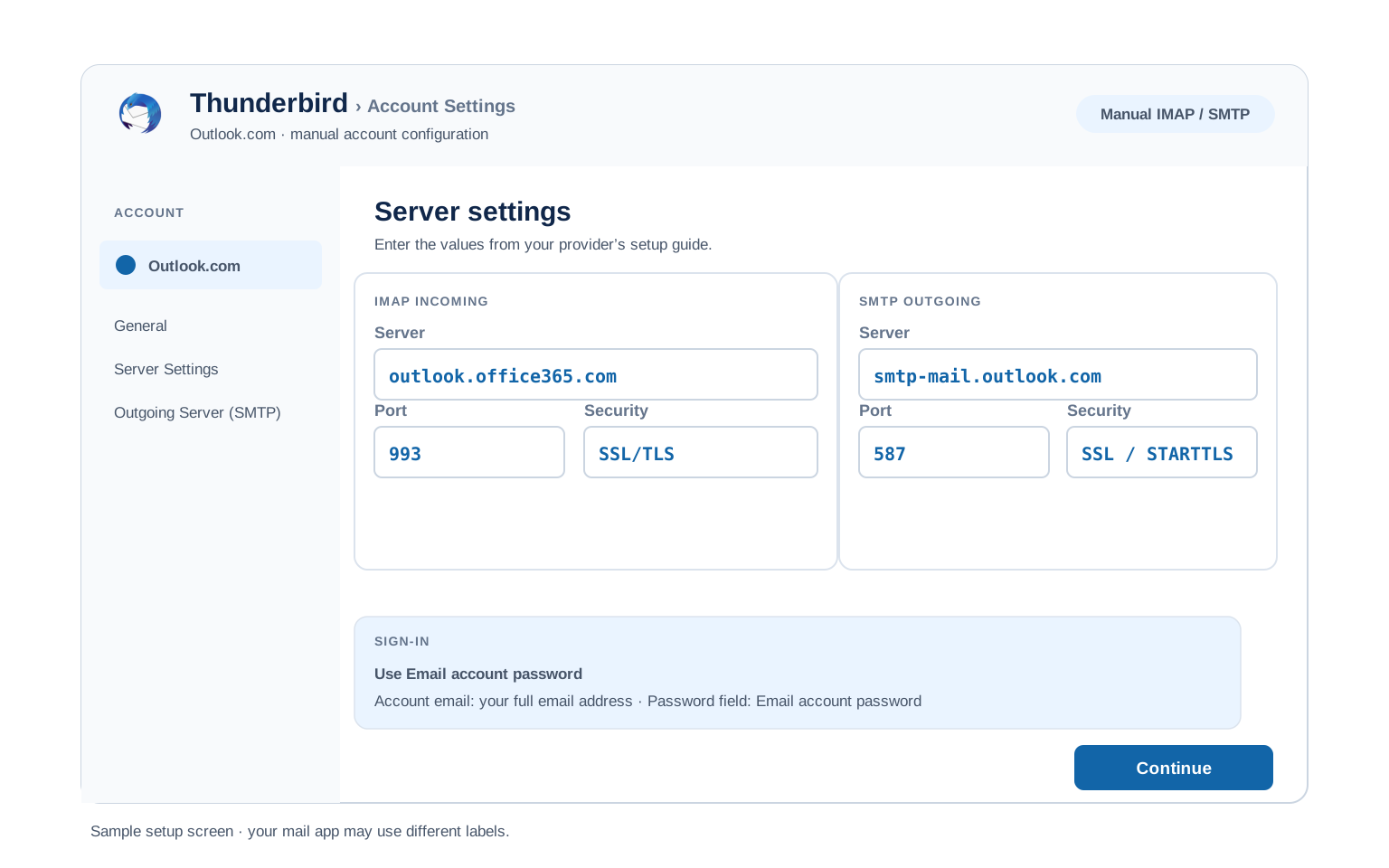
- Thunderbird keeps it under Account Settings, then Account Actions → Add Mail Account.
- Give it your name and address, then Continue and let it detect the account.
- Thunderbird knows Outlook.com and offers OAuth2 as the authentication method. Keep that selected.
- A Microsoft window opens. Approve it there and the account finishes building.
- Select Done. Folders sync on first open.
Outlook.com Webmail Settings#
Servers get your apps talking to the mailbox. This section is about what Outlook.com does with mail once they are, all of it behind the gear icon under View all Outlook settings.
Signature
Mail → Compose and reply. Outlook.com supports several signatures with defaults for new mail and replies. Webmail only, so your desktop client keeps its own.
Vacation Auto Reply
Mail → Automatic replies. Set a date range and choose whether people outside your contacts get one. Microsoft sends it server side, so nothing needs to stay running.
Filters and Folders
Mail → Rules. These run on Microsoft servers, ahead of any device syncing. Rules built inside desktop Outlook only fire while that app is open, which is a common source of confusion.
Spam and Blocked Senders
Mail → Junk email. Block senders or whole domains here. Check the Junk folder before concluding mail never arrived, since Microsoft filters fairly aggressively.
Outlook.com POP3 vs IMAP#
| Feature | IMAP | POP3 |
|---|---|---|
| Where mail lives | On Microsoft servers (outlook.office365.com) | Downloaded to 1 device, same hostname |
| Multiple devices | ✅ Everything stays in sync | ❌ Each device sees different mail |
| Sent and deleted mail | ✅ Synced everywhere | ⚠️ Stays only on that device |
| Offline reading | ⚠️ Cached mail only | ✅ Full local copy |
| Server storage used | Yes, counts against your quota | Can be freed after download |
| Best for | Phone + computer, everyday use | Single PC, local archives |
Outlook.com Access and Sending Limits#
The limits that stop an Outlook.com setup are mostly about access rather than volume:
| POP and IMAP access | Off until you turn it on and each protocol has its own switch |
| Authentication | OAuth2 only in Microsoft's documented settings, which rules out clients that cannot open a sign in window |
| Same account in several IMAP clients | Microsoft acknowledges connection errors here and is working on a fix. The workaround is approving the session in Recent activity |
| Free storage | 15 GB for mail, with OneDrive counted separately. A full mailbox stops accepting new messages |
| Encryption | SSL on 993 and 995, STARTTLS on 587. No unencrypted option exists |
| Work mailboxes | An administrator can disable POP, IMAP or authenticated SMTP for your account regardless of your settings |
Troubleshooting Outlook.com Connections#
Find the exact error your email app shows, then apply the fix:
| Error you see | What it means | Fix |
|---|---|---|
| Password rejected, though it works on the website | POP or IMAP is still switched off for the account | The signature Outlook.com failure. Turn the protocol on under Settings → Mail → Forwarding and IMAP, then retry without changing anything else. |
| 5.7.139 Authentication unsuccessful, basic authentication is disabled | The app tried to send with a typed password | Microsoft no longer accepts that for SMTP, app passwords included. Use a client that opens a Microsoft sign in window. See which password. |
| Enabled IMAP and it still will not connect | Microsoft flagged the new client as a suspicious sign in | Go to account.live.com/activity, find the session matching the failure, expand it and choose "This was me". Then connect again. |
| Connection errors after adding the account to a second app | The same mailbox configured as IMAP in multiple clients, which Microsoft has acknowledged as a known issue | Approve the session in Recent activity as above. Microsoft says a fix is in progress, so this is a workaround rather than a cure. |
| Server not responding or a timeout on connect | An old hostname copied from a guide written years ago | Addresses like imap-mail.outlook.com and pop3.live.com no longer answer. Incoming is outlook.office365.com for both protocols. Microsoft's own advice for a stubborn profile is to delete the account and add it again so the client picks the current configuration. |
| Sends nothing, receives fine | The outgoing hostname is wrong or an admin disabled SMTP | Outgoing is smtp-mail.outlook.com on 587, not the incoming hostname. On a work account, ask IT whether authenticated SMTP is enabled for your mailbox. |
| A device or scanner cannot connect at all | It only speaks basic authentication | Microsoft's settings page still points devices at an app password while its support answers say basic auth is disabled. Test it and plan for a relay or a different mailbox if it fails. |
Reader Reported Fixes
Two fixes worth trying when the steps above leave you stuck, both from real Outlook.com cases.
Add the account by name rather than typing servers. Nearly every modern client lists Outlook.com or Microsoft directly and that path opens the sign in window and finishes on its own. Reaching for manual IMAP out of habit is what lands people in the password questions this page exists to answer.
Check Recent activity before rebuilding anything. A client that fails immediately after you enabled IMAP has usually been flagged rather than misconfigured. Approving that session takes seconds, where deleting and re adding the account rarely helps and often triggers another flag.
Outlook.com vs a Microsoft 365 Work Account#
Both are Microsoft, both open in Outlook and guides mix them up constantly. If your address sits on a company domain rather than one of the 4 consumer domains, some of this page changes for you:
| What differs | Outlook.com, personal | Microsoft 365, work |
|---|---|---|
| Incoming server | outlook.office365.com | outlook.office365.com, the same |
| Outgoing server | smtp-mail.outlook.com | smtp.office365.com |
| Who controls POP and IMAP | You, in webmail settings | Your administrator, who can disable both entirely |
| Who controls SMTP sending | You | An admin setting, per mailbox or across the tenant |
| Where to ask when it fails | Microsoft consumer support | Your IT team, who can see settings you cannot |
Moving mail between the 2? Leaving a job or folding an old hotmail.com address into a work mailbox, means copying mail across accounts that Microsoft will not join for you. The Univik Email Migration Tool copies folder by folder over IMAP and our Email Migration Services team runs the whole thing if you would rather hand it over.
Use These Settings in Univik Email Backup#
Once you switch IMAP on, those same values let a backup tool pull the whole mailbox down to your own disk. Univik Email Backup writes the mailbox to PST, MBOX, EML or PDF on your own disk, untouched by whatever Microsoft changes next.
- Start Univik Email Backup on any Windows PC.
- Choose Outlook.com in the source list or IMAP with the servers above if it is not named.
- Sign in when the Microsoft window opens. Tools that offer Outlook.com by name handle this for you.
- Entering servers by hand?
outlook.office365.comon993with SSL, exactly as the table lists. - Choose an output format and a destination folder, then start it. Large mailboxes download in the background.
Univik Tools That Use These Settings#
Hotmail addresses that predate half the internet tend to get archived eventually. All 3 tools use the settings above:

Email Backup
Save the whole Outlook.com mailbox as PST, MBOX, EML or PDF before you change providers or close the account.
Email Backup Tool →
Email Migration Tool
Copy every Outlook.com folder into Gmail, a work mailbox or any IMAP account with the structure intact.
Email Migration Tool →
Email Converter Tool
Sitting on an old PST or an OST from a dead Outlook profile? Convert it into whatever your current app reads.
Email Converter Tool →Want the move run for you end to end?
Not planning to spend an evening on authentication rules? You do not have to. They plan it, run it, check the folder count on arrival and report back. Doing this since 2013, from 1 hotmail address to whole tenants.
Email Settings Glossary#
IMAP
Internet Message Access Protocol. The protocol behind outlook.office365.com on port 993. Mail stays on Microsoft servers and every device mirrors the same folders.
POP3
Post Office Protocol version 3. Same hostname as IMAP on port 995. Downloads to 1 device and needs its own switch turned on in webmail. Still supported here, though it needs enabling like IMAP does.
SMTP
Simple Mail Transfer Protocol. Sends your outgoing mail. The outgoing half and the only Outlook.com value on a different hostname: smtp-mail.outlook.com.
SSL / TLS / STARTTLS
The encryption Outlook.com insists on. Outlook.com secures every connection, running SSL on 993 and 995 and STARTTLS on 587 for sending.
App Password
A generated stand in for your password. Microsoft is retiring these for Outlook.com, which is why this page points at modern authentication instead.
OAuth
The Microsoft sign in window your client opens. Microsoft calls it Modern Auth and it is now the documented method for all 3 protocols. Outlook.com got there ahead of everyone else.
How We Verify These Settings#
Univik has built email backup and migration software since 2013 and Microsoft accounts have changed more in that time than any other provider we connect to. Each authentication shift showed up in our connection logs before the guides caught up.
Every value here clears 3 checks. First, Univik Email Backup opens a live IMAP and SMTP connection to the mailbox. A line by line match against Microsoft's published settings page. And a walk through the enable and approval screens exactly as written above. Microsoft announcements send us straight back through all 3.
Spotted a value Microsoft now shows differently? Let us know and it goes back through all 3 checks, with the result recorded in what changed recently.
 Help & Support
Outlook.com Settings: FAQ
Use outlook.office365.com on port 993 with SSL for incoming and smtp-mail.outlook.com on port 587 with STARTTLS for sending. Authentication is OAuth2. Turn IMAP on first, because Microsoft ships it disabled.
Two likely reasons. IMAP or POP is still switched off for the account, which produces a password style error even though the password is fine. Or your client only offers a plain password box and Outlook.com now expects a Microsoft sign in window instead. Check the access switch first.
Microsoft answers this 2 ways. Its settings page still mentions an app password for smart devices or when a password is not recognised, while its support engineers say basic authentication including app passwords is disabled and returns error 5.7.139. Treat modern authentication as the reliable route. The password section lays out both positions.
Yes, for both IMAP and POP, even on a personal hotmail.com or live.com address. It looks like a business hostname and it is not a mistake. Outgoing is the one that differs, using smtp-mail.outlook.com.
No. All 4 consumer domains, outlook.com, hotmail.com, live.com and msn.com, run on the same platform with identical servers and ports. Only your username changes. Microsoft 365 work accounts are the ones that differ, as the comparison shows.
Almost certainly the authentication change. Older clients kept connecting with a typed password long after Microsoft started moving away from it and when enforcement caught up they failed with no explanation. Moving to a client that supports a Microsoft sign in is the fix rather than any change to your settings.
Microsoft has acknowledged this: the same Outlook.com mailbox configured as IMAP in several clients can throw connection errors and a fix is in progress. The workaround is to approve the session at account.live.com/activity under Recent activity by choosing "This was me".
IMAP for almost everyone, since it keeps every device showing the same mailbox. Note that each protocol has its own switch in webmail, so enabling IMAP does not enable POP. Both use outlook.office365.com, on 993 and 995 respectively.
Turn IMAP on, then point a backup tool at the mailbox to save it as PST, MBOX, EML or PDF. To move rather than copy, an email migration tool connects to both accounts and transfers folder by folder. See the walkthrough.
Other Email Provider Settings
Summary: Outlook.com Settings at a Glance
- IMAP: outlook.office365.com, port 993, SSL/TLS
- POP3: outlook.office365.com, port 995, SSL/TLS
- SMTP: smtp-mail.outlook.com, port 465 or 587
- Username is always your full email address
- App password required for third party apps
- Pick IMAP for phone + computer sync
- Authentication is OAuth2 only
- Username is always the full email address