 Email Settings Guide
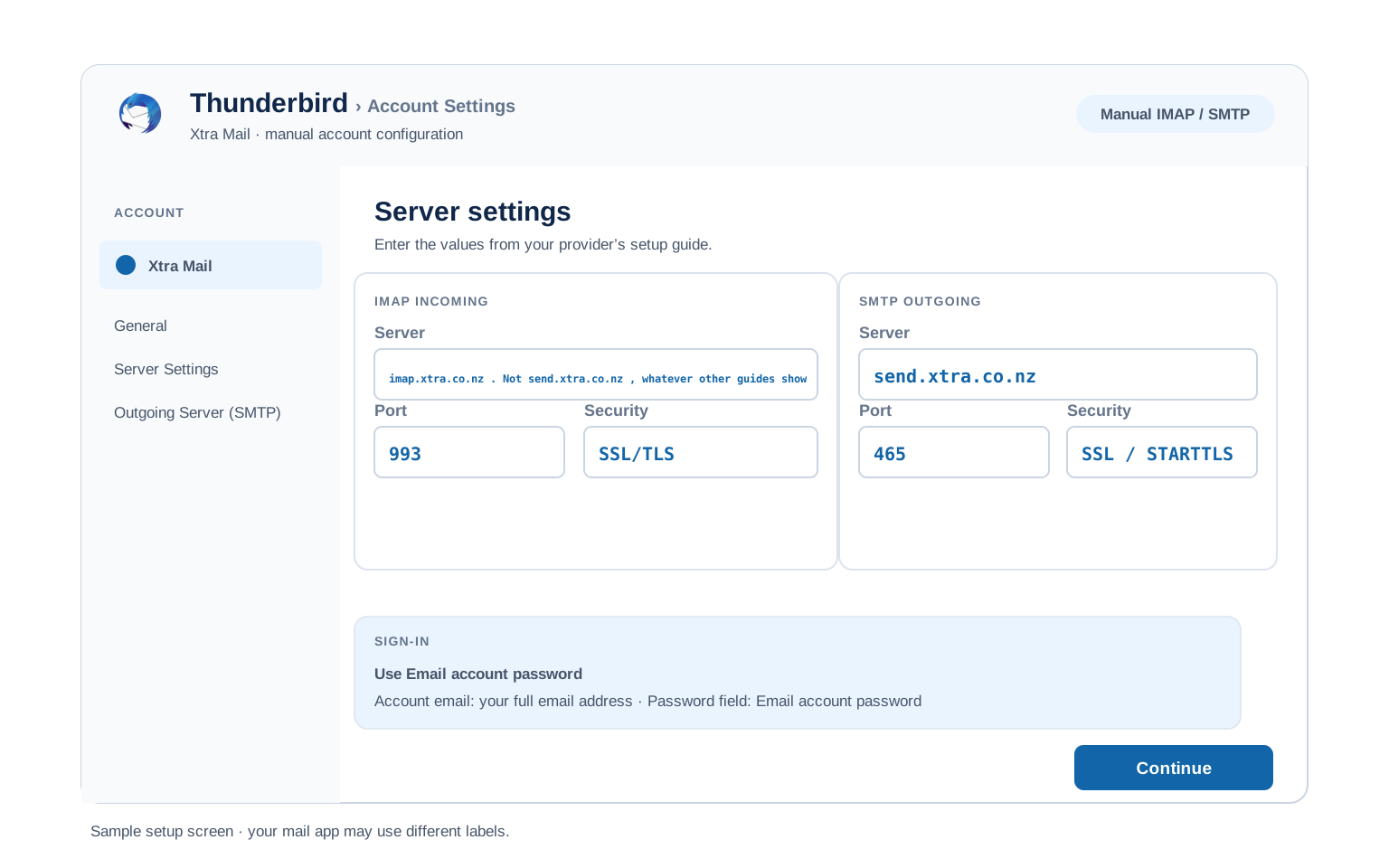
Quick answer: the Xtra Mail IMAP server is imap.xtra.co.nz on port 993 with SSL/TLS. The outgoing server is send.xtra.co.nz on port 465 with SSL/TLS. Your username is the full @xtra.co.nz address and the password is your ordinary Xtra Mail password. Note that the two host names differ. Some widely read guides put the outgoing host in the incoming field, which is why setups fail with settings that look correct.
What Changed Recently#
Related email providers: BigPond email settings, iiNet IMAP settings, Internode email settings, TPG IMAP settings, Westnet email settings
The important change here happened years ago. A surprising number of guides have never caught up with it.
Latest update
Xtra Mail left Yahoo in 2017. Spark moved the service onto a New Zealand based platform operated by SMX. Any guide describing your Xtra address as a Yahoo account is at least that far out of date. The same goes for anything sending you to Yahoo hosts. One well known setup site still labels Xtra a Yahoo Mail account today.
Earlier change
Spark publishes cipher requirements for mail apps. Your app has to support 1024-bit or 2048-bit AES ciphers, plus TLS 1.0 or higher. Spark does not support the RC4 cipher. Nor the older SSL and SSL3 protocols. An app too old to meet that keeps failing whatever server values you enter. Spark suggests checking compatibility with the software vendor.
Earlier change
Accounts untouched since the migration can need a password reset. Xtra users have reported clients failing to authenticate on accounts whose password had not changed since the move to SMX. Setting a new password through webmail restored access across every device at once.
Before You Begin#
Two checks before the server values. Both catch problems that look like something else entirely.
1. Confirm the incoming host
Incoming is imap.xtra.co.nz. Outgoing is send.xtra.co.nz. Several popular setup pages list the outgoing host for both, so copying from one of those leaves you unable to receive.
Where: The host check below →
2. Check your app is modern enough
Spark publishes cipher and protocol requirements. An older mail app that cannot meet them will fail no matter what you type into it.
Where: Server tables below →
About Xtra Mail Mail#
Xtra Mail is Spark New Zealand's email service, one of the country's longest running, serving personal and small business users on the @xtra.co.nz domain.
Xtra began as Telecom New Zealand's internet service. The mailboxes outlasted the Telecom name when the company became Spark. For years the mail platform was operated by Yahoo. In 2017 Spark moved it onto a New Zealand based platform run by SMX, which is where it sits today. That migration is the single most useful piece of context for anyone troubleshooting, because a great deal of published advice still describes the arrangement that ended nearly a decade ago.
| Service Name | Xtra Mail Mail |
| Owned By | Spark New Zealand, formerly Telecom New Zealand |
| Launched | Long running. Moved from Yahoo to the SMX operated platform in 2017 |
| Email Domains | @xtra.co.nz |
| Webmail URL | webmail.xtra.co.nz |
| Protocols Supported | IMAP, POP3, SMTP. Spark recommends IMAP, especially on phones and tablets |
| App Password Needed | None documented. Spark describes ordinary password authentication |
| Free Storage | Not published in a form we can verify, so we are not printing a figure |
imap.xtra.co.nz. Outgoing mail goes through send.xtra.co.nz. They are different machines doing different jobs. At least two prominent setup sites list send.xtra.co.nz in the incoming field as well, which produces an account that appears configured and never receives anything. A third guide points at mail.xtra.co.nz, which matches neither. Across the pages that rank for this search you can find three different incoming hosts. Only one of them is the one Spark documents. If you copied your settings from somewhere else and receiving is broken, check this first.
Xtra Mail Webmail Login#
Webmail is also where you change your password, which turns out to matter on this provider. The official pages:
Check Your Incoming Server First#
Xtra Mail needs no switch turned on. What it needs is the right incoming host. That is where published advice most often goes wrong.
- Incoming is
imap.xtra.co.nz. Port 993, SSL/TLS, username the full address. This is what Spark's own setup documentation gives. - Outgoing is
send.xtra.co.nz. Port 465, SSL/TLS, with outgoing authentication set to use the same details as incoming. - Two prominent guides get this wrong. They list
send.xtra.co.nzin the incoming field too. One of them offers port "993 or 143" on it. The result is an account that looks configured and receives nothing. - A third names a host that appears nowhere else. One NZ troubleshooting guide tells readers to check
mail.xtra.co.nz. Counting Spark's own value, that makes three different incoming hosts circulating in the search results for one mailbox. - One of those guides still calls Xtra a Yahoo account. Spark moved off Yahoo in 2017, so that page has been describing a platform that no longer exists for close to a decade.
- If receiving is broken and sending works, this is almost certainly your problem. Correct the incoming host and the account starts working without anything else changing.
Xtra Mail IMAP Settings#
IMAP is the incoming protocol to use here. Spark says the same. Mail stays on the server, so every device shows one inbox.
| IMAP Server | imap.xtra.co.nz. Not send.xtra.co.nz, whatever other guides show | |
| Port | 993 | |
| Encryption | SSL/TLS (required) | |
| Username | Your full email address, including @xtra.co.nz | |
| Password | Your ordinary Xtra Mail password | |
| Authentication | Normal password |
Xtra Mail POP3 Settings#
POP3 pulls mail onto a single machine. Worth it only for one computer holding a local copy. Undecided? The comparison sits below.
| POP3 Server | Spark documents POP3 settings on its own setup page. We could not verify the hostname independently, so we are not printing one | |
| Port | 995 | |
| Encryption | SSL/TLS (required) | |
| Username | Your full email address | |
| Password | The same Xtra Mail password |
Xtra Mail SMTP Settings#
SMTP carries outgoing mail. Worth noting the reverse case on Xtra: if you can send but not receive, the problem is the incoming host rather than anything in this section.
| SMTP Server | send.xtra.co.nz | |
| Port | 465 with SSL/TLS, the value Spark publishes | |
| Alternate port | 587 with STARTTLS also works, worth trying where 465 is blocked | |
| Outgoing authentication | Required. Set it to use the same details as the incoming server | |
| Encryption | SSL or STARTTLS (required) | |
| Username | Your full email address | |
| Password | Same as incoming. There is no separate outgoing credential | |
| Authentication | Required. Outlook shows this as the outgoing authentication tickbox. |
Check Xtra Mail IMAP Settings Online#
You don't need to download anything to check Xtra Mail IMAP settings online. This page is the lookup: every value is verified, current and copyable straight from your browser. Not sure your address uses Xtra Mail servers? Type it below and find out instantly.
Does my email address use these settings?
Runs in your browser only. Your address is never sent anywhere or stored.
Want to verify the account itself before configuring an app? Sign in at Xtra Mail webmail, which confirms your address and password work, then confirm an app password exists. If both pass, any email app connects with the tables above.
Look Up IMAP Settings for Any Email Domain#
This page covers Xtra Mail. For every other address, work email on a company domain included, we run a free online lookup database: imapsettings.com.
imapsettings.com
Complete email settings database, by Univik
Enter any email address and get the incoming and outgoing server settings for that domain in 1 step:
The address is read in your browser to identify the domain. It is not sent anywhere.
Your Xtra Mail Password and Sign In#
No app password exists here as far as Spark documents. One password covers webmail and every client. There is a wrinkle worth knowing about all the same.
| Where you sign in | Your Xtra Mail password | Anything else |
|---|---|---|
| Xtra Mail webmail | ✓ Works | Nothing else needed |
| Outlook, Apple Mail, Thunderbird | ✓ Works | No app password documented |
| Phone mail apps set up by hand | ✓ Works | No app password documented |
| Backup and migration tools | ✓ Works | No app password documented |
The Password Reset That Fixes Stubborn Clients
- Confirm the hosts are right first. A wrong incoming server produces symptoms that resemble a password problem. Check the host section before changing any credential.
- Sign in to Xtra Mail webmail in a browser.
- Change your password there. Xtra users have reported that accounts whose password had not been changed since the 2017 platform migration would not authenticate in mail clients. Setting a fresh password fixed every device at once.
- Update each device afterwards. One password covers webmail and every client, so all of them need the new one.
- Nothing gets generated. There is no app password documented for Xtra Mail. The password you set is what your client uses.
Set Up Xtra Mail in Email Clients#
Two hosts, one password. The same values in every client. Only the menus change. Pick your app:
Outlook (Windows and Mac)
- In Outlook choose File, then Add Account. New Outlook keeps it under Settings, then Accounts.
- Enter your Xtra Mail address, open Advanced options and check "Let me set up my account manually".
- Choose IMAP and enter
imap.xtra.co.nzon port993, thensend.xtra.co.nzon port465. Use 587 if that is blocked. Note the two hosts differ. - Enter your ordinary Xtra Mail password, then tick outgoing server authentication under More Settings.
- Send yourself one message at the end. On Xtra that matters, since it proves receiving as well as sending.
Apple Mail (macOS)
- The Apple Mail route is Settings, Accounts, Add Account.
- Choose Other Mail Account. Apple carries no Xtra entry among its providers.
- Enter your name, full address and Xtra password, then continue.
- Asked for hosts? Take both from the tables above, checking they differ.
- Leave Mail ticked in the services list, then finish.
iPhone and iPad
- The iOS route is Settings, Apps, Mail, Mail Accounts, Add Account.
- Tap Other, then Add Mail Account. iOS has no Xtra option built in.
- Enter your details using your Xtra password, then tap Next.
- Stay with IMAP, entering both hosts where iOS asks for them.
- Tap Save, allowing iOS a moment to verify.
Android
- In your Android mail app, whichever it happens to be, choose Add account.
- Pick Other, then IMAP. Xtra will not appear in the provider list.
- Enter your full address and Xtra password. Where automatic setup fails, switch to Manual setup.
- Enter the servers:
imap.xtra.co.nz993 incoming,send.xtra.co.nz465 outgoing. - Finish up, then swipe down on the inbox to trigger the first fetch.
Thunderbird
- The Thunderbird route runs Account Settings, Account Actions, Add Mail Account.
- Enter your name, full address and Xtra password, then select Continue.
- Check what Thunderbird found. Automatic detection sometimes proposes one host for both directions, which is wrong on Xtra. The incoming server must read
imap.and the outgoingsend. - Where detection falls short, use Configure manually and type both hosts in.
- Choose Done. The folder list fills on the first sync.
Xtra Mail Webmail Settings#
The values above connect your apps. This next group governs the mailbox itself. All of it lives in Xtra Mail webmail rather than in your client.
Signature
Set from the webmail settings area, applying to messages sent in the browser. Outlook, Apple Mail and Thunderbird each keep their own, so people often end up maintaining two versions without realising.
Vacation Auto Reply
Give the away message a start and an end date so it stops without you. It runs on the server, so replies keep going out with every device of yours switched off.
Filters and Folders
Rules built in webmail run server side, filing mail before any device collects it. A rule inside Outlook fires only while Outlook is open, which is how two devices end up disagreeing about where something went.
Spam and Blocked Senders
Block senders or whole domains from the webmail settings. Check the spam folder there first when mail goes missing, since a client side rule cannot retrieve what the server already filed away.
Xtra Mail POP3 vs IMAP#
| Feature | IMAP | POP3 |
|---|---|---|
| Where mail lives | On the Xtra Mail server | Downloaded to 1 device |
| Multiple devices | ✅ Everything stays in sync | ❌ Each device sees different mail |
| Sent and deleted mail | ✅ Synced everywhere | ⚠️ Stays only on that device |
| Offline reading | ⚠️ Cached mail only | ✅ Full local copy |
| Server storage used | Yes, counts against your quota | Can be freed after download |
| Best for | Phone + computer, everyday use | Single PC, local archives |
Xtra Mail Requirements and Limits#
Spark publishes requirements rather than quotas. These are the constraints that actually shape a client setup:
| Cipher requirement | Your app must support 1024-bit or 2048-bit AES ciphers |
| Protocol requirement | TLS 1.0 or higher. RC4, SSL and SSL3 are not supported |
| Incoming host | imap.xtra.co.nz, distinct from the outgoing one |
| Outgoing host | send.xtra.co.nz, with authentication enabled |
| Mailbox storage | Not published in a form we can verify, so no figure appears here |
| Sending limits | Not published. Treat it as a personal mailbox rather than a sending platform |
Troubleshooting Xtra Mail Connections#
Xtra faults sort into three groups. The host names. The age of your app. A password that predates the platform move.
| Error you see | What it means | Fix |
|---|---|---|
| Sending works, nothing ever arrives | The incoming host is set to the outgoing one | The classic Xtra fault, caused by following a guide with the wrong value. Incoming must be imap.xtra.co.nz. See the host check. |
| Password rejected on an old account | The password predates the 2017 platform migration | Change it through webmail, then update each device. Reported to restore access across all devices at once. |
| Fails only in one older program | The app cannot meet Spark's cipher requirements | Spark requires AES ciphers and TLS 1.0 or higher, with no RC4, SSL or SSL3. Update the app, failing that switch to one supporting current encryption. |
| Cannot connect to server | Wrong port or encryption | Check IMAP 993 and SMTP 465, with 587 as a fallback. Antivirus software and VPN apps block these ports often enough to rule out. |
| Password keeps being asked | Often the host names rather than the credential | No app password exists here, so check the incoming host first. If that is right, try a password change through webmail. |
| Messages stuck in Outbox | SMTP authentication is off | Switch on outgoing authentication, set to use the same details as incoming. |
Reader Reported Fixes
Trusting a well ranked guide over Spark's own page. This is the Xtra trap. Setup pages that look authoritative, ranking near the top, carry the outgoing host in the incoming field. Someone following one of them carefully will check their typing, rebuild the account, reset the password and never suspect the instructions. Comparing against Spark's own documentation is the step that ends it.
A password untouched since before 2017. Long standing accounts that carried on working through the platform migration have been reported failing later in mail clients, with a password change through webmail restoring every device at once. The person who documented this noted that none of the six Spark staff they spoke to had suggested it, which is worth knowing before you spend an afternoon on the phone.
The Yahoo Era and Moving Your Mail#
Following instructions that mention Yahoo? Those describe Xtra as it was before 2017. Spark moved the platform to a New Zealand operator that year, so Yahoo hosts, Yahoo app passwords and Yahoo sign in screens have nothing to do with your mailbox now. Use the values on this page instead.
Moving mail off Xtra? A migration tool connects over IMAP like any client, so it needs imap.xtra.co.nz rather than the outgoing host. Getting that wrong produces a migration that appears to run and copies nothing.
Leaving Spark entirely? An xtra.co.nz mailbox is tied to the Spark relationship, so back it up before you cancel rather than afterwards.
Taking your mail to a new account? The Univik Email Migration Tool copies every folder from the old account to the new one. Enter the IMAP settings from this page for the Xtra Mail side and your new provider's settings for the other.
Rather not do it yourself? The Email Migration Services team plans the move, runs it, then verifies each folder arrived.
Use These Settings in Univik Email Backup#
The same IMAP settings above let you download your complete Xtra Mail mailbox to your computer. Univik Email Backup writes the mailbox out to PST, MBOX, EML or PDF. Files on your own disk survive whatever happens to the Spark account.
- Install Univik Email Backup onto a Windows machine.
- Set Xtra Mail as the source. Missing by name? Generic IMAP does the same work.
- Sign in with your full email address and your ordinary Xtra Mail password. Point it at
imap.xtra.co.nz, since a backup tool is an IMAP client like any other. - If the tool asks for server details, use
imap.xtra.co.nzwith port993and SSL from the IMAP table above. - Choose an output format and destination, then begin. A long standing mailbox works through unattended.
Univik Tools That Use These Settings#
Plenty of readers arrive mid move or mid archive. All 3 tools run on the IMAP values above:

Email Backup
Download your complete Xtra Mail mailbox to PST, MBOX, EML or PDF before switching or closing the account.
Email Backup Tool →
Email Migration Tool
Copy every folder from Xtra Mail straight into Gmail, Microsoft 365 or any other account. No manual export needed.
Email Migration Tool →
Email Converter Tool
Sitting on MBOX, EML or OST from an earlier export? Reshape it into PST, PDF or whatever your next app reads.
Email Converter Tool →Prefer to hand the whole migration to experts?
Nobody needs to become an expert in which guide got the host right. The Univik migration team runs the job end to end, scoping, moving, verifying, then handing over a report of where each folder landed. Doing this since 2013, for a single mailbox or a whole company.
Email Settings Glossary#
IMAP
Internet Message Access Protocol. Reads mail left on the server, keeping folders and read marks consistent across devices.
POP3
Post Office Protocol version 3. Downloads mail to 1 device and can remove it from the server. Older method, still useful for local archives.
SMTP
Simple Mail Transfer Protocol. Sends your outgoing mail. Every account needs it next to IMAP or POP3, which only receive.
SSL / TLS / STARTTLS
Encryption for the connection. SSL/TLS encrypts from the start (ports 993, 995, 465). STARTTLS upgrades a plain connection (port 587).
App Password
A separate code standing in for your real password inside an app, revocable on its own. Spark does not document one for Xtra Mail, so your ordinary password is what every client holds.
OAuth
Signing in through a browser window rather than typing a password into the app. Several large providers have gone this way. Xtra Mail has not, so the password goes in directly.
How We Verify These Settings#
Univik has built email backup, migration and converter software since 2013. Our tools sign in to Xtra Mail over IMAP and SMTP every day for thousands of users, so a changed server, port or login rule shows up in our connection logs before most guides notice it.
Every value on this page is confirmed with 3 checks: a live IMAP and SMTP connection from Univik Email Backup, a comparison against Spark New Zealand's own Xtra Mail setup documentation. Where we cannot verify a value, we say so on the page rather than filling the gap with a guess. Any announcement triggers a recheck. We revisit quarterly regardless.
Something here not matching your screen? Send it through. We test again, correct it, then record the change in what changed recently.
 Help & Support
Frequently Asked Questions
Use imap.xtra.co.nz on port 993 with SSL/TLS, your full @xtra.co.nz address as the username and your ordinary Xtra Mail password. The outgoing server is a different host, send.xtra.co.nz. That distinction matters, because several well ranked guides list the outgoing host for both. The complete table sits in the IMAP settings section.
On Xtra the password is often not the problem at all. Check the incoming host first, since a wrong one produces symptoms that look like a rejected password. If the hosts are right and the account is long standing, a password change through webmail has been reported to fix clients on accounts untouched since the 2017 platform migration. Spark documents no app password for Xtra Mail.
IMAP for almost everyone. It keeps your phone, computer and webmail in sync. POP3 fits only a single computer setup where you want a local download. Full comparison here.
Yes, though Spark does add a condition about the app itself. It has to support AES ciphers and TLS 1.0 or higher, with RC4, SSL and SSL3 unsupported. A modern client meets that without you thinking about it. A very old one may not, whatever settings you enter. The client setup guides cover the menus.
Spark documents no app password for Xtra Mail, so there is nothing of that sort to recover. What you may need instead is a password change through webmail, which has been reported to restore access on older accounts. One password covers webmail and every client, so update each device afterwards.
Yes, on the encrypted ports here. Spark enforces this from its side too, requiring AES ciphers and TLS 1.0 or higher while refusing RC4, SSL and SSL3. Since one password covers webmail and every client, a strong one is worth the effort.
An IMAP client pulls mail down as it syncs, though a dedicated backup tool moves quicker and writes standard files that open anywhere. See how to back up your Xtra Mail mailbox. Holding an export in the wrong format? An email converter reshapes it into PST, PDF or whatever comes next.
Two explanations fit most Xtra cases. An app that has fallen behind Spark's cipher requirements. Failing that, a long standing account whose password predates the 2017 platform migration. Updating the app handles the first. A password change through webmail handles the second. See what changed recently.
An email migration tool copies mail directly between the 2 accounts over IMAP. You need the Xtra Mail IMAP settings and your ordinary password for this side, plus the same details for the destination. Point the tool at imap.xtra.co.nz, since the outgoing host will not serve a migration. Every folder, label and date stays intact.
Nervous about the risk? Facing several mailboxes? Our managed email migration service handles all of it.
Other Email Provider Settings
Summary: Xtra Mail Settings at a Glance
- IMAP: imap.xtra.co.nz, port 993, SSL/TLS
- POP3: hostname not published here, see why
- SMTP: send.xtra.co.nz, port 465 or 587
- Username is always your full email address
- Incoming and outgoing are different hosts
- No app password. Your Xtra password works
- App must support AES and TLS 1.0+
- Left Yahoo in 2017, ignore Yahoo guides