Every SQL Server database file, MDF or BAK, carries an internal database version number, and that number tells you which release created it. A live database gives it up through DATABASEPROPERTYEX and a backup through RESTORE HEADERONLY, but a detached file with no server to connect to needs an undocumented command or a byte read by hand. Univik names the version straight from the file with no instance running, which the Univik MDF Converter does across a whole folder. Match the number to the table below, 539 is SQL Server 2000 and 957 is SQL Server 2022.
You are handed an MDF and no one remembers which server it came off. Before you can attach it, export it or plan a migration, you need one fact, which version of SQL Server was used to create it. That version is written inside the file as a number, and you can determine it quickly once you know where to look. This is how to read it from a live database, from a backup and from a bare file on disk, plus the table that turns the number into a release you recognise.
The Quick Answer, Read the Version Number
You can also open the file in an online MDF viewer to read its contents in the browser once you know the version.
The version lives in a value called the internal database version. Where you read it from depends on what you are holding.
- If the database is online, run
DATABASEPROPERTYEXwith the Version property to get the internal version number. - If you have a backup, run
RESTORE HEADERONLYand read the DatabaseVersion column, no restore needed. - If you only have a detached MDF, open it with a file reader like Univik, which shows the SQL Server version with no server involved.
- Match the number to a release in the table below, 706 is SQL Server 2012, 904 is SQL Server 2019.

“The version stamp in an MDF decides which server can attach it, which is why our lab keeps one environment per SQL Server version. Read the version before you try, and you skip a failed attach.”
Nick Rogers
|Founder, Univik, building file conversion tools since 2013
The Internal Database Version Table
This is the lookup that turns a bare number into a release. The internal version is the physical file format, so it goes up with every major release and never comes back down, which is exactly why it decides where a file can be attached. Microsoft does not officially document these numbers, but they have held stable and consistent across releases for years. The oldest number still seen in the wild is 515, from SQL Server 7.0.
| SQL Server Release | Internal Version | Product Version | Compatibility Level |
|---|---|---|---|
| SQL Server 2000 | 539 | 8.0 | 80 |
| SQL Server 2005 | 611 (612) | 9.0 | 90 |
| SQL Server 2008 | 655 | 10.0 | 100 |
| SQL Server 2008 R2 | 660/661 | 10.50 | 100 |
| SQL Server 2012 | 706 | 11.0 | 110 |
| SQL Server 2014 | 782 | 12.0 | 120 |
| SQL Server 2016 | 852 | 13.0 | 130 |
| SQL Server 2017 | 869 | 14.0 | 140 |
| SQL Server 2019 | 904 | 15.0 | 150 |
| SQL Server 2022 | 957 | 16.0 | 160 |
Internal Version, Compatibility Level and Product Version
Three numbers get tangled together here, and they answer different questions. The internal database version is the one this guide is about, the physical format of the file. The compatibility level is a setting you choose, and the product version is the engine build.
One thing none of these numbers carries is the edition. SQL Server Express, LocalDB, Developer and Enterprise of the same release all stamp the same internal version, so a 782 file means SQL Server 2014, not whether Express or Standard created it.
Read the Version from a Live Database
If the database is attached and online, one line returns the internal version. The Version property of DATABASEPROPERTYEX gives the number straight.
-- returns the internal database version, for example 904
SELECT DATABASEPROPERTYEX(N'YourDatabase', 'Version') AS DatabaseVersion;

-- the same number sits in the boot page, page 9, as dbi_version
DBCC TRACEON (3604);
DBCC DBINFO ('YourDatabase') WITH TABLERESULTS;
DBCC TRACEOFF (3604);
The boot page holds two version values worth telling apart. dbi_version is what the file is now, and dbi_createVersion is the release that first made it. A database built on SQL Server 2012 and later attached to 2019 reads as 904, its current version, not the 706 it started life as. Attaching upgraded it.
One catch worth knowing, DATABASEPROPERTYEX returns NULL when the database is offline or has not started, because it reads the value from the file rather than from cached metadata. If the query comes back empty, the database is not online, and you are really in the detached file case further down.
Read the Version from a Backup File
A backup carries the version too, and you can read it without restoring anything. RESTORE HEADERONLY reads only the header of the BAK and lists the source database version alongside the compatibility level and the engine build.
-- reads the header only, nothing is restored
RESTORE HEADERONLY FROM DISK = N'C:\Backups\YourDatabase.bak';
-- read the DatabaseVersion, SoftwareVersionMajor and CompatibilityLevel columns
The DatabaseVersion column is the internal number you match against the table. Reading a BAK on its own terms is covered in the open a BAK file without SQL Server guide, and the full restore path is in the restore from a BAK file guide.
Read the Version from a Detached MDF with No Server
The hard case is a loose MDF, detached, orphaned, pulled off a dead server or made by a version of SQL Server you no longer have installed. DATABASEPROPERTYEX and RESTORE HEADERONLY are both out, since one needs the database online and the other needs a backup. You could attach the file and read the version from the result, but attaching upgrades it to that server’s version on the way in, with no path back, so a file you might have wanted on an older server is now stuck one version up. One precaution either way is to read the version on a copy of the file, never the only one you have. Two routes read the version without that risk. If any SQL Server instance is around to connect to, the undocumented DBCC CHECKPRIMARYFILE reads the version straight from the MDF without attaching it. It is the closest thing to RESTORE HEADERONLY for a data file, so the file is never upgraded.
-- reads a detached MDF's version without attaching it, undocumented, needs an instance to run on
DBCC CHECKPRIMARYFILE (N'C:\Data\YourDatabase.mdf', 2);
With no SQL Server anywhere, the number is still in the file. It lives in the boot page, page 9, as two bytes at offset 0x12064. PowerShell reads them without changing a thing.
The version is one field on that page. Our guide to viewing MDF file structure and metadata without SQL Server covers the rest of the boot page, the system tables and the row counts.
# reads the two version bytes from the boot page, no SQL Server needed
Get-Content -Encoding Byte 'C:\Data\YourDatabase.mdf' | Select-Object -Skip 0x12064 -First 2
# a result of 194 2 means 2*256+194 = 706, which is SQL Server 2012
Both work, and both leave you doing the lookup by hand, one file at a time, with no help when the header is damaged.
The Version Bytes in Hex
Those two bytes are the whole story. Open the MDF in a hex viewer and jump to offset 0x12064. The version sits there as a little endian value with the low byte first. A SQL Server 2012 file reads C2 02, which flips to 0x02C2, or 706 in decimal.
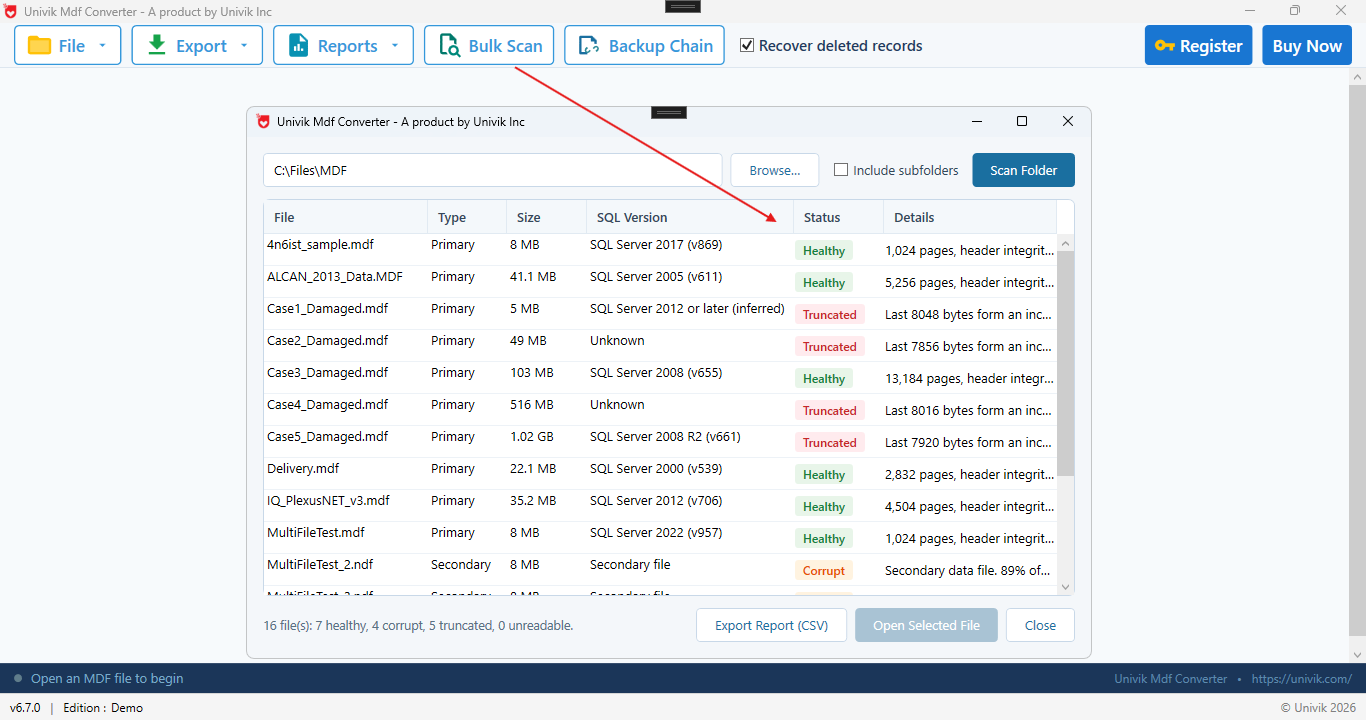
Univik reads exactly those two bytes off the header and maps 706 to SQL Server 2012 for you, with no reversing, no decimal math and no offsets to count. It is the same page level read behind opening an MDF without SQL Server. Its Bulk Scan lists the version of every file in a folder at once, which the check multiple files for corruption guide covers, and the free MDF viewer opens a single file when that is all you need.
What the Version Tells You About Attaching
Once you know the number, you know where the file can go. A server can attach or restore a database whose internal version is its own or lower, and it upgrades the file on the way in. This catches people out most with LocalDB and Visual Studio. Open an .mdf in a Visual Studio project and the tooling can quietly upgrade it to whatever LocalDB version is installed, so a 2014 Express file comes back a 2016 file that the old instance refuses. It cannot go the other way. Try to attach a version 904 file to a SQL Server 2017 instance, which tops out at 869, and you get a blunt refusal, version 904 is too high for a server that stops at 869.
There is no downgrade switch. Moving a higher version file onto an older server means reading the data out and loading it in, which the higher version MDF on an older SQL Server guide walks in full. The reverse bites too. A very old file, SQL Server 2005 or earlier, is refused by a modern instance because too much of the format has changed, and the same read and reload approach is the way across. The whole attach and detach flow, and the errors around it, sit in the attach and detach a database guide.
Which SQL Server made your MDF?
Univik reads the internal version straight from an MDF, NDF or BAK and names the SQL Server release, with no instance to attach the file to first.
When the File Refuses to Open
A file that will not open splits two ways. When SQL Server names a version it cannot open, the file is fine and that version is simply too high for the server, which the higher version MDF guide sorts out. When the version will not read at all, the file itself is damaged. A truncated MDF with an intact header still reports its version. A corrupt header gives nothing back, and neither does a file that was never a real MDF. That is a signal in itself, a file that cannot even name its own version has bigger problems than which server made it.
At that point the question shifts from identifying the file to rescuing it. A scan that flags the file as corrupt or unreadable points you at the causes of SQL Server corruption, and pulling tables out of a damaged file is the job of SQL Database Recovery. Once the data is out, the convert MDF to CSV guide covers moving it somewhere usable. And a file that reads fine but is missing its log is a different fix again, covered in attaching an MDF without its LDF.
Frequently Asked Questions
How do I Tell What Version of SQL Server an MDF File Is?
Read the internal database version number. If the database is online, run DATABASEPROPERTYEX with the Version property. If you have a backup, run RESTORE HEADERONLY and read the DatabaseVersion column. If you only have a detached MDF, a file reader like Univik names the SQL Server version with no server running. Then match the number to a release, for example 869 is SQL Server 2017.
What Is the Internal Database Version in SQL Server?
It is a number stored in the database that records the physical file format, and it goes up with every major SQL Server release. It sits in the boot page as dbi_version and is the value DATABASEPROPERTYEX returns for the Version property. Because the format changes each release, this number is what decides whether a given server can attach or restore the file.
What Internal Version Is SQL Server 2019 and 2022?
SQL Server 2019 files are internal database version 904, and SQL Server 2022 files are version 957. For reference, 869 is SQL Server 2017, 852 is SQL Server 2016, 706 is SQL Server 2012 and 539 is SQL Server 2000. The number never decreases across releases, so a higher value means a newer version of SQL Server created the file.
Is the Internal Database Version the Same as the Compatibility Level?
No, they are different numbers. The internal database version, like 904, is the physical file format and cannot be lowered. The compatibility level, like 150, is a setting that controls query behaviour and can be raised or lowered freely without touching the file format. A file can be internal version 904 while running at compatibility level 110.
Can I Check a Database File Version Without SQL Server Installed?
Yes. The native commands need a running server, but a file reader that parses the MDF directly does not. Univik opens the file header and reports the SQL Server version with no instance, no attach and no restore. Its Bulk Scan feature reads the version of every MDF, NDF and BAK in a folder at once, which is the fast way to sort a pile of files from an old server.
What Does It Mean if a Database Is Version 869?
Version 869 means the file was created by SQL Server 2017. A server can attach it only if that server is SQL Server 2017 or newer, since a file cannot be downgraded to an older engine. If you need a 869 file on an older instance, you read the data out and load it in, which the higher version MDF guide covers in full.