TallyPrime exports one report or one set of masters and vouchers per run, and only while the software is open.
For a whole company in Excel, use a tool that reads the data files directly. It writes one row per voucher into a workbook, and Tally XML carries the masters and the full voucher detail.
Year-end brings the same request: send everything, in Excel. With ten companies and six years behind you the menu route means dozens of repeat exports, and each one sits waiting while Tally loads a company you'd rather not open at all. The data is already in the files. The job is getting it out without Tally standing in the way, and that's what this guide is about.
Who Needs a Full Tally Export in Excel?
Where do you sit? Each card below points to the part of the guide that fits your situation.
Twelve months of vouchers have to reach someone who doesn't use Tally, in a file they can filter and sort on their own without calling you.
See why menus fall short →The new software imports Excel and you've got five companies to feed it, and nobody wants to run the Tally export menu fifty times to get there.
Open each company →You need every voucher in one workbook before you build a single summary, because a pivot over half the data is worse than no pivot.
Check the workbook →A full company holds masters, vouchers, stock and more. Tally can send any of them to Excel, but each export covers one slice, so the real work is stitching the slices together afterwards and hoping you didn't miss one. The sections below show you where that effort goes and how you avoid it.
Why Tally's Own Exports Cover One Slice at a Time
The TallyPrime export page lists the output formats as ASCII, Excel, HTML, JPEG, PDF, XML and JSON. Alt+E exports masters and vouchers, while Ctrl+E exports whatever report is on screen. Both run only while the software is open on a loaded company, so the licence and the release have to cooperate before you export a single row.

Its export FAQ adds that exporting masters and vouchers separately is slow and time consuming. Tally's words, not ours. For one monthly report that's fine, but for ten companies over six years it turns into a week of repeat runs that nobody will thank you for.
| Method | Tally open? | What one run covers | Best for |
|---|---|---|---|
| Ctrl+E on a report | Yes | The report on screen | A single statement for one period |
| Alt+E for masters and vouchers | Yes | Masters or vouchers for the loaded company | Moving one company into another system |
| ODBC from Excel | Yes, with the ODBC server on | Tables the driver exposes | A live link that refreshes during daily work |
| Univik Tally Data Converter | No | One company, the vouchers on screen or all of them | Every voucher in one workbook, or the full company as Tally XML |
ODBC is the right pick for a dashboard that updates while the company is in use, and if that's your situation you don't need a converter at all. It doesn't help when the PC has no Tally on it or the licence has lapsed, which is the situation most people are in by the time they search for this.
Limitations of the menu route: one report or one masters-and-vouchers set per run, Tally open on the company the whole time and no way to touch a .001 backup without restoring it first, which on a busy PC is its own afternoon.
Which route should you choose? If you need one report from one open company, use Ctrl+E and be done. If you need a live dashboard that refreshes while people work, ODBC is the one to set up. If you need every voucher from several companies or years, or the company will not open, read the files directly.
Export All Tally Data to Excel With Univik Tally Data Converter
Univik Tally Data Converter is a module of Univik Tally Data Recovery Toolkit. It parses the company files and backups on its own and saves the result on your PC, so nothing is uploaded and no Tally licence is checked, which also means it works on a laptop that has never had Tally installed.
How complete is the export? We sent a full company back the other way to find out: 8,836 vouchers exported from the files, imported into a new TallyPrime company with 0 exceptions and then exported again by TallyPrime itself. The two exports matched field by field with 0 differences, and stock vouchers balanced 45 of 45.
The save screen offers five formats, and they don't all carry the same detail. Excel, CSV, JSON and the print page write one voucher per row. Tally XML writes a masters file and a vouchers file instead, and for a company that opens normally it carries the stock, bill-wise, cost centre and GST detail as well.
| Format | What it holds | Use it for |
|---|---|---|
| Excel workbook (.xlsx) | One row per voucher, amounts as numbers | Sorting, filters and pivot tables |
| CSV (.csv) | The same columns as plain text | Accounting or reporting software |
| Print or PDF (.html) | A page that opens in the browser, then Print and Save as PDF | Records for a file or an auditor |
| Tally XML (.xml) | Masters file first, vouchers file second | Putting data back into Tally |
| JSON (.json) | The voucher fields as records | Scripts and developers |
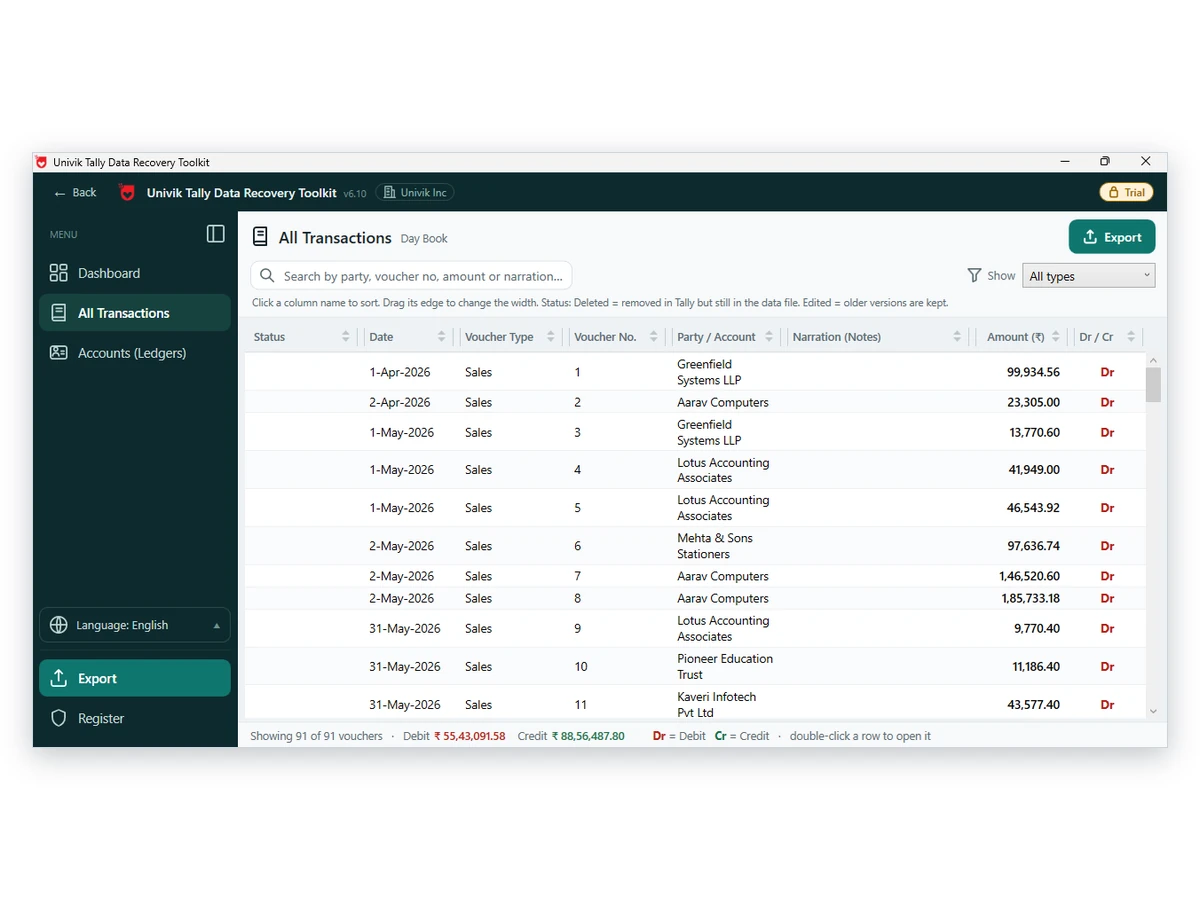
- Decide what the file must holdExcel, CSV, JSON and the print page list one voucher per row. Tally XML adds the masters and the detail inside each voucher. Pick the one that fits the job.
- Open the companyStart Univik Tally Data Converter and open the company folder (10000 or 100000 for instance) or a .001 backup.
- Narrow the list if you need toIn the Day Book use the search box or the voucher type filter. Skip this step to save every voucher.
- Choose ExcelPress Export and pick Excel workbook. Keep the Narrations box ticked when you want the notes typed on each voucher.
- Save and open the workbookOpen the file and compare a few totals with a report you trust. Repeat for the next company.
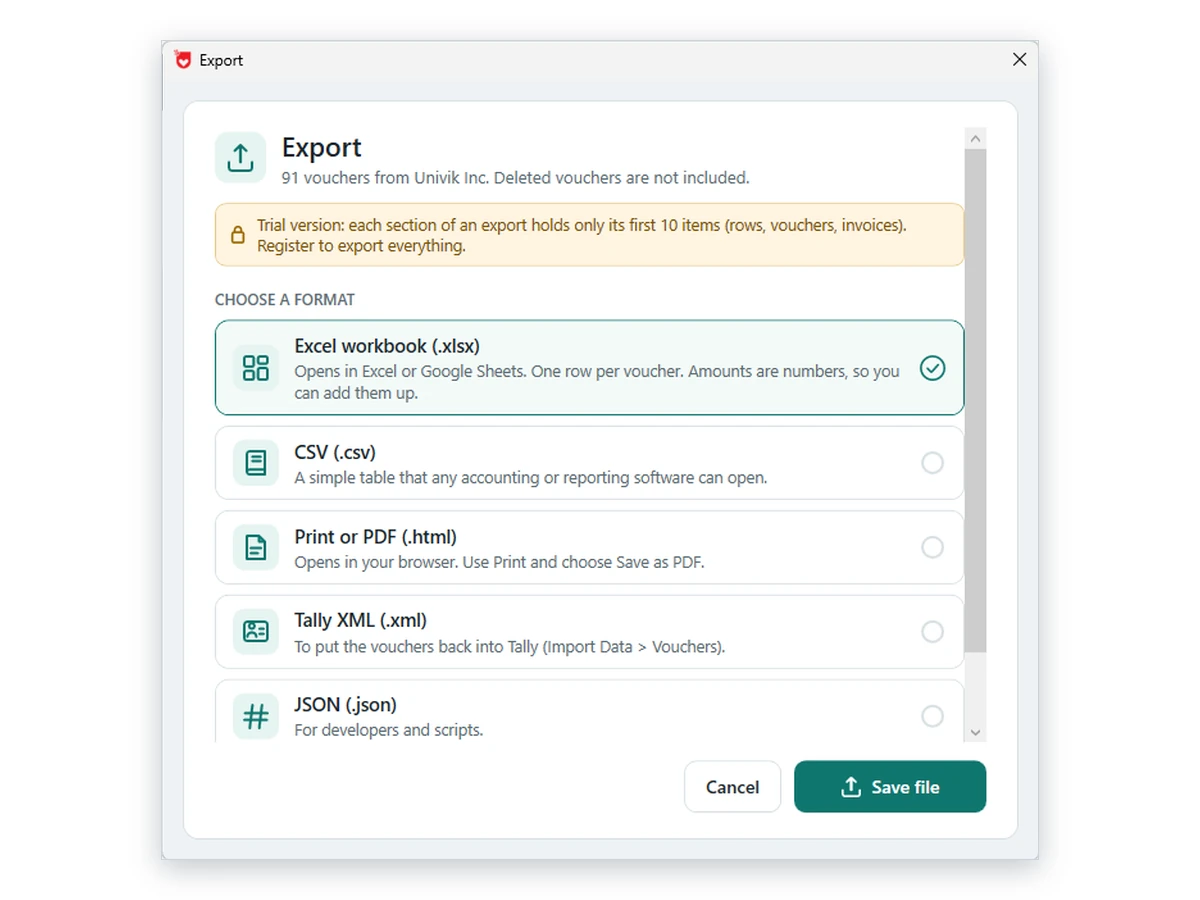
Open the folder, pick Excel and save, which is the whole procedure. Note: a trial run saves ten items per section, and that's enough to judge the layout before you buy anything.
Download Free Trial Checkout - From $99Any Windows 11 or 10 PC with the 4.8 .NET Framework will do; full exports use a licence. Converter page
Check the Workbook Against the Books
A clean file isn't yet a correct one. Compare the closing balance of two or three ledgers with a Tally report you printed earlier, count the vouchers for one month in the sheet and in Day Book, and spot-check a party with many bills. Ten minutes here saves you an awkward email later.
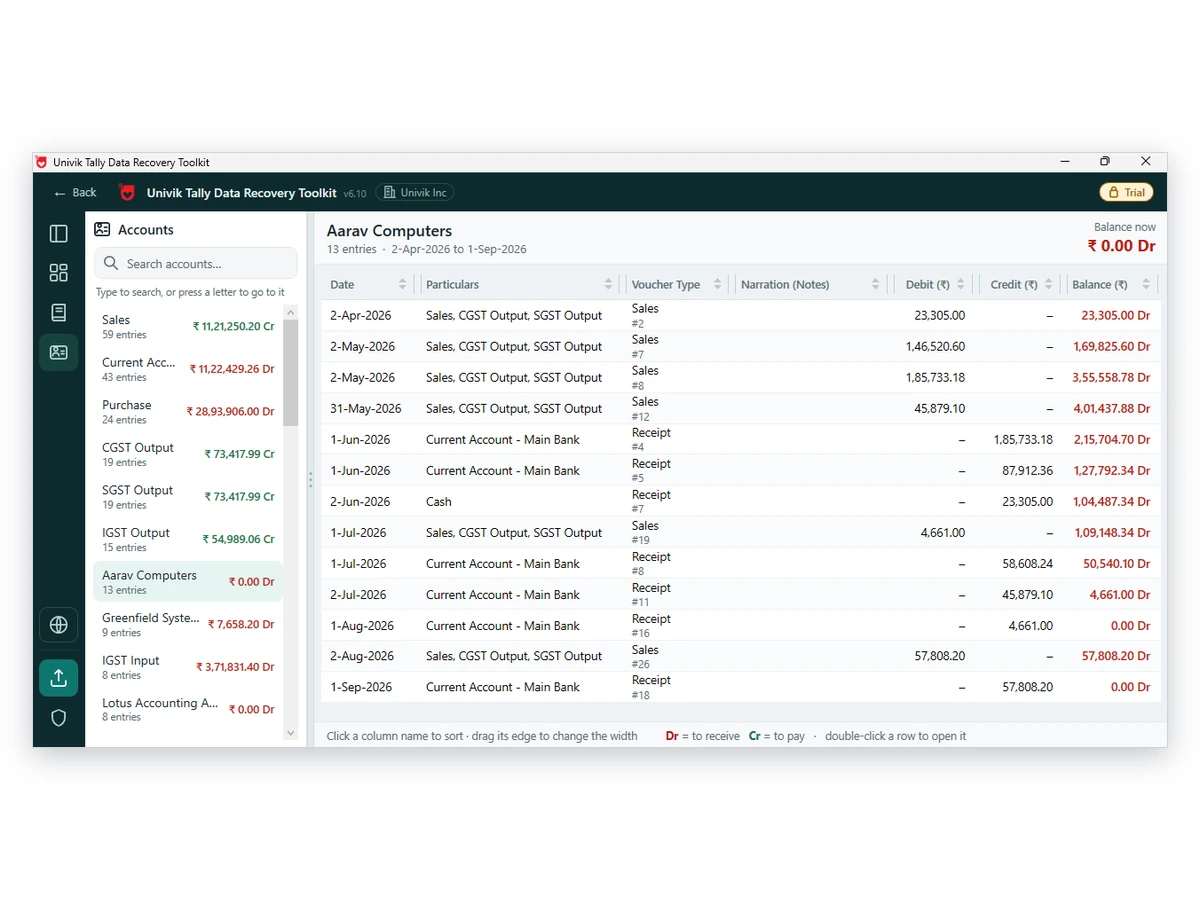
- Closing balances for a few ledgers match the last report you trust
- A month of vouchers in the sheet equals the same month in the source books
- The first and last dates in the sheet are the ones you meant to export
- The voucher count in the file equals the count shown in the Day Book
- The file sits in a folder separate from the source data
Excel holds 1,048,576 rows per sheet according to Microsoft's limits page, and a busy voucher section can get surprisingly close to that number over six years. Export long histories year by year and you won't find out the hard way.
What to Do With the Exported Data
Sort and filter in Excel for quick questions, which covers most of what people need. For a refreshable model in Power BI read the guide to Tally data in Power BI. To feed another accounting product see moving Tally data to BUSY or Zoho.
Fixes for Export Runs That Stall or Look Wrong
Do this: Choose the numbered folder itself and not its parent, which is the mistake we see most often. Still nothing? See why a company can vanish from Tally's list.
Do this: Filter the Day Book by voucher type and save in parts, or save CSV for a tool that takes more rows, since smaller files open faster and stay inside the row limit.
Do this: Export from the converter before anyone runs a repair, because Tally warns that repair removes data it cannot recover and you'll want a copy first. The details are in the repair guide if you need them.
Stuck on a run? Write to support with the folder name and the release if you know it, and we'll take it from there.
FAQ: Exporting Everything From Tally to Excel

Univik gave the product notes, and the export menu facts and the slow-export remark come from the Tally help pages we opened on October 12, 2026. The row limit is Microsoft's own figure and the save options follow the converter's export screen and the converter page.
Pages we read: Export data in TallyPrime · Export data FAQ · Excel specifications and limits