A migration to TallyPrime 3.0 leaves you with two folders: a fresh six-digit one like 100000 and the retained five-digit one like 10000.
Entries made after the move normally sit in the 6-digit folder. Copy both, open them in a read-only viewer and compare the last voucher date before you hand over or delete anything.
After an upgrade your data path shows two folders with almost the same name, and only one of them holds this month's vouchers. Pick the wrong one and the audit file you send out carries old figures. Nobody wants that call from the auditor.
Who Finds Two Numbered Folders?
Which situation is yours?
The data path now shows two similar folders. The staff swear they only ever opened one company, and you are not sure which of the two folders that company actually lives in.
See why there are two →The auditor asks for the books and you must send the one folder that holds the latest entries, not the one that stopped on migration day.
Compare the folders →Scheduled backups stopped around the upgrade date, and the newest file you can find is from the week before the move.
Check the company number →Names such as 10000 and 100000 look like version numbers. They are company numbers, and the count of digits tells you which data format the folder holds. Five digits means the older format. Six digits means the folder was written by TallyPrime 3.0 or later.
What Does Migration to TallyPrime 3.0 Leave Behind?
The vendor's migration FAQ describes the move in four short points. Release 3.0 builds a new six-digit company and keeps the five-digit original, and the data grows because the new format adds purpose data to every company it converts. A backup during migration is optional in 3.0. And TallyPrime 2.1 renames the old folder with the words migrated to 3.0, so you will see that label if you came through 2.1 first.

| 5-digit folder | 6-digit folder | |
|---|---|---|
| Example | 10000 | 100000 |
| Typical data files | Company.900 and Manager.900 | Company.1800 and Manager.1800 |
| Written by | Tally 9 to TallyPrime 2.1 | TallyPrime 3.0 and later |
| Used by | The earlier release | The release you migrated to |
| Latest entries | Up to the migration date | From the migration date on |
Note: the last row holds in the usual case only. A company that went back and forth between releases can have entries in both folders, so check before you trust either one.
Find the Live Folder Without Changing Either One
Univik Tally Data Viewer reads both formats side by side, so you can compare the two folders with no Tally and no conversion. It forms part of Univik Tally Data Recovery Toolkit. Open each folder in turn and look at the last voucher date. The folder with the later date is the live one, unless the staff kept posting into the old company by mistake, which is exactly why you compare instead of guessing.
We've read both formats side by side on real data: 7 TallyPrime (.1800) sets and 2 Tally.ERP 9 (.900) sets from working businesses, and the 236 opening balances in the .900 companies matched to the rupee. Comparing two folders takes less time than reading this paragraph.
- Copy both foldersClose Tally and copy the 5-digit and the 6-digit folders to another drive. Keep their names as they are.
- Open the older folderSelect the copy of 10000 in Univik Tally Data Viewer. Note the last voucher date and the number of vouchers for the latest month.
- Open the newer folderSelect the copy of 100000 and note the same two facts.
- Compare the factsThe folder with later vouchers is the live one. If both have recent dates, the company was used in two releases and needs a closer look.
- Export what you needSave the live folder to Excel for the record. Leave the older folder untouched as a fallback.
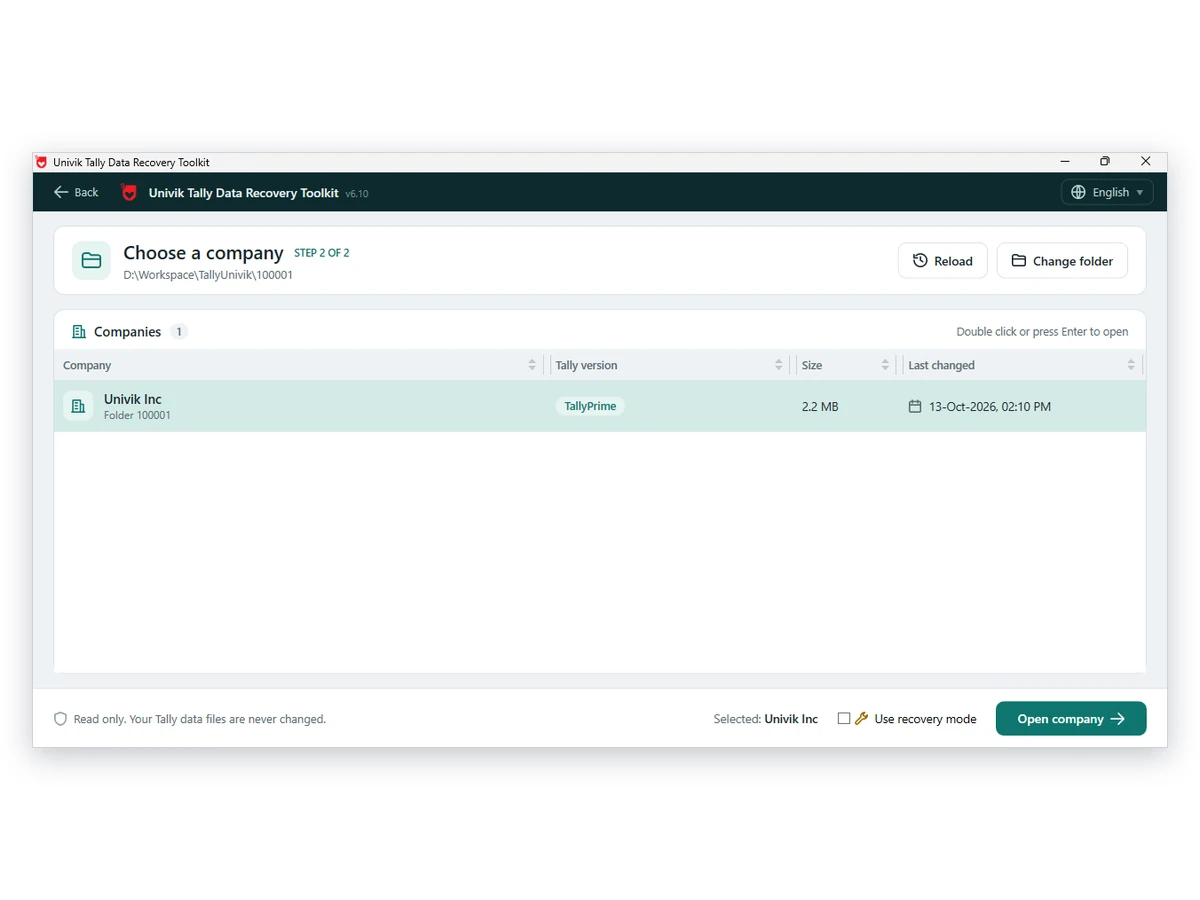
Univik Tally Data Viewer opens the 5-digit and the 6-digit folder in the same window, read-only, with no migration.
Download Free Trial Get Your Licence - From $99The viewer needs Windows 10 or 11 with .NET 4.8. No cost to browse. Viewer page
Why Scheduled Backups Stop at the Move
The backup and restore FAQ says a scheduled backup stops once the company number changes, and a migration gives the company a new number. Until you set the schedule again, the newest backup you hold may come from the old folder and sit weeks behind the books. From release 7.0 the scheduled files start with TSDBK1800, which at least tells you they came from a schedule.
If all you hold is backups, read them before you restore anything. Opening a Tally backup without restoring explains how.
- You copied both folders and kept the original names
- You know the last voucher date in each folder
- The folder you will send has the latest entries
- The older folder is stored as a fallback and not deleted
- Scheduled backups point at the right company number
Fixes for Mixed Up Folders
Do this: The company was used in two releases. Export both and merge on paper with the owner before choosing. Do not copy files from one folder into the other.
Do this: Check the data path and the status, as covered in a guide on companies absent from the list.
Do this: Data from a higher release will not load in a lower one. Read it in a viewer or install the newer release.
Unsure which folder is current? Write to support and give both folder sizes.
FAQ: Tally Company Folder 10000 or 100000

Product details were added by Univik. Two vendor pages cover the migration and backup facts, and we opened both on October 12, 2026. The side-by-side comparison method is our own advice.
Pages we read: Tally data migration FAQ · Tally backups and restore FAQ