Educational Mode is a licensing state and not damage to your books.
TallyPrime enters it when the licence cannot be confirmed, for example after more than 30 days without internet contact. Your company folder is unchanged, and a viewer that reads the files directly can show the data while the licence is repaired.
The software opens with a banner you did not expect, a return is due and the vouchers are somewhere behind that screen. Take a breath. The books are intact on the disk. What changed is whether Tally is allowed to work with them, and that is a licence question, not a data one.
Who Hits Educational Mode at the Wrong Time?
Which story is yours?
The office PC was offline for weeks and nobody noticed because the work was all on paper. TallyPrime now starts in the restricted state a day before filing.
See the causes →You reinstalled Windows and the licence did not follow, so the books sit on the disk behind a banner you cannot get past.
Read the books now →The server is fine and every other PC in the office works, but a single machine cannot reach the licence host and shows the banner on its own.
Check the client side →Educational Mode is how Tally handles a licence it cannot confirm. It is a licensing state and not a data fault. Once you see that split, you stop touching the company files when the thing that needs fixing is the licence, and you stop paying for a repair you never needed.
What Pushes TallyPrime Into Educational Mode?
Tally lists the causes on its page about TallyPrime licence in Educational Mode. They fall into two groups, and the table below keeps them apart because the fix is different for each.
| Where | Cause the vendor lists |
|---|---|
| Server | Formatted system, replaced disk or a newer Windows version |
| Server | A release installed outside the TSS validity period |
| Server | Trial or rental ended |
| Server | Licence reactivated on another system, which surrenders this one |
| Server | No internet contact for more than 30 days |
| Server | tallyprime.lic missing or the Gateway Server service stopped |
| Client | Wrong server name or IP and port |
| Client | LAN link missing, firewall block or subnet mismatch |
Note: fixing any of these is a licensing task for Tally Solutions or your partner. This guide covers none of the ways to avoid licensing and will not describe any.
What the Restricted State Means for Your Books
The company folder keeps every voucher it held. For Tally.ERP 9 the vendor documents an Educational Mode date rule, which allows entries on the 1st, the 2nd and the 31st only. TallyPrime's page gives no such rule, so judge your own release by what it shows you.

Reading is a separate question. A tool that opens the data files does not check a Tally licence at all, which is why the viewer can show you the books while the licence is still being repaired. You lose nothing by looking.
Read Your Books While the Licence Is Being Fixed
Use Univik Tally Data Viewer, a module of Univik Tally Data Recovery Toolkit, on a copy of the folder. Copy first, then open the copy, so that whatever the licence team asks you to do later starts from an untouched original.
Our own TallyPrime test install runs in Educational mode, so we know its date rule first hand: for a re-import test every date in the test copy had to be moved to the 1st or 2nd of its month. The viewer has no such rule. It reads the copy as saved.
- Stop entering new dataDo not force more work into a licence that has dropped. Entries made in a restricted state can be hard to explain later.
- Copy the company folderIn TallyPrime the Data menu (Alt+Y) leads to a configuration screen that holds the Data Path. Copy the numbered folder (100000 for instance) to another drive.
- Open the copy in the viewerInstall setup-tally-data-recovery.exe and select the copied folder. The licence on the Tally side plays no part.
- Read what the deadline needsCheck ledgers, closing balances and the vouchers for the period. Keep notes of anything you cannot see in the viewer.
- Export for the deadline if requiredSave the sections you need to Excel or CSV. Then work on the licence with your Tally partner without time pressure.
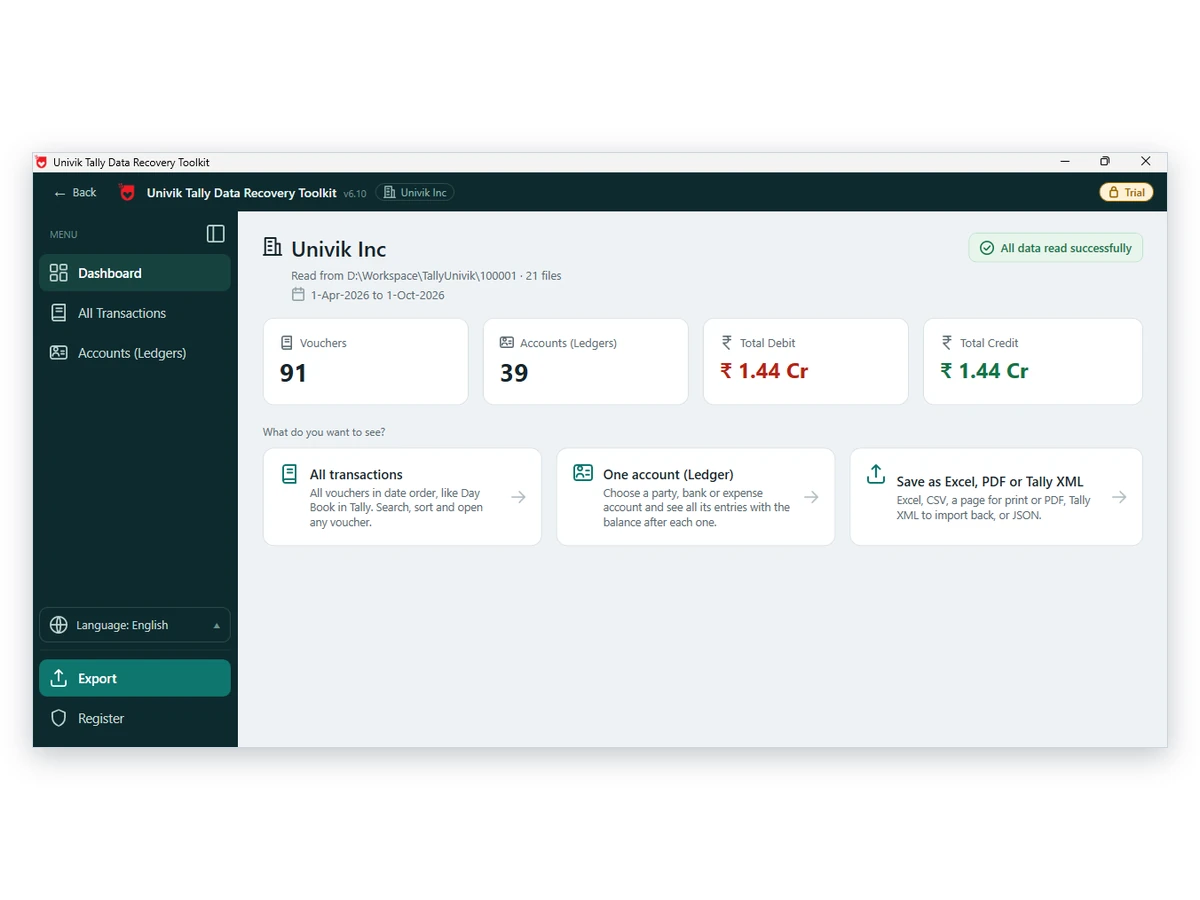
Univik Tally Data Viewer reads the company folder with no Tally licence involved. Nothing is written to the source.
Download Free Trial Compare Licences - From $99Windows 10 or 11 plus .NET 4.8 required. Free to browse. Viewer page
Client PCs and the Licence Host
When only one computer shows the restricted state, look at the client causes in the table. Tally points to the computer name or IP and the port, and it also names the LAN link, the server firewall and an identical subnet range. Check these on that one PC before you blame the server.
Which fix should you try first? If every PC in the office shows the banner, the licence host or its internet contact is the problem. If only one PC shows it, start with the firewall and the port on that PC. If you reinstalled Windows, reactivate before you do anything else.
- A copy of the company folder sits on a second drive
- You can read ledgers and the period vouchers in the viewer
- Closing balances match the last report you trust
- The sections the filing needs are exported to Excel or CSV
- A licence ticket is open with Tally Solutions or your partner
If the Books Look Wrong in the Viewer
Do this: Pick the numbered folder itself. If nothing appears, read the guide on companies that go missing from the list.
Do this: Check whether entries were made after the print and whether a 6-digit folder holds newer data. See which company folder is current.
Do this: Save the vouchers to Excel with the Excel export guide and filter there.
Short of time? Write to support with your Tally release and the folder name.
FAQ: Tally Educational Mode and Your Data

Licence causes and the 30 day rule come from Tally's TallyPrime page. The date rule comes from its Tally.ERP 9 page. Both were opened on October 12, 2026.
Pages we read: TallyPrime licence in Educational Mode · Work in Educational Mode (Tally.ERP 9) · Licensing FAQ