Tally's own fix for File Damaged or Repair Required is an upgrade and repair, but its repair page says unrecoverable data is removed, along with the Edit Log.
Copy the numbered company folder first, read it with a tool that opens damaged companies, export what you need and only then repair.
You open the company and see a message about damage. The books are due, and the only suggestion on the screen is to run a repair. Before you accept, it helps to know what that repair deletes, because Tally's own page says the answer out loud: anything it cannot recover, plus the Edit Log.
Who Sees These Tally Error Messages?
Which scene looks familiar?
The office lost power in the middle of posting, and the next start shows File Damaged with a company that will not open.
Read the messages →The books are needed tonight and the only suggestion on screen is to run the fix.
Export first →Someone ran the routine and a few vouchers have vanished. You want to know what it keeps.
See what repair removes →A damaged company is stressful because the usual advice rewrites the files, and a rewrite is the last thing you want while the only copy of the books is the damaged one. The plan below reads first and fixes second. It takes one extra hour. It can save a year of vouchers.
What the Common Messages Mean
| Message or symptom | What the vendor says | Where |
|---|---|---|
| File Damaged or Repair Required | Upgrade and repair, with a backup first | Data migration FAQ |
| Unable to proceed as Repair, Migration or Reset is required or in progress | Look at the company status in Select Company (Alt+F3) | Repair, migration, reset page |
| Unable to proceed as company data is not accessible | A scheduled backup issue: check the source path and company number | Company data not accessible page |
| Record insertion failure | Documented for older Tally.ERP 9 releases: back up, set Load Companies on startup to No, rewrite, upgrade, contact support | Tally.ERP 9 help page |
| Error Code 32 on tstate.tsf | Third-party backup software or antivirus ransomware protection locking the .tsf files | Data management errors page |
The first row comes from the data migration FAQ and the second from the repair, migration or reset page. The fourth row is documented on the Tally.ERP 9 help page and the fifth on the errors page. None of the fixes tells you to copy the folder first, yet that step costs nothing and protects you.
What Tally's Repair Actually Does
The vendor's repair page gives you three ways in: F1, then Troubleshooting, then Repair; or Alt+Y then Repair; or the shortcut Ctrl+Alt+R. Press R to start. A backup option defaults to Yes, and if the disk is low on space a prompt names the space required.
A Statistics report then compares record counts, and Alt+X lists the exceptions. The page is plain about the cost. Data that cannot be recovered is removed, and so is the Edit Log information. For TallyPrime 2.1 and earlier it warns that a partial repair may lose entries.
Limitations of the repair route: it rewrites the only copy you have unless you copied the folder first, it gives you no preview of what will be dropped and it clears the Edit Log that an auditor may need later.
Read and Export a Damaged Tally Company Before You Repair
Univik Tally Data Converter and Univik Tally Data Viewer are modules of one toolkit. Both parse the company files themselves, so Tally's damaged flag does not stop them. You can read and export a company that Tally refuses to open. Work on a copy of the numbered folder, never on the original.
One number worth knowing before you repair anything: in our round trip of 8,836 vouchers through TallyPrime, 1,591 masters were created and 0 import exceptions came back, and every original voucher number survived across all 9 voucher types. That's the standard an export from a damaged folder is held to.
- Close Tally and stop the PC being usedFurther writes can make a damaged file worse. If the disk is failing, copy at once and stop using it.
- Copy the numbered company folderTake the whole folder, for example 10000 or 100000, to a healthy drive. Do the same for any .001 backups.
- Open the copy for readingRun setup-tally-data-recovery.exe, then select the copy. Confirm that ledgers and recent vouchers are listed.
- Save the vouchers you needPress Export and save the vouchers to Excel or CSV. Add Tally XML when you want the masters and full voucher detail in a file Tally can import. A damaged company opens like any other in the converter.
- Run Tally's fix lastFollow the vendor's procedure on a different copy, or on the original once the export is safe. Compare the counts on its Statistics report with your export.
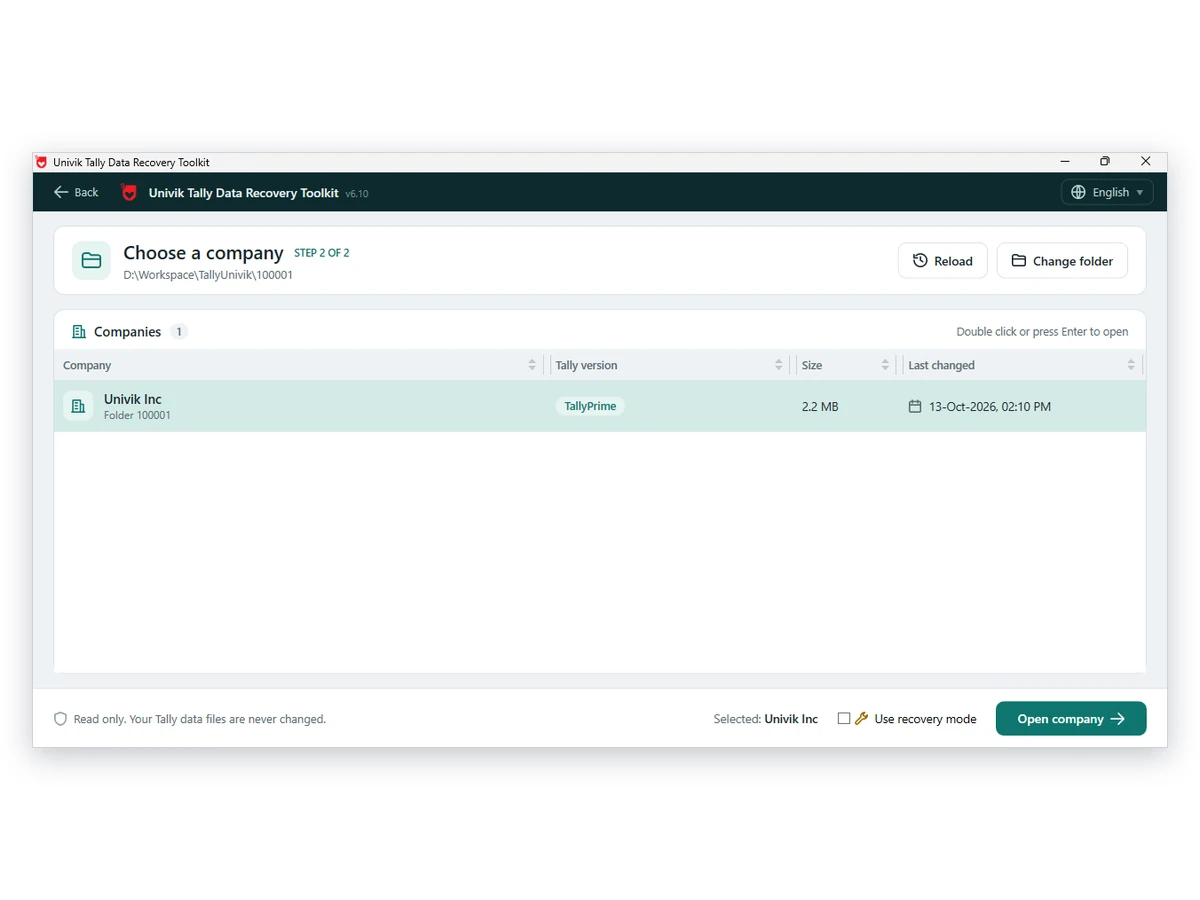
The toolkit opens companies that show File Damaged or Repair Required and exports them to Excel or CSV before any repair runs.
Download Free Trial Buy Now - From $99Works on Windows 10 and 11 once .NET 4.8 is installed. Exports beyond the trial cap need a licence. Converter page
Compare the Export With What Repair Leaves
Once the routine finishes, open the Statistics report and note the record counts. Count the same items in your export. If the repaired company has fewer vouchers than the export, the difference is what the repair removed. Your export is the proof of what was there.
- A full copy of the numbered folder sits on another drive
- Your export covers the vouchers for every year you need
- Closing balances in the export match the last report you trust
- Backups from before the fault are kept and labelled
- You know the routine removes the Edit Log and unrecovered data
Note: if the Edit Log matters, for example in an audit, the export is how you keep a record of deleted vouchers, because the repair clears that log. See Edit Log and deleted vouchers.
Fixes for Problems Around the Procedure
Do this: Free space on the drive named in the prompt or move the copy to a larger drive, then retry.
Do this: The vendor ties it to third-party backup software. Stop that software while you work, then retry.
Do this: It may be a memory fault instead. Read the guide to Memory Access Violation.
Unsure what state your files are in? Write to support with the folder size and the message text.
FAQ: Tally File Damaged or Repair Required

Univik colleagues added product notes. The steps, the cost and the message fixes come from Tally's help pages. We read them on October 12, 2026 and quote none of the error screens as they appear.
Pages we read: Data migration FAQ · Repair company data · Repair, migration or reset is required · Company data is not accessible · Record insertion failure (Tally.ERP 9) · Data management errors