A company missing from Tally's list is not proof that the data is gone.
Tally may be reading another folder or the folder may have moved. A flag for repair or migration is a third cause. Check the data path from Alt+Y and the status under Alt+F3, then open a copy of the numbered folder in a viewer to prove the data is there.
You open Tally and the company you worked on yesterday is gone from the list. Panic is natural. In most cases, though, the files are fine and the software is looking in the wrong place, or it has flagged the company for a job that never finished.
Who Loses a Company From the List?
Which day was yours?
Tally starts fresh on a new PC and the list is empty, while the company folders still sit on the old drive.
See the causes →Two similar folders appear and the one Tally shows looks old.
Find the real folder →The message speaks of a pending job or of data that cannot be accessed.
Read the status →A missing company does not prove missing data. Tally may be reading another folder, or it may have flagged the company for repair or migration. Your first job is to find out whether the files are still on the disk, and that takes two checks and one copy.
What Hides a Company From the List?
| Cause | What to check | Source |
|---|---|---|
| Tally reads a different folder | Alt+Y (Data), then the Data Path in its configuration. Compare with where the files really are | Create company page |
| Folder renamed or moved | Look for names ending in migrated to 3.0 and for copies on other drives | Data migration FAQ |
| A job is pending or running | Alt+F3 Select Company status | Status page |
| Data from a newer release | An error that starts Unable to open the company points to the release gap | Data migration FAQ |
| Scheduled backup source gone | Shift+Enter for the detailed view, then the source path | Source path page |
The migration row matters most after an upgrade. The vendor's migration FAQ says a move to TallyPrime 3.0 produces a fresh six-digit folder (100000, say) beside the retained five-digit one (10000). Tally then lists the new one while you may still be looking for the old name.
Find the Company Folder and Prove the Data Is There
Univik Tally Data Viewer opens a numbered folder even when Tally does not list it, so you can prove the data exists before you touch the data path or run any repair. It belongs to Univik Tally Data Recovery Toolkit.
The test that convinced us: a full company of 8,836 vouchers was exported from a folder Tally wasn't running on and imported into a fresh TallyPrime company. TallyPrime's own export then matched ours with 0 field differences. If the files are there, the viewer will show them.
- Note what Tally showsPress Alt+Y and open the data configuration. Write the Data Path down. Then press Alt+F3 and check the company list and any status.
- Search for the real foldersSearch the drives for Company.900, Company.1800 or Company.500. Each hit is a company folder.
- Copy the folders you findCopy them to a safe drive. Do not rename them.
- Open one in the viewerSelect the copied folder in Univik Tally Data Viewer. If ledgers appear, the data exists and the problem is the path or a flag.
- Fix the path or flagPoint Tally at the folder that holds the company, or follow the vendor's route for repair, migration or reset if that status is shown.
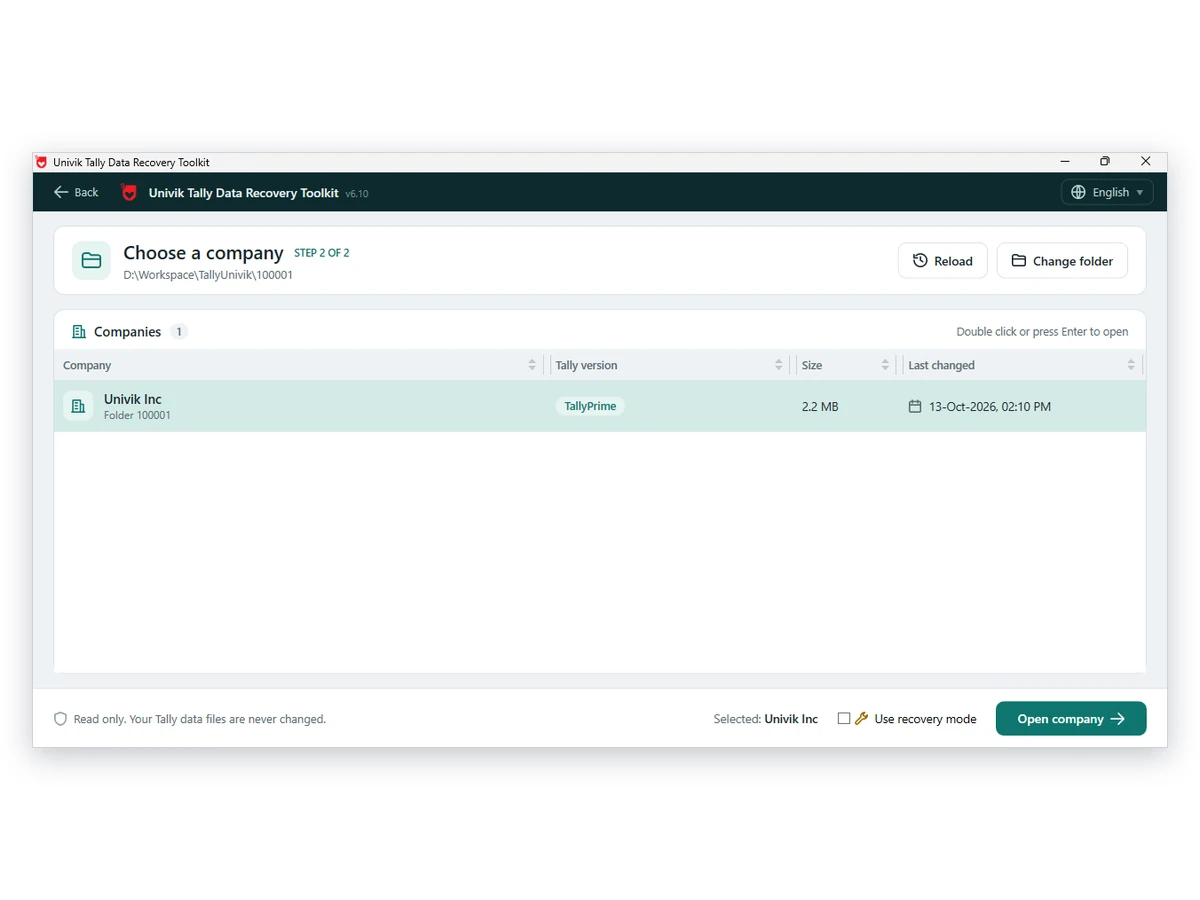
Open the numbered folder in Univik Tally Data Viewer and see whether the ledgers and vouchers are all there.
Download Free Trial Licence Store - From $99Install on Windows 10 or 11 after adding .NET 4.8. There is no charge to open a folder. Viewer page
Reading the Two Status Messages
The vendor's status page says to open Select Company with Alt+F3 and read the status when the Unable to proceed message names a pending job. Either a job is waiting or an earlier run never finished. Let it finish, or run it, before you do anything else.
The not accessible page deals with scheduled backups. It lists three causes: a deleted company, a renamed folder and a source path that is invalid or disconnected. Look at the source path and the company number in the detailed view, because a renamed folder is the one people miss.
Which check should you run first? If the list is empty on a new PC, check the data path from Alt+Y. If the list shows a company but refuses to open it, read the status under Alt+F3. If you have two numbered folders, open both in the viewer and compare the last voucher date.
- You have copied every company folder you found
- At least one copy opens in a viewer with ledgers and vouchers
- You know which folder holds the latest entries, the 5-digit or the 6-digit one
- The data path you plan to set points at the folder that really holds the company
- Nothing was renamed by hand
To work out which of two numbered folders is current, read the guide to company folders 10000 and 100000.
If the Data Does Not Show Up in the Viewer
Do this: Try the other numbered folder. A migration can leave entries in the newer one.
Do this: The files may be damaged. See the File Damaged guide.
Do this: Open the .001 file as described in the backup guide.
Cannot tell which folder is yours? Ask support and attach the folder names and sizes.
FAQ: Tally Company Missing From the List

Our notes on folder names, the 3.0 migration and the two status messages follow three Tally pages. All three were read on October 12, 2026. The tip on searching for Company files matches what the viewer page tells users.
Pages we read: Tally data migration FAQ · Status page for a pending job · Page on inaccessible scheduled backups