Tally lists six causes for a Memory Access Violation: a printer driver, corrupt company data, faulty RAM or disk, low memory, a damaged group member and TDL add-ons.
Test the cheap ones first. A Manager file of about 1 KB means restore a backup, while one over 5 MB means repair.
Tally closes with a memory error and your first instinct is to repair the company. Hold that thought. A repair can remove entries, and in many of these crashes the cause is a printer driver or an add-on, not the data at all.
Who Meets This Crash?
Choose your version of the problem.
Tally closes with a memory error before any company opens, so you cannot even reach a menu, let alone the Repair option that every forum thread tells you to run.
See the causes →Other companies open fine. One does not, and the books in that one are needed this week.
Narrow it down →The crashes started the week a TDL file was added to the install, and nobody wants to be the one who says so to the person who added it.
Check add-ons →Memory Access Violation is a symptom with many roots. If you treat it as data damage by default, you end up in a repair that may remove entries for a problem that a printer driver caused. The checks below run from the cheapest to the riskiest, so you spend the least effort before you touch the books.
What Does Tally Say Causes It?
The vendor's Memory Access Violation FAQ groups the causes into six. Read down the table and stop at the first row that fits your PC.
| Cause | How to test | Vendor direction |
|---|---|---|
| Corrupt printer driver | Stop the Print Spooler service | Reinstall the driver if the error disappears |
| Corrupt company data | Look at the Manager file size | About 1 KB: restore a backup. Over 5 MB: repair |
| Faulty RAM or disk | Run a hardware check | Replace the faulty part |
| Low memory | Close other programs | Free memory or add RAM |
| Group company with a corrupt member | Open each member alone | Repair or restore the member |
| TDL add-ons | F4, Manage Local TDLs | Remove the add-on |
The page also describes setting Default Companies to No in tally.ini and, for hard cases, an advanced path. That path starts with a backup, clears a few .TSF state files such as TSTATE and TACCESS and renames Tmessage.TSF before a repair. Follow the page itself for the exact list. Note: do not skip the backup step on that path, whatever the hurry.
Narrow It Down Without Risking the Books
Univik Tally Data Viewer ships inside Univik Tally Data Recovery Toolkit. It opens the folder directly while Tally stays closed, so it gives you a safe first look at the books before you decide whether the data or the PC is at fault.
We've opened 9 Tally company sets this way, the largest holding 8,836 vouchers and 2,818 bank lines, and in none of them did a read in the viewer touch a byte of the source. A snapshot of one company taken one save apart still exported identical files, byte for byte.

- Copy the company folderWith Tally closed, copy the numbered folder (10000 or 100000, for instance) to another drive.
- Read the copy without TallyOpen it in Univik Tally Data Viewer. If ledgers and vouchers list normally, the data files are readable.
- Check the Manager file sizeIn the original folder, look at Manager.900 or Manager.1800. About 1 KB points to a restore. Above 5 MB points to a repair.
- Test the printerStop the Print Spooler service and start Tally. See whether the error stays away.
- Check add-ons and startupOpen Manage Local TDLs with F4 and disable add-ons. Set Default Companies to No in tally.ini if Tally crashes at start.
- Repair only after exportingIf the data is the cause, export from the copy first, then follow the vendor's repair.
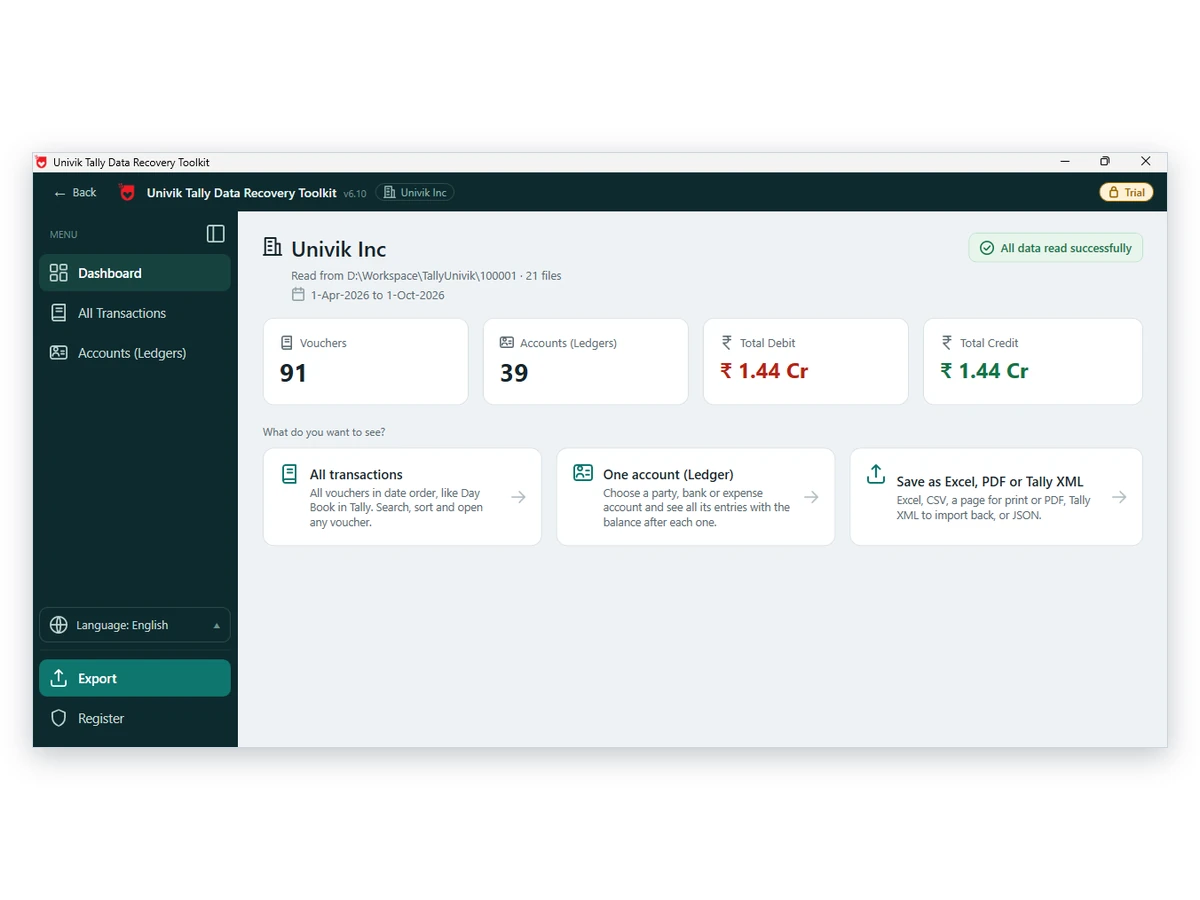
Univik Tally Data Viewer opens the folder on its own, so a crash in the software cannot block your view of the books.
Download Free Trial Order a Licence - From $99Install .NET Framework 4.8 on Windows 10 or 11 first. No fee to look. Viewer page
Add-ons, Printers and Startup Settings
A clean read in the viewer is a useful clue. If every ledger and voucher lists without trouble, the data files themselves are probably sound. That points the search toward the printer, an add-on or the PC. If the read fails or stops partway, the data deserves attention first. Either way the viewer only reads, so the test carries no risk for the books.
Where should you start? If the crash happens only when you print, start with the printer driver. If it started the day a TDL file was added, remove that add-on. If one company crashes and the others do not, read that company in the viewer and look at the Manager file size.
These checks change nothing in your data. Disabling an add-on or stopping a service for a test is reversible, so they belong ahead of any repair. Only when they fail do the data steps make sense.
If the crash points to the data, the order is copy, export, then repair. Details are in the File Damaged guide.
- A copy of the numbered folder exists on another drive
- The copy reads cleanly in a viewer, or you know that it does not
- The Manager file size is neither tiny nor very large
- The Print Spooler test and the TDL check are done
- Hardware checks are done if the crash is random
When the Basic Checks Do Not Help
Do this: The vendor says restore a backup. Read the backup first with a viewer that needs no restore.
Do this: Open its group members one at a time. A damaged member can crash the group. Export the healthy ones first.
Do this: See the guide to a missing company list.
Still stuck? Write to support with the Manager file size and the Tally release.
FAQ: Tally Memory Access Violation

Univik staff supplied the tool notes. Causes, tests and sizes come from the Memory Access Violation FAQ. We read it on October 12, 2026. The step that uses a viewer is our own suggestion and not part of the vendor page.
Pages we read: Memory Access Violation FAQ · Repair company data