A Tally backup ends in .001 and normally comes back only through a restore.
A reader that understands the container can show the company without that step. Copy the file first, note its name and date, then open the copy and compare a few balances before deciding whether a restore is worth doing.
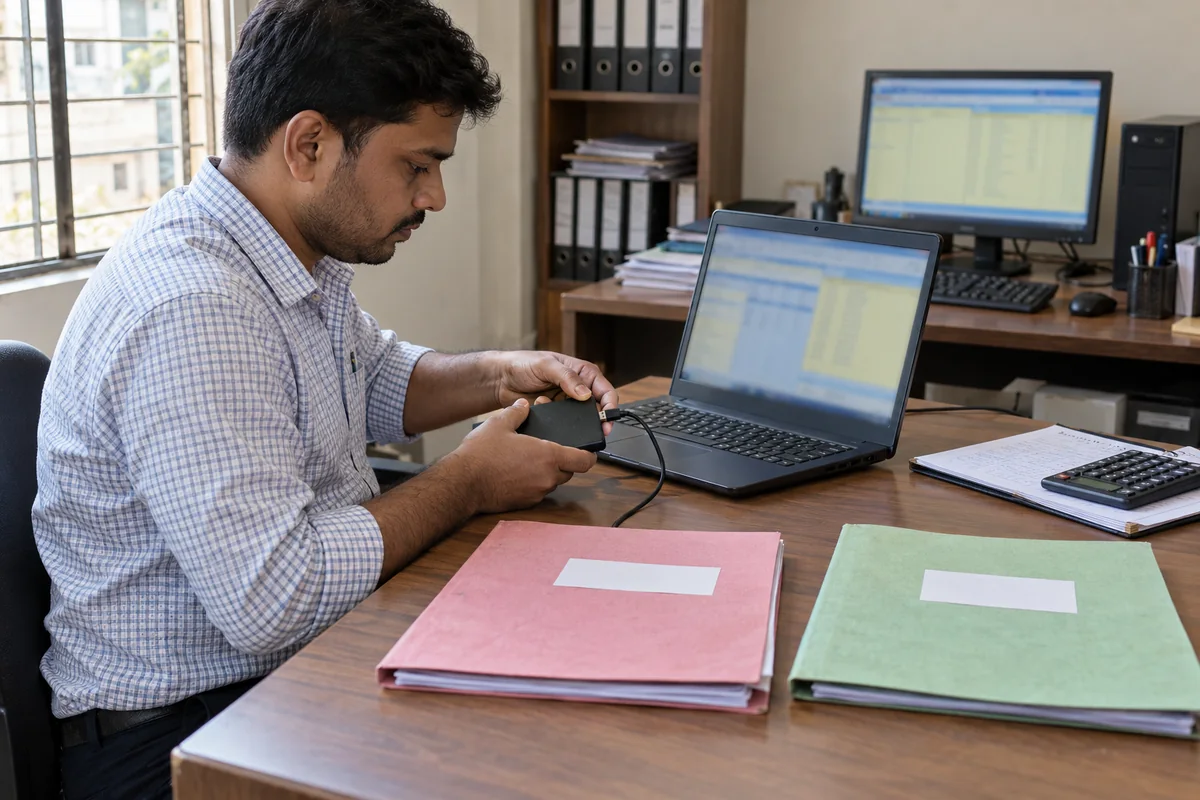
A client sends you one file and a short note that says this is our backup. To restore it you need a Tally install, a licence in the right state and a destination path that will not overwrite anything live, and if the file turns out to be old or damaged, all of that effort is wasted. There is a shorter way to find out what is inside.
Who Needs to See Inside a Backup First?
Pick the situation closest to yours.
Your client mailed one file and no folder, and you want to know what is in it before you touch a live install.
Read the file names →The pen drive holds seven files from different months and nobody remembers which is the last good one.
Open them one by one →The newest file is months behind the live books and you need to know why.
Check the company number →A backup is a single file that wraps a whole company, and Tally gives you exactly one way back in: a restore. The sections below cover what the file names tell you, why the newest backup is sometimes months old and how to read the contents without restoring anything.
What the Backup File Name Tells You
The Tally backup and restore FAQ lists the naming by release and a Tally.ERP 9 help page covers the older Tally.ERP 9 names. Names carry the data format, so they hint at which TallyPrime or Tally generation wrote the file.
| Name pattern | Written by | Kind |
|---|---|---|
| TBK900.001 | Tally.ERP 9 before Release 6.0 | Manual backup |
| TBK900 plus the company number, ending .001 | Tally.ERP 9 from Release 6.0 | Manual backup |
| TBK1800 plus the company number, ending .001 | The 1800 format, up to release 6.2 | Manual backup |
| TDBK1800 | TallyPrime from release 7.0 | One-time backup |
| TSDBK1800 | TallyPrime from release 7.0 | Scheduled backup |
Note: treat the table as a guide to the generation, not a guarantee. Anyone can rename a file. The contents decide the release, so confirm by opening it.
Restore or Read: Which Route Fits?
| Route | Needs Tally? | Risk | Best when |
|---|---|---|---|
| Restore in your live TallyPrime | Yes | Adds a company to the install and uses disk space | You trust the file and want to keep working in it |
| Restore on a spare PC | Yes | Needs a second install and licence state | You must run reports in Tally itself |
| Read with Univik Tally Data Viewer | No | None to the backup. Saving beyond 10 items needs a licence | You want to inspect or choose before committing |
Tally's restore page tells you to check the Restore Destination Path and then select the company. Choose a path away from your live data, so that a bad file cannot land on top of good books. That last piece of advice is ours, not the vendor's.
Which route should you choose? If you trust the file and need to post entries into it, restore it into a spare data path. If you only need to look, or you are not sure which of several files is the good one, read it first and restore later, if at all.
Limitations of a restore: it needs a working Tally of a matching or higher release, it needs a licence or Educational mode and it gives you no preview before the data lands in the destination path.
Read a Tally Backup With Univik Tally Data Viewer
The viewer is part of Univik Tally Data Recovery Toolkit and it understands the .001 container directly, so you never run a restore to see what the file holds. Five steps:
In our own tests the viewer opened 9 Tally company sets without Tally on the PC, and in the two .900 companies the month totals it rebuilt from vouchers matched the stored totals in 4,100 of 4,100 account months. A backup is read the same way, from a copy.
- Copy the backupPlace the .001 file on a local drive. If it arrived by email or cloud link, download it fully before you start.
- Note its name and dateThe file name hints at the release and kind of backup. Record the modified date too. It tells you how old the books are.
- Install the viewerLaunch setup-tally-data-recovery.exe. The PC needs Windows 10 or 11 and the .NET Framework from version 4.8.
- Select the backup fileChoose the .001 file instead of a folder. The company appears with its sections.
- Read and compareOpen ledgers and vouchers. Compare a closing balance with the last report the owner remembers. Decide then whether a restore is needed.
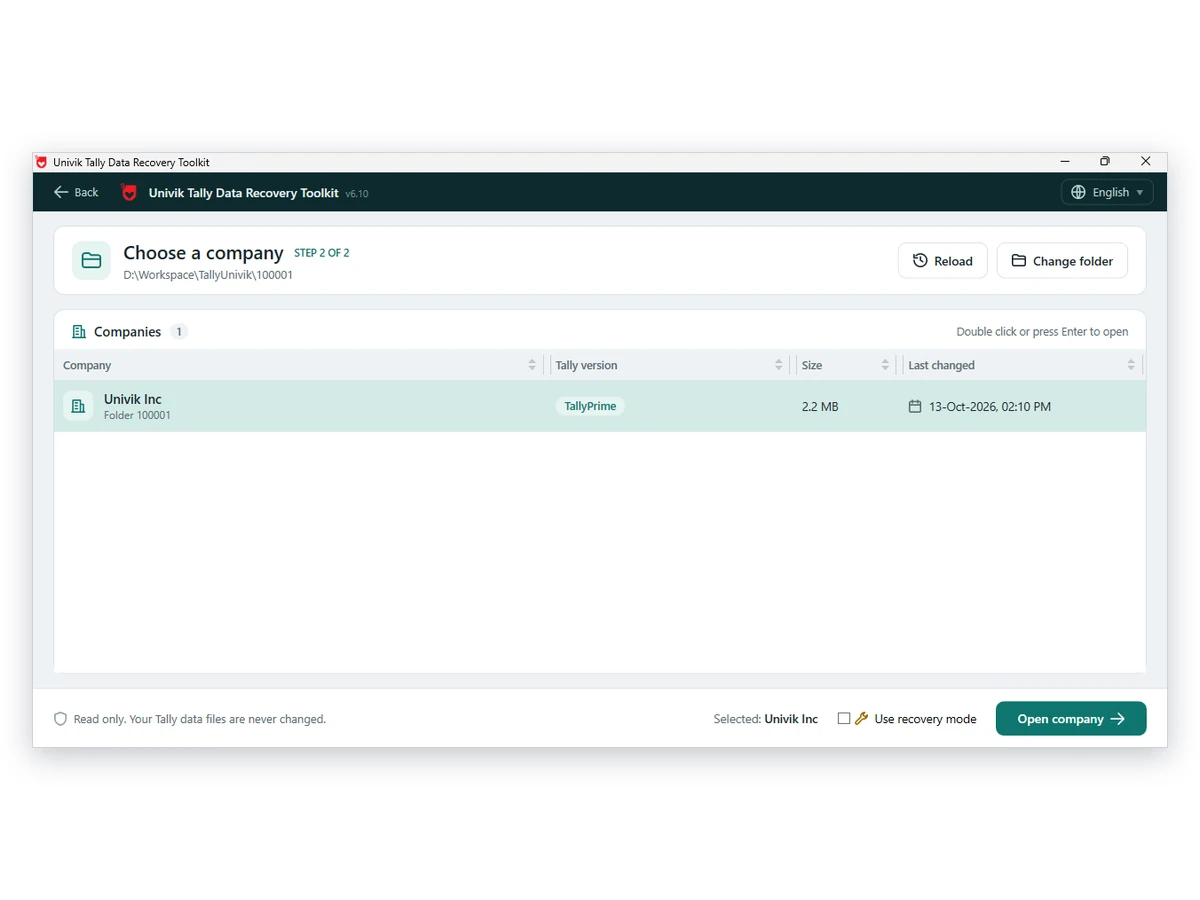
Note: open the .001 file in Univik Tally Data Viewer and browse the company as it was saved. Nothing is restored and no byte of the file is written back, and the whole thing stays on your own PC. Browsing costs nothing. Saving more than ten items per section needs a licence.
Download Free Trial Licence Options - From $99Windows 10 and 11 with .NET 4.8. Browsing costs nothing. Viewer page
Why the Newest Backup May Be Months Old
The backup FAQ says scheduled backups stop when the company number changes, and that is exactly what a TallyPrime 3.0 migration does: it creates a new 6-digit company beside the old 5-digit one. A schedule built on the old number keeps pointing at the old company, or stops altogether. Nobody notices until the day a backup is needed.
So read the company number behind a backup, not only its date. If you see both a 5-digit and a 6-digit folder on the client's PC, the article on company folder 10000 or 100000 explains which one holds the entries made after migration.
- Which company and which financial year does the file hold
- What is the last voucher date, and is it close to the day of the incident
- Do a few closing balances match the owner's last printed report
- Is the backup from the old or the new company number
- Do you have a second, older file to compare against
When a Backup Will Not Behave
Do this: Hold on to the readable copy. Export the sections you need first with an Excel export, then investigate the restore.
Do this: Tally says a corrupted company cannot be uploaded to TallyDrive until repaired. Read the backup before any repair, since repair removes data it cannot recover. See the File Damaged guide.
Do this: Rename nothing. Open it as it is. Someone may have copied it under another name, and the contents decide the release.
Need a second opinion on a backup? Write to support and say which file names you hold.
FAQ: Opening a Tally Backup Without Restoring

Univik staff read it for product accuracy. Naming and the scheduled backup rule follow three Tally help pages read on October 12, 2026. The restore page is cited for its destination path step alone.
Pages we read: Backups and restore FAQ · Backup and restore company data · Data migration FAQ · Tally.ERP 9 backup and restore