To migrate skipped large emails to Microsoft 365, find what the IMAP batch left behind and copy only those emails in a second pass. Microsoft's IMAP migration moves nothing above 35 MB.
A batch can finish and still hide skipped emails, so read its skipped items report first. Raise the mailbox limit if an email is above 36 MB, then filter the second pass by size so nothing already moved is copied twice.
Skipped emails are a known pattern, and you can see it in a May 2024 Microsoft Q&A thread where an admin reported an IMAP batch that synced but skipped about 15,000 emails in one mailbox. The thread ended without a confirmed fix and never named a cause, so treat size as one cause of skipped emails that you can fix cleanly.
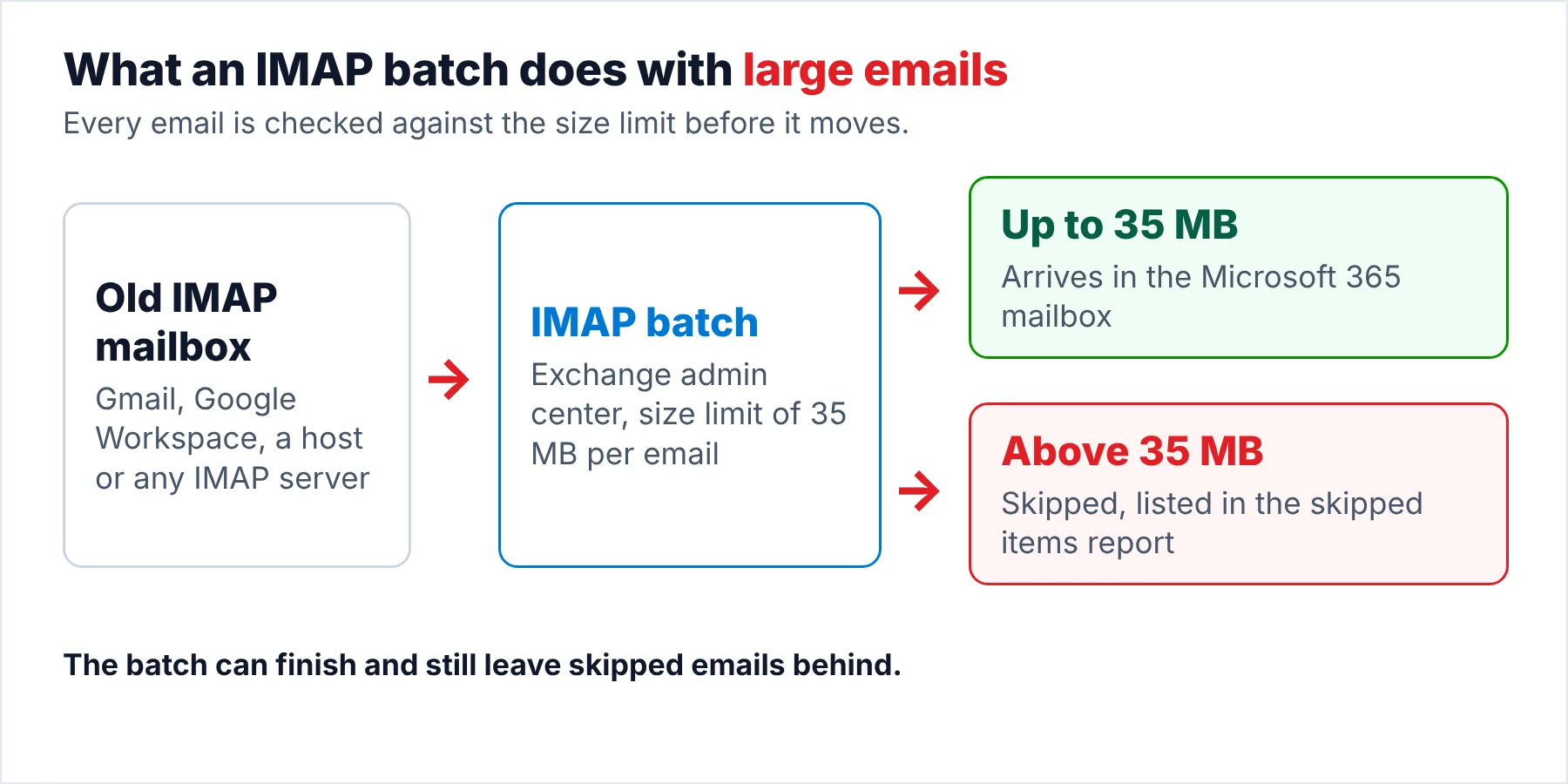
The email moves into the Microsoft 365 mailbox.
The batch skips the email, lists it in the skipped items report and carries on with the next one.
Skipped emails don't stop the batch, so read the report even when the status looks complete.
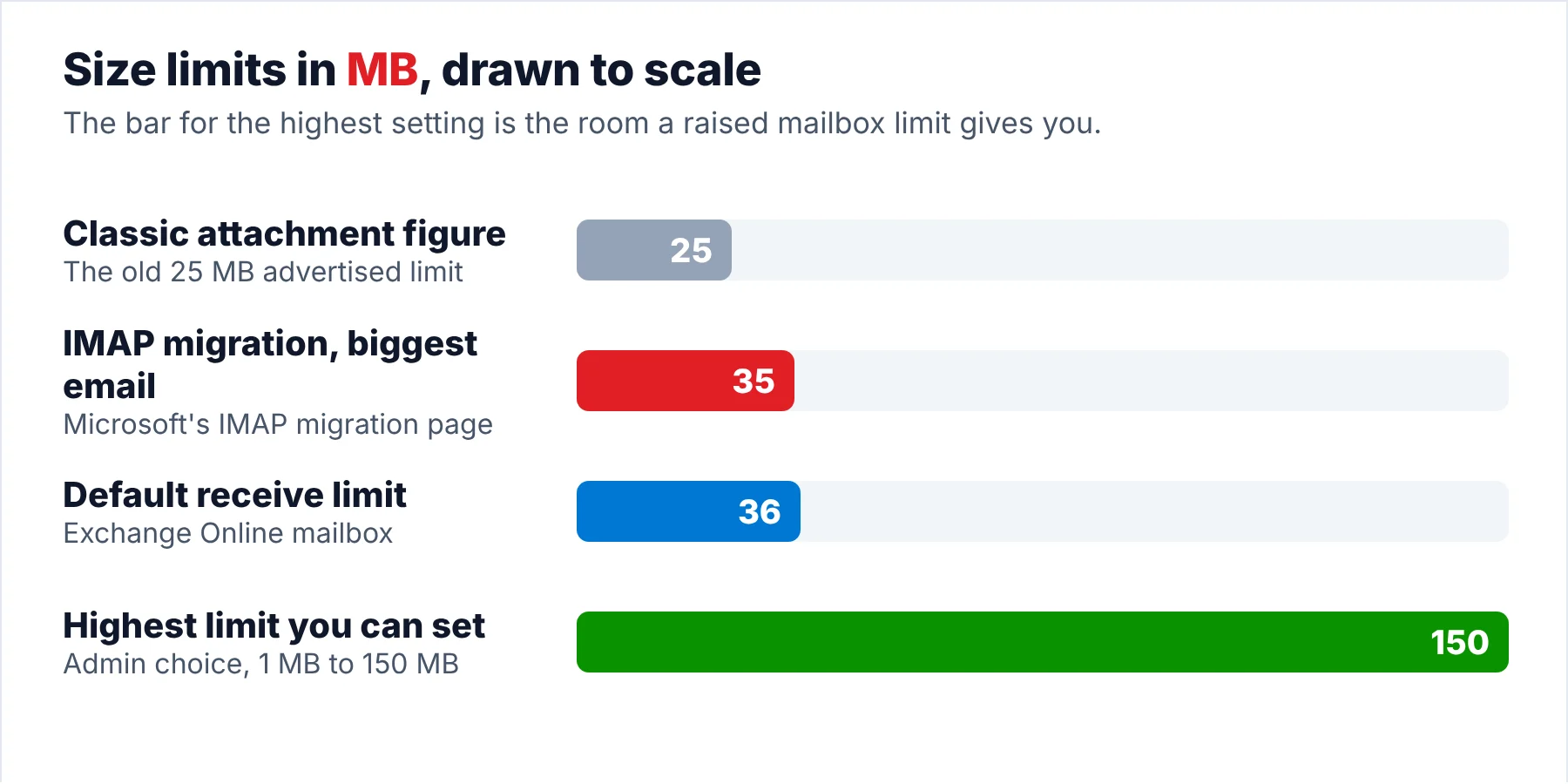
The default mailbox receive limit is 36 MB, so the 35 MB IMAP figure is the tighter one for a batch.
Does my attachment cross the line? A file grows by about a third once it's encoded for mail, so the email is bigger than the file on disk.
| File on disk | Size in the email (estimate) | IMAP batch |
|---|---|---|
| 20 MB | about 27 MB | Moves |
| 26 MB | about 35 MB | At the line |
| 30 MB | about 40 MB | Skipped |
Estimates from the one-third growth Practical365 describes. Real sizes vary with the email body and headers.
Why Does an IMAP Migration Skip Emails Above 35 MB?
Microsoft's IMAP migration page says the biggest email an IMAP batch can move is 35 MB. An email above that size is skipped and the batch moves on to the next email. The batch has four ways to leave an email behind, and the table sorts them so you can match your mailbox to one cause.
| Cause | What happens |
|---|---|
| 35 MB per email | The IMAP migration page sets 35 MB as the biggest email a batch can move. Microsoft's IMAP tips page asks admins to tell users that emails above 35 MB won't be migrated. |
| Mailbox receive limit | Exchange Online sets 35 MB to send and 36 MB to receive by default. The Exchange Online limits page adds that IMAP migrations and third-party tools fall under this general limit. |
| Mail encoding | An attachment grows by about a third once it's encoded for mail, so a 25 MB file lands close to the 35 MB mark. Practical365 explains that the old 25 MB attachment figure became a 35 MB limit for this reason. |
| 500,000 items | The IMAP page caps a mailbox at 500,000 items and moves emails from newest to oldest. On a very large mailbox the oldest emails are the ones left out. |
A size filter handles the first three rows. The fourth row needs a date range instead, and the fixes section below shows where you set one.
Who Ends Up With Skipped Emails After an IMAP Migration?
Which of these is your week?
Every mailbox looked finished. Then users reported missing emails with big attachments, and the skipped items report lists every one of them.
Find the skipped emails →The old IMAP account is still active, so the skipped emails are still there to copy.
Compare the routes →Years of scanned files and slide decks sit above the limit, and none of them arrived.
Run the second pass →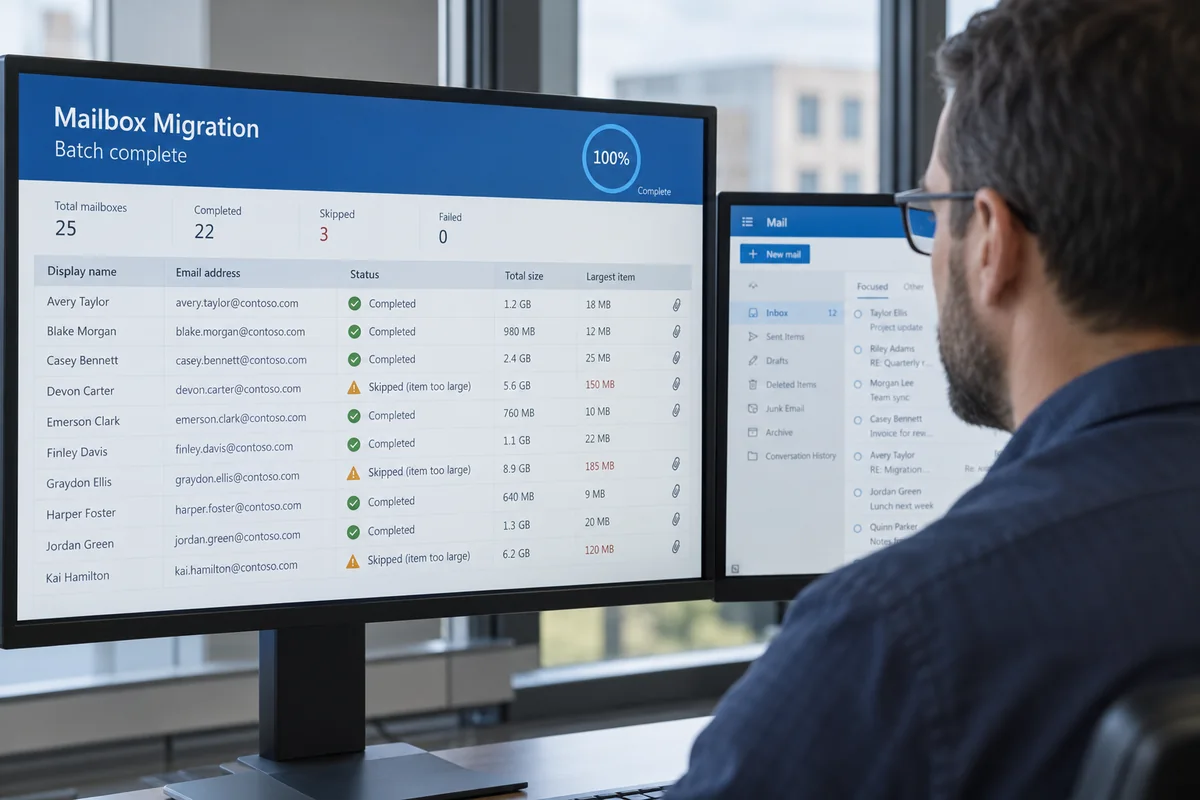
Find the Emails Your IMAP Batch Skipped
The batch report tells you which emails to copy and how big they are, which makes it the easy starting point. Read the report before you touch the mailbox, because the second pass is only as good as the report.
- Open the batch reportIn the Exchange admin center go to Recipients, then Migration, select the IMAP batch and choose View details. The per-user status report shows Items Synced for each mailbox, and the finished-with-errors email links to the error report. Microsoft's IMAP troubleshooting page lists both.
- List the skipped itemsRun the first command below for one user. Microsoft's Get-MigrationUserStatistics example returns the received date and subject of every skipped item.
- Check the mailbox limitRead MaxSendSize and MaxReceiveSize with the second command. A mailbox can carry a custom limit anywhere from 1 MB to 150 MB.
- Note the smallest skipped sizeOpen a few skipped emails in the old mailbox and write down their sizes. The smallest one tells you where to set the filter later.
Get-MigrationUserStatistics -Identity user@contoso.com -IncludeSkippedItems | Select-Object -ExpandProperty SkippedItems | Format-List DateReceived, Subject
Get-Mailbox user@contoso.com | Format-List MaxSendSize, MaxReceiveSize
I checked Microsoft's limits page on October 15, 2026. The limits page lists 35 MB for sending and 36 MB for receiving as the mailbox default, so a mailbox nobody changed stops at 36 MB. The mailbox check is quick because one command returns both values.
You may find older advice that says to raise LargeItemLimit on the batch. Microsoft's Set-MigrationBatch page marks LargeItemLimit as on-premises only and tells admins to review the Data Consistency Score and the skipped items instead.
Microsoft's own advice for these emails is short. The IMAP tips page asks admins to have users save very large emails to a local computer or a USB drive. Saving the emails protects the data, but a saved email doesn't return to the mailbox on its own.
Four Manual Ways to Move Skipped Large Emails Into Microsoft 365
Four routes work without extra software, and each route has a catch. The bars below show why the mailbox limit matters most, because the highest mailbox limit leaves room for emails more than four times the IMAP figure.
| Route | Software needed | Access needed | What you get | Limit |
|---|---|---|---|---|
| Raise the limit and re-run the batch | Exchange admin center and PowerShell | Microsoft 365 admin role | A second sync with a higher mailbox limit | The IMAP page still lists 35 MB, and the pages I checked on October 15, 2026 don't say a re-run copies only the skipped emails |
| New batch for skipped items only | Exchange admin center | Microsoft 365 admin role | Unverified | A moderator suggested it in the May 2024 thread, and the poster never confirmed it worked |
| Drag the emails across in Outlook | Outlook with both accounts added | The Microsoft 365 mailbox | The big emails copied by hand | One mailbox at a time. You sort by Size to find them |
| Save the big emails to a local drive | Any email client | None | A local copy, which is Microsoft's own advice | Nothing returns to the Microsoft 365 mailbox |
| A desktop converter with a size filter | A Windows PC | Free trial, then a licence | Emails above a size, copied from the IMAP account into the mailbox | Windows only. The mailbox limit still applies |
Limits come from Microsoft's IMAP migration page and Exchange Online limits page. The skipped-only batch idea comes from the IMAP Migration Skipped Emails thread, and Outlook's sort by size comes from Microsoft's large items troubleshooting page.
Limitations: the manual routes suit a few mailboxes because each one is simple to run once. Each mailbox needs its own pass, so a tenant with fifty users repeats the same work fifty times.
Migrate Skipped Large Emails to Microsoft 365 With a Size Filter
Univik Email Converter reads the old IMAP mailbox over a live login and writes emails into a Microsoft 365 mailbox. Its Advanced Search limits a run to emails above a size you set. The size filter is a fast way to separate the two groups, because every email below the cut-off stays out of the second pass. The converter runs on your own Windows PC and uploads nothing to a third-party server.
Raise the mailbox limit first if the skipped emails are above 36 MB. Microsoft lets an admin set any mailbox limit from 1 MB to 150 MB, and the limits page says third-party tools fall under the same limit. The Practical365 guide shows the command for one mailbox, and the change is quick because one command covers one mailbox.
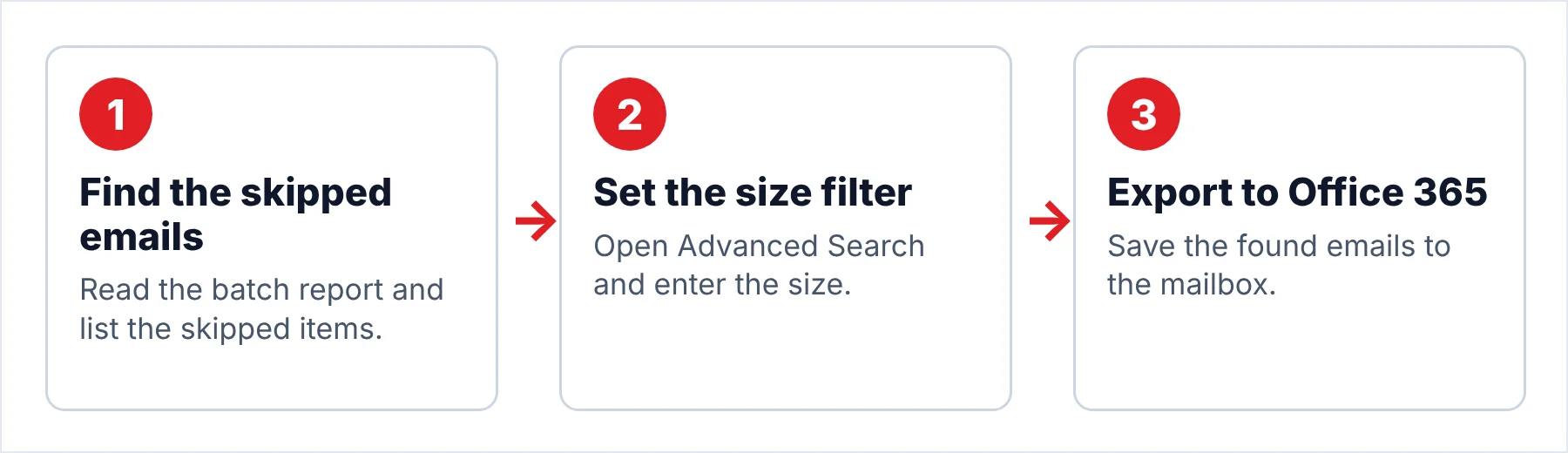
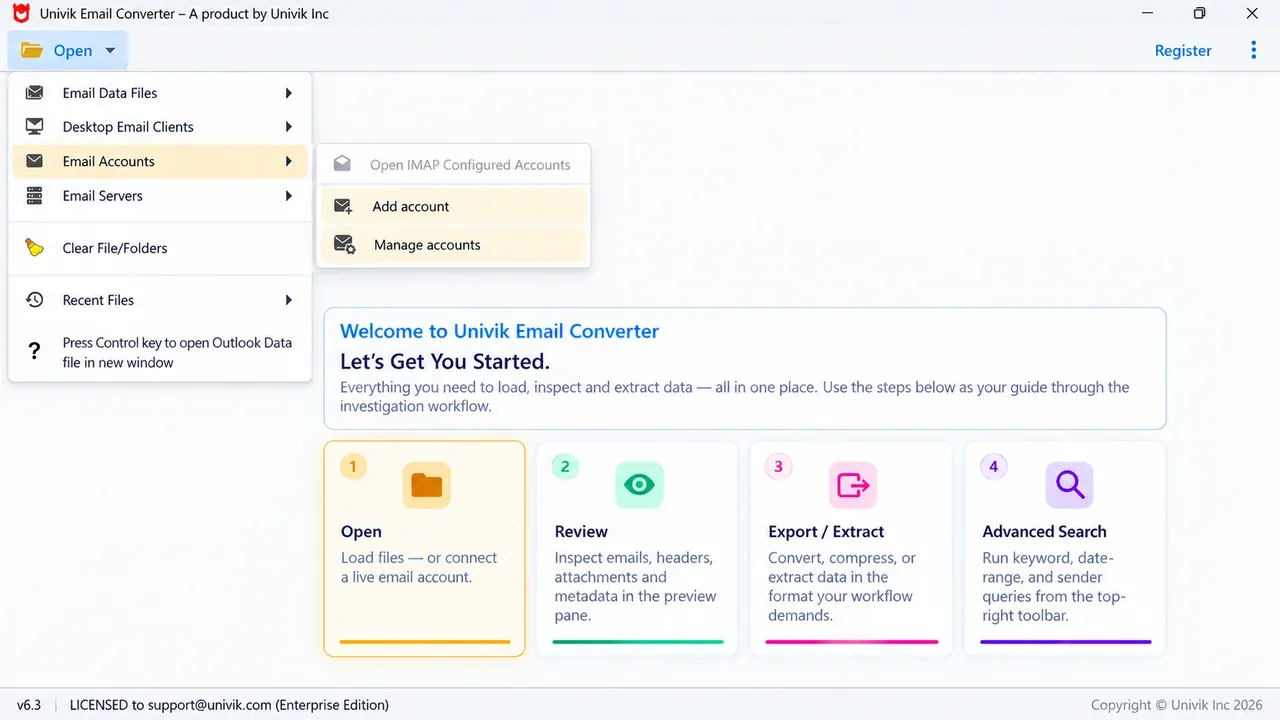
Set-Mailbox -Identity user@contoso.com -MaxSendSize 150MB -MaxReceiveSize 150MB- Add the old IMAP accountSelect Open, then Email Accounts, then Add account. Enter the login of the old mailbox. Gmail, Google Workspace, a web host or any other server with IMAP turned on will work.
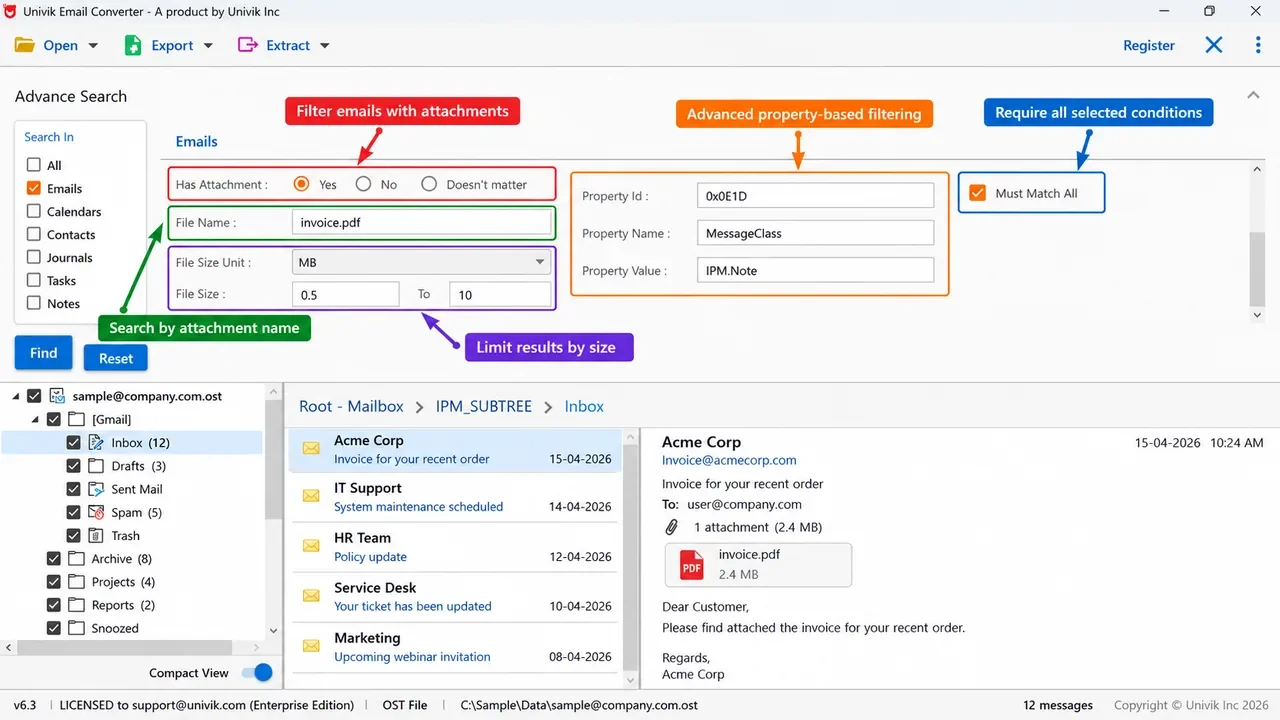
- Open Advanced SearchClick the magnifier icon at the top right. Under Search In tick Emails, then set Has Attachment to Yes.
- Set the size and searchChoose MB in File Size Unit and enter the size in the File Size boxes, From and To. Start from the size where your skips began, then tick the folders you want to search and click Find.
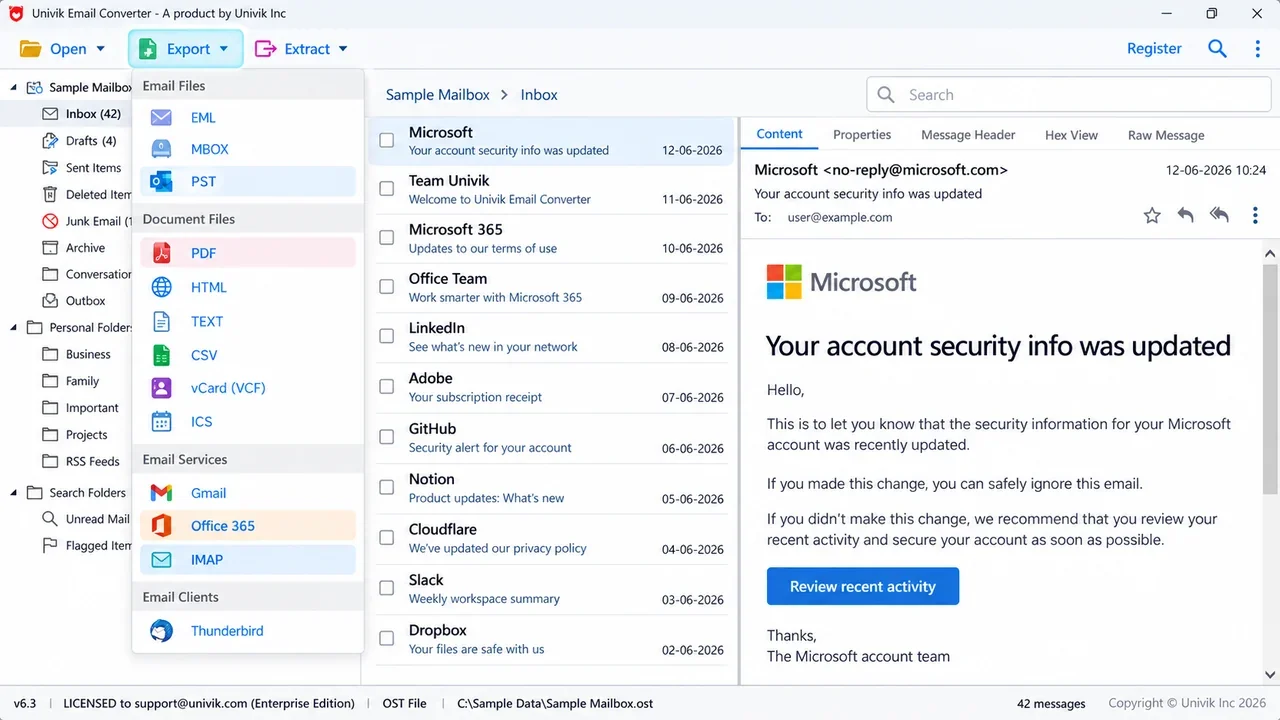
- Check the results and exportCompare the results with the skipped list from the batch report. Then click Save Found Messages and select Office 365 under Email Services on the Export menu. Sign in with the account of the target mailbox, then start the export.
- Check the mailboxOpen the mailbox in Outlook on the web. Search for two or three subjects from the skipped list and open the largest email. The attachment should open and the date should match the old mailbox. The largest email is the reliable test, because its attachment is the part most likely to fail.
Note: the trial copies ten emails from each folder, so test one mailbox before you buy. Also keep the skipped list open while you compare, since the list is your proof that the right emails moved.
The converter reads the old IMAP mailbox and writes the emails that match your size filter into Microsoft 365.
Download Free Trial Select a Licence - From $99For Windows 11, 10, 8.1, 8 and 7. The trial copies ten emails from each folder.
What to Check After You Migrate the Skipped Large Emails
Once the export finishes, your mailbox still needs a check. Open it in Outlook on the web and compare what arrived with the skipped list from the batch report.
- The number of emails that arrived matches the number in the Find results.
- A search by subject finds two or three emails from the skipped list.
- The largest email opens and its attachment saves.
- The received dates match the old mailbox, and no email shows up twice.
Limitations: the converter copies emails and can't lift a mailbox limit, so an email above the limit still stops at the mailbox until you raise the limit. Also, a size filter doesn't help with the 500,000-item cap, which needs a date range instead.
Three Fixes When Large Emails Still Will Not Arrive
Do this: The cause is usually a mailbox limit below the size of that email. Read MaxReceiveSize with Get-Mailbox and raise it up to 150 MB, since Microsoft says an email above the limit isn't delivered.
Do this: The batch may have reached the 500,000-item cap, which takes the newest emails first. Clear the size condition in Advanced Search and use Date From and Date To for the oldest years.
Do this: The size was set below the limit, so emails that had already arrived matched the filter too. Back up the mailbox first by exporting the Office 365 mailbox to PST, then delete the extra copies in Outlook on the web and rerun with the size set at the limit.
Still stuck? Write to Univik support with the batch report and the sizes of the skipped emails.
FAQ: Migrate Skipped Large Emails to Microsoft 365

Limit and command facts follow Microsoft Learn pages and a Microsoft Q&A thread, opened on October 15, 2026. Product steps follow the converter's product page and its version 6.3 screens.
Sources we read:
- What you need to know about migrating your IMAP mailboxes to Microsoft 365 or Office 365
- Tips for optimizing IMAP migrations in Exchange Online
- Exchange Online limits, Service Descriptions
- Get-MigrationUserStatistics
- Set-MigrationBatch
- Troubleshoot issues with IMAP mailbox migration
- IMAP Migration Skipped Emails, Microsoft Q&A
- Configuring Max Email Message Size Limits for Office 365, Practical365