To move The Bat! emails to Gmail or Office 365, you upload your local folders to the new mailbox over IMAP after signing in with Google or Microsoft.
The free route exports one folder at a time from Tools > Export messages to, then needs a second program to upload. A converter with an Email Services export sends every folder in one run.
You are leaving The Bat! and want your old mail inside Gmail or Office 365, where your phone and browser can reach it. The steps depend on where your mail sits today and how many folders you have.
What should you check before moving mail out of The Bat!?
Check three things first: the account type, whether message bodies are on your PC and which folders you need.
- POP3 or local folders. This mail lives only on your PC, in a
MESSAGES.TBBfile (bodies) and aMESSAGES.TBNfile (index) per folder. This is the mail you need to move. - IMAP accounts. IMAP mail is still on the old server. If that server is Gmail and you are keeping the address, there is nothing to move.
- Headers only. For IMAP folders The Bat! often keeps the index but not the bodies. In our test profile the Inbox listed 41,452 messages with only 33 bodies on disk. Our guide on IMAP emails that show headers only shows how to download them first.
- Sign-in details. Gmail needs your Google sign-in or an App Password. Office 365 needs your Microsoft sign-in.
Can you move The Bat! emails to Gmail for free?
Yes. You can move The Bat! emails to Gmail for free with Thunderbird as a go-between, but it takes several steps per folder.
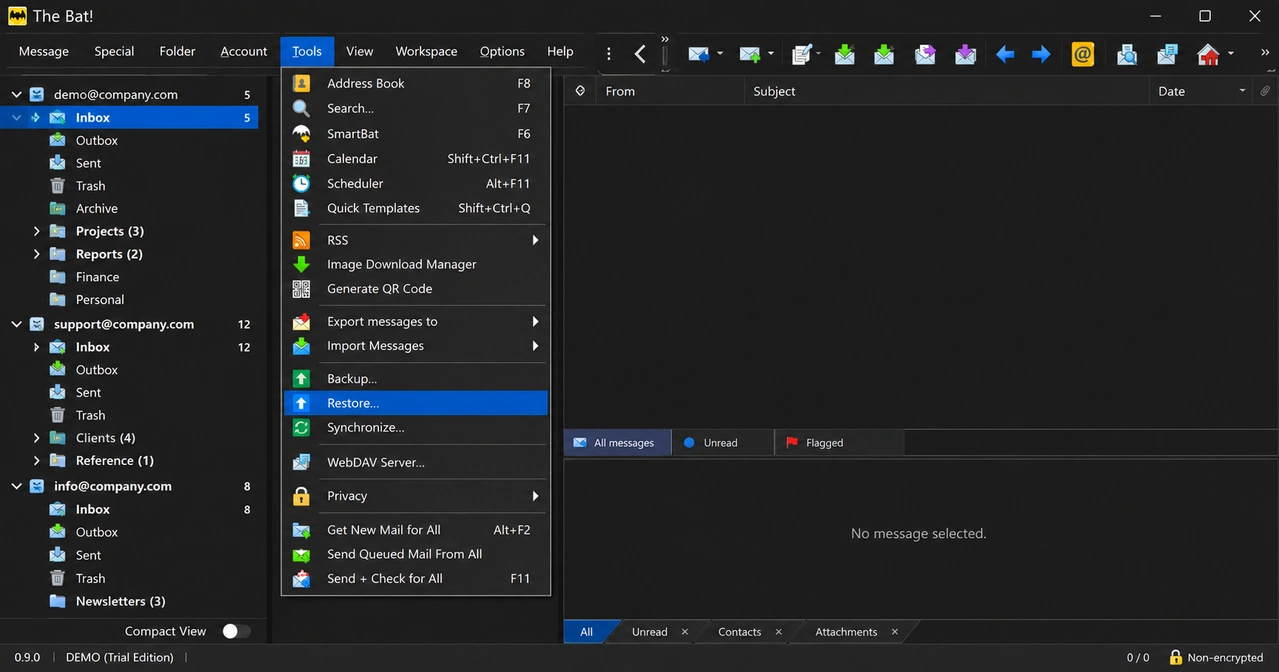
The Bat! cannot upload to Gmail. The Tools > Export messages to command saves one folder per run as MSG, EML or UNIX mailbox (mbox) files. Gmail has no way to import those files.
- In The Bat!, open a folder and use Tools > Export messages to > UNIX mailbox. Name the file after the folder.
- Repeat for every folder you want to keep.
- Install Thunderbird and the free ImportExportTools NG add-on, then import the mbox files into Local Folders. Our The Bat! to Thunderbird guide shows the menus.
- Add your Gmail account to Thunderbird, which signs in through a Google-branded window.
- Drag the messages from Local Folders into a Gmail folder. Mozilla Support volunteers advise small batches because Google limits Gmail IMAP traffic.
The same route works for Office 365 or any IMAP mailbox. Add that account in Thunderbird instead.
Is there a free route into Office 365?
Yes. New Outlook for Windows can bulk import .eml files, so The Bat! EML export plus new Outlook gives you a free route into Office 365.
- In The Bat!, export a folder with Tools > Export messages to > EML. Save each folder into its own Windows folder.
- In new Outlook, go to Settings > Files > Import and select Start import.
- Pick the Windows folder that holds the .eml files.
- Choose your Office 365 account and a destination folder, then select Import.
Microsoft lists three limits on its bulk import page. Each .eml file must be 14 MB or smaller. Only files at the top level of the chosen folder are imported, so subfolders are skipped. You need an active internet connection while it runs. With 40 folders you repeat the export and the import 40 times.
Why do Gmail folders create duplicate messages?
Gmail folders create duplicates because one Gmail message carries several labels, and The Bat! stores a separate copy for every label folder.
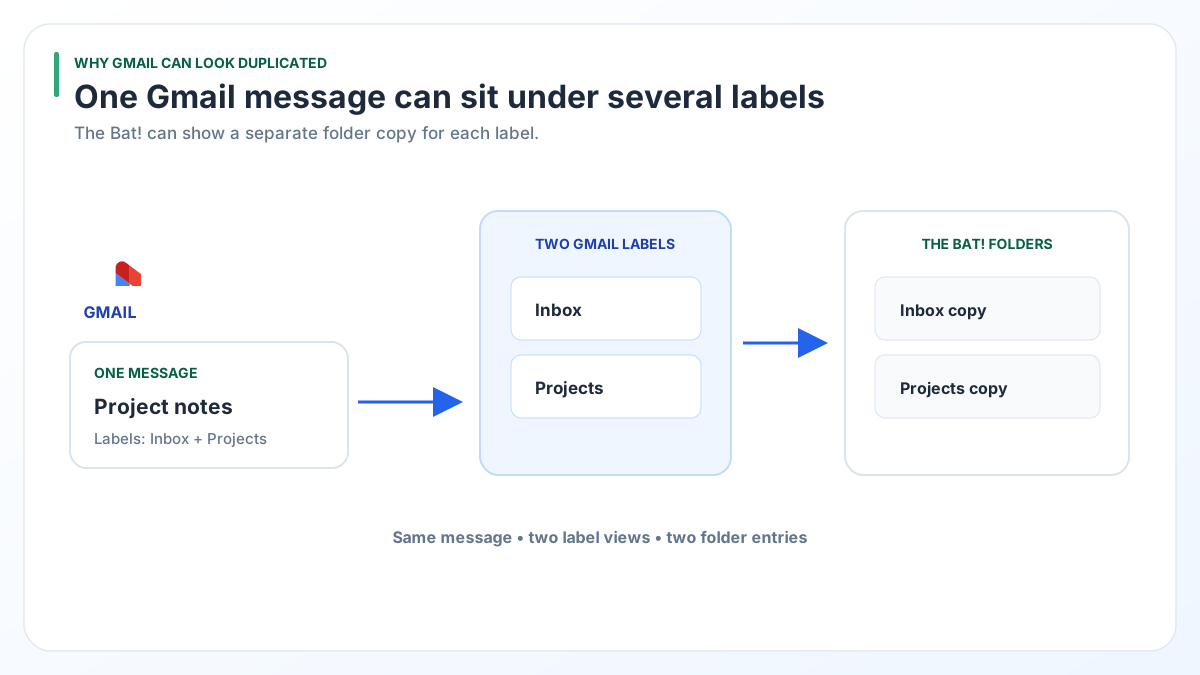
Mozilla's Gmail help page explains the rule. Gmail labels show up as folders in a desktop mail program, and [Gmail]/All Mail holds every message in the account. So one starred inbox message sits in [Gmail]/All Mail, Inbox, Important and Starred at once. In our test profile [Gmail]/All Mail had 43,572 messages and the Inbox had 41,452, mostly the same mail.
Upload all four folders and the new mailbox gets that message four times. Pick one plan:
| Plan | Folders to pick | What you get |
|---|---|---|
| Keep your folder layout | Inbox, Sent and your own folders. Leave out All Mail, Important and Starred. | Each message lands in the folder you filed it in. Archived mail with no label stays behind. |
| Keep every message once | [Gmail]/All Mail only | Every message arrives once, all in one folder. The old folder layout is lost. |
POP3 and local folders do not have this problem, because each message lives in one folder only.
Which route should you choose?
Choose the free route for a handful of folders and a working copy of The Bat!. Choose a converter for many folders, a .tbk backup or a The Bat! that no longer starts.
| Need | Free route (The Bat! plus Thunderbird or new Outlook) | Univik BAT Email Converter |
|---|---|---|
| Cost | Free | From $29 |
| Folders per run | One | All selected folders |
| Gmail sign-in | Through Thunderbird | Google OAuth or App Password |
| Office 365 sign-in | Through Thunderbird or new Outlook | Microsoft OAuth |
| The Bat! will not start | Not possible | Reads the profile folder or .tbb files |
| .tbk backup | Restore it in The Bat! first | Reads it directly (Pro or Enterprise) |
The free route wins when you only care about Inbox and Sent. Two folders take a few minutes by hand.
How do you upload The Bat! mail to Gmail or Office 365 in one run?
Open your The Bat! mail in Univik BAT Email Converter, then pick Gmail, Office 365 or IMAP from the Email Services group of the Export menu.
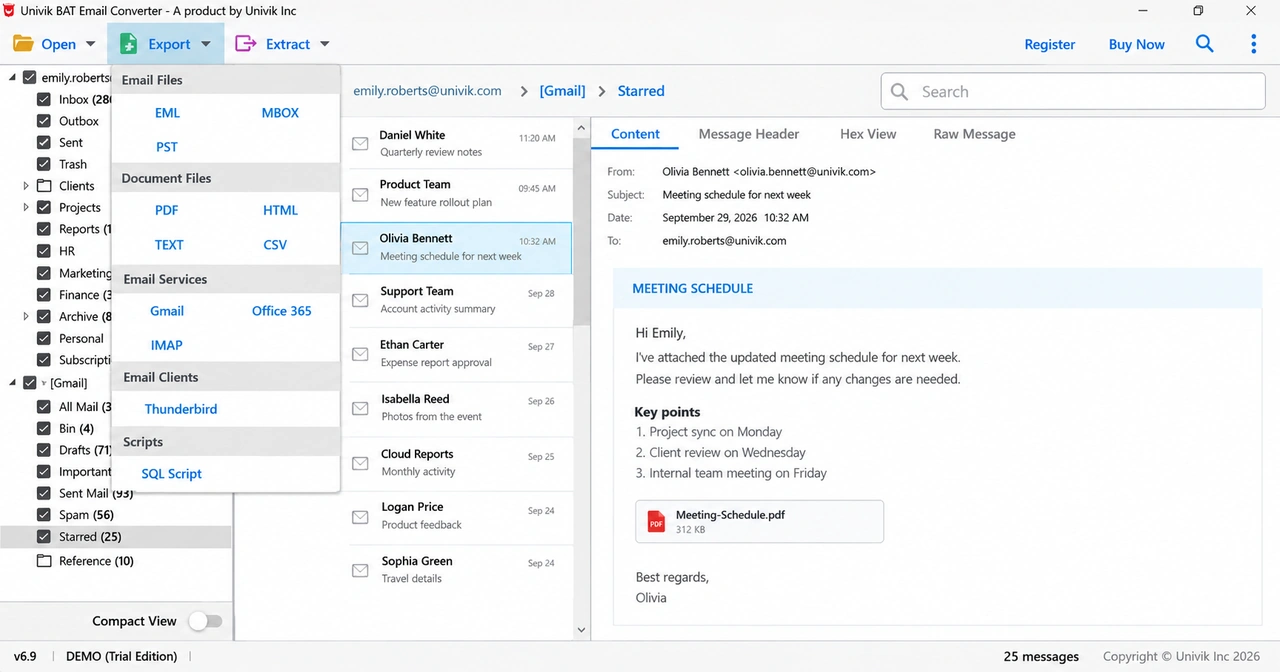
The folder tree shows a message count on every folder, so you can compare counts with the new mailbox afterwards. The converter reads your .tbb and .tbn files read-only and leaves them unchanged. Messages with no downloaded body get a notice asking you to download them in The Bat! first.
For Gmail you can use Google OAuth sign-in or an App Password. Google only offers App Passwords with 2-Step Verification turned on, and never for work or school accounts, Advanced Protection accounts or accounts that use only security keys. Those accounts use Google OAuth.
Test a Gmail or Office 365 upload first. The trial handles 10 items in every folder at no cost.
Free Download See all features- Only POP3 and local folder mail lives on your PC alone and needs moving.
- The Bat! exports one folder at a time, so the free path runs through Thunderbird or new Outlook.
- New Outlook imports .eml files up to 14 MB each and skips subfolders.
- Upload your own Gmail folders or All Mail. Picking both makes messages arrive twice.
- Gmail App Passwords need 2-Step Verification. Office 365 uses Microsoft sign-in.
Questions about moving The Bat! mail to Gmail or Office 365

Leena Taylor Paul wrote this guide with the Univik team, which has shipped Windows mail tools since 2013. This guide covers moving old The Bat! mail into Gmail, Office 365 or another IMAP mailbox, with and without paid software. Last checked October 2026. Stuck? Contact our support team.