Copy the whole The Bat! folder from the old drive, not only the .tbb files. By default it sits at C:\Users\<user name>\AppData\Roaming\The Bat!, which holds a folder for each account.
Each account folder needs ACCOUNT.FLB, its .tbn index files and its .tbb mail files together. A reader that opens a copied folder then shows every folder and email with no The Bat! install.
You need to recover The Bat! emails from old hard drive files because the PC died or The Bat! won't start. The mail is still sitting on the disk. What matters now is copying the right folder in one piece.
What should you do first when The Bat! won't start?
Copy the mail folder before you reinstall, repair or reset anything. The Bat! keeps your mail in files on disk, so those files stay put even when the program will not open.
Start with the default location:
C:\Users\<user name>\AppData\Roaming\The Bat!
Inside it you will find one folder per account, named after the account. If you moved your mail somewhere else in the past, the real path is kept in the "Working Directory" registry value under HKCU\Software\RIT\The Bat!. When The Bat! does open, Options > Preferences > System > Mail Directory shows that path too (Ritlabs forum).
For a map of every file in that folder, see where The Bat! keeps its mail files.
How do you reach the mail on a dead PC's drive?
Take the drive out of the dead PC and plug it into a working Windows PC through a USB adapter or enclosure that fits the drive type.
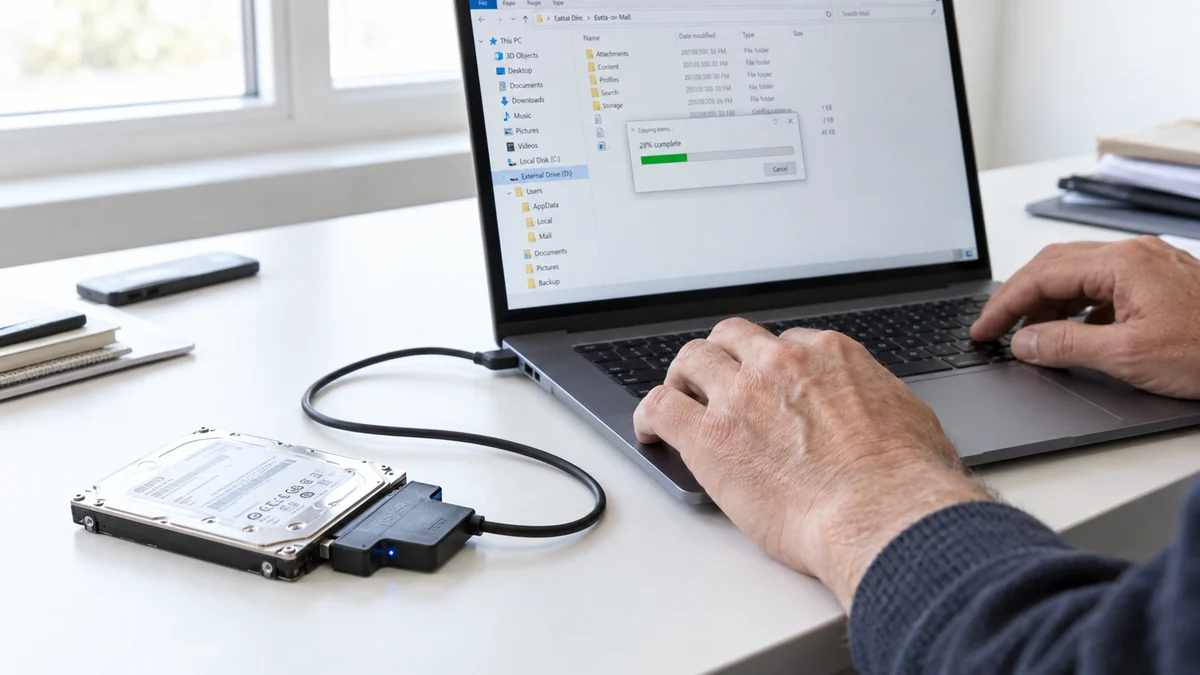
- The old drive shows up with its own letter, for example
E:. - The path then becomes
E:\Users\<old name>\AppData\Roaming\The Bat!. - AppData is a hidden folder. Type or paste the full path into the File Explorer address bar to jump straight to it.
If the old PC still boots but The Bat! won't start, skip the adapter. Copy the folder from that PC to a USB stick.
Custom location and no registry to check? Search the old drive in File Explorer for ACCOUNT.FLB. Every account folder has one, so each hit marks an account.
Which The Bat! files do you need to copy?
Copy each account folder whole. The files inside only make sense as a set, and loose .tbb files lose their folder names.
ACCOUNT.FLBholds the folder list and is the one file linking IMAP folder names to their files..tbnfiles are the indexes, recording each message's sender, date, subject and flags..tbbfiles hold the message bodies.
IMAP folders show why this matters. They sit in an IMAP subfolder as pairs with coded names, such as 0C19C81E.TBB and 0C19C81E.TBN. The words Inbox or Sent never appear in those file names. Copy the .tbb files alone and you get a pile of codes with no clue which folder is which.
Two more points save confusion. If nothing was ever downloaded into a folder, The Bat! never created its .tbb or .tbn file, so a gap there is normal. TBIndex.db in the profile root is a search index, and reading the mail does not need it.
Steps to recover The Bat! emails from old hard drive copies
Copy the whole The Bat! folder to the new PC in one go, then check the copy before you do anything else with it.
- Connect the old drive or start the old PC if it still boots.
- Open the The Bat! folder at the path above.
- Copy the entire folder, with every account folder inside, to a folder on the new PC such as
D:\Old Bat Mail. - Right-click the original and the copy, open Properties and compare their sizes.
- Leave the old drive untouched until the mail is safe in its new home.
Should you restore a backup or open the copied folder?
Restore a .tbk backup if you have a recent one and want to keep using The Bat!. Open the copied folder with a converter if the old drive is all you have.
| Your situation | Route that fits | Why |
|---|---|---|
| Recent .tbk backup and staying with The Bat! | Tools > Restore... in The Bat! | No extra software. See our backup and restore guide. |
| Only a .tbk file and no The Bat! | Read the .tbk directly | No install and no restore. See reading a .tbk without The Bat!. |
| Only the old drive or a copied profile | Open the folder in the converter | Shows every folder by name with its message count |
| One loose .tbb file to look at | Free Online The Bat! Viewer | Opens in a browser at no cost |
| Leaving The Bat! for good | Export from the converter | PST, MBOX, Thunderbird, Gmail or Office 365 |
A recent backup is the cheaper path. Restoring it costs nothing and puts you back in The Bat! with your old folders.
How do you open a copied profile with Univik BAT Email Converter?
A copied The Bat! profile opens in Univik BAT Email Converter through the Choose Folders... item on its Open menu. The old PC and The Bat! itself are not needed.
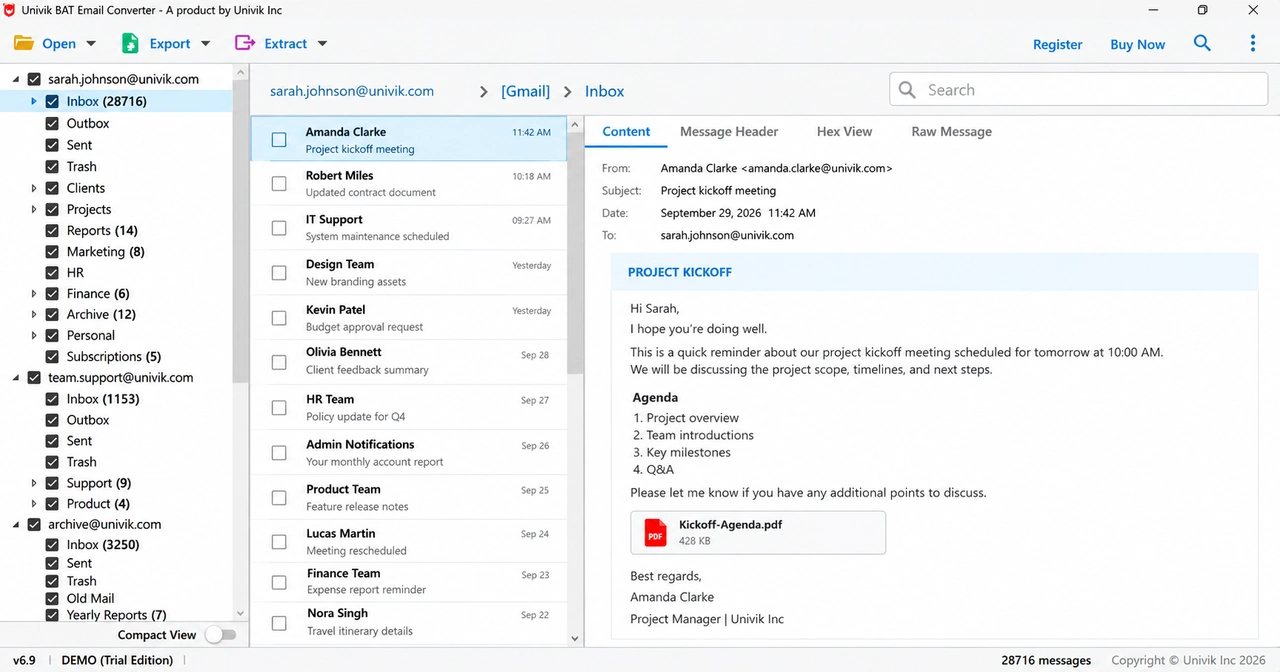
Skip "Open Bat Mail Configured Accounts" here. That option lists only the accounts configured in The Bat! on the PC you are using. For mail copied from an old drive, Choose Folders... is the right door.
The copy is read without being changed. When we loaded our own profile, The Bat! and the converter agreed on the message count in all 40 folders, from an Inbox of 41,452 messages to [Gmail] All Mail with 43,572. The Standard licence ($29) covers .tbb mail files and configured accounts.
After the folders load, the Export menu decides where the mail goes next.
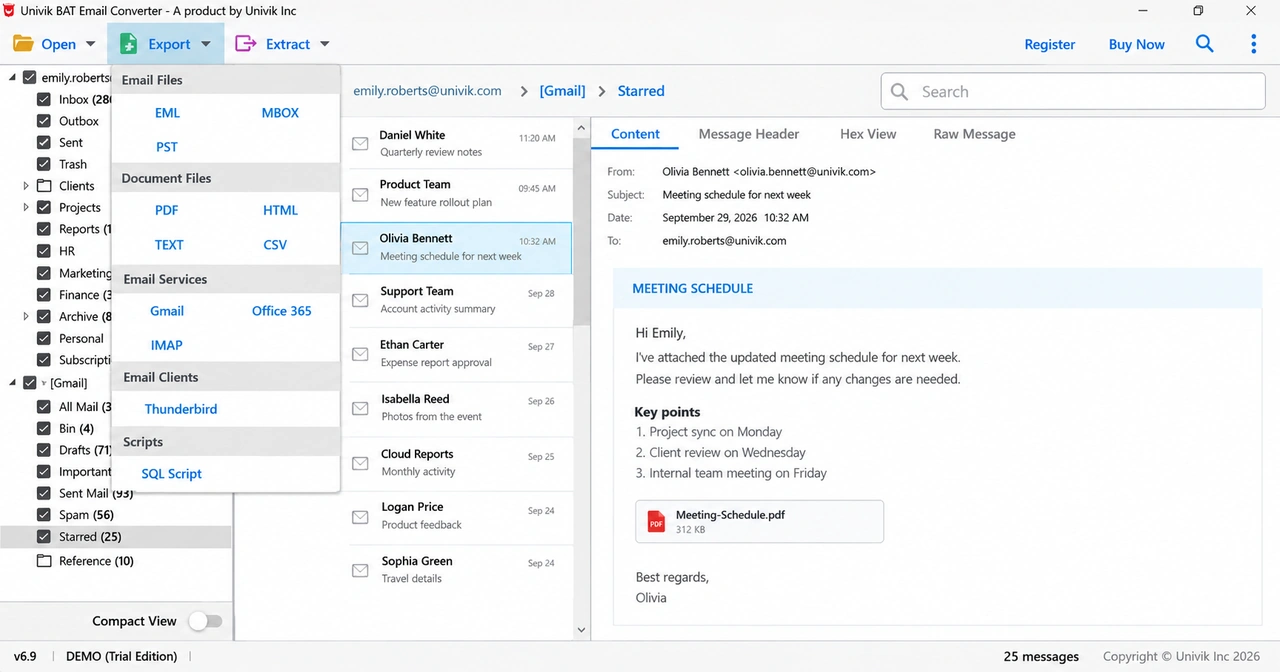
Check the rescued folders first: the trial converts 10 items per folder before you pay for a licence.
Free Download See all features- Dead PC or not, your The Bat! mail sits in files under AppData\Roaming\The Bat!.
- Copy the folder before any reinstall or repair.
- Copy each account folder whole, since ACCOUNT.FLB, .tbn and .tbb files belong together.
- Loose IMAP .tbb files have coded names, and only ACCOUNT.FLB knows which folder is which.
- For a copied profile, use Choose Folders... in the converter, not the configured accounts list.
Questions about rescuing The Bat! mail

Leena Taylor Paul wrote this guide with the Univik team, which has shipped Windows mail tools since 2013. This guide covers copying The Bat! mail off a dead PC or a broken install and reading it on a new computer. Last checked October 2026. Stuck? Contact our support team.