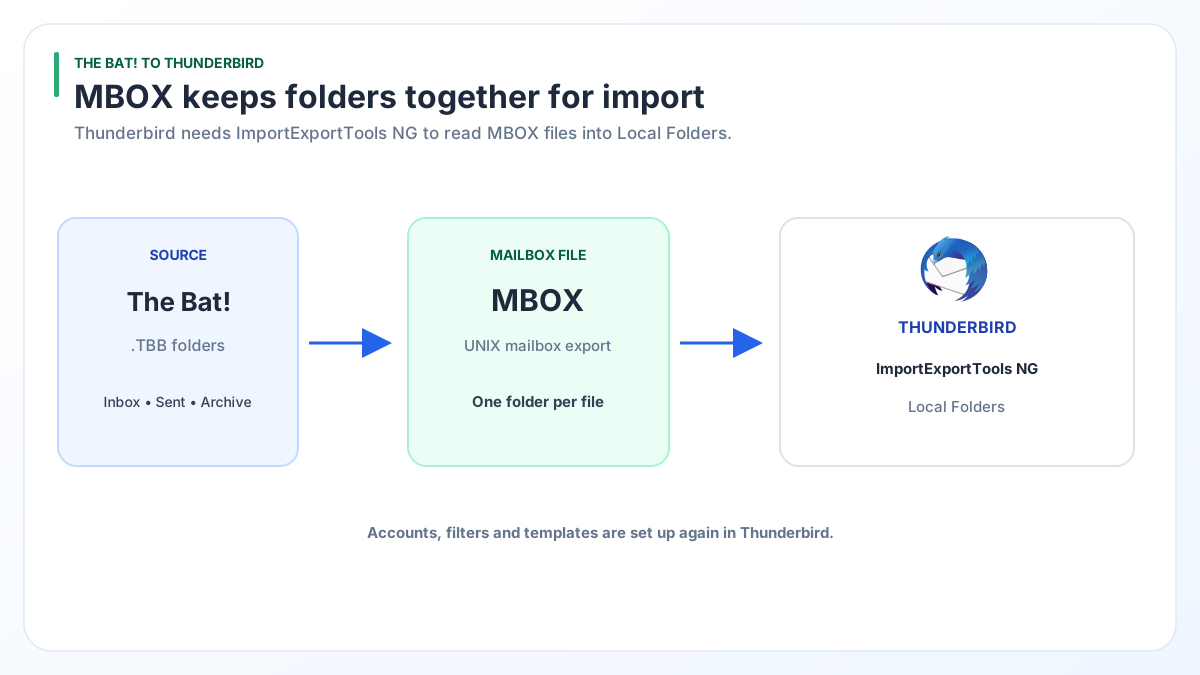
To go from The Bat! to Thunderbird, save each folder as an mbox file in The Bat!, then import those files into Thunderbird with the free ImportExportTools NG add-on.
The Bat! saves one folder per run from Tools > Export messages to > UNIX mailbox. Thunderbird's own Import tool has no The Bat! option, so the add-on does the import.
Thunderbird is free, runs on Windows and keeps your mail on your own PC, much like The Bat!. Moving is mostly about getting each The Bat! folder out as a file Thunderbird can read.
What moves from The Bat! to Thunderbird?
Your emails and your address book move over. Accounts, filters and templates you set up again by hand in Thunderbird.
- Emails. Each The Bat! folder becomes one mbox file, and each mbox file becomes one Thunderbird folder.
- Contacts. The Bat! address book exports to vCard, LDIF or CSV. In Thunderbird, Tools > Import brings in a vCard file (.vcf) or a text file in LDIF or CSV form as an address book.
- Accounts. Add each email account in Thunderbird with your address and password. Mail kept on an IMAP server downloads again by itself.
Mozilla's Switching to Thunderbird page lists the programs its Import tool reads: Apple Mail, Windows Mail, Windows Live Mail, Outlook, Eudora and Evolution. The Bat! is not on that list.
How do you export The Bat! folders as mbox files?
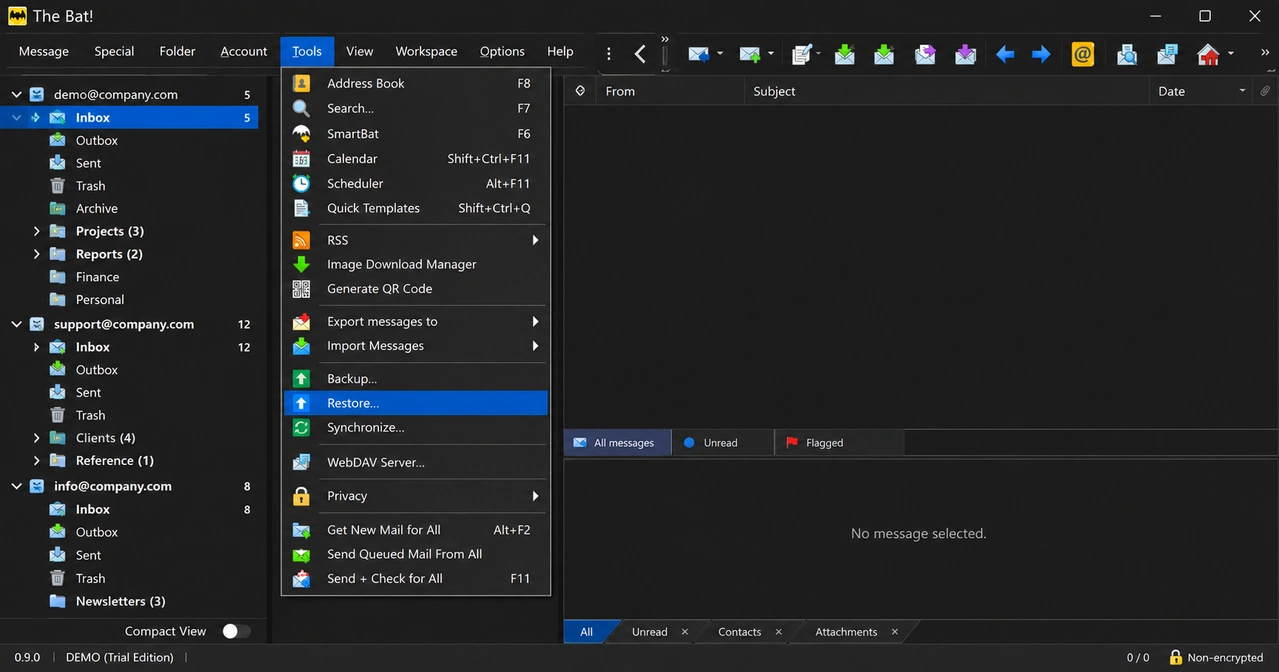
Use Tools > Export messages to > UNIX mailbox in The Bat!, once for each folder you want to keep.
- Create one empty Windows folder, for example
Documents\TheBat-mbox, to hold every file. - In The Bat!, open a mail folder and select its messages (Ctrl+A selects them all).
- Choose Tools > Export messages to > UNIX mailbox.
- Save the file into your new folder and give it the folder name, such as
Inbox.mbox. - Repeat for Sent, Drafts and every folder you created.
For IMAP folders, check the message bodies first. The Bat! often stores only the index for IMAP mail. In our test profile the Inbox indexed 41,452 messages and had 33 bodies on disk. A message with no body exports as an empty shell, so download full messages in The Bat! before step 3.
How do you import mbox files into Thunderbird?
Install ImportExportTools NG, then right-click Local Folders and use its Import mbox Files menu.
- In Thunderbird, click the menu button and choose Add-ons and Themes.
- Search for ImportExportTools NG and add it.
- In the folder pane, right-click Local Folders.
- Choose ImportExportTools NG > Import mbox Files > Individual mbox Files, then select your files. For a folder full of files, pick All mbox Files from directory.
- Open each new folder and compare its message count with The Bat!.
The add-on only imports into local folders. Pick an IMAP folder and it stops with an error. To place mail on an IMAP server, import into Local Folders first, then drag it across. The add-on is open source and kept in the Thunderbird GitHub project. Its current release supports Thunderbird 140 to 143.
Can you use EML files instead of mbox?
Yes, but EML means one file per message, so mbox is the tidier choice for large folders.
The Bat! can save a folder as EML through the same Tools > Export messages to menu. In Thunderbird, right-click a local folder and choose ImportExportTools NG > Import EML Messages > All EML Messages From A Directory. EML suits a few loose messages you want to keep. A folder of 5,000 messages turns into 5,000 files, which is slower to copy and easier to lose track of.
Which way should you choose?
Go the free route if The Bat! still runs and you have under about ten folders. Pick a converter when you have lots of folders, a .tbk file or a The Bat! that no longer opens.
| Need | The Bat! export plus ImportExportTools NG | Univik BAT Email Converter |
|---|---|---|
| Price | Free | Starts at $29 |
| Folders handled at once | One | Every folder you select |
| Folder tree | Rebuilt by hand, one mbox file per folder | Written in one pass |
| Needs a working The Bat! | Yes | No, opens a copied profile or loose .tbb files |
| .tbk backup | Restore it first | Opens it directly (Pro or Enterprise) |
| Contacts | Address book export to vCard, LDIF or CSV | Extract menu saves addresses and phone numbers as CSV |
For three or four folders the free route is faster than downloading anything. Past that, the repeat clicks add up.
How do you send every The Bat! folder to Thunderbird in one pass?
Open your mail in Univik BAT Email Converter and pick Thunderbird under Email Clients, or MBOX under Email Files, from the Export menu.
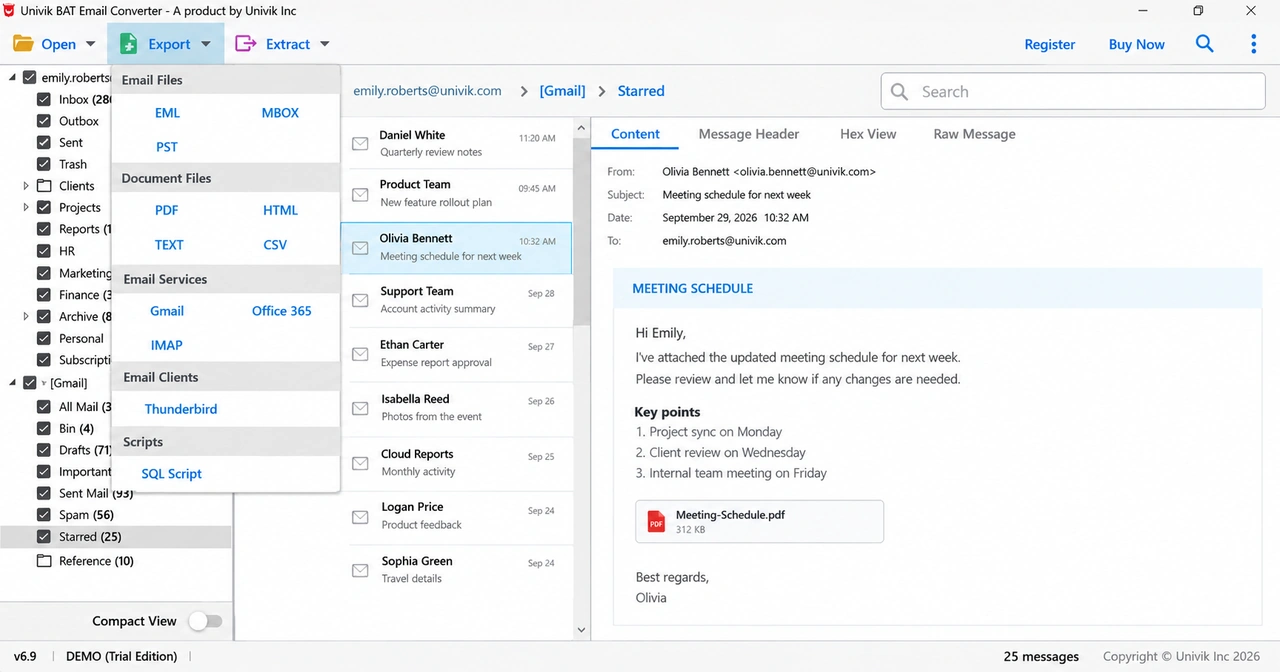
The Thunderbird option is the direct path. The MBOX option gives you a set of mbox files for every folder at once, which you then import with the add-on steps above. Both skip the folder-by-folder work in The Bat!.
Nothing is written back to your .tbb and .tbn files. The converter only reads them and saves new files, so the original The Bat! folders stay as they were. Our team checked it against version 12.3.1 of The Bat!, and it opens files saved by older releases too.
Test it with your own folders. During the trial every folder converts 10 items free.
Free Download See all features- Thunderbird's Import tool does not read The Bat!, so the move goes through mbox files.
- The Bat! saves one folder per run as a UNIX mailbox file.
- ImportExportTools NG imports mbox files into Local Folders only, not into IMAP folders.
- Contacts travel separately as vCard, LDIF or CSV.
- A converter writes every folder for Thunderbird in one pass and works without The Bat! installed.
Questions about switching from The Bat! to Thunderbird

Leena Taylor Paul wrote this guide with the Univik team, which has shipped Windows mail tools since 2013. This guide covers moving The Bat! folders and contacts into Thunderbird with free tools or in one pass. Last checked October 2026. Stuck? Contact our support team.