To extract attachments from The Bat! in bulk, open its mail folders in a desktop tool that has an Extract menu. It saves every attached file to one folder in a single run.
The same menu writes email addresses and phone numbers to CSV lists. The Bat!'s Address Book (F8) exports only the contacts stored in it.
Your The Bat! folders hold years of files, contacts and phone numbers. Saving them one message at a time takes hours. This guide covers the bulk routes and the cases where The Bat!'s own tools are enough.
What can you extract from The Bat! mail?
You can extract five kinds of data from The Bat! mail: attachments, email addresses, phone numbers, contact photos and pairs of addresses with phone numbers.
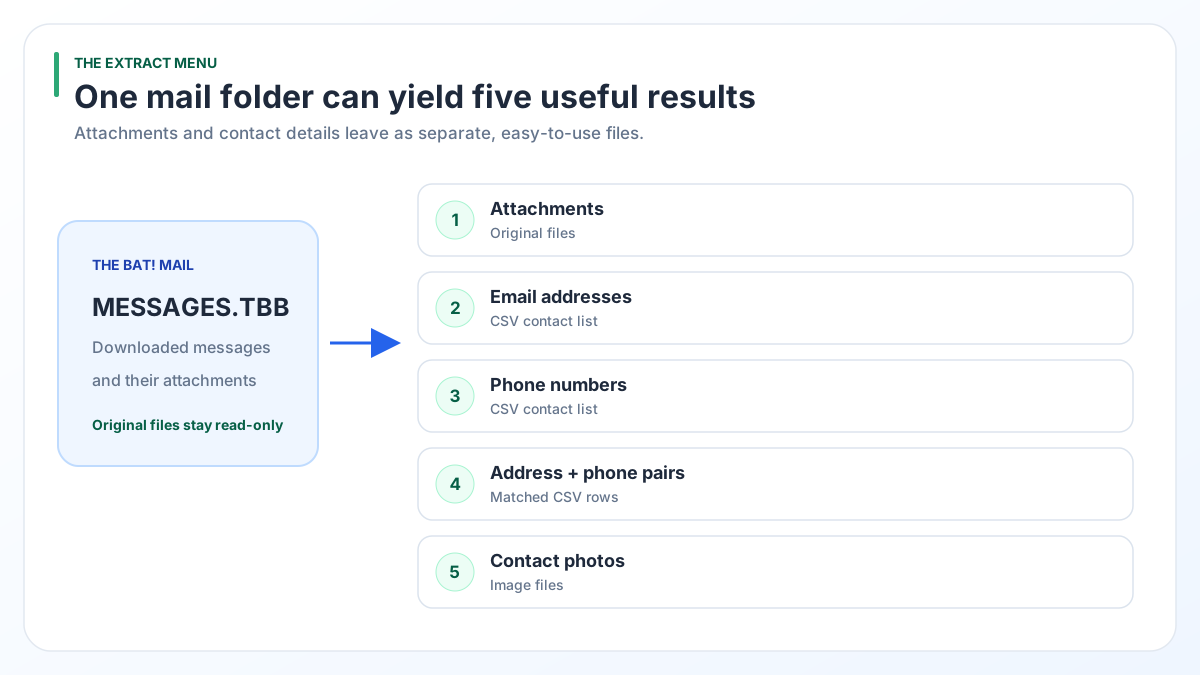
All of that sits inside your mail files. The Bat! keeps each local folder as a MESSAGES.TBB file with a MESSAGES.TBN index next to it. Attachments live inside the message bodies in the .tbb file. That is why Windows Explorer shows no separate attachment files in your profile.
- Attachments: PDFs, photos, spreadsheets and any other file sent to you or by you.
- Email addresses: the people who wrote to you and the people you wrote to.
- Phone numbers: numbers typed into messages, such as those in email signatures.
- Contact photos: contact pictures found in the mail.
Not sure which folder on your PC holds these files? Our map of where The Bat! stores emails lists every file by name.
What do The Bat!'s own tools export?
The Bat! has two built-in routes for this job: the address book export and automatic saving of attachments. A third tool exports whole messages.
- Address Book (F8): open it from the Tools menu. The address book exports contacts to formats such as LDIF, vCard and CSV. It covers the contacts stored in the address book, not every address in your messages.
- Attachment auto-save: The Bat! can save attachments automatically. You set it up inside The Bat!, so it needs a working copy of the program.
- Export messages to: this command on the Tools menu saves whole messages as MSG, EML or mbox files, one folder at a time. Attachments stay packed inside those message files.
These routes are free. They work well when The Bat! runs on your PC and your mail is loaded in it. None of them gives you a single CSV of every phone number in years of mail.
Which way should you choose for The Bat! contacts and files?
Use The Bat!'s address book for the contacts you saved on purpose. Use an Extract menu when you need everything found in your messages or when The Bat! will not start.
| What you need | The Bat! built-in | Extract menu in a converter |
|---|---|---|
| Contacts you saved, with all their fields | Better choice. Address Book export to vCard or CSV | Not the goal. It lists addresses found in mail |
| Every address that appears in your mail | Address book holds saved contacts only | Email Addresses option, saved as CSV |
| Phone numbers written in messages | Address book holds saved contacts only | Phone Numbers option, saved as CSV |
| Files already sitting in old folders | Needs The Bat! running with the mail loaded | Attachments option, all folders in one run |
| Files that arrive from now on | Better choice. Auto-save inside The Bat! | Run the extract again later |
| The Bat! will not start | Needs a working install | Opens the account folders from disk |
| Cost | Free | From $29 |
Why are attachments missing from The Bat! IMAP folders?
Attachments go missing from IMAP folders when The Bat! never downloaded the full message. For IMAP accounts the .tbb file holds only the bodies you opened or downloaded.
The gap can be huge. In our test profile the IMAP Inbox listed 41,452 messages, yet only 33 message bodies were on disk. The rest had an entry in the .tbn index and no body, so there was no file to save.
- Open The Bat! and download the full messages for the folders you need.
- Wait until the download finishes for every folder.
- Run the extract again on the same folders.
The converter tells you when message bodies are missing, so you know to fetch them first. Our guide on IMAP emails that show only headers walks through the download.
How do you use the extracted CSV lists?
Open the CSV lists in any spreadsheet app. CSV is a plain text table, so Excel, LibreOffice Calc and Google Sheets all read it.
- Sort the address list to spot repeats and typing mistakes.
- Pick Associated Email & Phone Numbers when you plan to call people back. Each phone number stays next to the address it came with.
- Save attachments into a folder named after the account, so you always know where a file came from.
- Treat the lists as private data. Keep them off shared drives and do not add old contacts to a mailing list without asking them.
How do you extract attachments from The Bat! with the converter?
Univik BAT Email Converter reads The Bat! mail files and saves their contents in bulk through its Extract menu. The menu has five options: Email Addresses, Attachments, Phone Numbers, Associated Email & Phone Numbers and Contact Photos.
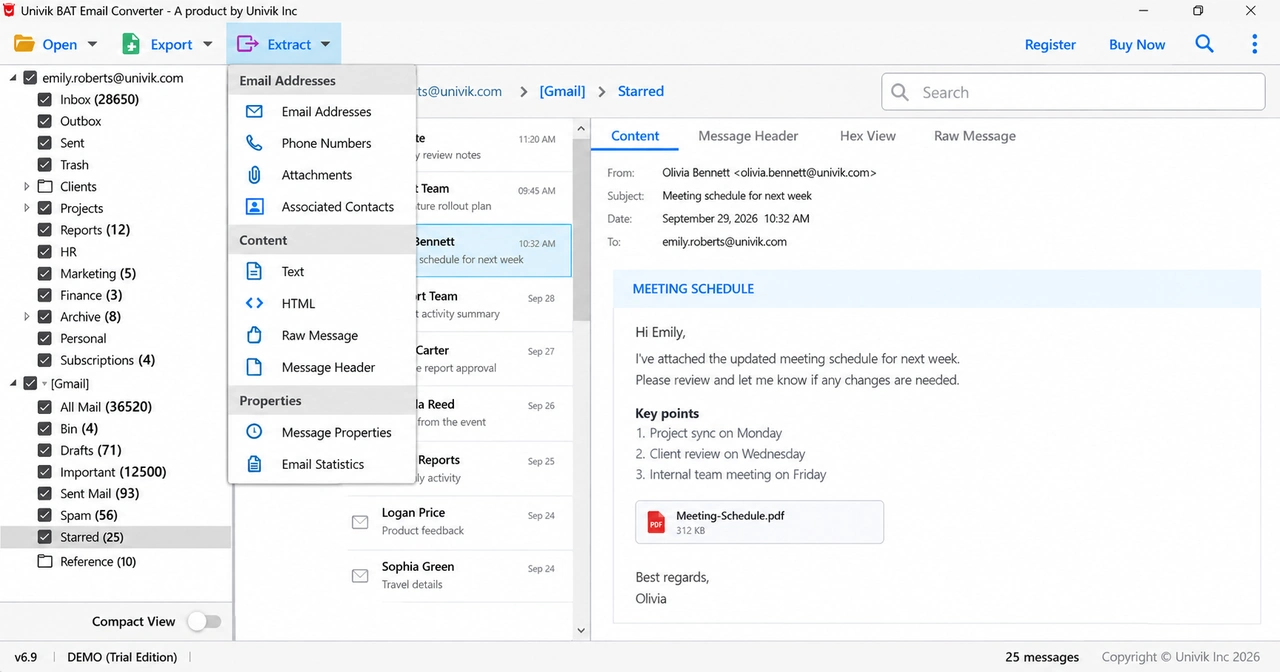
The converter opens your files read-only, so your .tbb, .tbn and .tbk files stay as they were. It runs on Windows 11 and 10 (64-bit) and was tested on The Bat! 12.3.1. Standard ($29) covers .tbb files and configured accounts. A .tbk backup needs Pro ($49) or Enterprise ($99).
Test it on your own folders first. The free trial handles 10 items in each folder, and paid plans start at $29.
Free Download See all features- Attachments hide inside The Bat! .tbb files, so there is no folder of loose files to copy.
- The Address Book (F8) export suits saved contacts. It does not list every address found in your mail.
- An Extract menu saves attachments, addresses, phone numbers and contact photos from all folders at once.
- IMAP folders only give up attachments whose full message was downloaded in The Bat!.
- Extracting is read-only. Your original The Bat! files do not change.
Questions about extracting data from The Bat!

Leena Taylor Paul wrote this guide with the Univik team, which has shipped Windows mail tools since 2013. This guide covers saving attachments, email addresses, phone numbers and contact photos from The Bat! mail in bulk. Last checked October 2026. Questions? Contact our support team.