The Bat! restore backup works in two steps: Tools > Backup... saves your profile as a .tbk file and Tools > Restore... loads that file back into The Bat!.
A restore fails when the backup came from a newer version than the one installed or when the backup password is lost. IMAP folders come back with only the bodies that were on disk.
Making a The Bat! backup takes a minute. The restore is the part that needs care, because a version mismatch or a lost password stops it cold. This guide covers both jobs and then each restore error in turn.
How do you back up The Bat! to a .tbk file?
Open Tools > Backup... in The Bat!, choose what to include and save the .tbk file to a second drive.
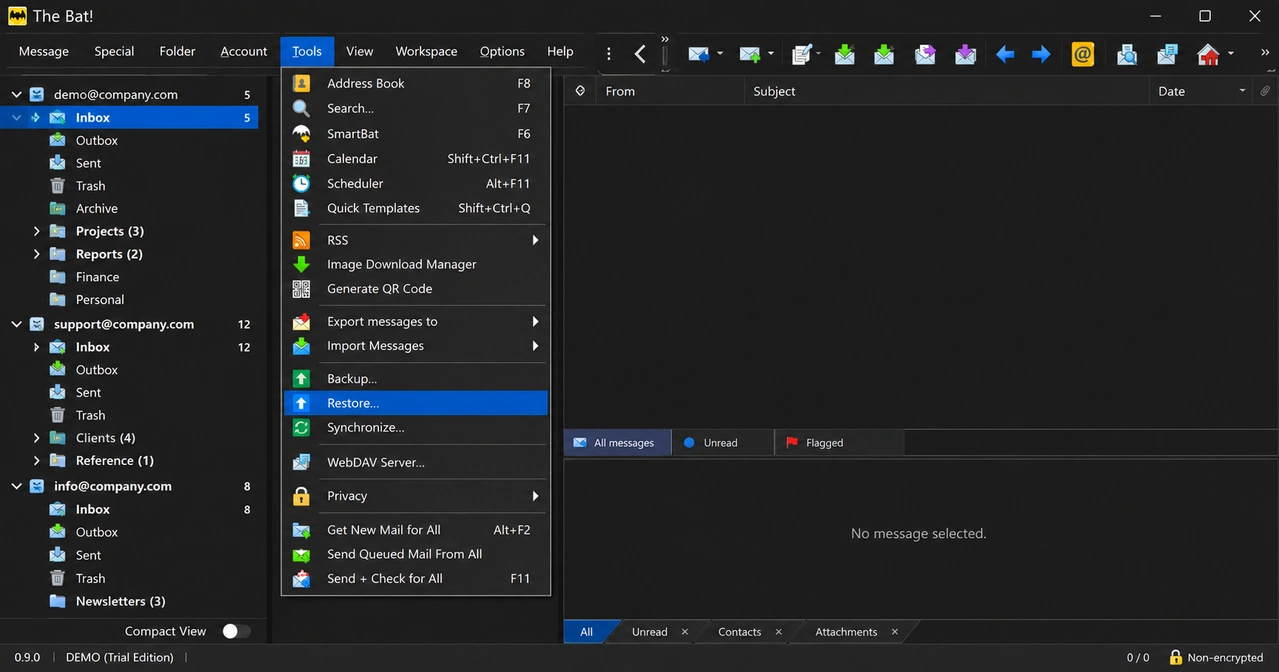
- Open The Bat! and click the Tools menu.
- Choose Backup....
- Tick the parts you want in the backup.
- Decide on the password option. Read the password section below before you tick it.
- Save the .tbk to a USB drive or a cloud folder. Keep it off the disk The Bat! runs from.
The finished .tbk holds a compressed copy of the profile: account settings, the ACCOUNT.FLB folder list, the .tbb and .tbn pair for each folder, address books and preferences.
How does The Bat! restore backup work?
The Bat! restore backup reads a .tbk file through Tools > Restore... and brings its accounts and folders back into The Bat!.
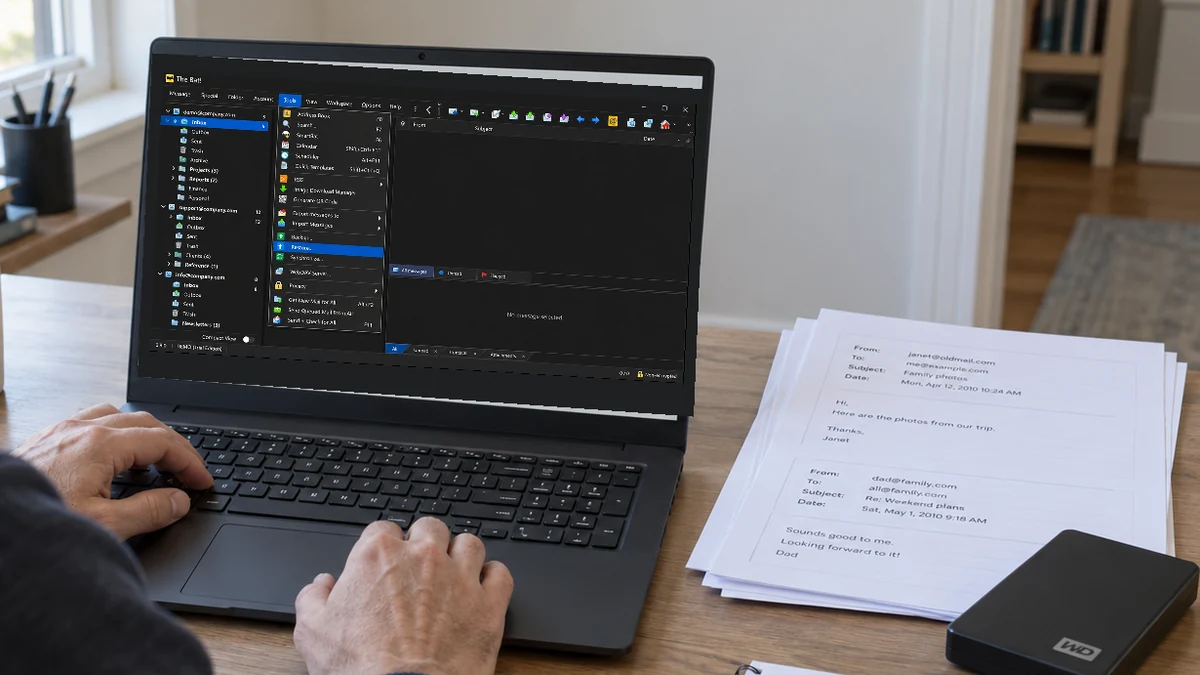
- Install The Bat! at the version that made the backup or a newer one. The current release is 12.3.1 from 26 August 2026, for Windows 10 and 11.
- Copy the .tbk file to the PC.
- Open Tools > Restore... and select the .tbk file.
- Type the backup password if you set one.
- Open a few folders and check that the message counts look right.
Not sure where the restored mail went? Options > Preferences > System > Mail Directory shows the folder The Bat! works from. The registry keeps the same path at HKCU\Software\RIT\The Bat! in the value "Working Directory" (Ritlabs forum).
The Bat! restore failed: what went wrong?
A The Bat! restore fails for one of a few known reasons, and each one has its own fix.
| What you see | Cause | Fix |
|---|---|---|
| The Bat! refuses the backup | It was made in a newer version than the one installed. Ritlabs confirms this does not work (tip 3989). | Update to the current release (12.3.1) and run the restore again. |
| It asks for a password you do not know | The backup was saved with the password option, so its data is encrypted. | Nothing opens it without the password. Use an older unprotected backup or copy the live profile folder. |
| IMAP folders show senders and subjects but no text | The backup held only the bodies you had opened or downloaded. | Reconnect the account in The Bat! and download the message bodies again while the mail is still on the server. |
| The restore stops with a read error | The .tbk copy is damaged or incomplete. | Copy the file again from its source and compare the file size. Try an older backup if you have one. |
The IMAP row catches people out. Our own IMAP Inbox showed 41,452 headers in the index but held 33 bodies on disk. A backup of that folder brings back all 41,452 headers and those 33 bodies, nothing else.
Very old backups are a separate case. The Bat! used a .tbi index before version 4.1. Version 4.1 switched to .tbn and rebuilds old indexes on its own.
No usable backup at all? Our guide to getting The Bat! mail off an old computer covers copying the profile folder from a dead PC.
Restore in The Bat! or read the .tbk: which should you choose?
Use Tools > Restore... when you plan to keep using The Bat!. Read the .tbk directly when the restore keeps failing or The Bat! is no longer on the PC.
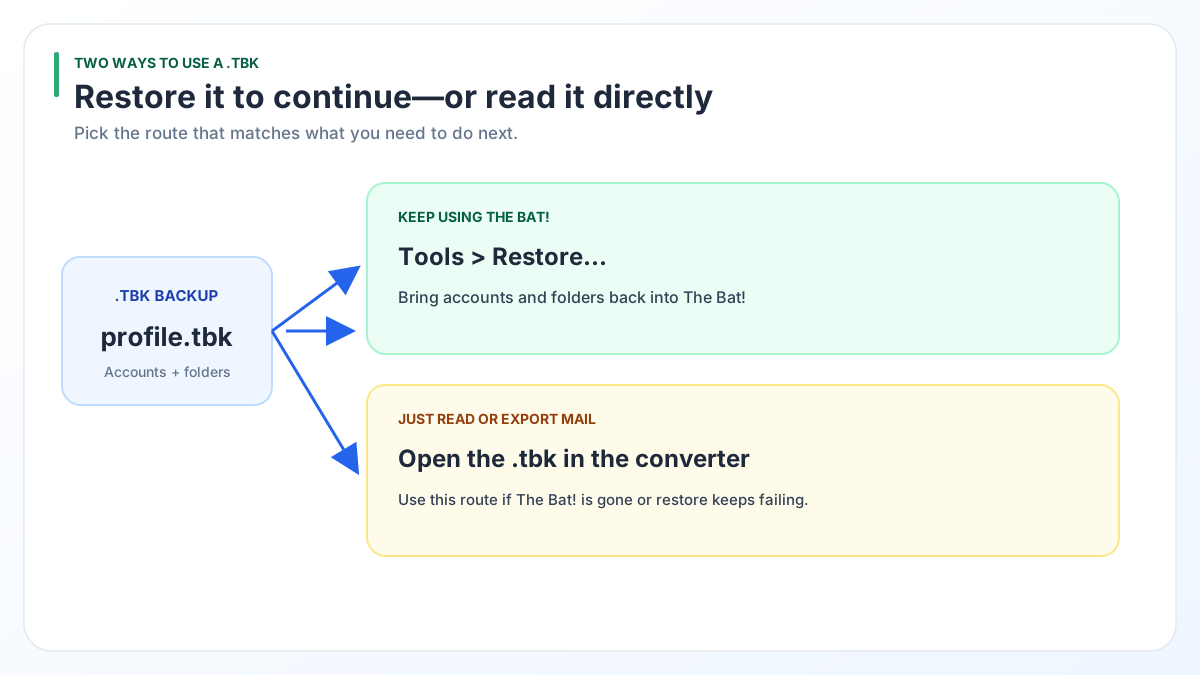
| Situation | Tools > Restore... | Read the .tbk directly |
|---|---|---|
| Staying with The Bat! | The right choice. Built in, no extra software | Not needed |
| Backup from a newer The Bat! | Fails until you update | Opens it |
| Forgotten backup password | Blocked | Blocked |
| Moving to Outlook or Gmail | No PST export. MSG, EML or mbox from one folder at a time | PST, Gmail, Office 365 or IMAP in one pass |
| Cost | Part of The Bat! | Pro $49 or Enterprise $99 |
For a longer look at reading a backup with no restore at all, see how to open a .tbk file without The Bat!.
Should you put a password on a The Bat! backup?
Put a password on a The Bat! backup only if you store that password somewhere you will find it years from now.
We tested a real password-protected .tbk. You can still see which folders it holds and how big each file is, but the contents are encrypted. Without the password, nothing outside The Bat! reads that mail.
- A password makes sense when the backup sits on a shared drive or a laptop you carry around.
- Keep the password in a password manager and note which backup it belongs to.
- Write it down the day you make the backup, not a year later.
How do you extract emails from a .tbk that will not restore?
Univik BAT Email Converter extracts the emails from a .tbk without The Bat!, so a version gap between the backup and your install does not matter.
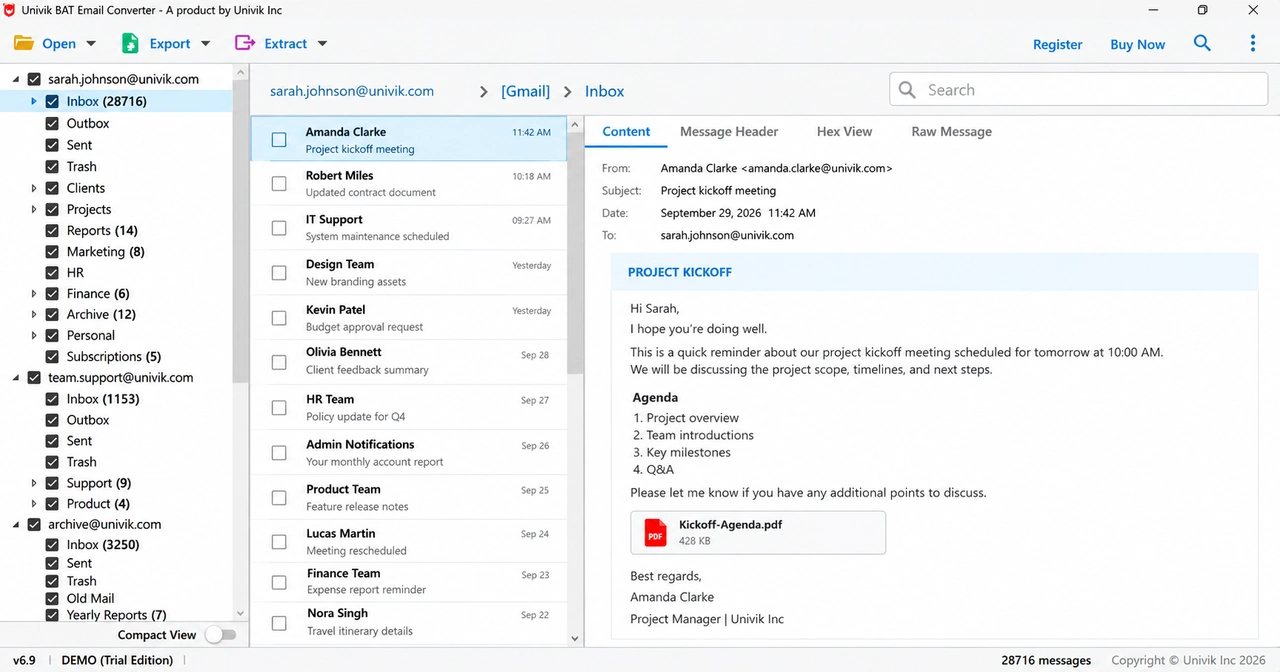
The converter needs the Pro or Enterprise licence for .tbk files. It does not unlock password-protected backups. It detects them and tells you, because that data stays encrypted outside The Bat!.
The backup file is opened read-only. Converted mail goes into new files, so a restore in The Bat! is still possible later.
Test it free on 10 items per folder. A Pro or Enterprise licence unlocks .tbk backups.
Free Download See all features- Backup... on the Tools menu makes the .tbk file and Restore... loads it back.
- Restore into the same version of The Bat! or a newer one. Newer backups do not go into older versions.
- A lost backup password cannot be worked around outside The Bat!.
- IMAP folders come back with only the bodies that were stored on disk when you backed up.
- When a restore keeps failing, a .tbk reader gets the mail out without The Bat!.
Questions about The Bat! backups

Leena Taylor Paul wrote this guide with the Univik team, which has shipped Windows mail tools since 2013. This guide covers making a The Bat! backup, restoring it and fixing a restore that fails. Last checked October 2026. Stuck? Contact our support team.