To save The Bat! email to PDF for free, open the message, print it and pick Microsoft Print to PDF as the printer in Windows.
That makes one PDF per print job. The Bat! has no PDF export of its own, so for a whole folder use a converter that reads the .tbb files and writes every message as PDF.
Some emails have to be kept as documents: a contract, a tax receipt, a letter for a lawyer or a thread you want on paper. PDF opens on any computer or phone and prints the same everywhere. Here are the two ways to get there from The Bat!.
Can The Bat! export emails as PDF files?
No. The Bat! has no PDF option in its export. Its Tools > Export messages to command saves only MSG, EML or UNIX mailbox files. Each export covers one folder (Ritlabs forum).
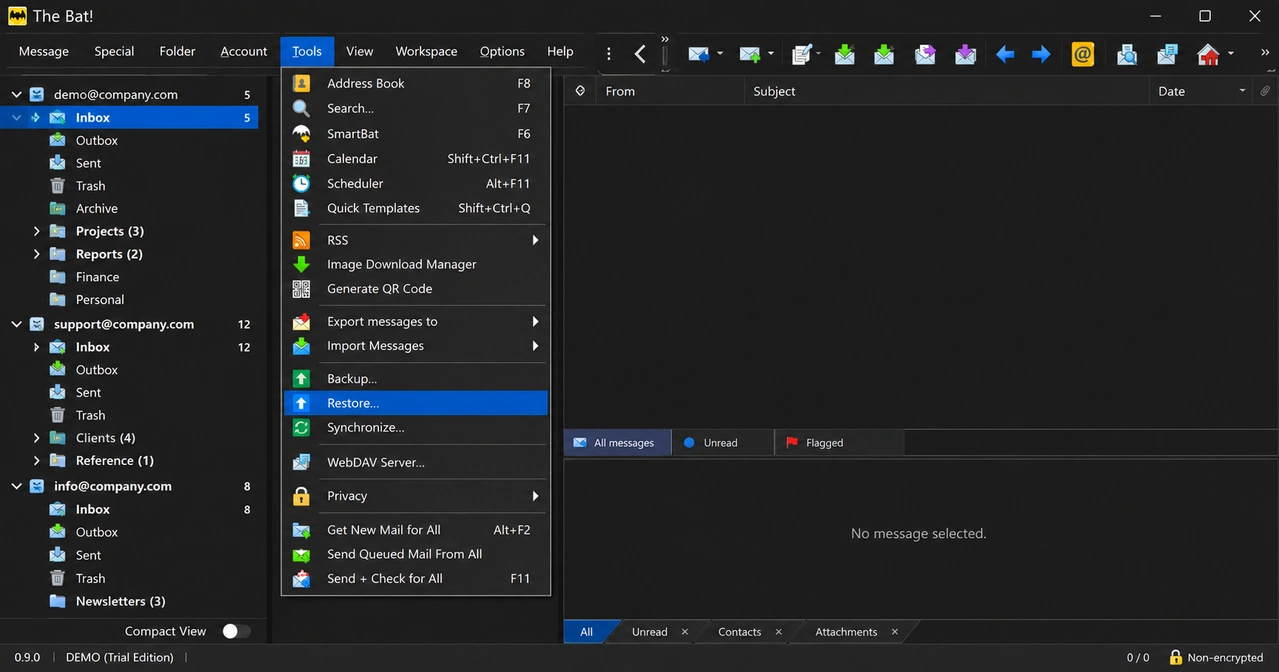
That leaves two routes for The Bat! mail:
- Print to PDF. Free and built into Windows. Good for a handful of messages.
- A converter. Reads the mail files and saves many messages as PDF in one run.
How do you save The Bat! email to PDF for free?
Print the message and choose Microsoft Print to PDF instead of a paper printer. Microsoft describes Microsoft Print to PDF as an option that creates a PDF file from other file formats by using a printer (Microsoft Support).
- Open The Bat! and click the email you want to keep.
- Use the print command in The Bat!.
- In the printer list, pick Microsoft Print to PDF.
- Click Print. Windows asks for a file name and a folder.
- Type a clear name with the date and subject. Then click Save.
To print The Bat! emails on paper, follow the same steps and pick your real printer in step 3.
Know the limits before you start:
- You repeat all five steps for every message. Fifty emails means fifty PDFs named by hand.
- Attached files do not become part of the printed page. Save them separately.
- The Bat! has to open and work on this PC. A dead install or a lone .tbk backup gives you nothing to print from.
Which route should you choose, print or converter?
Printing wins for a few emails. A converter wins once you need whole folders or you no longer have a working The Bat!.
| What you need | Print to PDF in The Bat! | Univik BAT Email Converter |
|---|---|---|
| Cost | Free | Trial converts 10 items per folder, licence from $29 |
| One to ten emails | The quicker choice | Works, but more than you need |
| A folder of 2,000 emails | 2,000 print jobs | One export run |
| File types | PDF or paper | PDF, HTML, TEXT and CSV |
| Needs a working The Bat! | Yes | No. It reads .tbb files and, with Pro, .tbk backups |
| Changes your mailbox | No | No. Files are read-only |
For a single contract or receipt, print it. For a year of project mail or a folder a lawyer asked for, the free route turns into an afternoon of clicking.
Which file type fits records, legal files or printing?
PDF fits records and printing, CSV fits a list of messages and HTML or TEXT fit reading and searching. Pick by what the file has to do later.
| Format | Use it for |
|---|---|
| Records, printing and sending to someone who has no mail app | |
| CSV | A message list report that opens in Excel or Google Sheets, handy as an index for a legal bundle |
| HTML | Reading messages in any web browser |
| TEXT | Plain archives and fast text search |
A note for legal work. A PDF shows the email as a page. It does not replace the original message file, which carries the full header that shows where the message came from. Keep an EML copy or the original .tbb file next to your PDFs. To find the right messages before you export, see how to search The Bat! mail by sender, date or content.
Why do some The Bat! IMAP emails have no body to save?
The Bat! keeps only the header of an IMAP message until you open or download it. The .tbn index lists every message, while the .tbb file stores only the message bodies that reached your PC.
The gap can be huge. On our own test profile, the Inbox had 41,452 messages in its index and 33 bodies on disk. A header-only message has a subject and a sender but no text to put in a PDF.
The converter spots these messages and tells you to download the message bodies in The Bat! first. After that it converts them. The steps are in our guide to IMAP emails that show only headers.
How do you export The Bat! folders to PDF with Univik BAT Email Converter?
Load your mail, open the Export menu and pick PDF under Document Files. Univik BAT Email Converter 6.9 is a Windows 11 and 10 app (64-bit only) that reads The Bat! files without changing them.
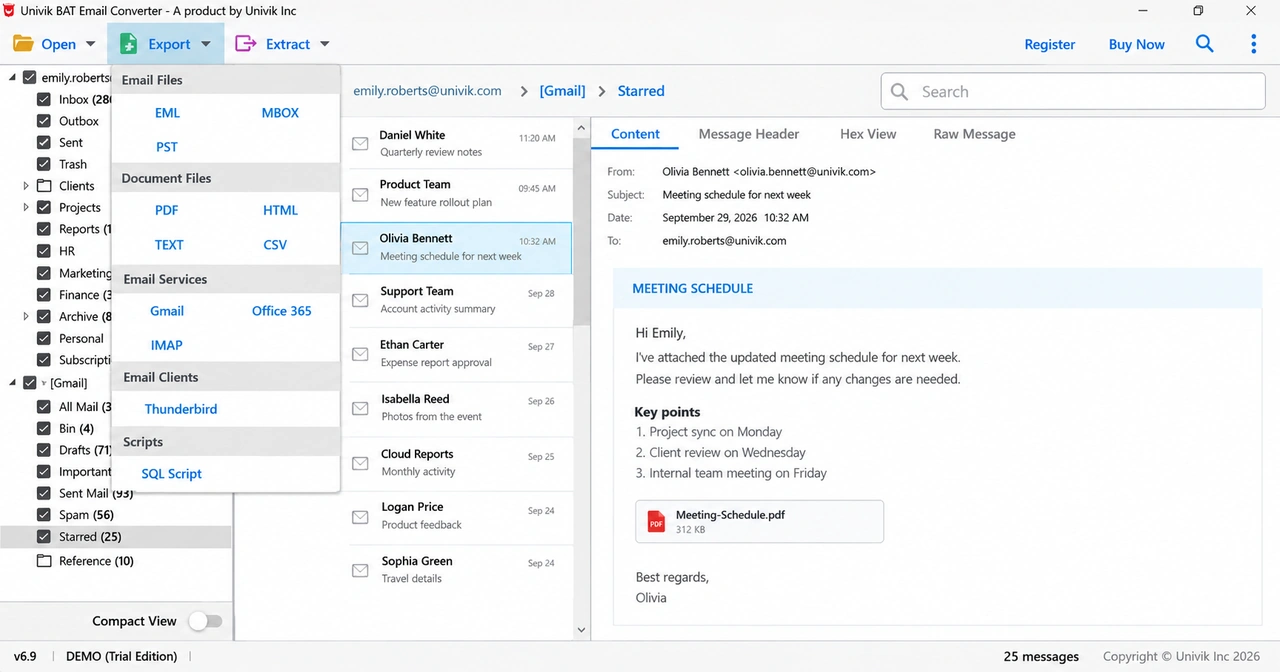
Three things worth knowing first:
- Which licence. Standard ($29) handles loose .tbb mailboxes and any account that shows under Open Bat Mail Configured Accounts. Saving a .tbk backup as PDF needs Pro ($49) or Enterprise ($99).
- Counts you can check. Every folder in the tree shows a message count. On our 40-folder test profile each count matched the number The Bat! itself showed.
- Password backups. A .tbk saved with a password stays locked outside The Bat!. Pick a backup saved without a password, or load the live mail folder.
Check the output on your own mail: the trial converts 10 items from each folder into PDF.
Free Download See all features- Built-in export in The Bat! writes MSG, EML or UNIX mailbox files, never PDF.
- Printing a message to Microsoft Print to PDF is free and fine for a few emails.
- For folders of mail, a converter saves every message as PDF in one run and adds HTML, TEXT and CSV.
- Download IMAP message bodies in The Bat! before you export, or the PDFs have no text.
- For legal files, keep the original EML or .tbb file next to the PDF copies.
Questions about saving The Bat! mail as PDF

Leena Taylor Paul wrote this guide with the Univik team, which has shipped Windows mail tools since 2013. This guide covers saving The Bat! emails as PDF, printing them and making a CSV message list. Last checked October 2026. Stuck? Contact our support team.