Moving The Bat! to PST takes two steps: convert the mail to PST with a converter, then import it in classic Outlook through File > Open & Export > Import/Export.
The Bat! has no PST export. Tools > Export messages to offers only MSG, EML or UNIX mailbox, one folder at a time.
You are moving to Outlook and want years of The Bat! mail to come with you, folders and all. Outlook reads PST files. The Bat! does not write them, so to convert The Bat! to Outlook you need a bridge between the two.
Can The Bat! export mail to Outlook on its own?
No. The Bat! cannot create a PST file. The only export it offers is Tools > Export messages to, and that writes three formats (Ritlabs forum):
- MSG: one file per message
- EML: one file per message
- UNIX mailbox: an mbox file for the folder
Each export covers a single folder. An account with 40 folders means 40 separate exports, and none of the results is a PST that Outlook imports in one go.
Is there a free way to move The Bat! mail into Outlook?
Yes. It works only with new Outlook for Windows. It also goes one folder at a time. Export a folder from The Bat! as EML files, then use the EML import that Microsoft built into new Outlook.
- In The Bat!, open Tools > Export messages to and save one folder as EML files into an empty Windows folder.
- Open new Outlook. Under Settings > Files > Import, select Start import.
- Point it to the Windows folder with your exported .eml files.
- Pick the target account and folder in Outlook. Select Import.
- Repeat for every The Bat! folder.
Microsoft lists the limits on its bulk EML import page:
- Only .eml files sitting directly in the chosen folder are read. Anything in a subfolder is left out.
- Each .eml file has a 14 MB size limit.
- The import needs an internet connection.
Classic Outlook is a different story. Microsoft's support pages describe no EML import for classic Outlook, so we do not treat dragging .eml files into it as a reliable way to move a whole mailbox.
Which route should you choose for Outlook?
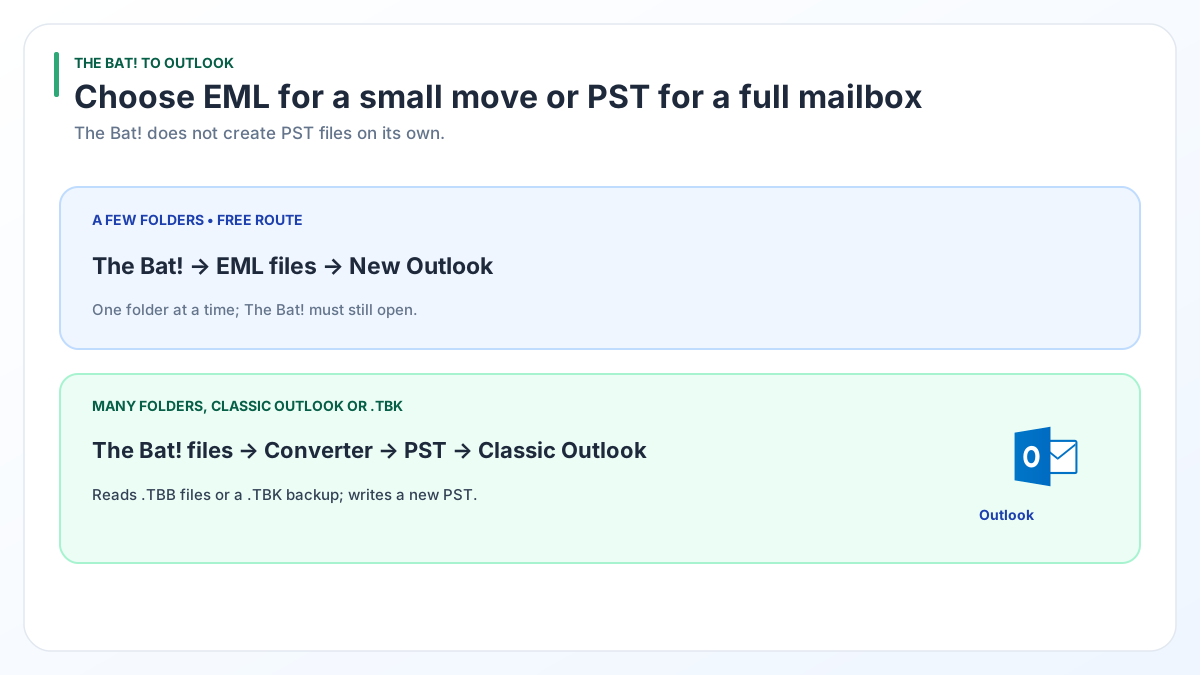
The free EML route is fine for a few small folders in new Outlook. A PST conversion suits large mailboxes, classic Outlook or a .tbk backup.
| What matters | Free EML route | PST with Univik BAT Email Converter |
|---|---|---|
| Cost | Free | Trial handles 10 items per folder, licence from $29 |
| Outlook version | New Outlook for Windows | Classic Outlook import wizard |
| Folders | Export and import one at a time | All folders you load, converted in one run |
| Internet needed | Yes, for the import | No, the conversion runs on your PC |
| The Bat! must still start | Yes | No, the converter reads .tbb files on its own |
| .tbk backup | Restore it first | Reads it directly with Pro or Enterprise |
Pick the free route if you have two or three folders and already use new Outlook. Pick PST once the mailbox runs to thousands of messages or dozens of folders.
How do you check that every The Bat! message reached Outlook?
Compare the message count of each folder before and after the move. A count that matches is the plainest proof that nothing went missing.
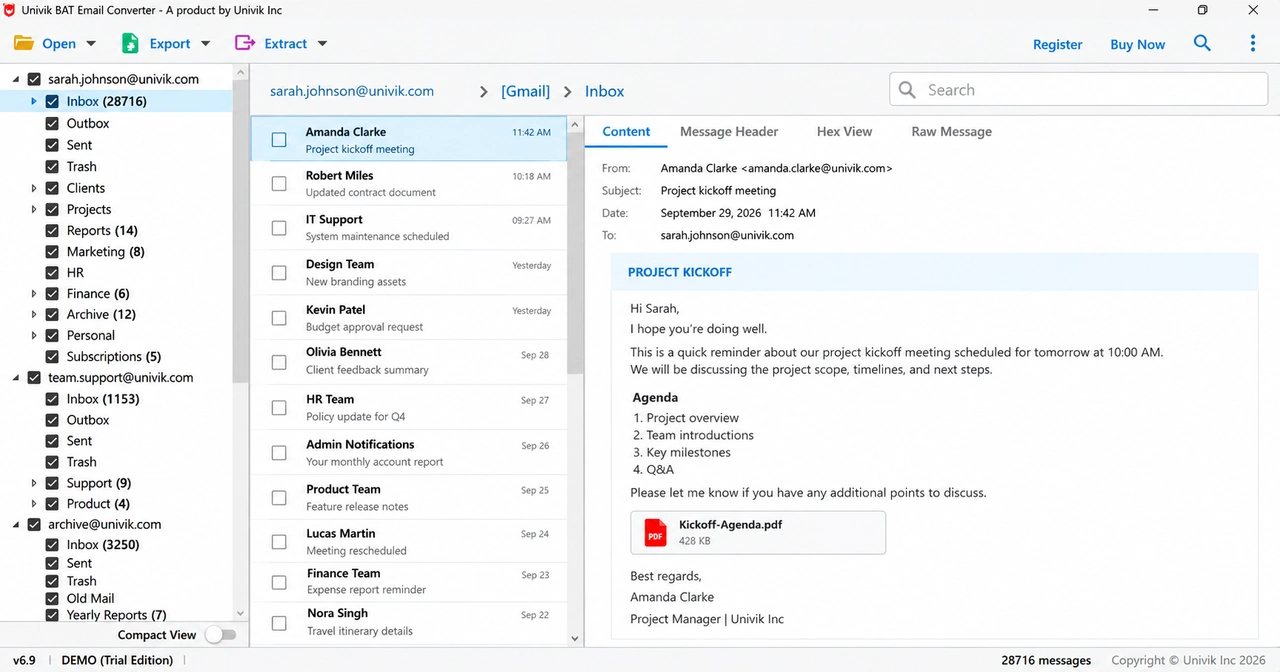
We ran this check on a real profile with 2 accounts and 40 folders. The Inbox held 41,452 messages and [Gmail] All Mail held 43,572. The converter's count matched The Bat!'s own count in all 40 folders. We also opened a 37 MB .tbk backup of the same profile, and the files it gave back were byte-identical to the live mail folder.
Watch out for IMAP accounts. For an IMAP folder The Bat! stores the header of every message but only the bodies you opened or downloaded. In that same Inbox, 41,452 headers sat next to 33 bodies on disk. The converter warns you about these messages. Download the full messages in The Bat! first, as shown in our IMAP headers-only guide, then convert.
How do you import a PST file into classic Outlook?
Use the Import/Export wizard in classic Outlook and choose Outlook Data File (.pst). Microsoft gives these steps on its support site:
- Click File > Open & Export > Import/Export.
- Choose Import from another program or file. Click Next.
- Choose Outlook Data File (.pst). Click Next.
- Browse to the PST file.
- Under Options, choose how Outlook treats duplicates. Click Next.
- Leave the import settings as they are and click Finish.
If the converter gave you more than one PST file, run the wizard once for each. To bring in only part of a mailbox, Microsoft suggests opening the PST as an Outlook Data File and dragging items from its folders into your existing Outlook folders.
New Outlook for Windows handles PST files through Settings instead of the File menu. Microsoft says opening a .pst in new Outlook needs classic Outlook installed on the same PC, with the same 32-bit or 64-bit build, plus a Microsoft 365 subscription (Microsoft Support). For most people classic Outlook is the simpler place to import.
How do you convert The Bat! to PST with Univik BAT Email Converter?
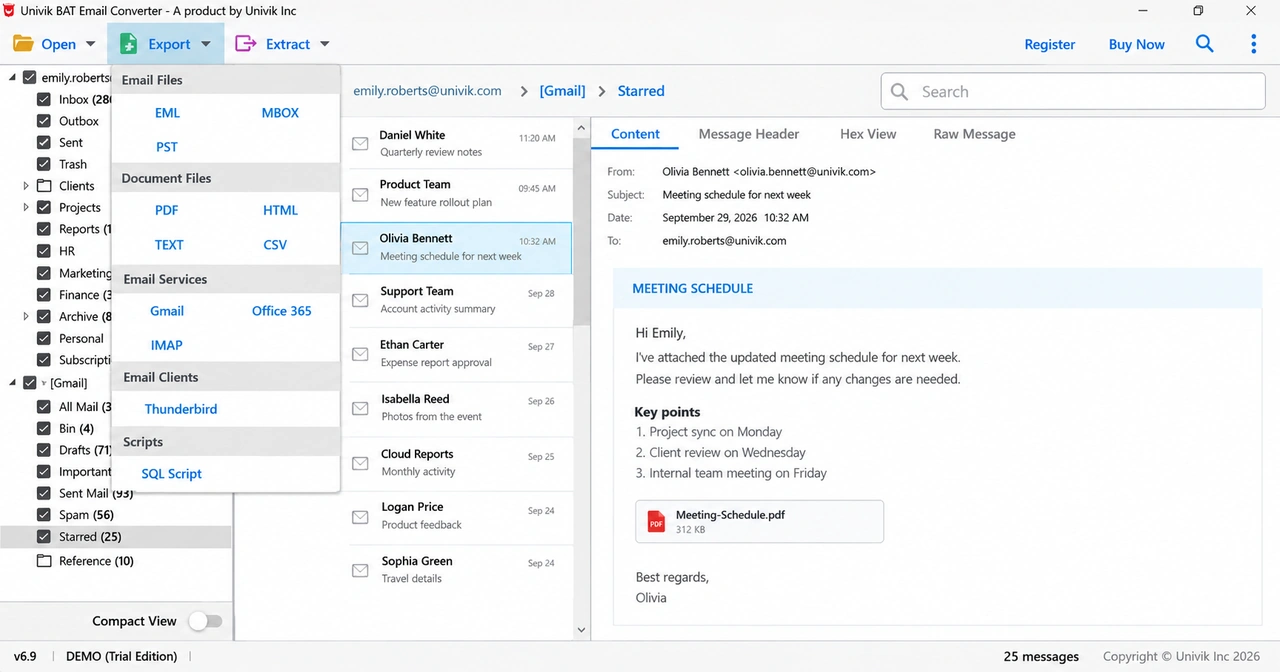
Load your The Bat! mail, then open the Export menu and pick PST under Email Files. Univik BAT Email Converter 6.9 reads the mail files read-only and writes the PST output as new files, keeping your folders.
Which licence fits your files:
- TBB to PST: Standard ($29, 2 PCs) reads .tbb mailboxes and the accounts The Bat! has configured on this PC.
- TBK to PST: a .tbk backup needs Pro ($49, 5 PCs) or Enterprise ($99, 10 PCs). There is no restore step.
- Password backups: a password-protected .tbk stays encrypted outside The Bat!. Convert the live mail folder or a backup made without a password.
If you would rather send the mail straight to a Microsoft 365 mailbox than make a PST, see moving The Bat! mail to Office 365.
Import a trial PST into Outlook before you buy. The trial converts up to 10 messages per folder, enough to test the import.
Free Download See all features- Outlook cannot read The Bat! files, and The Bat! has no PST export of its own.
- New Outlook imports EML files for free, folder by folder, with a 14 MB limit per file.
- A converter turns .tbb mailboxes into PST in one run. For .tbk backups you need Pro or Enterprise.
- Classic Outlook brings the PST in through Import/Export and the Outlook Data File (.pst) option.
- Match the folder counts before and after, and download IMAP bodies in The Bat! first.
Questions about moving The Bat! mail to Outlook

Leena Taylor Paul wrote this guide with the Univik team, which has shipped Windows mail tools since 2013. This guide covers moving The Bat! mail into Outlook, from making a PST file to importing it and checking the counts. Last checked October 2026. Stuck? Contact our support team.