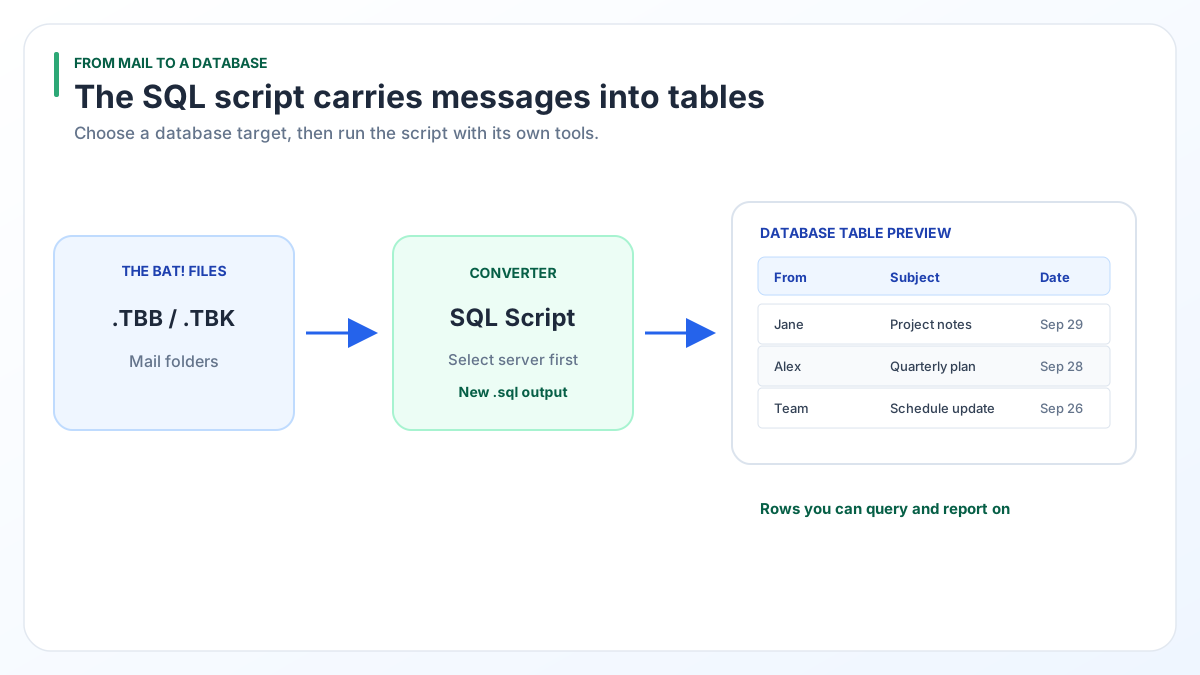
To get The Bat! emails to SQL, convert the mail files into a .sql script and run that script in your database. The script builds the tables and adds your messages.
The script can target six databases, from MySQL, MariaDB and SQLite to PostgreSQL, Oracle Database and Microsoft SQL Server. The Bat!'s own Export messages to writes only MSG, EML or mbox files.
A mail archive in a database is easy to count, filter and report on. The Bat! keeps mail in its own .tbb files, which no database reads. This guide shows how to turn that mail into a script your database can run.
Why load The Bat! emails into a SQL database?
A database answers questions about years of mail with one query. With The Bat! mail in SQL, you can run reports across the whole archive.
- Counts and reports: messages per sender, per month or per folder across a whole archive.
- One place for records: keep old mail next to customer or order data that already lives in a database.
- Shared access: let a team query the archive without giving everyone a copy of The Bat!.
Size matters here. One real Inbox we worked with held 41,452 messages, and its [Gmail] All Mail folder held 43,572. Lists that long are where a database beats scrolling.
Can The Bat! export emails to SQL on its own?
No. The Bat! has no SQL export. Its Tools > Export messages to command writes MSG, EML or UNIX mailbox (mbox) files, one folder at a time (Ritlabs forum).
You may spot a file named TBIndex.db in the root of your The Bat! profile. It is a SQLite file, but it is The Bat!'s full-text search index, not a mail export. You do not need it to convert your mail.
The mail itself sits in .tbb files, one per folder, with a .tbn index beside each. A converter reads those files and writes the SQL script for you.
Which export format should you choose for a database?
Pick SQL Script when you want a full load with the tables built for you. Pick CSV when a spreadsheet is enough or your database tool already has a CSV import you like.
| Your goal | CSV export | SQL Script export | The Bat! Export messages to |
|---|---|---|---|
| Look at a mail list in Excel | Better choice. Opens with no database | Needs a database first | Not a table format |
| Fill a new database with tables built for you | Goes through your database's own CSV import tool | Better choice. The script creates the tables and adds the rows | Not possible |
| Keep message files for another mail app | No | No | Better choice. Free EML or mbox files |
| Cost | From $29 | From $29 | Free |
If all you want is to find one message, you do not need a database at all. Our guide to searching The Bat! mail covers that. For a spreadsheet copy, see The Bat! emails to PDF and CSV.
Which databases can load the script, from MySQL to SQL Server?
Six database systems can load the exported script. You choose one before you export, and the script is written for that system.
- Server databases: PostgreSQL, MariaDB, MySQL, Oracle Database and Microsoft SQL Server each run as a server that you sign in to with a user name.
- SQLite: needs no server at all. The database is a single file on your disk, which makes it the simple pick for a personal archive on one PC.
Pick the system your team already uses. If nobody has a database yet, start with SQLite.
Need the same mail in two systems? Export twice and pick a different server each time.
How do you export The Bat! emails to SQL with the converter?
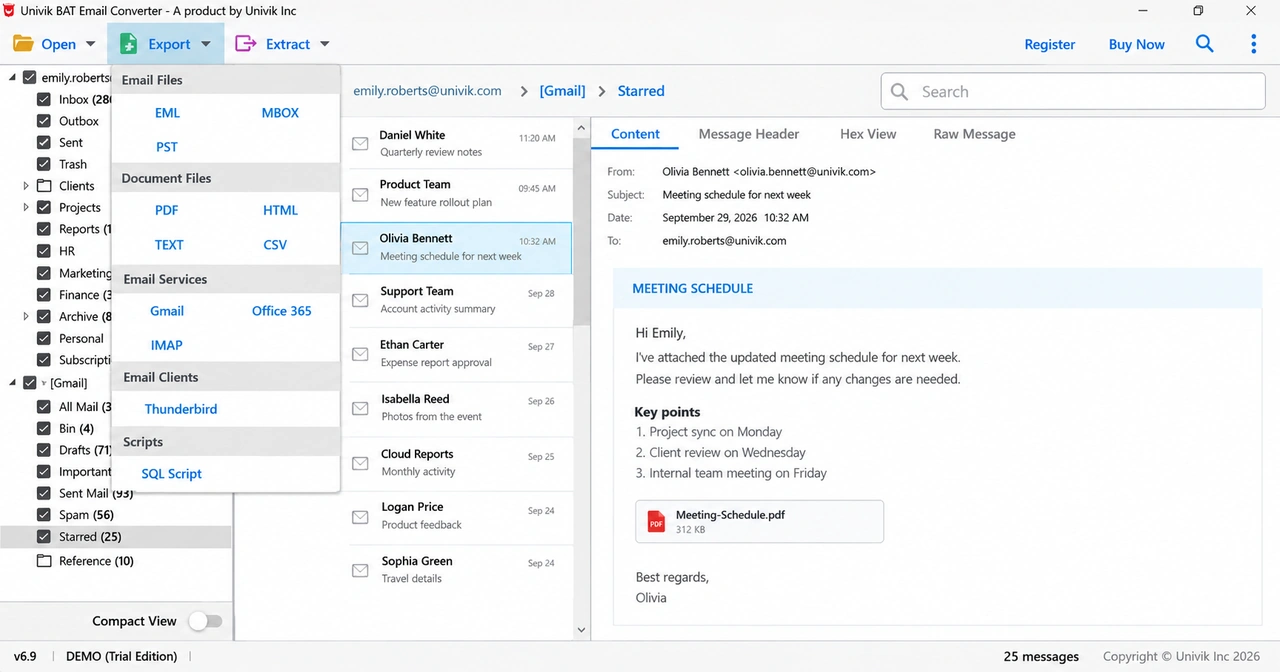
Univik BAT Email Converter turns .tbb and .tbk files into a script your database can run. In its Export menu, the Scripts group holds SQL Script. Clicking it opens the SQL Export Options screen.
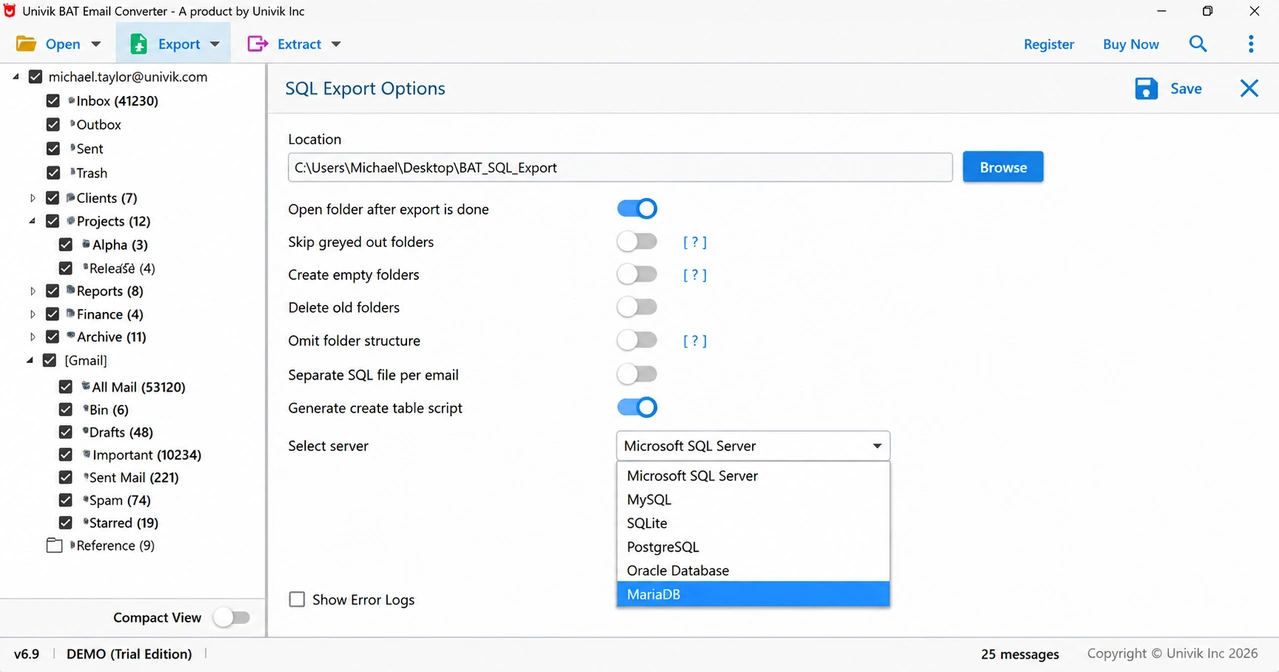
- Location and Browse: the folder where the .sql output goes.
- Select server: the database you will load the script into.
- Generate create table script: on by default. It adds the commands that build the tables. Keep it ticked for a first load.
- Separate SQL file per email: one .sql file for each message. For an Inbox of 41,452 messages that means 41,452 files, so leave it off when you want one file to run.
- Folder options: Skip greyed out folders, Create empty folders, Delete old folders and Omit folder structure.
- Open folder after export is done and Show Error Logs help you check the result.
Your mail files are left as they were. The converter needs a 64-bit PC with Windows 10 or 11 and .NET Framework 4.8, and our checks used files from The Bat! 12.3.1. Plans start at $29, and a .tbk backup needs the $49 Pro or $99 Enterprise plan.
Run a test export on your own mail first. The trial exports 10 items from every folder, so you can check the script in your database.
Free Download See all featuresHow do you run the .sql file in your database?
Run the .sql file with your database's own command-line tool. Open Command Prompt in the folder that holds the file, then use the line for your database below.
| Database | Tool | Command |
|---|---|---|
| Microsoft SQL Server | sqlcmd | sqlcmd -S myServer -d MailArchive -i mail.sql |
| MySQL | mysql | mysql -u myname -p MailArchive < mail.sql |
| SQLite | sqlite3 | sqlite3 mail.db then at the prompt .read mail.sql |
| PostgreSQL | psql | psql -U myname -d mailarchive -f mail.sql |
| Oracle Database | sqlplus | sqlplus myname @mail.sql |
| MariaDB | mariadb | mariadb -u myname -p MailArchive < mail.sql |
- Swap in your own server, user and database names.
mail.sqlstands for your exported file. - Create an empty database first. SQLite is the exception:
sqlite3makes a new database file when the name you give does not exist yet (SQLite docs). - With
-pand no password after it, mysql asks for the password instead of showing it on screen (MySQL docs). SQL*Plus also asks for your password before it runs the script. - The sqlcmd
-doption stops with an error if the database does not exist (Microsoft Learn). - psql with
-freports errors with line numbers, which helps if a large load stops partway (PostgreSQL docs).
- SQL loading needs a converter step, since The Bat! itself exports only MSG, EML and mbox.
- One export targets one system: SQL Server, Oracle Database, MySQL, MariaDB, PostgreSQL or SQLite.
- Generate create table script is on by default and builds the tables for a first load.
- SQLite is the simplest target for one person, because the database is a single file.
- CSV is the lighter choice when a spreadsheet is all you need.
Questions about loading The Bat! mail into SQL

Leena Taylor Paul wrote this guide with the Univik team, which has shipped Windows mail tools since 2013. This guide covers exporting The Bat! mail as a SQL script and loading it into six common databases. Last checked October 2026. Want help? Contact our support team.