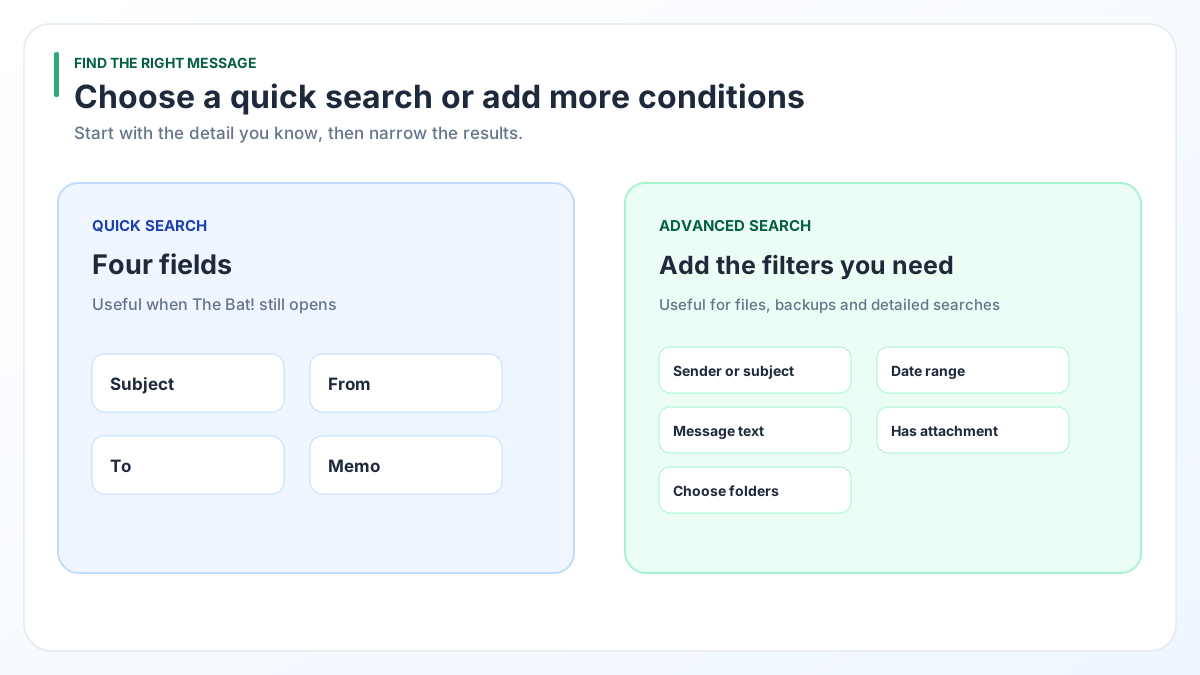
To search emails in The Bat!, start with Quick Search, which looks only at Subject, From, To and Memo. For more conditions, open Message Finder with F7.
If The Bat! will not start or you need CC, date and time ranges plus body text in one search, load the mail files into a desktop tool with an Advanced Search panel.
You need one email: an invoice, a promise in writing or proof of who sent what. The Bat! has built-in search tools, and each one looks at different parts of a message. Picking the right one saves you from scrolling through thousands of emails.
What does The Bat! Quick Search look at?
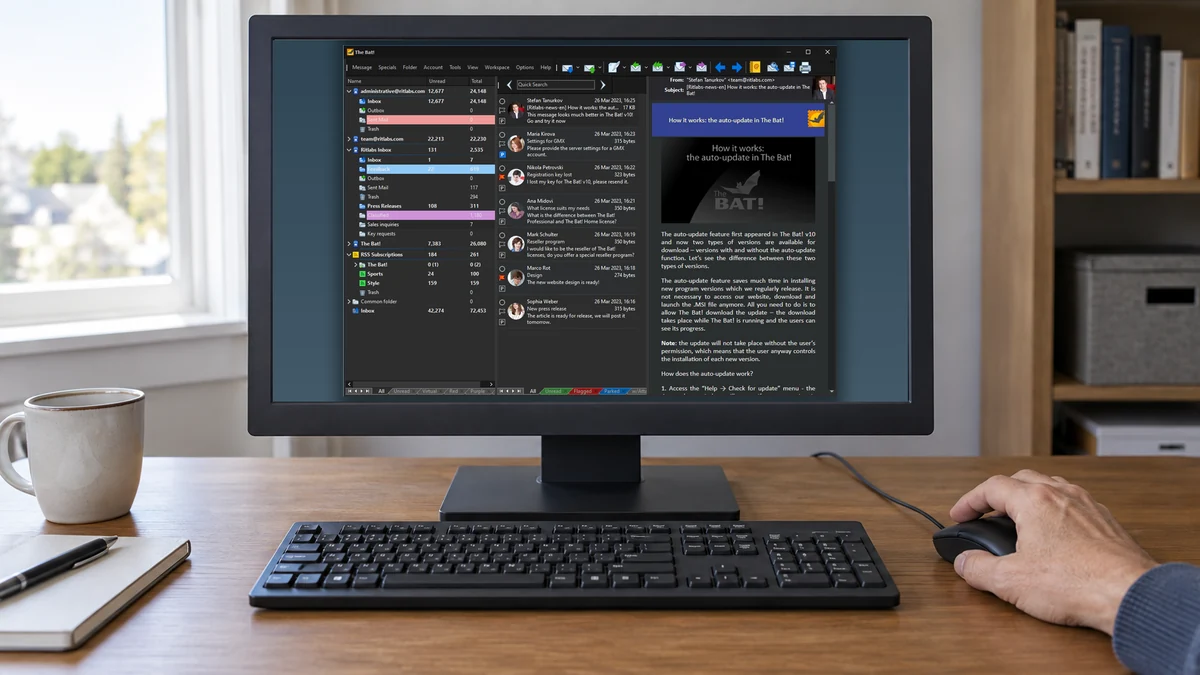
The Bat! Quick Search looks at four fields only: Subject, From, To and Memo. Ritlabs states this in its Quick Search tip.
- How to show it: turn the toolbar on under Workspace > Toolbars > Quick Search.
- Good for: a sender name or a word you remember from the subject line.
- Misses: words that appear only in the message text, the CC line or an attachment name.
For more, The Bat! has Message Finder under Tools > Search... (F7). Ritlabs shows one handy use in its list of lesser-known features: set the condition "Attachment contains..." and type the file name you remember.
Which search tool should you use?
Use The Bat!'s own tools while the program works and you remember a subject, a sender or a file name. Use a converter's Advanced Search when The Bat! will not start, when the mail sits in a .tbk backup or when you need many conditions at once.
| Your situation | Use this | Why |
|---|---|---|
| You remember the subject or the sender | Quick Search in The Bat! | Free and instant. It checks Subject, From, To and Memo. |
| You remember the name of an attached file | Message Finder (F7) in The Bat! | Free and built in. Use the "Attachment contains..." condition. |
| You need a CC name, a date window and a word from the body together | Advanced Search in the converter | All fields in one panel, with Must Match All. |
| The Bat! will not open, or you only have a .tbk file | Advanced Search in the converter | Reads the files without The Bat!. A .tbk needs Pro. |
| You must show where a message came from | Header and raw views in the converter | Tabs for the header, the raw source and a hex view. |
How do you narrow a search down to one email?
Start with the one detail you are sure of, then add conditions one at a time until only a few messages are left.
- Sender first. A name or address in From is the most reliable clue.
- Add a wide date window. If you think it was March, search February to April.
- Add a rare word. An order number or a surname beats a common word like "invoice".
- Use the attachment filter. If you remember a file, set Has Attachment to Yes.
- Limit the folders. Tick only the account and folders that make sense, so replies in Sent do not crowd the list.
No result? Remove the last condition you added. A wrong date or a misspelled name is enough to empty the list.
Why does a body text search miss some IMAP emails?
A search inside message text can only find words in bodies that are saved on your PC. For IMAP accounts, The Bat! stores a body only after you open or download that message.
Headers are a different story. The .tbn index lists who sent each message, when and with what subject line. Searches on those fields still work. In a real IMAP Inbox we checked, 41,452 messages were listed but only 33 bodies were on disk. A text search there covered 33 emails, not 41,452.
Download the full messages in The Bat! before a text search. Our guide to IMAP mail that shows only headers explains how.
How do you check where an email came from?
Look at the full message header. The header holds the routing lines that show the path a message took, plus the sender, the date and other details.
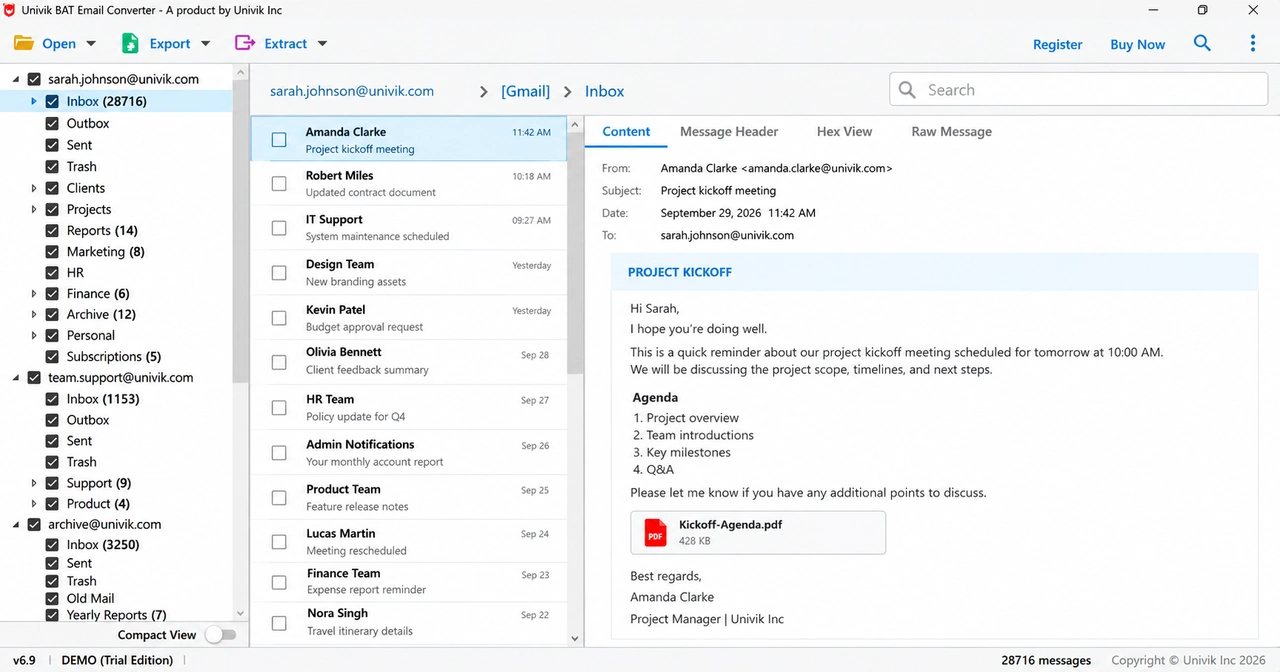
- Message Header: the routing lines and header fields in a readable list.
- Raw Message: the whole message source as plain text, headers and body together.
- Hex View: the same message byte by byte, for people who need to check the exact data.
To make sense of a header, copy it and paste it into Google's free Admin Toolbox Messageheader tool, as Gmail Help describes. Then click "Analyze the header above". To keep the email as a record, save it as a PDF with our guide to The Bat! emails to PDF.
How do you search emails in The Bat! files with the converter?
Univik BAT Email Converter opens The Bat! mail files and searches them with an Advanced Search panel. You choose the fields and tick the folders to search.
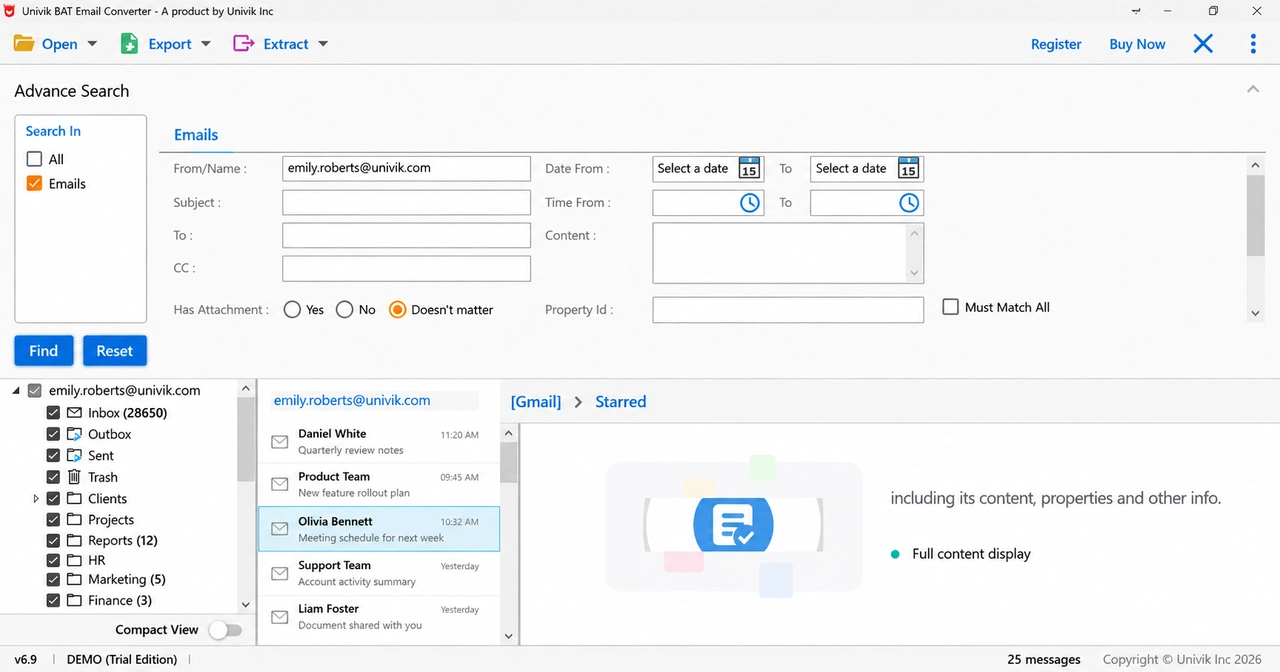
- People: From/Name, To and CC.
- Words: Subject and Content (the message text).
- When: Date From and To, plus Time From and To.
- Files: Has Attachment set to Yes, No or Doesn't matter.
- Rules: tick Must Match All so a message has to fit every field you filled in. Find runs the search and Reset clears it.
Nothing in your mail files changes during a search, since the converter only reads them. We tested it on The Bat! 12.3.1. Files from older releases open too. The $29 Standard edition opens .tbb files and configured accounts. For .tbk backups you need the $49 Pro or $99 Enterprise edition.
Search your own mail before you buy. The trial covers 10 items per folder, and a 30-day guarantee comes with every plan.
Free Download See all features- Quick Search in The Bat! checks four fields: Subject, From, To and Memo.
- Message Finder (F7) can find a message by the name of its attached file.
- An Advanced Search panel adds CC, date and time windows, body text and folder choice in one search.
- Body text searches only reach IMAP messages whose full body was downloaded.
- Header, raw source and hex views show where a message came from and what it held.
Questions about searching The Bat! mail

Leena Taylor Paul wrote this guide with the Univik team, which has shipped Windows mail tools since 2013. This guide covers finding a specific email in The Bat! mail and checking its header and source. Last checked October 2026. Need a hand? Contact our support team.