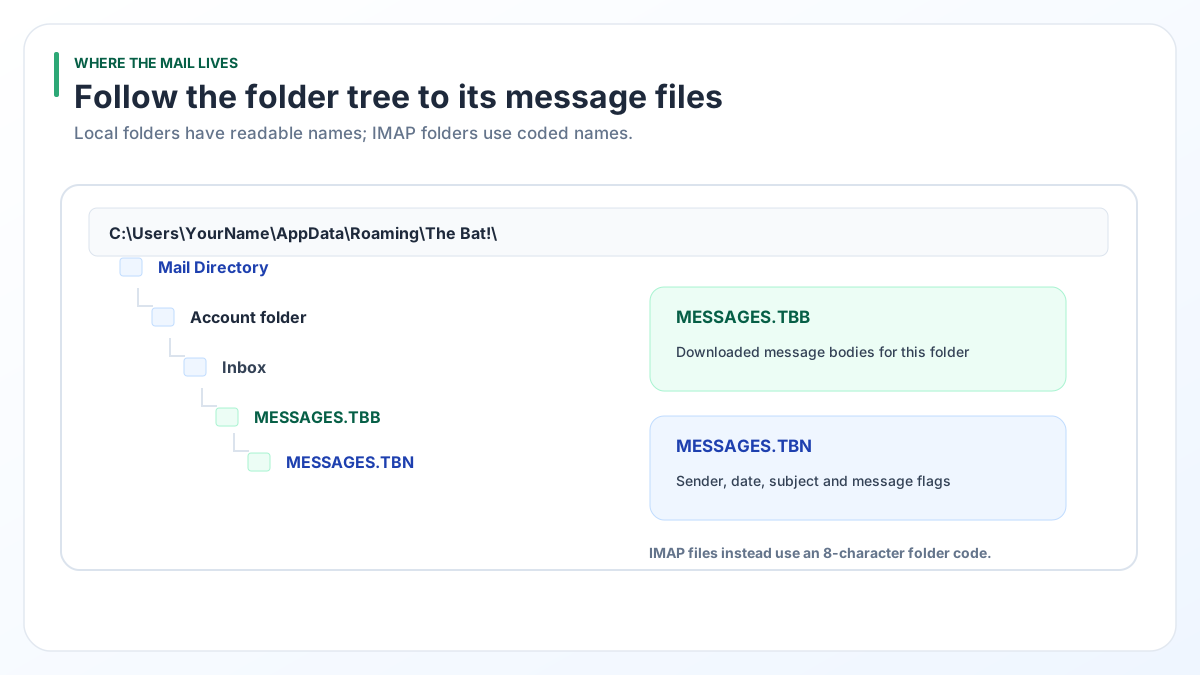
The Bat! keeps your emails on your own PC in C:\Users\YourName\AppData\Roaming\The Bat!, with a separate folder for each account. Each mail folder is a .tbb file with the messages plus a .tbn index.
If the mail was moved, Options > Preferences > System > Mail Directory in The Bat! shows the real path. The registry stores the same path as Working Directory.
"Where does The Bat! store emails?" is the first question people ask when they move to a new PC, reset Windows or want to convert their mail. The Bat! keeps everything in normal folders on your drive, but the file names give little away.
Where does The Bat! store emails by default?
The Bat! stores emails in C:\Users\YourName\AppData\Roaming\The Bat! unless someone picked another place during setup. Inside that folder there is one subfolder for each email account, named after the account.
Windows hides the AppData folder. To jump straight there:
- Press Windows key + R to open the Run box.
- Type
%APPDATA%\The Bat!and press Enter. - File Explorer opens The Bat! folder with your account folders inside.
The same text also works in the File Explorer address bar.
How do you find The Bat! mail directory if it was moved?
Open The Bat! and go to Options > Preferences > System. The Mail Directory field shows the folder The Bat! uses right now. A Ritlabs forum answer points to this same field.
When The Bat! will not start, read the path from the Windows registry instead:
- Press Windows key + R, type
regeditand press Enter. - Go to
HKEY_CURRENT_USER\Software\RIT\The Bat!. - Look at the value named Working Directory. Its data is your mail folder.
Reading a value changes nothing, but do not edit it. If the old PC no longer boots at all, our guide on reading The Bat! mail from an old computer covers that case.
Which The Bat! file holds what? The full file map
Every The Bat! account folder follows the same layout. We checked every row below against The Bat! 12.3.1, released by Ritlabs in August 2026.
| File | Where it sits | What it holds |
|---|---|---|
ACCOUNT.FLB | Account folder | Your folder list, and the one place where IMAP folder names are tied to their coded files. |
ACCOUNT.CFN | Account folder | Account settings. |
MESSAGES.TBB | A subfolder for each local folder (Inbox, Outbox, Sent, Trash and folders you made) | The message bodies of that folder. |
MESSAGES.TBN | Next to MESSAGES.TBB | The index. It lists who sent each message, when it arrived, its subject line and its flags. |
0C19C81E.TBB | The IMAP subfolder | Bodies for one IMAP folder. The name is 8 hex characters. |
0C19C81E.TBN | The IMAP subfolder | The index for that same IMAP folder. |
TBIndex.db | Root of The Bat! folder | A SQLite full-text search index. Conversion does not need it. |
.tbk | Wherever you saved it | A backup made with Tools > Backup... in The Bat!. |
If no message in a folder was ever downloaded, that folder has no .tbb or .tbn file. That is normal and no mail went missing. To learn more about the mailbox file itself, read what a .tbb file is.
How does The Bat! store local and IMAP folders differently?
The Bat! gives local folders readable names and IMAP folders coded names. A local folder such as Inbox gets its own subfolder with MESSAGES.TBB and MESSAGES.TBN inside.
IMAP folders all share one subfolder called IMAP. Each IMAP folder there is a pair of files named with 8 hex characters, for example 0C19C81E.TBB and 0C19C81E.TBN. The folder name, such as Sent Items, never appears on disk.
Only ACCOUNT.FLB knows which pair belongs to which folder. Copy it together with the IMAP subfolder, or the pairs lose their names.
IMAP folders also hold fewer bodies than people expect. The .tbn lists every message, while the .tbb keeps only bodies you opened or downloaded. Read why The Bat! IMAP emails are not downloaded in full before you back up an IMAP account.
What other files sit in The Bat! account folder?
A few more files hold address books, filters and sign-in data. This list is a community source and not a Ritlabs document: it comes from a thread on the BatBoard forum (thread 11616).
ADDRBOOK.ABD: address books.ACCOUNT.SRBandACCOUNT.SRX: message filters.ACCOUNT.IMF: the IMAP folder structure.ACCOUNT.ATB: OAuth sign-in tokens.
Treat ACCOUNT.ATB like a password and never share it. Contacts can leave through The Bat! address book, which saves LDIF, vCard or CSV files for other apps.
Which The Bat! files should you copy for each job?
Copy the whole mail folder for a move and only the pair you need for a quick look. Find your job in the table.
| Your job | What to copy | Free route | Where the converter helps |
|---|---|---|---|
| Move The Bat! to a new PC | The whole Mail Directory | Tools > Backup... on the old PC, Tools > Restore... on the new one. Free and keeps your settings. | Not needed if The Bat! runs on both PCs. |
| Keep a spare copy | A .tbk from Tools > Backup... | Built into The Bat! at no cost. | Opens the .tbk on a PC without The Bat! (Pro or Enterprise). |
| Look at one folder | Its .tbb and .tbn pair | The free online The Bat! viewer in your browser | Exports the folder to PST, EML, PDF and more. |
| Name the IMAP pairs | ACCOUNT.FLB plus the IMAP subfolder | Open The Bat! and read its folder tree | Shows real folder names with message counts. |
If The Bat! still runs on both computers, its own backup and restore is the simplest route and costs nothing.
How do you open The Bat! mail folders with Univik BAT Email Converter?
Univik BAT Email Converter finds the mail folders for you, so there is no digging through AppData. Its Open menu shows the The Bat! accounts configured on this PC, listed by email address.
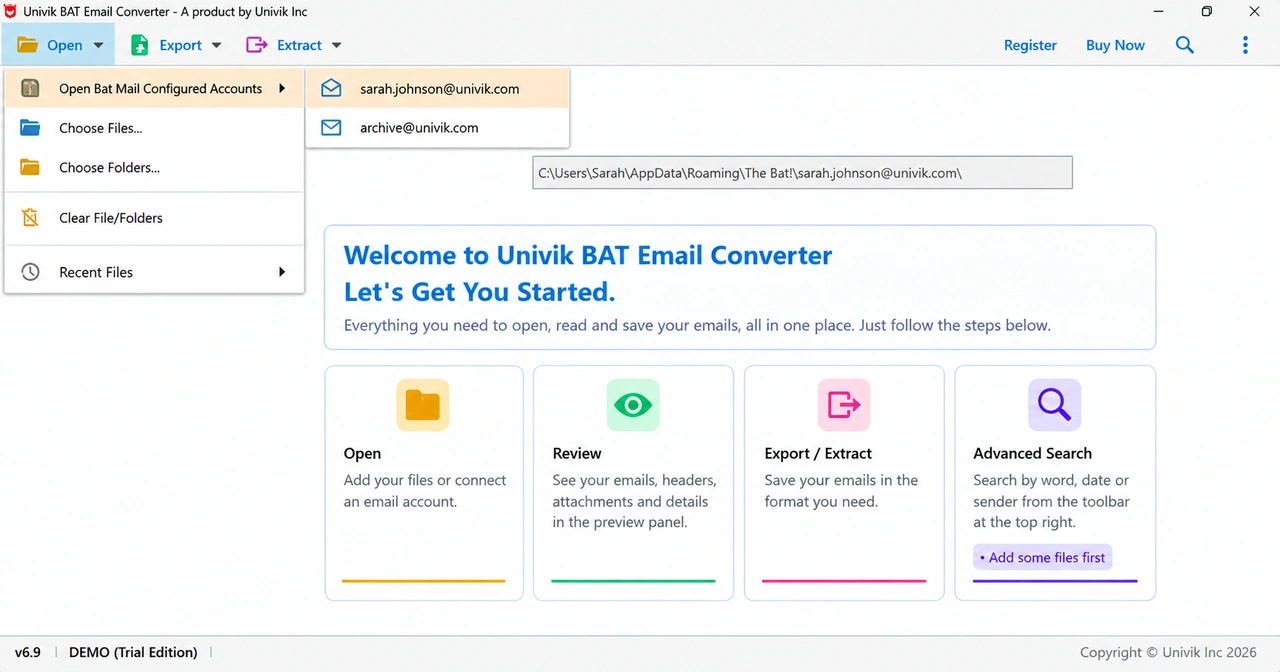
Nothing in your The Bat! folder changes: the tool opens files read-only and writes output to new files. Our own checks ran against The Bat! 12.3.1. Mail folders written by earlier releases open as well. The Univik BAT Email Converter page lists every export format.
Try it free on 10 items per folder and watch your The Bat! accounts load with real folder names.
Free Download See all features- Your The Bat! mail lives in AppData\Roaming\The Bat! unless it was moved during setup.
- The Mail Directory field under Options > Preferences > System shows the real folder, and the registry keeps it as Working Directory.
- Local folders use MESSAGES.TBB and MESSAGES.TBN. IMAP folders use coded 8-character names inside an IMAP subfolder.
- ACCOUNT.FLB is the only file that ties IMAP file names to folder names, so copy it with the IMAP subfolder.
- TBIndex.db is a search index. Reading or converting your mail does not need it.
Questions about The Bat! mail folder location

Leena Taylor Paul wrote this guide with the Univik team, which has shipped Windows mail tools since 2013. This guide maps where The Bat! keeps each account, mail folder and index file on a Windows PC. Last checked October 2026. Need a hand? Contact our support team.