 Email Settings Guide
Quick answer: the GMX IMAP server is imap.gmx.com on port 993 with SSL/TLS. The outgoing server is mail.gmx.com on port 587 with STARTTLS or 465 with SSL. The POP3 server is pop.gmx.com on port 995 with SSL. Sign in with your full email address. One step comes before all of it though. GMX keeps POP3 and IMAP switched off until you turn the setting on, so the right password still fails while that box stays unchecked.
What Changed Recently#
Related email providers: Web.de email settings, T-Online IMAP settings, Freenet email settings, Strato IMAP settings, A1 email settings, Bluewin IMAP settings
Mail providers change their sign in rules far more often than they change server addresses. Here is where GMX stands right now and what each change means for your setup.
Latest update
GMX stopped accepting TLS 1.0 and TLS 1.1. Your mail app has to speak TLS 1.2 or 1.3. Older builds of Outlook plus a lot of old phone mail apps now fail during the handshake, which reads on screen like a rejected password even though the password is fine. Update the app or turn on TLS 1.2 in its settings.
Earlier change
POP3 and IMAP now arrive switched off. New GMX mailboxes block outside mail apps until you tick the setting yourself. Nothing you type into Outlook works before that.
Earlier change
Two-factor authentication arrived, bringing app-specific passwords with it. Turning 2FA on stops your normal password working in mail apps. GMX then issues a separate password for each protocol you connect with.
Before You Begin#
Two things come first. Skip either one and your mail app refuses the connection even though every server value on this page is right.
1. Turn on POP3 and IMAP
GMX ships every new mailbox with outside access blocked. Your mail app cannot sign in at all until you tick the box, whatever password you feed it.
Where: Email → Settings → POP3 & IMAP → tick "Send and receive emails via external program", then Save
2. Work out which password you need
GMX accepts your normal password while two-factor authentication is off. Switch 2FA on and mail apps want an app-specific password instead, issued per protocol.
Where: Password rules below →
About GMX Mail#
GMX is a free, ad supported mail service run by 1&1 Mail & Media GmbH, part of the German group United Internet. It is one of the most used mailbox providers in German speaking Europe.
GMX opened in Germany in 1997, which makes it older than most webmail you could name. It runs on the same platform as WEB.DE under the same owner. What catches people out is not the server values at all. GMX leaves POP3 and IMAP switched off on your mailbox until you turn them on by hand, so a completely correct setup still returns a sign in error.
| Service Name | GMX Mail |
| Owned By | 1&1 Mail & Media GmbH (United Internet) |
| Launched | 1997, in Germany |
| Email Domains | @gmx.com, @gmx.net, @gmx.de, @gmx.at, @gmx.us |
| Webmail URL | www.gmx.com |
| Protocols Supported | IMAP, POP3, SMTP, CalDAV, CardDAV. TLS 1.2 or 1.3 only |
| App Password Needed | Only with 2FA on, then 1 per protocol |
| Free Storage | 65 GB mail, plus 2 GB GMX Cloud |
.com set, used by @gmx.com and @gmx.us mailboxes. GMX also runs regional server sets, so German, Austrian and French accounts have their own equivalents such as imap.gmx.net in place of imap.gmx.com. If your address does not end in .com or .us, check the settings page for your own region before you blame the password.
GMX Webmail Login#
Your mail stays readable in a browser whatever happens to your mail app. These are the pages GMX genuinely runs:
Turn On POP3 and IMAP Access#
This one checkbox is what breaks most GMX setups. It governs POP3 and IMAP together, it ships switched off, so no mail app can sign in until you change it. Turning it on takes under a minute.
- Sign in to GMX webmail in a browser on a computer. The phone app does not show this setting.
- Open the Email tab, then Settings.
- Choose POP3 & IMAP from the settings list.
- Tick "Send and receive emails via external program", then click Save.
GMX IMAP Settings#
IMAP is the incoming protocol to reach for. Your mail is left sitting on the server, which is what makes every device agree about the inbox.
| IMAP Server | imap.gmx.com | |
| Port | 993 (or 143 with STARTTLS if 993 is blocked) | |
| Encryption | SSL/TLS (required) | |
| Username | Your full email address, including @gmx.com | |
| Password | Your normal GMX password. With 2FA on you need an app-specific password | |
| Authentication | Required. TLS 1.2 or 1.3 only |
GMX POP3 Settings#
POP3 hauls everything onto a single machine. Justifiable for one computer keeping a local copy, hard to defend otherwise. Weighing it up? There is a comparison below.
| POP3 Server | pop.gmx.com | |
| Port | 995 | |
| Encryption | SSL/TLS (required) | |
| Username | Your full email address | |
| Password | Your normal GMX password. With 2FA on you need a separate app-specific password |
GMX SMTP Settings#
SMTP carries your outgoing mail. If messages arrive fine but nothing ever leaves your Outbox, this is the section to check. Watch the host name here. GMX sends through mail.gmx.com, not smtp.gmx.com. Guessing the smtp form is a common slip, because nearly every other provider uses it.
| SMTP Server | mail.gmx.com | |
| Port (STARTTLS) | 587, the port GMX recommends | |
| Port (SSL) | 465, use this if your network blocks 587 | |
| Encryption | SSL or STARTTLS (required) | |
| Username | Your full email address | |
| Password | Same as incoming while 2FA is off. With 2FA on, SMTP needs its own app-specific password | |
| Authentication | Required. In Outlook this is the outgoing server authentication tickbox. |
Check GMX IMAP Settings Online#
You don't need to download anything to check GMX IMAP settings online. This page is the lookup: every value is verified, current and copyable straight from your browser. Not sure your address uses GMX servers? Type it below and find out instantly.
Does my email address use these settings?
Runs in your browser only. Your address is never sent anywhere or stored.
Want to verify the account itself before configuring an app? Sign in at GMX webmail, which confirms your address and password work, then confirm an app password exists. If both pass, any email app connects with the tables above.
Look Up IMAP Settings for Any Email Domain#
This page covers GMX. For every other address, work email on a company domain included, we run a free online lookup database: imapsettings.com.
imapsettings.com
Complete email settings database, by Univik
Enter any email address and get the incoming and outgoing server settings for that domain in 1 step:
The address is examined inside your browser purely to identify the domain. It is not transmitted or kept.
GMX Password and App Password Rules#
GMX is unusual here. Most guides tell you a mail app always needs an app password. On GMX that depends entirely on whether two-factor authentication is switched on. Here is what each state actually accepts.
| Where you sign in | 2FA switched off | 2FA switched on |
|---|---|---|
| GMX webmail and the GMX app | ✓ Normal password | Password plus a 6 digit code |
| Outlook, Apple Mail, Thunderbird (incoming) | ✓ Normal password | IMAP app password |
| Sending from those same clients | ✓ Normal password | A second one, for SMTP |
| Calendar and contacts (CalDAV, CardDAV) | ✓ Normal password | A third one |
How to Generate App-Specific Passwords
- Sign in at gmx.com on a computer, then open the security area of your account.
- Turn on two-factor authentication if it is off. App-specific passwords do not exist until it is active. GMX asks you to verify a mobile number first, which it uses for recovery.
- Open the application-specific passwords area shown during setup.
- Create one password per protocol, not one per app. IMAP covers incoming mail, SMTP covers sending, CalDAV or CardDAV covers calendar and contacts.
- Paste each one into the matching field in your mail app. Copy it while it is on screen, because GMX will not show it to you a second time.
Set Up GMX in Email Clients#
Every client asks for the same servers and ports. Only the menu names change. One reminder before you start: if the POP3 and IMAP box is not ticked, none of these guides will work. Pick your app:
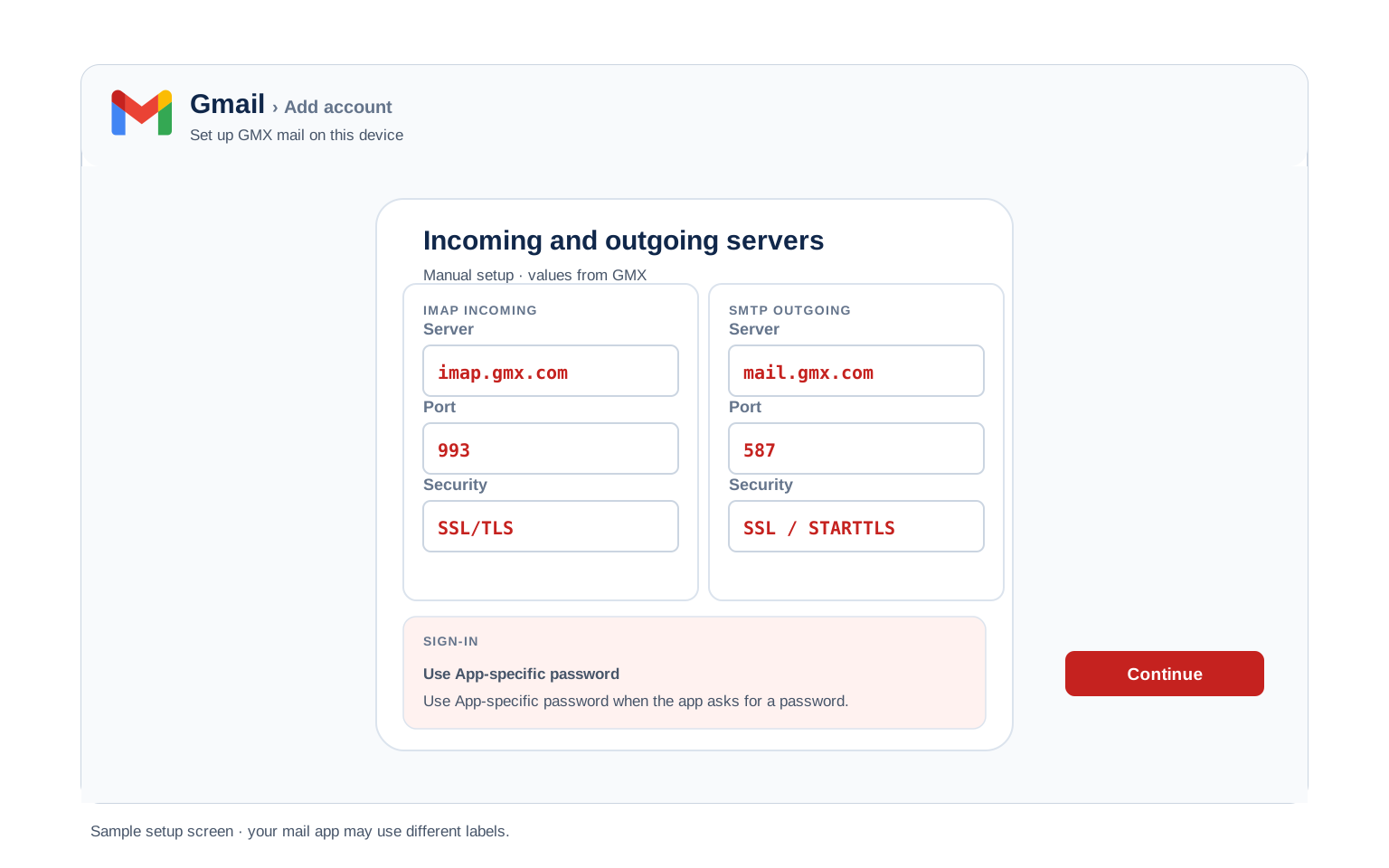
Outlook (Windows and Mac)
- Open Outlook → File → Add Account. In new Outlook it sits under Settings → Accounts → Add account.
- Enter your GMX address, open Advanced options and check "Let me set up my account manually".
- Choose IMAP and enter
imap.gmx.comport993(SSL) andmail.gmx.comport587(STARTTLS). - Enter your GMX password when Outlook asks for it. With 2FA on, paste the IMAP app-specific password here instead.
- Post yourself a test message once it is running, which settles incoming and outgoing together.
Apple Mail (macOS)
- Within Apple Mail, follow Settings, Accounts, Add Account.
- Choose Other Mail Account. Apple does not list GMX among its built in providers.
- Enter your name, address and password, then continue.
- Should it ask for hosts, the IMAP and SMTP tables above hold them.
- Leave Mail ticked where the services are listed, then finish.
iPhone and iPad
- On an iPhone or iPad, go Settings, Apps, Mail, Mail Accounts, Add Account.
- Tap Other → Add Mail Account. iOS has no GMX entry in its provider list.
- Enter your details with your password, then tap Next.
- Remain on IMAP, typing both hosts in should iOS request them.
- Tap Save, then let iOS run its verification pass.
Android
- Open whichever Android mail app you favour and select Add account.
- Go to Other, then IMAP, because GMX is missing from the provider list.
- Enter your address and password. If automatic setup fails, pick Manual setup.
- Enter the servers:
imap.gmx.com993 SSL incoming,mail.gmx.com587 STARTTLS outgoing. - Close the setup out, then drag down on the inbox to trigger a first sync.
Thunderbird
- Within Thunderbird, follow Account Settings, Account Actions, Add Mail Account.
- Enter your name, address and password, then select Continue.
- Thunderbird usually finds the GMX servers on its own. Check that IMAP is the selected option.
- Should detection come up empty, hit Configure manually and supply the table values.
- Hit Done. Your folders populate on the opening sync.
GMX Folders in Outlook and Thunderbird#
Your servers can be perfect and your mailbox can still look wrong. GMX names its system folders differently from what Outlook and Thunderbird expect, so the mail app often fails to match them up. When that happens it creates its own copies inside your GMX mailbox, which is how people end up with two Sent folders and mail that seems to vanish. GMX documents this behaviour itself.
| GMX folder | Client expects | What you see |
|---|---|---|
| Inbox | Inbox | Matches everywhere. No action needed. |
| Drafts | Drafts | Usually matches. |
| Sent | Sent Items | The client may keep sent mail locally or build a second folder. Your phone then shows a different history from your computer. |
| Trash | Deleted Items | A separate Deleted Items folder appears next to Trash, so deleted mail splits across two places. |
| Junk-Email | Junk Email | Close enough to confuse, far enough apart to duplicate. Marking spam in one place leaves the other untouched. |
| Outbox | Outbox | GMX only displays this while something is waiting to go out, so an empty Outbox is normal rather than missing. |
How to Straighten the Folders Out
- Check your folder subscriptions first. In Outlook, right click the account and open IMAP Folders. In Thunderbird the same list sits under Subscribe. Anything unsubscribed looks missing even though the mail is safely on the server.
- Point sent mail at the server, not your PC. Outlook can be told to save sent items locally, which stops them ever reaching GMX. Set it to use the server folder so your phone sees the same history.
- Move anything stranded in a duplicate into the GMX folder you want to keep, working in webmail so you can see both sides at once.
- Delete the empty duplicate last. Confirm it holds nothing before removing it, because a folder deleted over IMAP takes its contents with it.
GMX Webmail Settings#
The server values above connect your apps. This next group controls how the GMX mailbox itself behaves. Every one of them sits in webmail under Email → Settings.
Signature
Open Email → Settings, then the signature section. A signature saved here shows up in webmail alone. Outlook, Apple Mail and Thunderbird each keep their own separate one, so most people end up setting it twice.
Vacation Auto Reply
Look for the auto reply section in Settings. Give it a start date and an end date so it stops on its own. GMX sends these from the server, so the reply still goes out with your computer shut down.
Filters and Folders
Filter rules live in Settings too. Anything you build here runs on the GMX server, which means mail arrives already sorted before your phone or Outlook fetches it. A rule built inside Outlook only fires while Outlook happens to be running.
Spam and Blocked Senders
The spam area lets you add single addresses or entire domains to a block list. Check the setting itself to see whether blocked mail is filed into spam or dropped, because that choice decides what you can recover later.
GMX POP3 vs IMAP#
| Feature | IMAP | POP3 |
|---|---|---|
| Where mail lives | On the GMX server | Downloaded to 1 device |
| Multiple devices | ✅ Everything stays in sync | ❌ Each device sees different mail |
| Sent and deleted mail | ✅ Synced everywhere | ⚠️ Stays only on that device |
| Offline reading | ⚠️ Cached mail only | ✅ Full local copy |
| Server storage used | Yes, counts against your quota | Can be freed after download |
| Best for | Phone + computer, everyday use | Single PC, local archives |
GMX Storage and Sending Limits#
GMX publishes some of these figures openly and stays quiet about others. The silence matters, because a throttled account usually shows nothing more helpful than a generic send failure. Here is what the company actually states:
| Mailbox storage | 65 GB on the free plan, which GMX describes as roughly 500,000 emails |
| Attachment size limit | 50 MB, sending or receiving |
| Separate cloud storage | 2 GB of GMX Cloud, counted apart from mail |
| Alias addresses | Up to 10 on a free account, all landing in one mailbox |
| Emails per day (SMTP) | Not published. GMX throttles on account age and standing rather than a fixed daily count, so treat any number quoted elsewhere with suspicion |
| What happens at the limit | Sending stops for a while. Your mail app tends to report a vague failure, so sign in to webmail to read the real message |
Troubleshooting GMX Connections#
One warning before the table. GMX states that its own error messages do not always survive the trip into a third party mail app, so a vague failure in Outlook can hide a specific message waiting in webmail. Sign in on a computer if the fix below does not match what you see.
| Error you see | What it means | Fix |
|---|---|---|
| Login failed / Authentication failed | POP3 and IMAP are still switched off on the mailbox | This is the first thing to check on GMX, ahead of the password. Tick the box in webmail, save, then retry the client. |
| Could not establish a secure connection | Your client is offering TLS 1.0 or 1.1, which GMX no longer accepts | Update the mail app or turn on TLS 1.2 in its connection settings. Very old Outlook builds and elderly phone mail apps hit this most. |
| Cannot connect to server | Wrong port or encryption | Check IMAP 993 SSL and SMTP 587 or 465. Antivirus software and VPN apps block these ports fairly often. |
| Password keeps being asked | 2FA is on, so the account password no longer works here | Replace it with the IMAP app-specific password. Without 2FA your normal password is correct, so look at the enable switch instead. |
| Duplicate Sent folder or missing sent mail | Your client could not match the GMX folder names | Nothing is lost. See GMX folders in Outlook and Thunderbird above for the mapping and the fix. |
| Messages stuck in Outbox | SMTP authentication is off | Switch outgoing authentication on, pointing it at the same credentials incoming uses. |
Reader Reported Fixes
Re-tick the POP3 and IMAP box on an account that used to work. A mailbox set up years ago starts refusing the same password it always took. Nothing changed on the computer. The permission had lapsed after a quiet spell, so the client was being turned away at the door. Signing in to webmail and ticking the box again brings it straight back.
Mail arrives but nothing sends, with 2FA switched on. The usual cause is one app-specific password pasted into both the incoming and the outgoing field. GMX treats IMAP and SMTP as separate services, so the outgoing side rejects a password minted for incoming. Generate a second one for SMTP and put that in the outgoing field.
Moving To or From GMX?#
Pulling an old account into GMX? GMX has a Mail Collector that fetches mail from another mailbox into your GMX inbox. It is handy for reading everything in one window, though it is not a migration. Folder structure does not come with it, so anything filed neatly elsewhere arrives in a heap.
Moving mail properly? Use IMAP on both sides. On the GMX side that means the values above, with the POP3 and IMAP switch turned on first, since a migration tool counts as another external client as far as GMX is concerned.
Planning to leave for good? Back up the mailbox first. A free mailbox you have stopped using is a poor place to leave the only copy of anything, so take that copy while you still have access.
Taking your mail to a new account? The Univik Email Migration Tool copies every folder from the old account to the new one. Enter the IMAP settings from this page for the GMX side and your new provider's settings for the other.
Rather not do it yourself? Our Email Migration Services team maps the transfer, executes it, then confirms each folder came through.
Use These Settings in Univik Email Backup#
The same IMAP settings above let you download your complete GMX mailbox to your computer. Univik Email Backup commits the mailbox to PST, MBOX, EML or PDF. What lands on your disk belongs to you, whatever becomes of the account.
- Get Univik Email Backup onto a Windows machine.
- Nominate GMX as the source. Where the brand is absent, the plain IMAP option does the same work.
- Sign in with your full email address and your GMX password. With 2FA switched on, use the IMAP app-specific password here instead.
- If the tool asks for server details, use
imap.gmx.comwith port993and SSL from the IMAP table above. - Settle on an output format and a destination, then set it running. A 65 GB mailbox grinds through on its own.
Univik Tools That Use These Settings#
A good share of readers arrive part way through a move or an archive. These 3 tools all run off the IMAP values above:

Email Backup
Download your complete GMX mailbox to PST, MBOX, EML or PDF before switching or closing the account.
Email Backup Tool →
Email Migration Tool
Copy every folder from GMX straight into Gmail, Microsoft 365 or any other account. No manual export needed.
Email Migration Tool →
Email Converter Tool
Carrying MBOX, EML or OST from some earlier export? Recast it as PST, PDF or whatever your next app expects.
Email Converter Tool →Prefer to hand the whole migration to experts?
Learning which app password belongs to which protocol is nobody's idea of a good evening. Univik's migration team carries the work instead, mapping it out, moving the mail, checking the result, then reporting back on where every folder went. We have done this since 2013, for one mailbox or for an entire company.
Email Settings Glossary#
IMAP
Internet Message Access Protocol. Reads mail that remains on the server, which is what holds folders and read marks in step across your devices.
POP3
Post Office Protocol version 3. Downloads mail to 1 device and can remove it from the server. Older method, still useful for local archives.
SMTP
Simple Mail Transfer Protocol. Sends your outgoing mail. Every account needs it next to IMAP or POP3, which only receive.
SSL / TLS / STARTTLS
Encryption for the connection. SSL/TLS encrypts from the start (ports 993, 995, 465). STARTTLS upgrades a plain connection (port 587).
App Password
A separate code that stands in for your real password inside an email app. Safer, because you can revoke one app without touching your main password. GMX only issues these once two-factor authentication is on.
OAuth
Signing in through the provider's own window instead of typing a password into the app. Several large providers have moved this way. GMX handles external programs with app-specific passwords instead, so you will not meet an OAuth window here.
How We Verify These Settings#
Univik has built email backup, migration and converter software since 2013. Our tools sign in to GMX over IMAP and SMTP every day for thousands of users, so a changed server, port or login rule shows up in our connection logs before most guides notice it.
Every value on this page is confirmed with 3 checks: a live IMAP and SMTP connection from Univik Email Backup, a comparison against GMX's own published documentation and a sign in run through the current account security flow. We re verify after any announcement from the provider and at least once a quarter.
Spotted a value that no longer matches your screen? Point it out. We test it again, put it right, then log the change under what changed recently.
 Help & Support
Frequently Asked Questions
Use imap.gmx.com on port 993 with SSL/TLS. Your username is the full email address. Before any of it works, open GMX webmail and switch POP3 and IMAP on, because GMX turns external apps away until you do. The complete table sits in the IMAP settings section.
On GMX the password is usually not the problem at all. GMX keeps POP3 and IMAP access switched off by default, so your mail app is refused whatever you type. Turn that setting on in webmail first. If it was already on, check whether two-factor authentication is active, because 2FA does replace your normal password with an app-specific one. A third possibility is an older client still offering TLS 1.0, which GMX stopped accepting.
IMAP for almost everyone. It keeps your phone, computer and webmail in sync. POP3 fits only a single computer setup where you want a local download. Full comparison here.
Across devices, yes. Servers, ports and encryption stay identical on iPhone, Android or Windows. Only the menu names move around, which is what the client setup guides handle. What does change the servers is your address ending. A @gmx.de mailbox uses the German host names rather than the .com ones listed here.
No. GMX shows an app-specific password once and never again. Delete the old entry in your security settings, then create a fresh one. Keep in mind that GMX issues these per protocol, so replacing the IMAP password leaves your SMTP one working untouched.
Yes. Keep two-factor authentication switched on and hand the mail app its own app-specific password rather than your account password. Look through the connected apps in your security settings now and then, removing any you have stopped using.
An IMAP client pulls mail down as it syncs, though a dedicated backup tool moves faster and writes standard files that open anywhere. See how to back up your GMX mailbox. Stuck with an export in some other shape? An email converter recasts it as PST, PDF or whatever your next app expects.
On GMX there is a specific answer to this. The POP3 and IMAP permission on your mailbox lapses when it sits unused for long enough, so a setup nobody touched can stop overnight. Tick the box a second time. The other common cause is the TLS change, since a client that only speaks TLS 1.0 or 1.1 is now turned away. See what changed recently.
An email migration tool copies mail directly between the 2 accounts over IMAP. You need the GMX IMAP settings and your GMX password for this side, plus the same details for the destination account. With 2FA on, use the IMAP app-specific password here. Every folder, label and date stays intact.
Worried about the risk? Looking at a row of mailboxes? Our managed email migration service shoulders the lot.
Other Email Provider Settings
Summary: GMX Settings at a Glance
- IMAP: imap.gmx.com, port 993, SSL/TLS
- POP3: pop.gmx.com, port 995, SSL/TLS
- SMTP: mail.gmx.com, port 587 or 465
- Username is always your full email address
- Switch POP3 and IMAP on before anything else
- Your normal password works until 2FA is on
- With 2FA on: 1 app password per protocol
- Storage 65 GB, attachments 50 MB