Quick Answer
To check if a file has Mark of the Web, open its Properties and look for a Security note with an Unblock box on the General tab. For a command, run dir /r in Command Prompt and look for a Zone.Identifier line under it.
A file with no Zone.Identifier stream carries no mark. ZoneId=3 in that stream tells Windows the download came from the Internet zone.
Windows can mark a download as coming from outside the PC. That mark decides whether a prompt appears when the download opens and whether Office shows a blocked macro banner. Three built-in checks tell you whether a given document or installer carries it.
Three methods are covered here: Properties, dir /r and PowerShell. Each method reads one record from a different side. You will also see what a Zone.Identifier stream holds and how to read a ZoneId value.
What Is the Zone.Identifier Stream on a File?
Mark of the Web is a small NTFS alternate data stream named Zone.Identifier. Windows or a browser writes it beside a download that arrived from outside your PC. Microsoft's article on NTFS alternate data streams explains that a named stream is alternate while the unnamed stream holds the normal content.
A Zone.Identifier stream holds short text. Microsoft's IZoneIdentifier2 page shows its layout: a [ZoneTransfer] heading and then lines like ZoneId=3. A ZoneId number names the security zone Windows recorded for that download.
| ZoneId | Zone | Meaning in the Microsoft zone list |
|---|---|---|
| 0 | My Computer | Content that sits on the local computer |
| 1 | Local intranet | Content on a company intranet |
| 2 | Trusted sites | Sites that the user mapped to a higher trust level |
| 3 | Internet | Internet sites that belong to no other zone |
| 4 | Restricted sites | Sites with content that caused problems when downloaded |
Microsoft lists the same five numbers in its SecurityZone reference. ZoneId 3 is the Internet zone, so a downloaded installer or workbook normally shows 3.
How Do You Check If a File Has Mark of the Web in File Properties?
Properties gives a quick yes or no for one item. Microsoft describes this window in its Attachment Manager article.
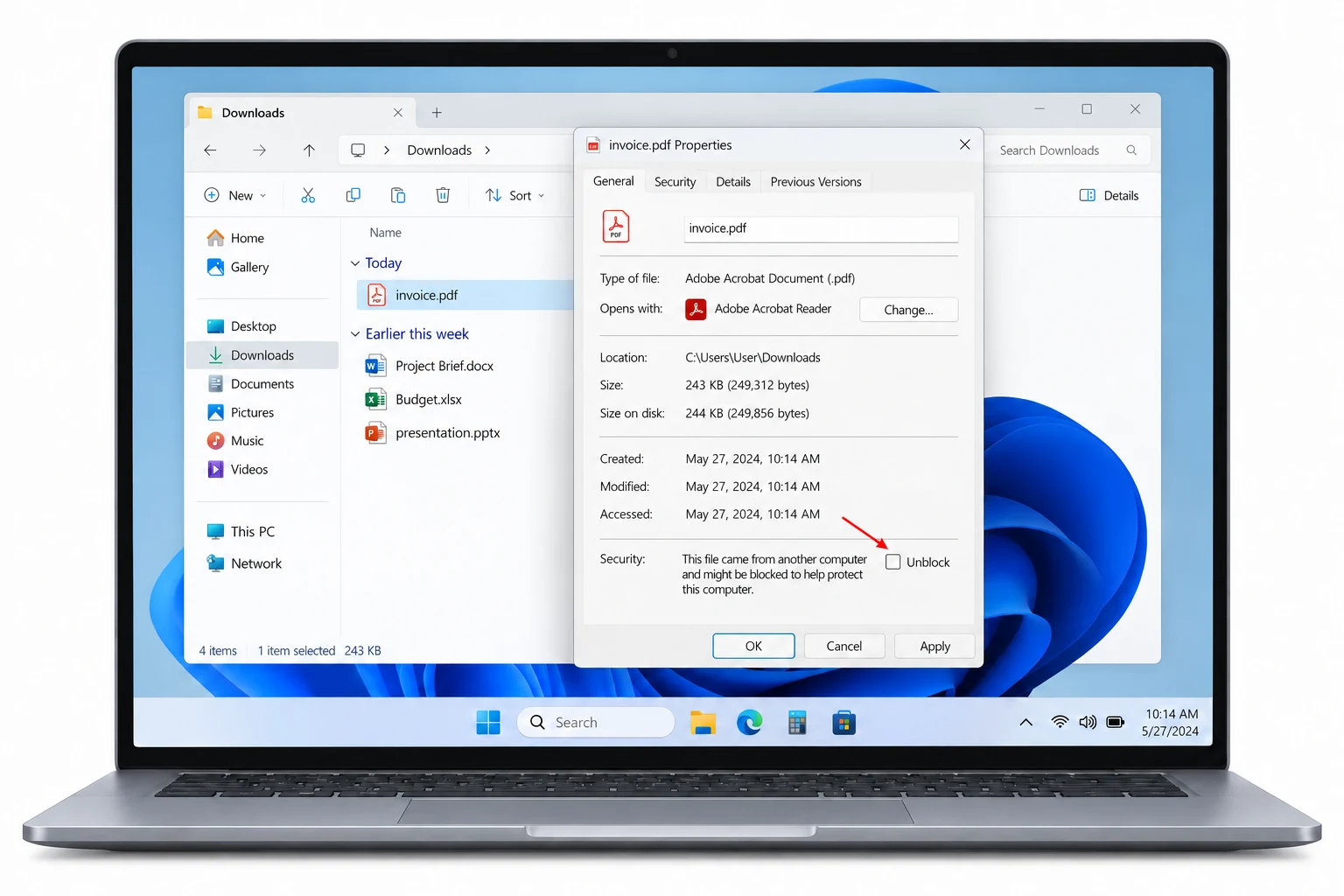
- Open Properties. Right-click your download in File Explorer and choose Properties.
- Read the General tab. Look near the bottom of the tab for the Security line. A note there says the download came from another computer.
- Find the Unblock box. A marked download shows an Unblock box beside that note. Click Cancel if you only wanted an answer, because Cancel leaves the mark in place.
A General tab with no Security line usually means Windows holds no mark for that item. Wording of the note and the choices around it are covered in This File Came From Another Computer: What to Do.
How Do You Check If a File Has Mark of the Web With dir /r and PowerShell?
Commands show more than Properties does, because they name a stream and can print its content. These examples use D:\Incoming\setup.exe, so replace that path with your own.
Command Prompt: dir /r
Microsoft's dir page defines the /r parameter as a display of alternate data streams. Open Command Prompt, move to your folder and run dir with /r.
cd /d D:\Incomingdir /rA marked item gets an extra line under its name. That line ends with :Zone.Identifier:$DATA and carries a byte count. An item with no extra line has no Zone.Identifier stream.
PowerShell: Get-Item -Stream
Get-Item takes a -Stream parameter on NTFS drives and accepts wildcards in a stream name. This first command asks for Zone.Identifier by name.
Get-Item -LiteralPath 'D:\Incoming\setup.exe' -Stream Zone.IdentifierGet-Item returns a stream entry when the download carries the mark. An unmarked download produces an error, because the stream does not exist. A second command lists every stream of setup.exe, including the unnamed :$DATA stream that holds its content.
Get-Item -LiteralPath 'D:\Incoming\setup.exe' -Stream *PowerShell: Get-Content -Stream
Get-Content prints stream text. Microsoft documents that its -Stream parameter takes one exact name and no wildcards, so type Zone.Identifier in full.
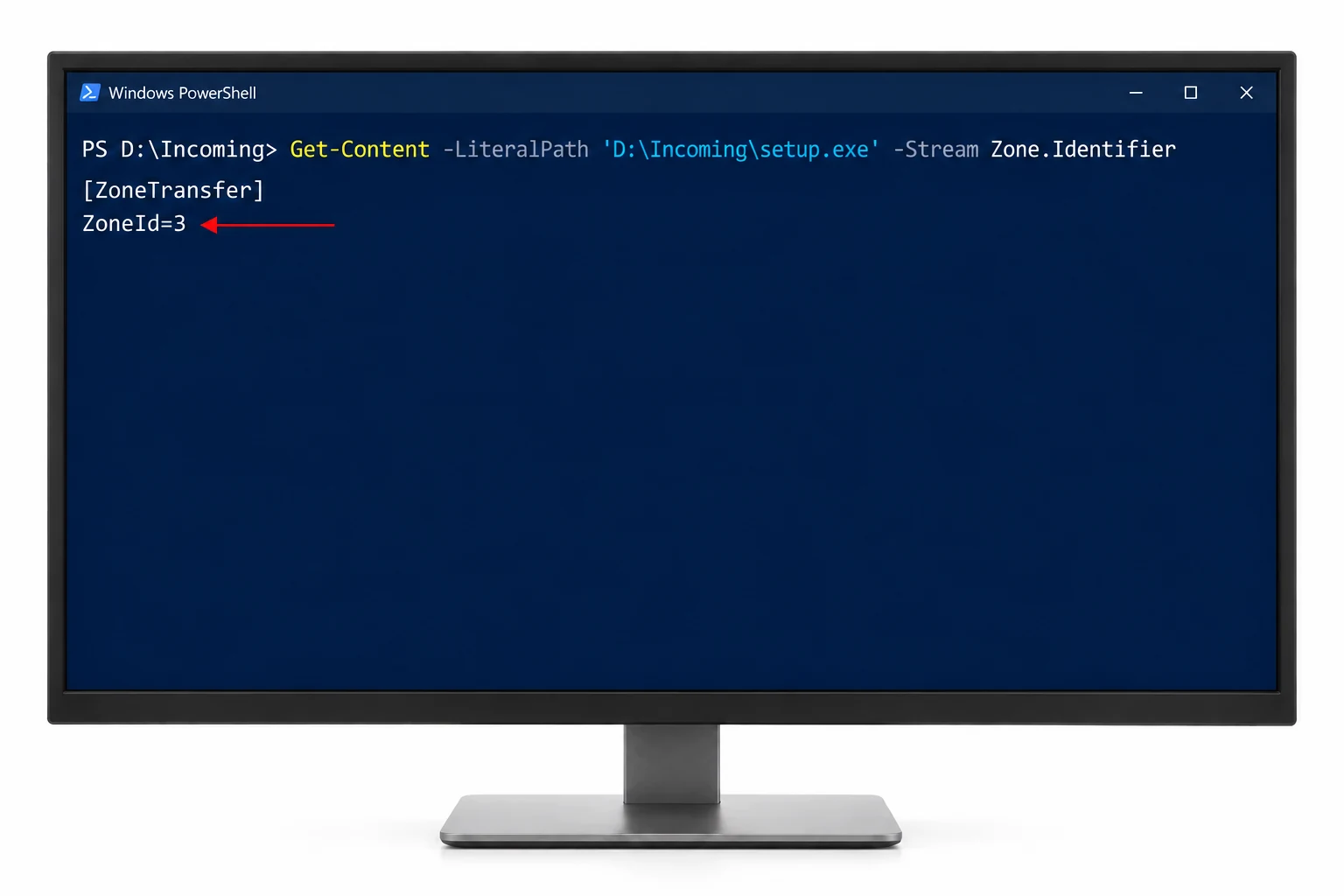
Get-Content -LiteralPath 'D:\Incoming\setup.exe' -Stream Zone.IdentifierGet-Content output starts with [ZoneTransfer] and holds a ZoneId= line. Browsers often add lines that record where a download came from. Notepad shows the same text when you type notepad.exe setup.exe:Zone.Identifier in Command Prompt, because the colon names the stream.

What Do the Results Tell You?
A check reads the record Windows keeps about where a download came from. Three results cover most cases.
- ZoneId=3 found
- Windows treats that item as a download from the Internet zone. Prompts and Office macro blocking apply to it.
- Another ZoneId found
- Windows recorded a different zone. Match the number against the zone table above.
- No stream found
- Windows holds no mark for it, so usual download prompts do not apply.
A Zone.Identifier stream records where a download came from and never reads what it contains. An unmarked download can still be unsafe. A marked download can be harmless. Judge the source before you decide what to do next.
Which Check Method Fits Your Situation?
Five ways to check appear in this table. Pick by how many files you have and how much detail you need.
| Method | What it shows | Limit to expect |
|---|---|---|
| Properties window | A yes or no for one file | No ZoneId value and one file for each visit |
| dir /r | Stream lines under each file in your current folder | Names the stream and does not print its text |
| Get-Item -Stream | Stream details for a named file | One path for each command |
| Get-Content -Stream | Stream text with the ZoneId line | Needs the exact stream name |
| Folder scan app | Every blocked file in a folder tree on one screen | Needs an install |
For one or two items, Properties and Get-Item are enough and cost nothing. A scan app earns its place when a folder holds more files than you want to open one by one. For that case, the PowerShell guide to unblock all files in a folder has a count command.
How Do You Check a Whole Folder for Blocked Files?
Univik Mark of the Web Remover reads a folder tree and reports every file that carries the mark. System needs are Windows 11 or 10 with .NET Framework 4.8. I opened the Univik app on a test folder and its result screen showed a file name, an origin label and a folder path for every blocked file.
- Pick the folder. Click Choose a Folder and browse to your path. Subfolders are included.
- Read the result. The screen titled Here is what we found lists each file with a Blocked badge. A count line gives a total.
- Decide what to do. Nothing changes in your files until you click Unblock, so closing the app after reading the list is a plain check.
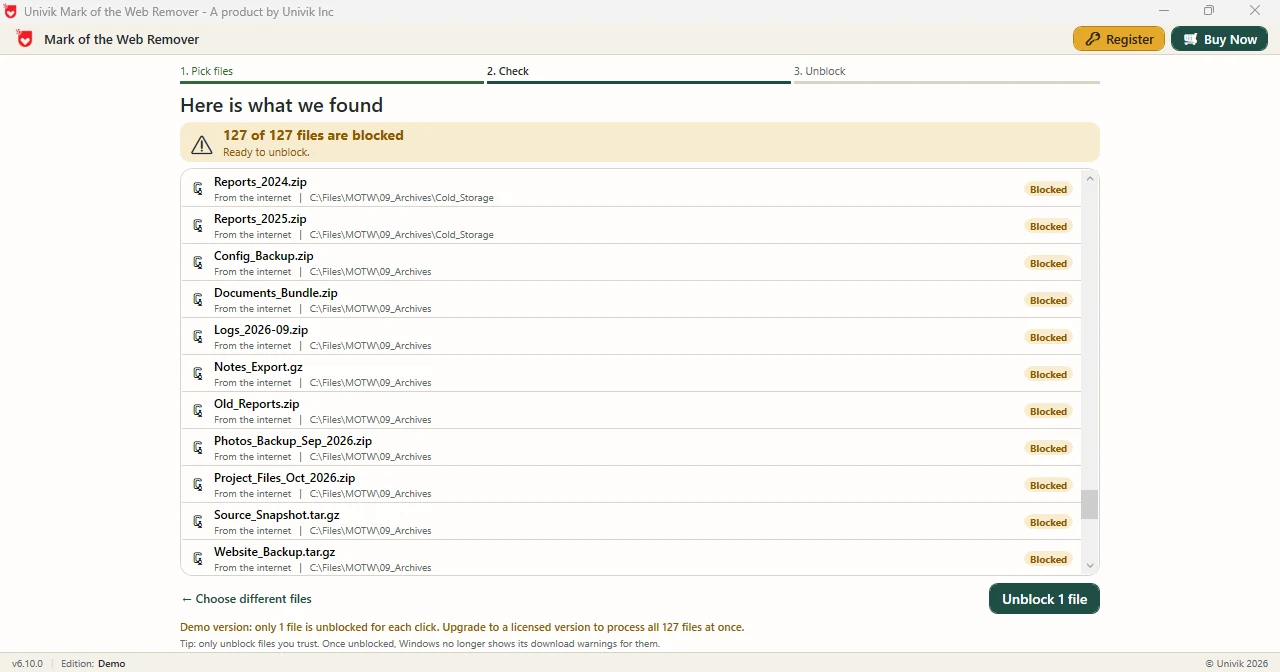
Limitations: in the Demo Edition each Unblock click clears a single file. The full edition clears all files at once. The app reports the mark and does not judge file content.
The Univik app lists blocked files with their folder paths so you can read the result before you act.
Download Free Demo Select a Licence - From $39Demo Edition: read the list first. Each Unblock click clears one file.
What If the Check Gives an Unexpected Result?
Do this: Read the message as an answer. That item has no Zone.Identifier stream, so it carries no mark.
Do this: Type Zone.Identifier in full. Get-Content -Stream accepts no wildcards, while Get-Item -Stream does.
Do this: Check that the drive uses NTFS, because alternate data streams belong to that file system. Then run dir from the folder that holds your download.
Do this: Open the stream by name instead: notepad.exe, a file name, a colon and Zone.Identifier. Without a stream name Notepad opens the unnamed stream only.
If a file shows a mark you cannot explain, write to Univik support.
- Mark of the Web is a Zone.Identifier stream with ZoneId=3 for the Internet zone.
- Properties shows a yes or no, while Get-Content -Stream prints the ZoneId line.
- The dir /r command lists streams under each file in a folder from Command Prompt.
- A file with no Zone.Identifier stream carries no mark. A check never judges what a file contains.
- The Univik folder scan app lists every blocked file on one screen when single-file checks are too slow.
FAQ: Check If a File Has Mark of the Web
How do I check if a file has Mark of the Web?
Right-click the file, open Properties and look for a Security note with an Unblock box on the General tab. For a command, run dir /r in Command Prompt and look for a line that ends with :Zone.Identifier:$DATA under the file.
What does ZoneId=3 mean in a file?
ZoneId 3 is the Internet zone in Microsoft's zone list. Windows writes that value when a file comes from an Internet site that belongs to no other zone.
How do I read the Zone.Identifier stream of a file?
Run Get-Content -LiteralPath with your file path and -Stream Zone.Identifier in PowerShell. Output shows a ZoneTransfer heading and a ZoneId line.
Does dir /r work on every drive?
Microsoft defines dir /r as a display of alternate data streams. Streams belong to NTFS, so run the command on an NTFS drive.
Why does Get-Content reject Zone*?
Microsoft documents that the -Stream parameter of Get-Content accepts no wildcards. Type the full stream name Zone.Identifier.
Does a file with no stream count as safe?
No. A check shows whether Windows recorded the origin and never reads the content. Judge the source separately.
Can I check many files in a folder at once?
Yes. A PowerShell pipeline can send each file to Get-Item with -Stream. A folder scan app can list every blocked file on one screen.
Can an app list the blocked files in a folder?
Yes. The Univik app reads a folder tree on Windows 11 and Windows 10 and lists each blocked file with its path. The Demo Edition clears a single file for each Unblock click.

Microsoft Learn pages for dir, Get-Item and Get-Content, read on October 29, 2026, are the source of the commands here. The result screen description comes from Univik app version 6.10.