Quick Answer
Files blocked after extracting a ZIP happen because the downloaded ZIP carries Mark of the Web and Windows copies it to each extracted file. Unblock the ZIP in Properties before you extract and the files come out clean.
Files you already extracted keep their marks. Extract again after unblocking the ZIP or clear the marks on the extracted folder.
A ZIP from a vendor site opens fine as an archive. After you extract it every program inside may raise a prompt or a blocked macro banner. Windows did not break anything. The ZIP carried a mark from the browser and the extracted files received a copy.
Three fixes follow: unblock the ZIP before you extract it, clear the marks on files you already extracted and change how your extractor treats the mark.
Files Blocked After Extracting a ZIP: Why Does It Happen?
A browser writes a small NTFS stream named Zone.Identifier beside a download. That stream is Mark of the Web. A ZIP that carries it passes the mark to files that Windows extracts from it. Microsoft's Visual Studio blog on sample projects that fail to load describes this chain: a downloaded ZIP is untrusted so extracting it produces untrusted files.
Each file holds its own mark. A folder of 300 extracted files can therefore hold 300 marks. Properties clears one file at a time.
Files Blocked After Extracting a ZIP: Unblock the ZIP First
Unblocking the archive before you extract is the cheapest fix because one change covers every file inside. Microsoft's Security Warning for Project page recommends this order for projects downloaded from the internet.
- Close the archive. Leave extraction tools shut until you save the change.
- Open Properties. Right-click the ZIP in File Explorer and choose Properties.
- Click Unblock. General shows Unblock near the bottom. Click it and then OK.
- Extract. Extract as usual. Files that come out carry no mark.
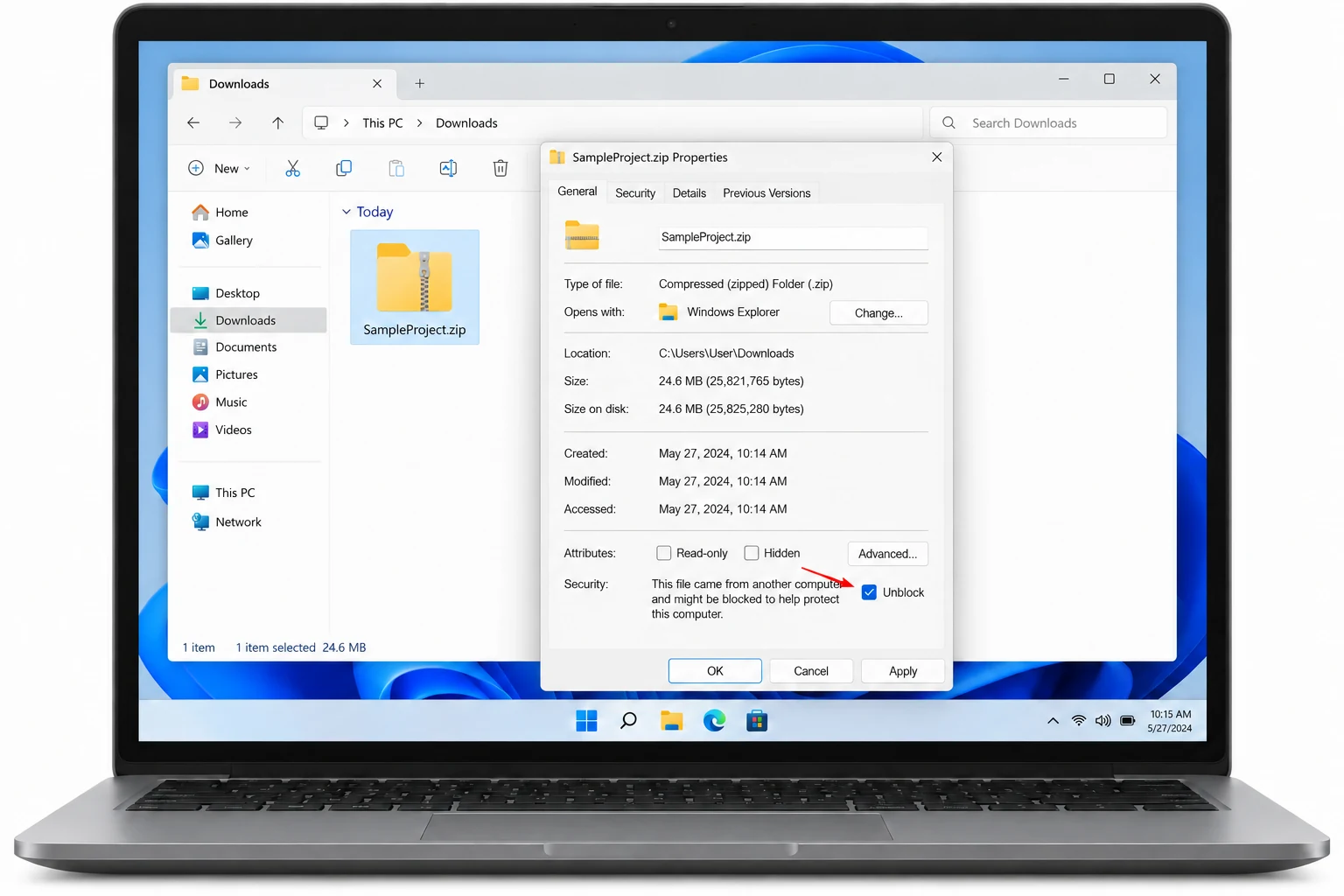
Unblocking a ZIP clears the warning for everything inside it. Confirm the publisher and download address first because files will open without usual prompts.

Files Blocked After Extracting a ZIP: How Do You Clear Them?
Files already extracted keep their marks even after you unblock the ZIP. Two routes work.
- Re-extract. Unblock the ZIP as above. Delete the extracted folder then extract again. Microsoft's Visual Studio blog lists this route first.
- Clear the extracted files. Use a command or an app that clears marks on every file in a folder. The guide to unblock all files in a folder has the PowerShell commands.
To confirm that a file still carries a mark, follow our guide to check if a file has Mark of the Web.
Does Your Extractor Copy the Mark?
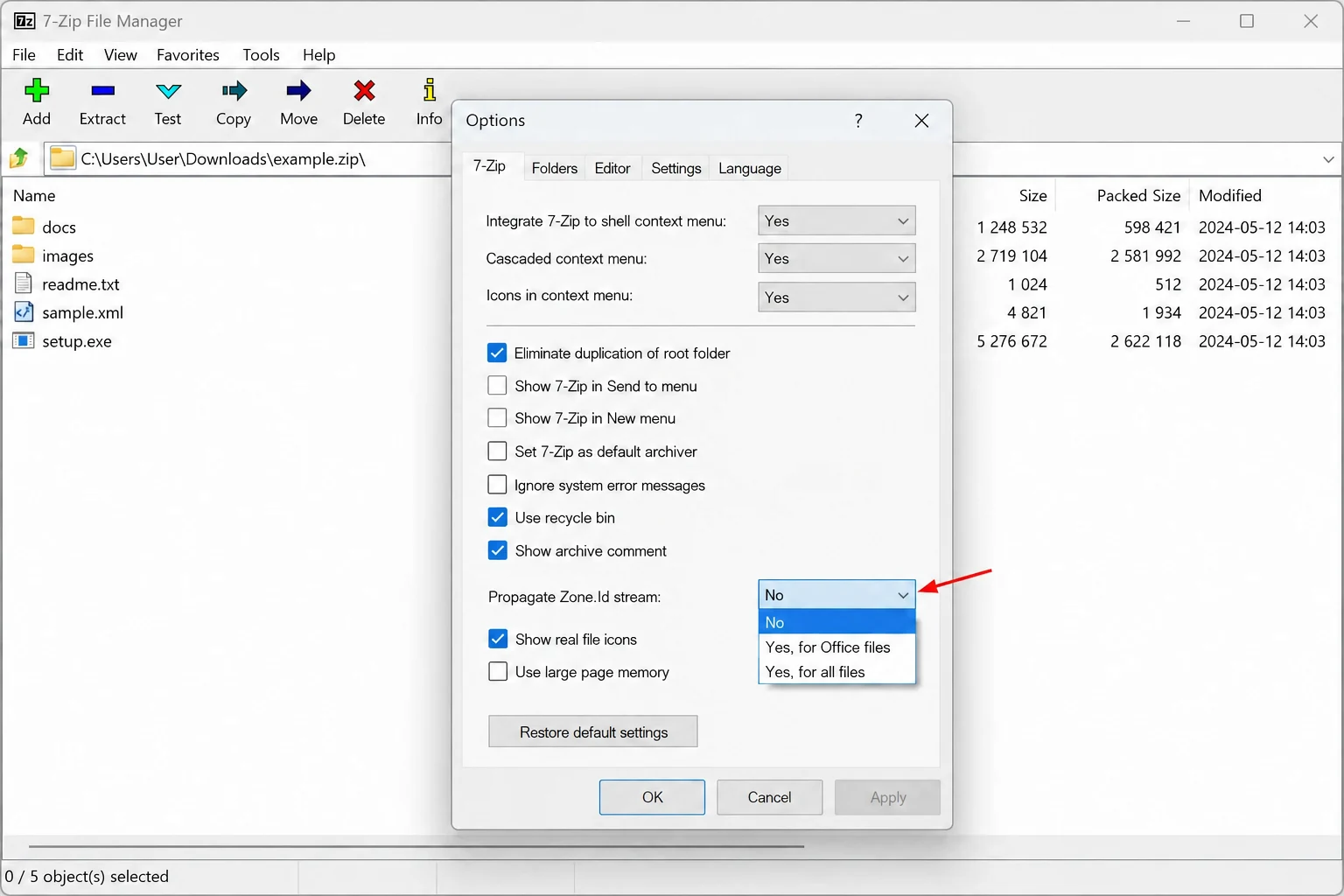
Windows copies the mark during extraction as Microsoft pages describe. Third-party archivers decide for themselves. 7-Zip added a Propagate Zone.Id stream option in version 22.00 under Tools, Options, 7-Zip plus a -snz switch for command lines. 7-Zip release notes list both.
| Extractor | Marked files come out | What to do |
|---|---|---|
| Windows extraction | With the mark when the ZIP is marked | Unblock the ZIP first |
| 7-Zip, option set to No | Without the mark | Nothing to clear |
| 7-Zip, option set to Yes | With the mark | Unblock the ZIP or clear the files |
7-Zip ships with the option off. Choices are No, Yes for Office files and Yes for all files. Yes for Office files marks Office documents only so a folder can end up with a mix.
How Do You Check and Clear a Whole Extracted Folder?
Univik Mark of the Web Remover scans an extracted folder and lists every file that still carries a mark. I ran the Univik app on a test folder with nested subfolders and its list gave a path for each blocked file. Needs: Windows 11 or 10 plus .NET Framework 4.8.
- Point to the folder. Click Choose a Folder and select your extracted directory.
- Scan the result. Here is what we found shows each file with a Blocked badge and a count line.
- Unblock. Click Unblock then read View Log on All done!.
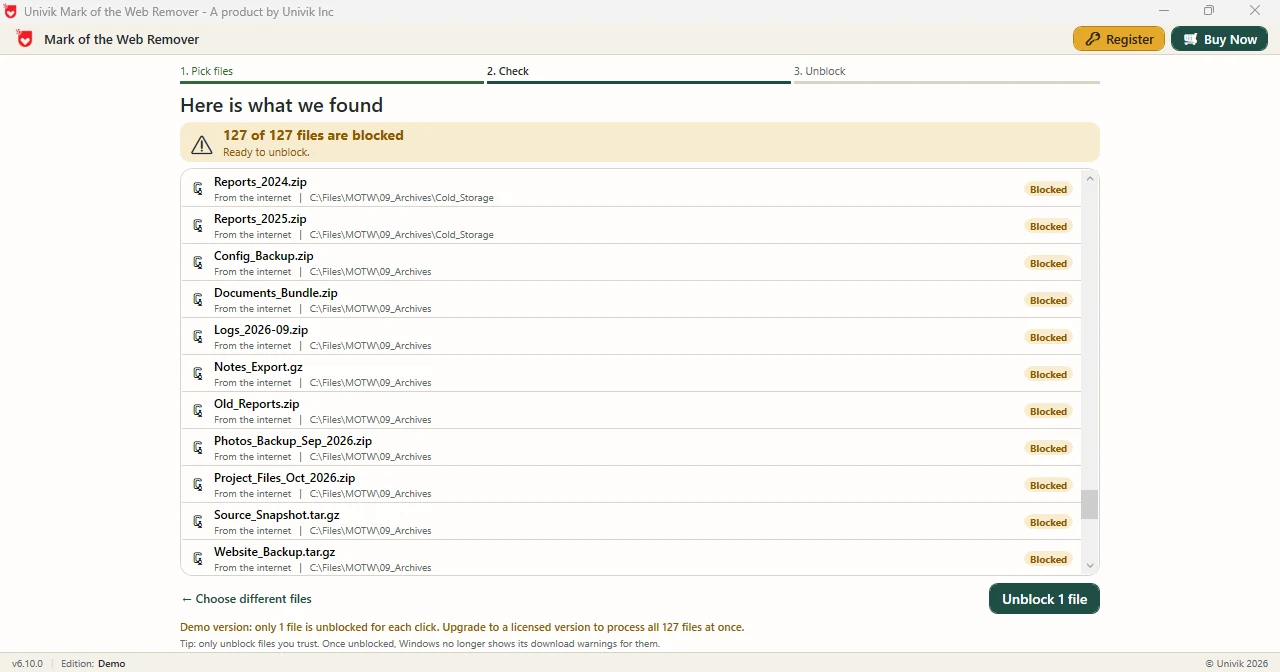
Limitations: Demo Edition handles one file per Unblock click while full edition works through every listed file. Marks are all it changes. Archive contents stay unchecked, so confirm where the ZIP came from first.
Pick an extracted directory and the Univik app walks every subfolder under it.
Download Free Demo Select a Licence - From $39Demo Edition: scan first and clear one file to see the log.
What If Extracted Files Stay Blocked?
Do this: Confirm that your ZIP shows no Unblock box in Properties. Delete the old folder before you extract again so no marked copies remain.
Do this: Clear marks on the extracted files instead. A scan app or a folder command works without an archive.
Do this: Check Propagate Zone.Id stream in 7-Zip. Default is No so a marked ZIP can give unmarked files there and marked files in Windows.
Do this: Stop and verify the publisher. Unblocking clears warnings for every file inside an archive.
Files still blocked? Univik support can look at your case.
- A ZIP with Mark of the Web passes the mark to files that Windows extracts from it.
- Unblocking the ZIP before extraction clears the whole archive in one step.
- Files already extracted keep their marks and need a re-extract or a folder-wide clear.
- 7-Zip copies the mark only when its Propagate Zone.Id stream option is set.
- The Univik folder scan app lists blocked files in an extracted tree with their paths.
FAQ: Blocked Files After Extraction
Why are my files blocked after extracting a ZIP?
The downloaded ZIP carries Mark of the Web and Windows copies that mark to the files it extracts. Microsoft's Visual Studio blog describes the same chain for downloaded sample projects.
Should I unblock the ZIP before I extract it?
Yes, when you trust the source. Microsoft's Security Warning for Project page recommends unblocking a downloaded ZIP before extracting it so the extracted project loads without warnings.
Can I clear the mark after extracting?
Yes. Unblock the ZIP and extract again. Another route clears the marks on the extracted files with a command or a scan app. Unblocking the ZIP alone does not change files already extracted.
Does 7-Zip copy the mark to extracted files?
7-Zip 22.00 added a Propagate Zone.Id stream option and a -snz switch. The option ships off, so 7-Zip extracts files without the mark unless you set it.
Does unblocking the ZIP change the files inside?
Unblocking clears the mark on the archive itself. Files extracted afterward come out without a mark. Microsoft's Visual Studio documentation uses this order to avoid warnings.
How do I check an extracted file for the mark?
Open its Properties and look for an Unblock box on the General tab. A command that lists alternate data streams shows a Zone.Identifier entry for a marked file.
How do I clear a whole extracted folder?
Run Unblock-File over the folder in PowerShell or use a folder scan app. Both clear the marks in place and leave the files where they are.
Can an app list the blocked files inside an extracted folder?
Yes. The Univik app reads a chosen folder with its subfolders on Windows 11 and 10, then shows a path for each blocked file.

Microsoft Learn pages on Visual Studio projects and the 7-Zip release notes supply the facts above. The app details come from version 6.10, checked against its own screens.