Quick Answer
To unblock all files in a folder with PowerShell, send the files to Unblock-File: Get-ChildItem -LiteralPath 'C:\Downloads\Tools' -Recurse -File | Unblock-File. Add -WhatIf first to see what would change.
Unblock-File prints nothing when it finishes, so count the files that still carry a Zone.Identifier stream before and after the run.
A downloaded folder can hold hundreds of files that Windows marks as coming from the internet. Each marked file can raise a prompt in Windows or a blocked macro banner in Office. The Properties window clears that mark for one file at a time.
PowerShell clears the mark for a whole folder. Microsoft's Unblock-File cmdlet takes a list of files and Get-ChildItem builds that list from a folder and its subfolders. This guide gives the commands, a dry run and a count of blocked files, because Unblock-File prints nothing when it finishes.
What Puts a Blocked Mark on the Files in a Folder?
Windows writes a small NTFS data stream named Zone.Identifier beside a file that arrived from the internet. The stream holds a ZoneId value and 3 stands for the Internet zone. Unblock-File deletes that stream, which matches the Unblock box in Properties.
Microsoft's steps for the Properties window cover one file. A folder with 200 files means 200 repeats of those steps. A folder command fills that gap.
Who Needs to Unblock a Whole Folder at Once?
Four situations usually call for a folder-wide run.
- A developer A downloaded SDK or sample project sits in one folder with many DLL files.
- An IT admin A vendor package has to be cleared before it goes to other PCs.
- An Office user A folder of workbooks from a supplier has to open without a blocked macro banner.
- A team lead A shared Downloads folder on a Windows PC holds files from one source you trust.
How Do You Unblock All Files in a Folder With PowerShell?
PowerShell commands in this guide use C:\Downloads\Tools as the folder, so replace that path with yours. Single quotes and -LiteralPath keep your path exactly as typed.
- Open PowerShell. Press the Windows key, type PowerShell and open Windows PowerShell.
- Count blocked files. Run this command and note the number.
Get-Item with -Stream Zone.Identifier returns a stream only for a file that carries the mark. The -ErrorAction SilentlyContinue part hides errors from files without the stream. To read the stream of a single file, see check if a file has Mark of the Web.(Get-ChildItem -LiteralPath 'C:\Downloads\Tools' -Recurse -File | Get-Item -Stream Zone.Identifier -ErrorAction SilentlyContinue).Count - Run a dry run. Add -WhatIf to the unblock command.
The -WhatIf switch shows what Unblock-File would do and changes nothing. Read the list and confirm that every folder in it is one you trust.Get-ChildItem -LiteralPath 'C:\Downloads\Tools' -Recurse -File | Unblock-File -WhatIf - Unblock the files. Run the same command without -WhatIf.
A normal run prints nothing, because Microsoft documents Unblock-File as a cmdlet with no output.Get-ChildItem -LiteralPath 'C:\Downloads\Tools' -Recurse -File | Unblock-File - Count again. Run the count command from step 2. A result of 0 means no file in your folder carries the mark.
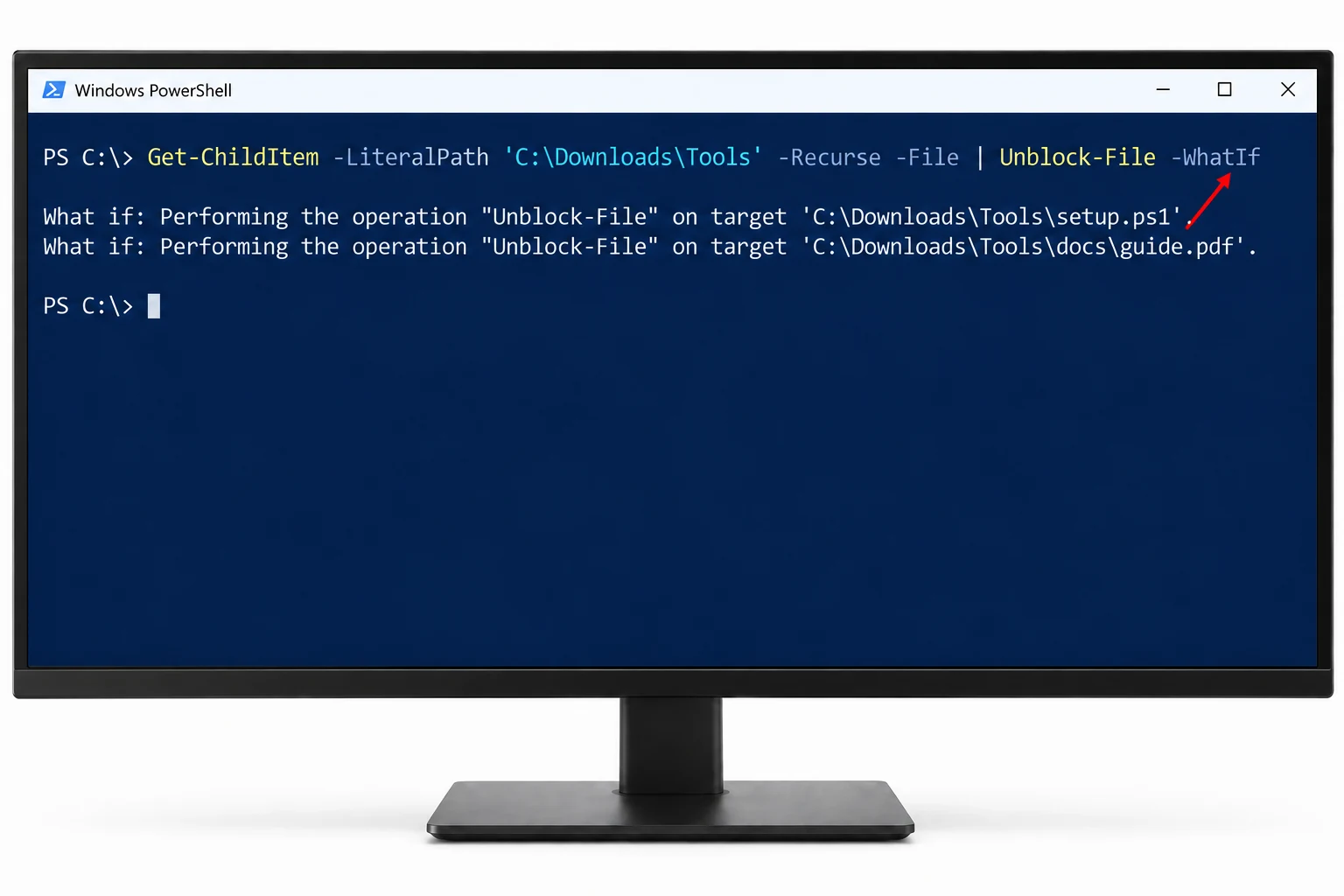
Microsoft's page for Unblock-File warns against running a command like this one until you have verified that all files are safe. The dry run shows which files would change but it does not judge them, so check where the folder came from before step 4.
Which Flags Change What Unblock-File Touches?
Five parameters of Get-ChildItem and two of Unblock-File decide which files a command reaches.
- -LiteralPath
- Reads the folder path exactly as typed with no wildcards. Microsoft's Get-ChildItem page recommends it over -Path when you add -Recurse.
- -Recurse
- Adds every child folder and file under the folder to the list.
- -File
- Keeps files in the list and leaves folders out.
- -Filter
- Narrows the list by name with * and ? wildcards. For example
-Filter '*.dll'keeps only DLL files. One filter string is allowed. - -Force
- Adds hidden and system files to the list. -Force does not override security restrictions.
- -WhatIf
- Shows what Unblock-File would do and changes nothing.
- -Confirm
- Asks for a yes before each file is unblocked.

Which Method Fits Your Folder?
Three routes clear the mark. The table lists what each route asks of you.
| Method | What it asks of you | Limit to expect |
|---|---|---|
| Properties window | Open the Properties window of each file and tick Unblock on the General tab | One file for each visit |
| Unblock-File with Get-ChildItem | Type the folder path and the pipe | No output and no list of what changed |
| Folder scan app | Choose a folder and click Unblock | Needs an install and clears whatever you point it at |
For a build script, a scheduled job or a folder you unblock once, Unblock-File is free and enough. A scan app earns its place when you want to see the blocked files listed before anything changes or you want a record of the run.
How Do You Unblock All Files in a Folder Without Commands?
Univik Mark of the Web Remover is a Windows app that scans a folder and its subfolders for blocked files. The app needs Windows 11 or 10 and .NET Framework 4.8. I tested the app on a nested folder of 126 files and the run took 5 seconds.
- Choose a folder. Click Choose a Folder on the first screen or drop a folder on the box. Subfolders are scanned too.
- Read the list. Next comes a screen titled Here is what we found. Every row lists a file name, an origin label (From the internet), a folder path and a Blocked badge. A count line above the list gives the number of blocked files.
- Click Unblock. The app clears the mark in place, so your files stay in their folders.
- Open the log. All done! has a View Log button that opens a record of the run.
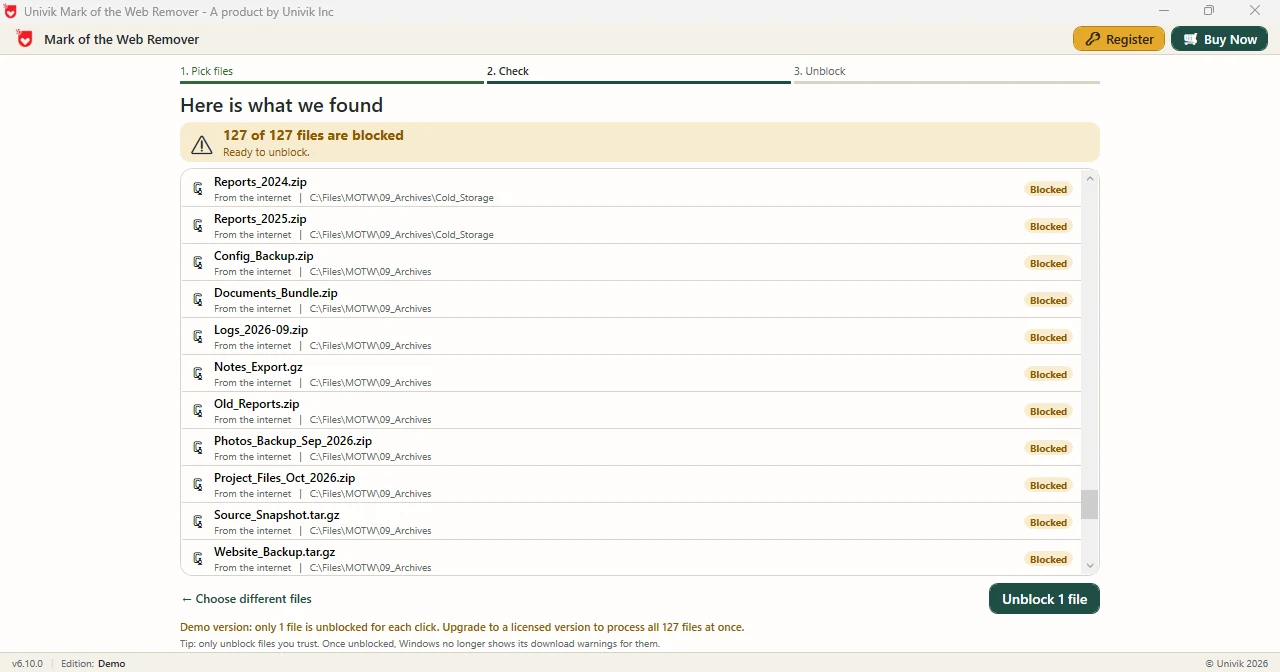
Limitations: in the Demo Edition each click clears one file, while the full edition handles all files at once. The app clears the mark and does not scan files for malware, so point the app at folders whose source you trust.
The Univik app scans a folder and its subfolders, lists blocked files and clears the mark in place.
Download Free Demo Select a Licence - From $39The demo unblocks one file for each click, so try it on a single file first.
What If Unblock-File Shows Nothing or an Error?
Do this: Run the count command again and expect 0. Unblock-File has no output, so a silent run is normal.
Do this: Scroll up for red error lines. A file that Unblock-File cannot open usually prints an error. Those files stay in the count.
Do this: Keep the path in single quotes and use -LiteralPath so brackets are not read as wildcards.
Do this: Stop and check where the folder came from. Unblocking removes Windows warnings for those files, so keep the run for folders you trust.
If the folder still shows blocked files after these steps, write to Univik support.
- Get-ChildItem with -Recurse -File builds the file list and Unblock-File clears the mark from every file in it.
- The -WhatIf switch lists the files Unblock-File would change and changes nothing.
- Unblock-File has no output, so count the files that still carry a Zone.Identifier stream before and after.
- Microsoft asks you to verify that files are safe before you unblock a whole folder.
- A folder scan app lists blocked files first and writes a log, while Unblock-File stays free for scripts.
FAQ: Unblock All Files in a Folder With PowerShell
How do I unblock all files in a folder with PowerShell?
Run Get-ChildItem -LiteralPath 'C:\Downloads\Tools' -Recurse -File | Unblock-File with your own folder path. The command lists every file in the folder and its subfolders and sends each file to Unblock-File, which clears the mark.
Does Unblock-File work on subfolders?
Unblock-File clears the files you send to it, so subfolders are covered when Get-ChildItem runs with -Recurse. Without -Recurse the command reaches only the top folder.
How do I test Unblock-File before I run it?
Add -WhatIf at the end of the command. Microsoft documents -WhatIf as showing what would happen without running the cmdlet, so no file changes.
Why does Unblock-File show no output?
Microsoft documents Unblock-File as a cmdlet that returns no output. Count the files that still carry a Zone.Identifier stream to confirm the result.
How do I count blocked files in a folder?
Run (Get-ChildItem -LiteralPath 'C:\Downloads\Tools' -Recurse -File | Get-Item -Stream Zone.Identifier -ErrorAction SilentlyContinue).Count with your folder path. The number is the count of files that still carry the mark.
What happens if a file is not blocked?
Microsoft documents that Unblock-File has no effect on a file that is not blocked and gives no error.
What should I check before I unblock a whole folder?
Check where the folder came from and whether you trust that source. Microsoft's page for Unblock-File asks you to review the files and their source first, because an unblocked file no longer raises the Windows warning.
Can I unblock a folder without typing commands?
Yes. A folder scan app can list the blocked files and clear the mark in place. The Univik app does this on Windows 11 and Windows 10 and its Demo Edition unblocks one file for each click.

Commands follow the Microsoft Learn pages for Unblock-File, Get-ChildItem and Get-Item as read on October 29, 2026. The 126-file timing comes from a test of the Univik app version 6.10.