Quick Answer
Excel macros blocked by the SECURITY RISK banner means Windows marked the workbook as coming from outside your PC. Right-click the workbook, open Properties and check Unblock on the General tab, then open it again.
Use Unblock only for a sender you trust. A Trusted Location or a trusted site also works but applies to every macro in that place.
A workbook from an email or a website can open with a red bar across the top and a message that macros were blocked. The bar has no button to turn the macros on. That is the SECURITY RISK banner. It appears because Windows marked the workbook as coming from outside your PC.
Six fixes follow, from one workbook to a whole share. Excel add-ins get a section of their own, because they follow a stricter rule than workbooks do.
Excel Macros Blocked: What Triggers the SECURITY RISK Banner?
Microsoft's page on blocked internet macros says Windows adds Mark of the Web to files from untrusted locations. Browser downloads and email attachments are the common cases. Office then blocks macros in those files by default. The banner reads Microsoft has blocked macros from running because the source of this file is untrusted.
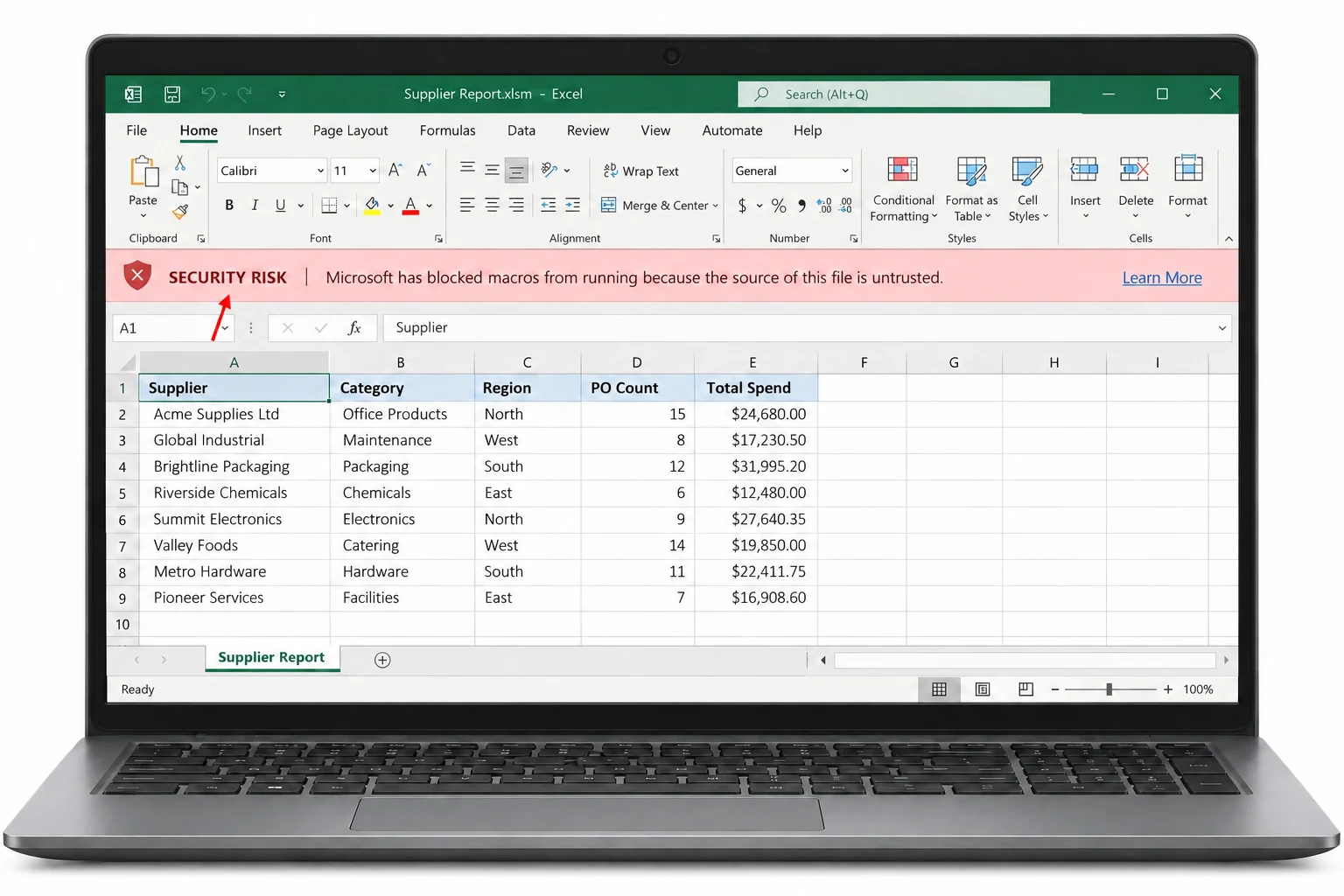
The older SECURITY WARNING banner had an Enable content button that turned a file into a Trusted Document. The newer banner has none, so the fix happens outside Excel.
- Where it applies
- Office on Windows: Access, Excel, PowerPoint, Project, Publisher, Visio and Word. Office on Mac, on phones and on the web is not affected.
- Which drives
- Mark of the Web belongs to NTFS. Files on FAT32 devices do not receive it.
- Network shares
- Macros are blocked in files on a share that sits outside the Local intranet zone and outside Trusted sites. A share reached by IP address can trigger the banner.
The mark stores a ZoneId. Microsoft lists 3 as the Internet zone where macros are blocked by default and 2 as Trusted sites where they are not. To read the value for one workbook, see the guide to check if a file has Mark of the Web.
Excel Macros Blocked: How Do You Clear It for One Workbook?
Use this route only for a workbook whose sender you know. Microsoft's support article names it as the fix for most cases.
- Close the workbook. Save any work and close it in Excel.
- Open Properties. Right-click the workbook in File Explorer and choose Properties.
- Check Unblock. The General tab has a Security section at the bottom. Check Unblock there and select OK.
- Open the workbook again. Excel loads its macros once the mark is gone.
The wording of the Properties note and its choices is explained in this file came from another computer.
Microsoft recommends deleting files from unknown sources that ask you to enable macros. A pop-up or an email that pressures you to click is a warning sign, not a reason to unblock.
Excel Macros Blocked: Which Fix Fits Your Situation?
Six fixes appear in Microsoft's documentation. The table matches each one to a situation.
| Fix | Use it when | Watch out for |
|---|---|---|
| Unblock in Properties | One workbook from a sender you trust | One workbook for each visit |
| Trusted Location | A folder that only you control | Every macro saved there runs |
| Trusted site or Local intranet zone | Workbooks on a share or an intranet address | The site gets extra permissions beyond Office |
| Open in Desktop App | A workbook stored in OneDrive or SharePoint | Needs a library you already use |
| Trusted publisher | Macros signed with a certificate you trust | A Windows-wide setting |
| Unblock-File | Several workbooks from a path | No output after the run |
Trusted Location steps
In an Office app, open File, then Options, then Trust Center. Select Trust Center Settings, then Trusted Locations, then Add new location and browse to the folder. Microsoft's Trusted Locations page describes the setting. Files saved there skip the Mark of the Web check and open with macros enabled.
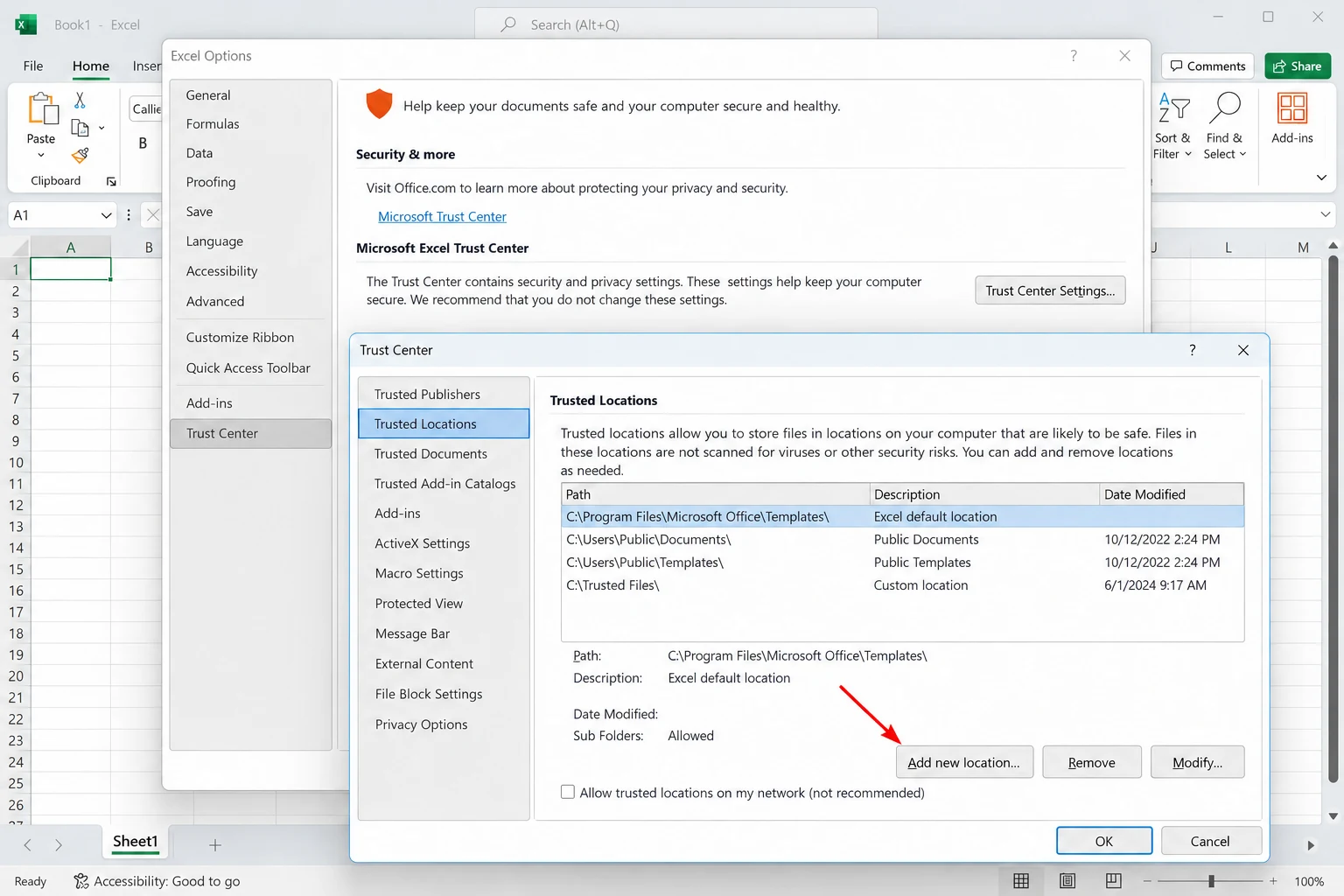
Steps for a shared location
Open Internet Options and select the Security tab. Choose Trusted Sites, select Sites and add the address. For an http:// address or a share, clear Require server verification (https:) for all sites in this zone. A share in the Internet zone ignores the Unblock box, so the zone has to change first.
Microsoft warns that a trusted site or folder applies to all macros it holds. Anyone who can save a file there can bring a macro with it, so limit write access before you add a place.

Why Does an Excel Add-In Stay Disabled After a Download?
Microsoft states that macro-enabled add-ins from the internet load in a disabled state. For Excel add-ins in the .xla and .xlam formats the choices are narrow: clear the mark or save the add-in to a Trusted Location. A digital signature does not help an Excel add-in that carries the mark. That has held since 2016 because of security update MS16-088.
PowerPoint add-ins in the .ppa and .ppam formats differ. They can use a digital signature and a trusted publisher as a third route.
How Do You Clear Many Blocked Workbooks at Once?
A supplier folder with 40 workbooks and a shared add-ins folder turn the Properties route into a long task. PowerShell is free for that case, as the guide to unblock all files in a folder shows.
Univik Mark of the Web Remover is a second route when you want a list first. I ran a scan on a test folder in the Univik app and read each blocked file's path before I changed anything. Windows 11 or 10 and .NET Framework 4.8 are required.
- Choose the folder. Select Choose a Folder and pick the directory that holds your workbooks. Subfolders are included.
- Review the list. Here is what we found shows a Blocked badge beside each workbook and add-in with a macro.
- Unblock. Click Unblock and open View Log on All done! to see what changed.
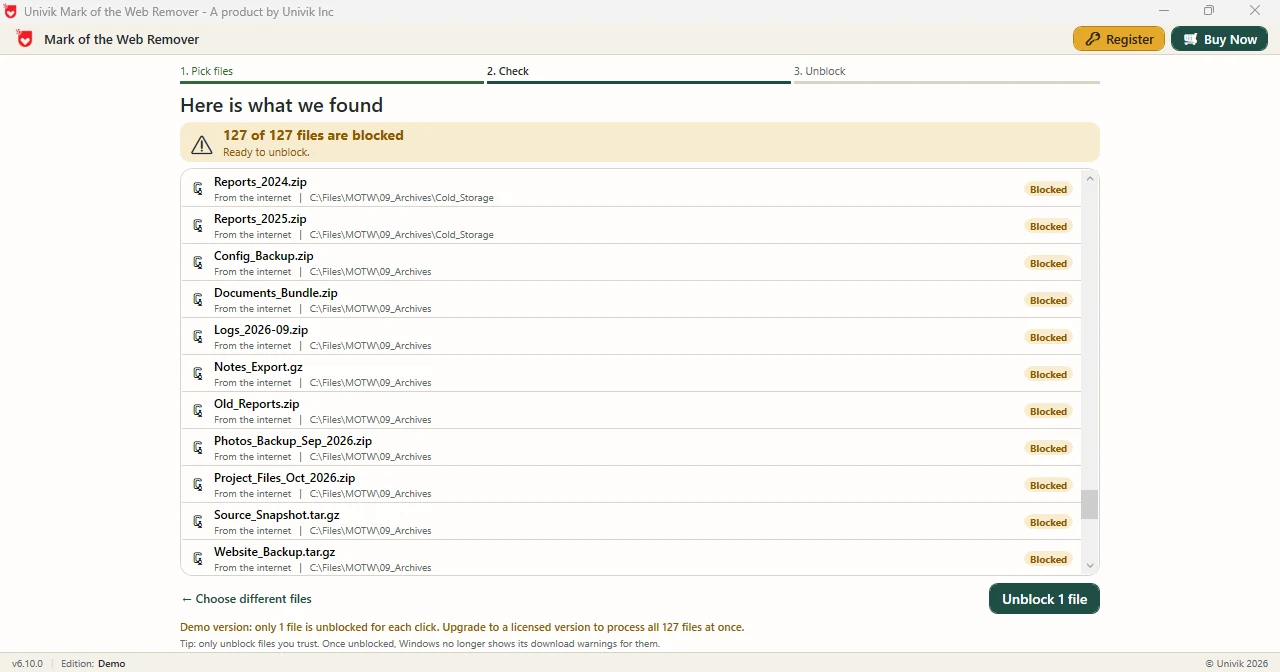
Limitations: Demo Edition clears one file per Unblock click while the full edition processes the whole list in one run. The app only clears marks and never inspects macros, so read the source before you unblock a folder.
The Univik app lists each blocked workbook with its path and clears marks in a single run.
Download Free Demo Select a Licence - From $39Demo Edition: read the list first and clear a single file to test.
What If the Banner Stays After You Unblock?
Do this: Look for the SECURITY RISK banner, not the older warning. The newer banner has no button, so use Unblock or one of the other fixes.
Do this: Check the zone of the share. A share in the Internet zone ignores the Unblock box, so add the address as a trusted site or place it in the Local intranet zone.
Do this: Clear the mark or save the add-in to a Trusted Location. A signature does not help an Excel add-in that carries the mark.
Do this: Stop here. Microsoft recommends deleting files from unknown sources that ask you to enable macros.
If a workbook still shows the banner after these fixes, write to Univik support.
- The SECURITY RISK banner has no Enable content button because Mark of the Web triggers it.
- Properties with Unblock is Microsoft's fix for one trusted workbook.
- A Trusted Location or a trusted site clears every macro it holds, so control who can save there.
- Excel add-ins with the mark ignore digital signatures and need Unblock or a Trusted Location.
- The Univik folder scan app lists blocked workbooks first when a folder holds many.
FAQ: Blocked Macros in Excel Files
How do I fix Excel macros blocked after a download?
Right-click the workbook, open Properties and check Unblock on the General tab. Microsoft names this as the fix for most single workbooks. Other fixes are a Trusted Location or a trusted site.
Why is there no Enable content button on the SECURITY RISK banner?
Microsoft replaced the older warning with a banner that has no button. The block comes from Mark of the Web, so the file has to be unblocked or placed in a trusted location.
Which Office apps block macros from the internet?
Microsoft lists Access, Excel, PowerPoint, Project, Publisher, Visio and Word on Windows. Office on Mac, on phones and on the web is not affected.
Does a Trusted Location stop the macro block?
Yes. Microsoft states that files saved to a Trusted Location ignore the Mark of the Web check and open with macros enabled. Manage those folders carefully.
Why does an Excel add-in stay disabled?
Add-ins from the internet load in a disabled state. For .xla and .xlam files, clear the mark or save the add-in to a Trusted Location.
Do digital signatures unblock macros?
Signed macros can run when the publisher is trusted on the device. Microsoft notes that this does not work for Excel add-ins that carry the mark.
How do I clear many blocked workbooks at once?
Use Unblock-File in PowerShell with a path or a folder scan app that lists the blocked files first. Both clear the mark so Excel loads the macros.
How do I check which zone a workbook came from?
Type notepad followed by the file name and :Zone.Identifier at a command prompt. ZoneId 3 is the Internet zone where macros are blocked and ZoneId 2 is Trusted sites where they are not.

Banner wording, fixes and add-in rules follow Microsoft Learn and Microsoft Support pages read on October 29, 2026. Screens and system needs for the Univik app are from version 6.10.