Quick Answer
Kerio keeps each message as an .eml file, so each PDF is made from one of those files. For a few messages you can print one at a time. For whole folders, export from a store copy to PDF and check one result before you export more.
A search lets you export only the messages that match.
If you need Kerio emails as PDF files, the first question is where the messages are. Kerio keeps them as .eml files inside its store folder, so a PDF has to be made from each one. I opened two pages to learn what the source files contain and what a PDF export needs to show.
- If you need a handful of messages, printing each one may be enough.
- If you need whole folders, export from a store copy so the folder names stay.
- If you need only some messages, search first and export the results.
What Do You Start From When You Convert Kerio Email to PDF?
Kerio stores each message as an .eml file with a hex name (hexadecimal letters and digits), like 0000000a.eml, as GFI's manual restoration article shows. The files live in the #msgs folder of each user. A file name tells you nothing about the mail, so the PDF has to be made from the message inside the file.
RFC 5322 is the public standard for email messages. It says each message starts with header fields, which are the lines at the top, followed by the body text. The header fields give you the sender (the From line), the date and usually a subject, so a good PDF shows them at the top of each page.
| What you need | Where it sits | Why it matters for a PDF |
|---|---|---|
| Sender, date and subject | In the header fields of each .eml file. | Each of the three should appear at the top of the PDF. |
| Message text | In the body after an empty line. | Message text becomes main text on the page. |
| Folder name | In the #msgs folder path of your store. | Folder name tells you where a PDF came from. |
Which Ways Can You Save Kerio Email as PDF?
You have three options. Printing one message at a time from a mail program works if you need a handful. A bulk export from a store copy fits whole folders. A search followed by an export of its results fits a smaller set. I did not test the print option of Kerio Webmail for this guide, so I do not describe it here.
Printing is too slow for a whole mailbox, because you repeat it for each message and each folder. You also lose the folder structure. If you plan to keep the PDF files as records, decide your folder and file naming before you export. Hex names will not help you find a message later.

How to Export Kerio Emails to PDF From a Store Copy
Univik Kerio Converter works from a store copy on Windows and has a PDF target. It also has a Search tab whose results can be exported on their own. The copy is opened read-only, so your original files stay as they are.
- Copy the store. Make a copy of your Kerio store folder on a spare disk.
- Load the copy. Launch the app and press Open Kerio Connect Folder. Choose the copy you made.
- Select mailboxes. Choose the users you want on the Mailboxes tab.
- Choose PDF. Open the Export tab and select PDF as the target.
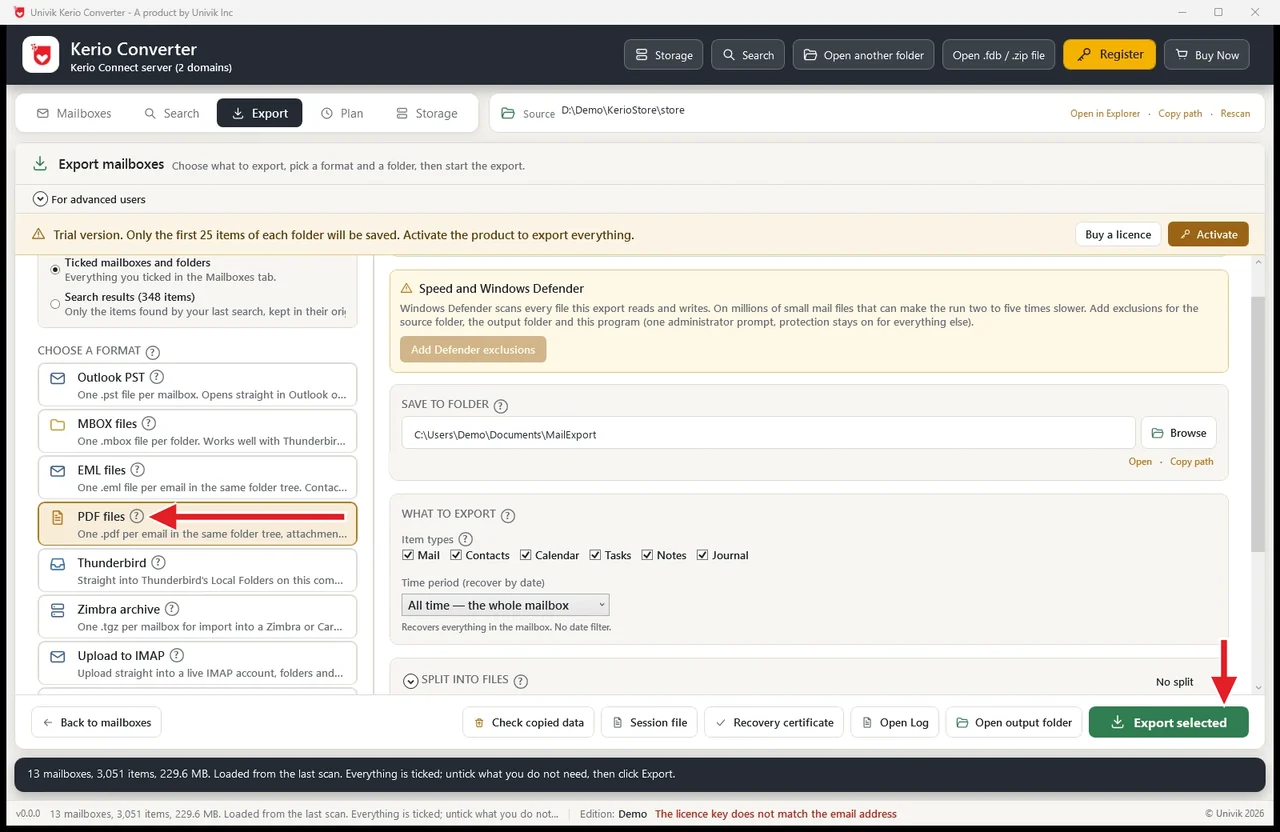
The Export tab lists PDF as one of nine targets. - Check one file. Open one result in a PDF viewer and compare its header with the original message.
Limitations: I did not check how many pages a long message takes or how attachments appear in the PDF, so open one result before you continue. The converter needs Windows 11 or Windows 10.
The converter turns mailboxes from a store copy into PDF files on Windows, with eight other targets on offer.
Download Free Trial Select a Licence - From $299Try one mailbox in the trial and open a PDF before you go further.
How Do You Export Only the Kerio Emails You Need as PDF?
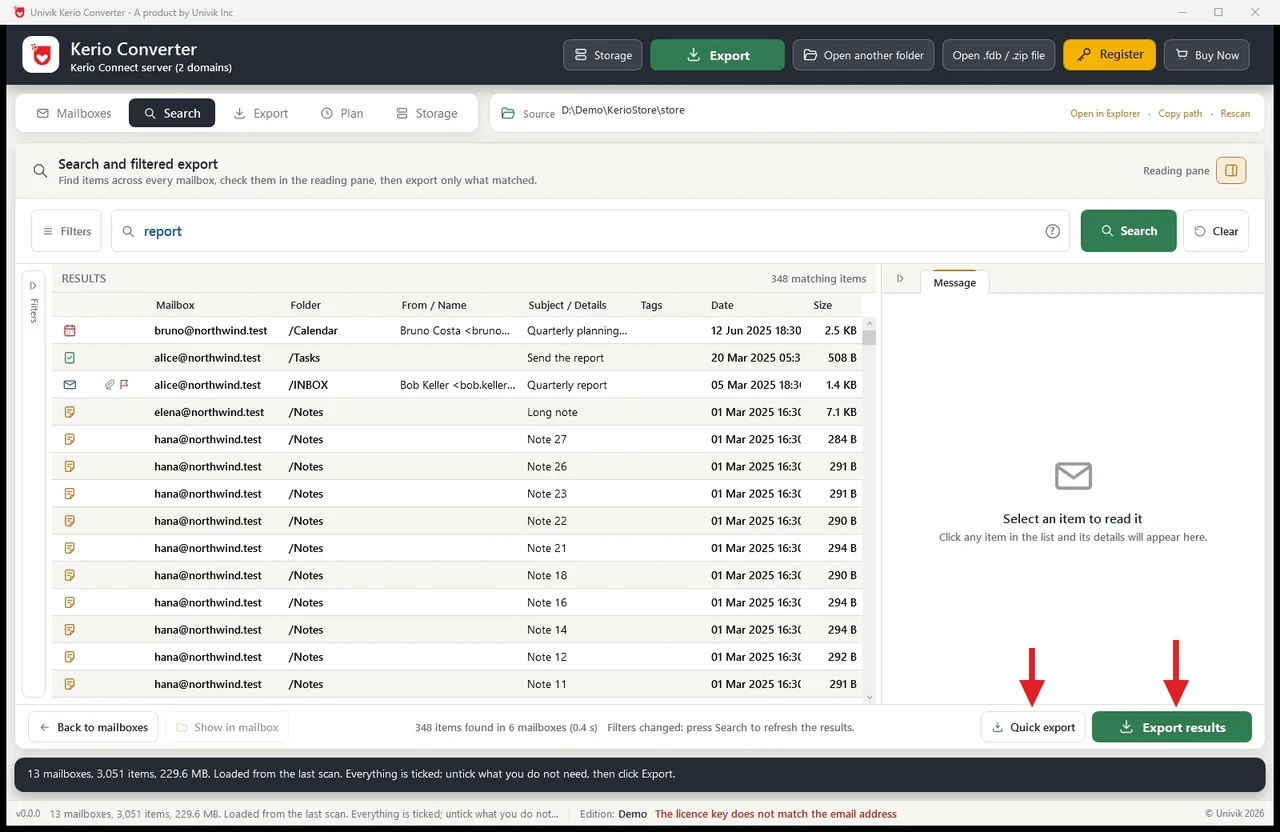
If you do not need every message, search first. The Search tab looks through the mailboxes in your copy, so you can export only its results, which gives a smaller set of PDF files.
If you search for a sender or a word, check the result list before you export it. When a message is missing from the list, widen your search before you export anything.
What Should You Check in Your First PDF?
Open your first PDF and check four things, starting with sender, date and subject at the top. Read the first lines of text and compare them with the original message. Check that the file sits in a folder you can name. Then find a message with an attachment and see what the PDF shows for it.
What If Your PDF Files Look Wrong?
If a PDF looks off, begin with a quick comparison against the original.
Do this: Export from a store copy so your folder names stay. Then check one result first.
Do this: Compare it with the original. RFC 5322 requires the date and the From line in the header fields and allows a subject.
Do this: Expect that in the store. GFI shows hex names like 0000000a.eml.
If a PDF still fails to display, contact Univik support and tell them which PDF viewer you use.
Which Pages Back This Kerio PDF Guide?
The two pages I opened on November 20, 2026 are the GFI article on restoring specific user mail and RFC 5322. The RFC page is dated October 2008. The GFI page shows no date.
Neither page says anything about PDF output, so the PDF steps come from my own test of the converter. I did not verify the page layout of the results.
- Kerio keeps messages as .eml files, so a PDF is made from the message inside each file.
- The sender and date sit in the header fields, as RFC 5322 describes. A subject is allowed there too.
- Printing fits a few messages and an export fits whole folders.
- A search lets you export only the messages that match.
- Check one PDF before you export the rest.
FAQ: Convert Kerio Emails to PDF
How do I convert Kerio email to PDF?
Copy the Kerio store folder and export the mailboxes to PDF from the copy with a Windows converter. Check one result before you export more.
Can I save Kerio emails as PDF in bulk?
Yes. Univik Kerio Converter has a PDF target for whole mailboxes from a store copy. The trial limit is 25 items per folder.
Does Kerio Connect export mail to PDF itself?
The GFI page I read does not describe a PDF export. I did not test the print option of Kerio Webmail.
What source files does a Kerio PDF export use?
Kerio keeps messages as .eml files with hex names, as GFI shows. A PDF is made from the message inside each file.
Will the sender and date appear in the PDF?
Sender and date sit in the header fields of the .eml file, as RFC 5322 describes. Check one result to see how the PDF shows them.
Can I export only some Kerio emails to PDF?
Yes. The Search tab of the converter lists matching messages and its results can be exported.
Does the converter need the Kerio server?
No. Kerio Converter reads a copy of the store on Windows. I did not use the Kerio server for my test.
How do attachments appear in the PDF?
I did not check how attachments appear in the PDF, so test one message with an attachment first.

The source files and message format described here come from a GFI page and RFC 5322, both read for this guide.