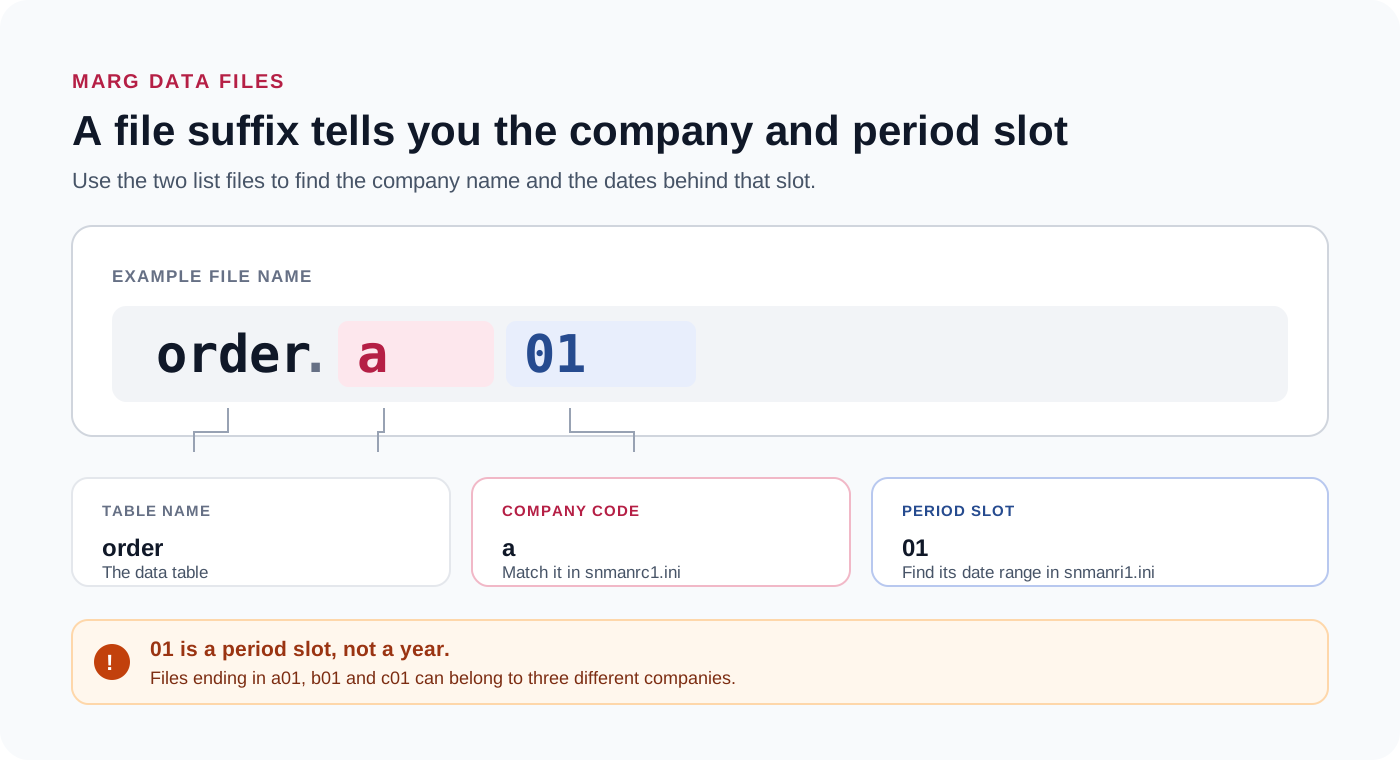
In Marg data files the letter after the dot is the company and the two digits are the period slot.
So a01, b01 and c01 are three companies, not three years. A later period of one company takes the next number. Two small lists in the same folder hold the company names and the period dates.
A folder arrives with dozens of files named order, gledger, pro and mdis, each ending in something like a01 or b01. It looks like a year code. It is not. Reading it that way mixes up firms, and nobody notices until the totals refuse to match a printed report that everyone trusts.
Who Needs to Read Marg File Names Like a01 and b01?
Which of these is your folder? Pick a card to land on the right section.
A folder holds order.a01, gledger.b01 and more. Nothing on the PC opens them and you want to know what they are.
Read the name rule →You expected a01 and b01 to be two years of the same firm, and then both of them turned out to cover the same twelve months.
See a real example →A client runs several firms in one install. You need the books of a single firm and nothing else.
Match letter to name →Open the Data folder of a busy install and the same table names repeat again and again, with only the last three characters changing. Those characters decide which company and which period a file belongs to. Misreading them is the most common mistake when a folder changes hands, and it is an easy one to make.
How Is a Marg Data File Name Built?
Each name has three parts: the table name and then, after the dot, a single letter for the company followed by two digits for the period. Note: the suffix is not a year, whatever it looks like. Our Marg data file guide lists the tables in full.
| File name | Table | Company letter | Period slot |
|---|---|---|---|
| order.a01 | order, the account master | A | 01 |
| gledger.b01 | gledger, the voucher entries | B | 01 |
| pro.c01 | pro, the item master | C | 01 |
| mdis.a01 | mdis, the bill totals | A | 01 |
Two small files in the same folder carry the meaning. snmanrc1.ini lists the companies and snmanri1.ini lists the date range of each period, while the table files themselves carry neither the company name nor the dates in their names. Lose those two files and you have tables with no labels.
What Did a Real Three-Company Folder Look Like?
We checked a folder with three companies. The letters were a, b and c, every table ended in 01 and the period list gave the dates, while the account master of each company gave a different count.
| Letter | Period starts | Period ends | Accounts in order file |
|---|---|---|---|
| a | 1 April 2025 | 31 March 2026 | 75 |
| b | 1 April 2025 | 31 March 2026 | 195 |
| c | 1 April 2026 | 31 March 2027 | 113 |
Companies A and B ran the same year yet held different books, and Company C started a year later. Had we read the letters as years, we would have mixed two firms and missed one entirely. Our view is simple: the letter is never the year.
Which Mistakes Do People Make With These Names?
Do this: A person sees a, b and c and assumes three consecutive years. Check the period list before you decide. Two letters can share the same dates.
Do this: Entries point to accounts by code and bills point to items by code. One table alone shows codes that match nothing. Copy the whole folder.
Do this: Without the company list and the period list, you have tables but no names and no dates. Always copy both small files.
How to Tell Which Company a Letter Belongs To
Univik Marg Data Viewer reads both ini lists and shows companies by name, so you do not have to decode letters by hand or guess which firm a table belongs to. It is one module of Univik Marg Data Recovery Toolkit and works without the program installed.
Our own three-company folder is where this came from: ledgers numbered 75, 195 and 113 per company, month balance rows 1,241, 4,313 and 33,261, all three ending in 01. Nothing in those numbers hints at a year. Only the ini lists do.
- Copy the whole Data folderBring every table file and both ini lists onto a local drive. Use the duplicate and leave the original alone.
- Install the toolkitInstall from setup-marg-data-recovery-toolkit.exe. The PC must run Windows 11 or 10 and carry .NET Framework 4.8 or newer.
- Open the copied folderChoose the copy of the Data folder. The viewer reads snmanrc1.ini and snmanri1.ini and lists each company with its periods.
- Match names and dates to lettersOpen each company in turn. Note its name and period dates, then compare the account count with the file you were asked about.
- Write the mapping downRecord the letter, the company name and the period dates in one line each. Keep the note with the folder.
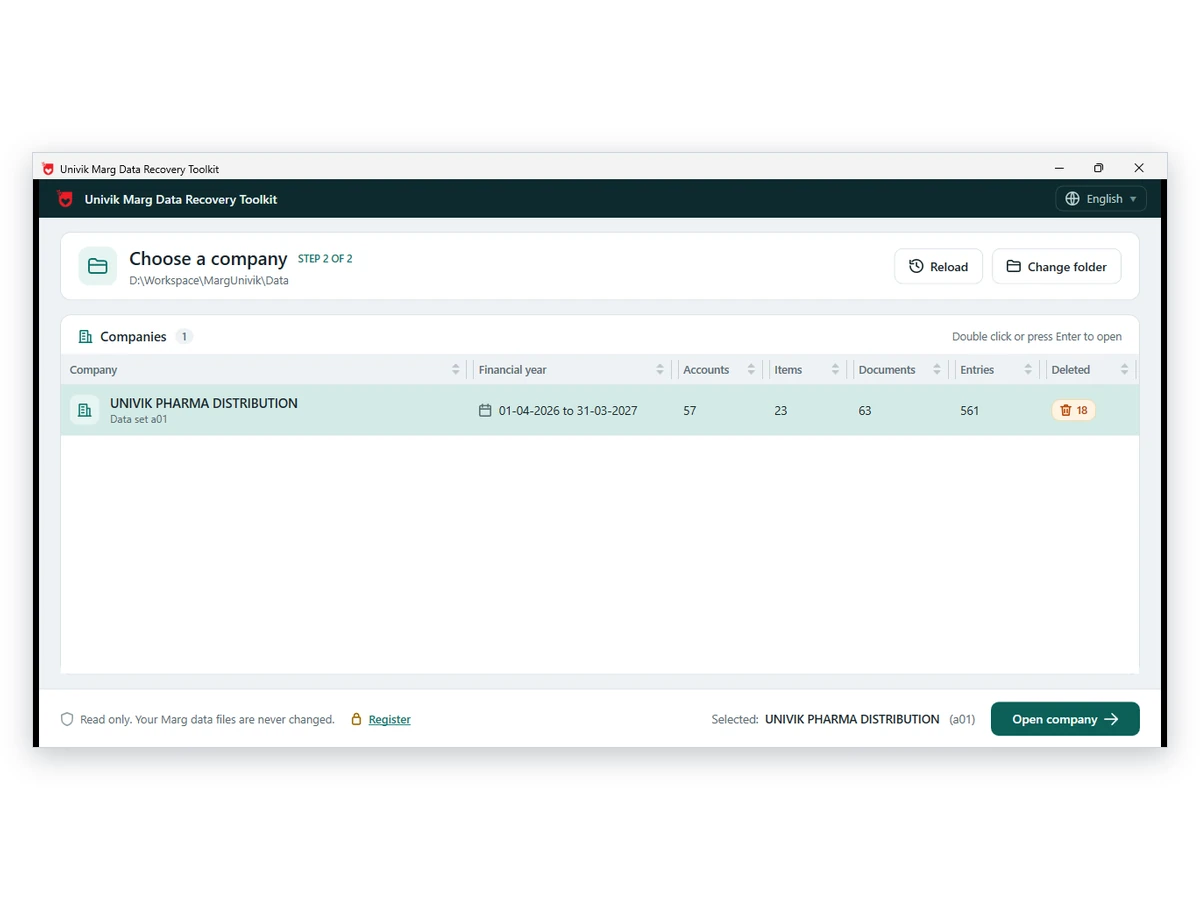
Univik Marg Data Viewer reads the company and period lists and opens each company read-only.
Download Free Trial Get Licensed - From $99Windows 11 or 10 is enough. Looking is free and a licence is needed to save past ten items. Viewer page
What Should You Check After Matching the Names?
- Each company name on screen matches a firm the client actually runs
- The period dates match the financial year the client expects
- The account count looks sensible for that firm and differs from the others
- You noted the letter, the name and the dates together
- The original folder was never opened or renamed
Note: do not rename a file to move it to another company or period. The two lists will no longer agree with the names, and a reader may pair the table with the wrong firm. If you need a different company, open that company instead.
Fix Common Problems With Marg File Names
Do this: The account table of that letter may be missing or damaged. Check that order.xnn was copied. If it is damaged, the corrupted data guide shows what can be read.
Do this: Look at the company list. A firm that was never created under this install has no letter here. A folder moved from another PC may hold only some firms.
Do this: A file ending in .MBK is a backup and not a table. See the MBK file guide.
Still unsure which letter is which? Contact our support team and list the file names you see.
Questions About Marg Files a01, b01 and c01

The folder example comes from a three-company test folder that Univik opened in October 2026. The naming rule and the table roles match the Marg data file guide.