A Marg company that does not show usually has its data intact.
The program is looking at another Data folder, or the company and period lists did not travel with the files. Copy the whole folder, search the drive for order.a01 and read the copy in a viewer. If the books show there, only the path needs fixing.
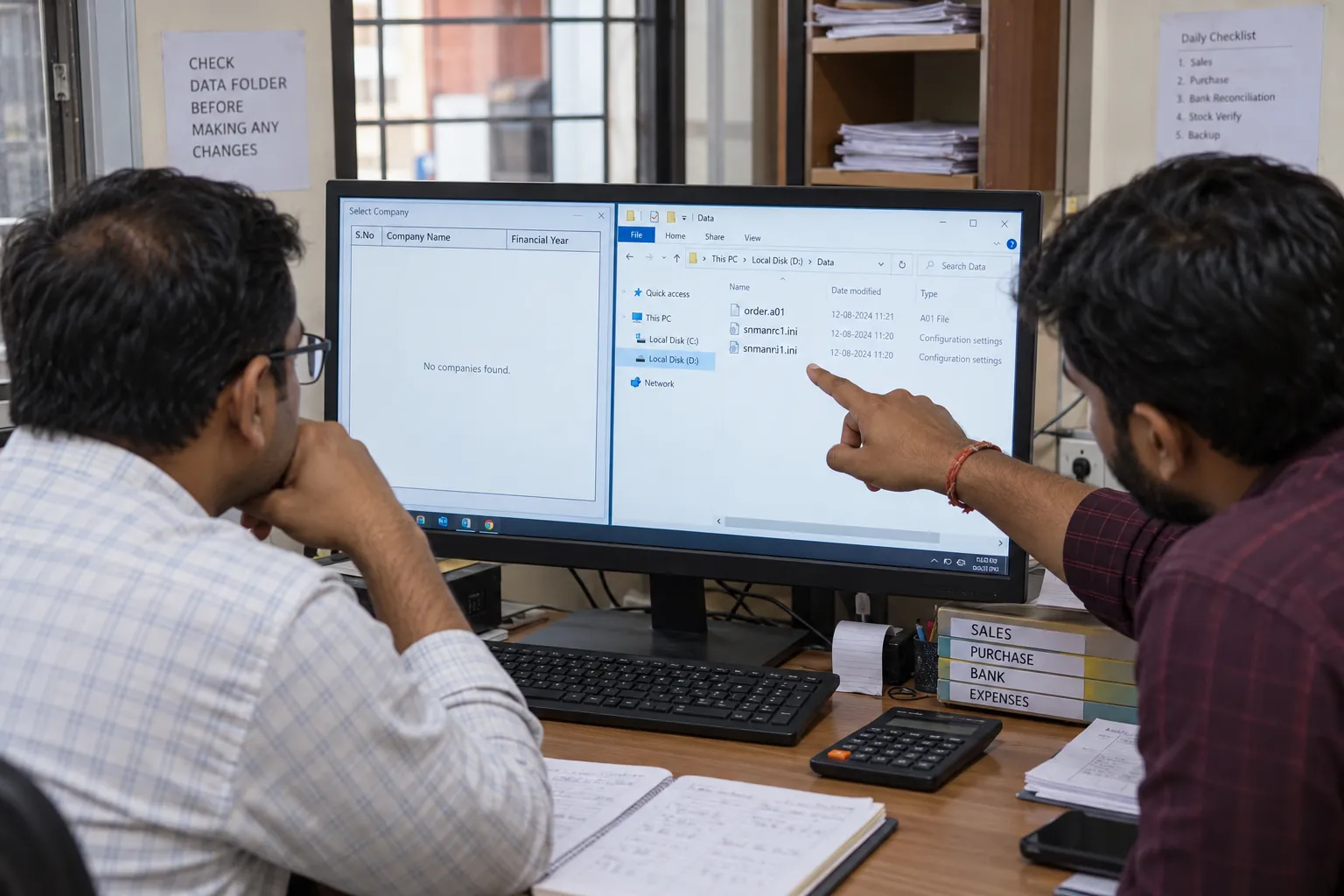
The program opens and the company list is empty, or last year is there and the year before has vanished. The first fear is lost books. The more likely truth is a folder in the wrong place, and the test for that takes about two minutes.
Who Hits a Marg Company That Does Not Show?
What do you see on screen? Choose the nearest card.
The program opens but the list of companies is empty, or it shows a demo company only.
See the likely causes →The current year opens, but the previous financial year is not on the list.
Read the decision table →A return is due this week and the program will not open the company, so you need to read the figures now and sort out the program later.
Read the folder directly →When a company does not show, panic comes first. The data is rarely gone. In most cases the records are still in a folder on the disk and the program is looking somewhere else, which is why this guide separates the causes so that you fix the right one and not the one that feels most urgent.
What Makes a Marg Company Disappear From the List?
| Cause | What it looks like | Is the data safe? |
|---|---|---|
| The program points at another Data folder | An empty list after a reinstall, a new PC or a moved folder | Yes, the old folder is untouched |
| The company or period list was not copied | Table files are present but no names and no dates | Yes, but the names are missing |
| Table files of one period are missing | One year is absent while others show | Only if a backup holds that period |
| A table file is damaged | The company opens with errors or refuses to open | Partly, and it depends on the damage |
The list of companies and the list of periods are two small files, snmanrc1.ini and snmanri1.ini, and they sit with the table files. A folder that lost them keeps its books but cannot say which letter is which firm. Our company or year guide explains how the letters work.
How to Find Out Which Cause Applies
The quickest test is to read the folder without the program. Univik Marg Data Viewer, part of Univik Marg Data Recovery Toolkit, loads a Data folder on its own and lists the companies it finds. If the books show there, the files are fine and the problem is the path. If they do not, you have learned that before you changed anything.
In our three-company test folder the viewer listed every company by name from the two ini files and opened all 44 table files without Marg. If your folder shows nothing, the lists are the first thing to check, because the tables themselves were never the problem in our tests.
- Close Marg and copy the folderClose the program on every PC that uses it. Copy the whole install folder, as Marg Care advises before any repair. Work on the copy from here on.
- Find the Data folderSearch the drive for order.a01. The folder that holds it is a Data folder. Note the path, because the program may be pointing somewhere else.
- Open the copy in the viewerInstall the toolkit from setup-marg-data-recovery-toolkit.exe on a Windows 11 or 10 machine. Select the copied Data folder and review the companies and periods it lists.
- Compare with what Marg showsOpen the same company in the viewer and check its name, its period dates and a few balances against what the program displayed or a printed report.
- Act on what you seeUse the table below. If the viewer shows the books, the data is intact and the fix is the path or the lists. If it does not, the files need repair or a backup.
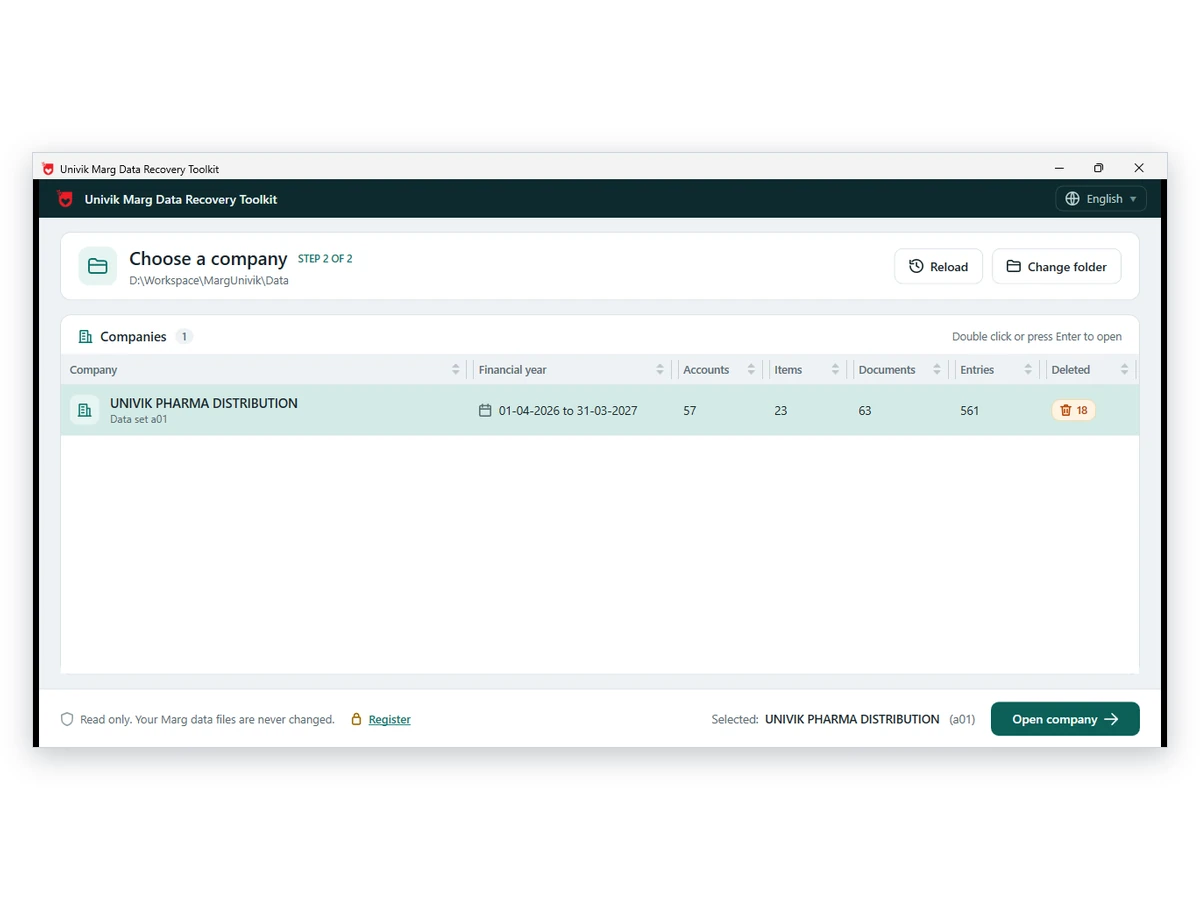
Univik Marg Data Viewer lists the companies and periods in a Data folder and opens them read-only.
Download Free Trial Licences From $99Installs on Windows 11 and 10. Browsing costs nothing and saving more than ten items asks for a licence. Viewer page
What Does Each Result Mean?
| What the viewer shows | Likely cause | What to do next |
|---|---|---|
| Company and period listed, accounts and bills readable | The data is intact. The program looks at the wrong folder or lists | Point the program at this Data folder from its change-directory option. Work on a copy |
| Company listed, accounts empty or odd | The account table is missing or damaged | Follow the repair steps in Marg Care with a backup, or read what survives |
| Company not listed | The company list was not copied, or the company lives in another folder | Search other drives for another Data folder and copy snmanrc1.ini with it |
| One period missing | That slot's files were not copied or restored | Look for the slot in the folder and in the backups |
| Nothing at all | You picked the wrong folder, or it holds no table files | Pick the folder that holds order.a01 |
The vendor's own repair article opens with a copy of the folder, then sets the damaged file aside and restores a backup. That flow suits a company that has a backup. Note: if there is no backup, do not run the repair on the only copy you hold. Read it first.
What Should You Check Before You Change Anything?
- The program is closed on every PC that uses the data
- You hold a complete copy of the folder on a second drive
- You know which Data folder the program currently points at
- You noted which letters and periods the viewer lists
- A backup with a date you trust exists, or you know it does not
Fix Common Problems When a Marg Company Is Missing
Do this: Check that you chose the Data folder itself and that both ini lists were copied. If the lists are gone, mail the file names to Univik support and we will say what can be read.
Do this: Marg Care ties this alert to a damaged file or built-up temporary files. See our guide to the No Data Found alert.
Do this: The data is fine. Point the program at the folder you copied, or restore the financial year backup into a clean install.
Not sure what you are looking at? Contact our support team with the list of file names in the folder.
Questions About a Marg Company That Does Not Show

Univik colleagues prepared the product notes. Marg Care supplied the copy-first rule and the restore alert cause. We read both on October 12, 2026. The folder facts follow the Marg data file guide. We drew up the decision table ourselves from those pages.
Pages we read: Order file article on Marg Care · No Data Found article on Marg Care