The Marg alert No Data Found or Transaction file not found appears while restoring a Financial Year backup.
Marg Care gives two causes: a damaged data file or a build-up of temporary files. The fix is a fresh backup, deleting temporary and CDX files, then restoring again. Copy the whole folder first.
You pick the backup, press Enter and the software answers with an alert. The books you counted on are still out of reach. Before you try a second date or a third, it helps to know what the message really says, because each failed attempt can cost you more than the last.
Who Sees the No Data Found Alert in Marg?
Which of these is closest to your case? Choose a card and read from there.
You pick a backup, press Enter and the software says No Data Found. You do not know whether the backup is bad.
Read what it means →You want the exact sequence the vendor gives, with the safe way to do each step.
Follow the steps →You have tried three backup dates and the alert keeps returning, and you are starting to wonder whether the backups were ever any good.
Change the source →A restore is the last line of defence when a company goes bad, and when the restore itself fails the day gets worse quickly. The vendor has a short answer for this alert. This guide explains it, adds the checks that make it safe and shows you where to go when it does not work.
What Does the Alert Mean?
Marg Care's article on this alert names two causes and no more: a damaged data file or a build-up of temporary files. The backup itself is not blamed, which matters, because most people blame it first.
| Cause given by Marg Care | What it suggests | First move |
|---|---|---|
| The data file has been corrupted | A table in the live data or in the backup set is damaged | Take a fresh backup if the company still opens |
| Temporary files have collected in the software | Leftover working files confuse the restore | Delete temporary files, then restore again |
Note: the alert reads as one message about transaction files. Those are the tables that hold ledger entries and bills, which is our reading of the wording and not a vendor statement.
How to Fix the Marg Restore Alert Step by Step
The order below follows the vendor. We added two safeguards of our own, a copy at the start and a balance check at the end, because the vendor's steps assume nothing goes wrong and ours do not.
- Copy the whole folderClose Marg on every PC. Copy the install folder to a second drive. Every step below can then be undone.
- Take a fresh Financial Year backupIf the live company still opens, take a new Financial Year backup from the backup window and keep it apart from the old ones.
- Delete the temporary filesRemove the leftover temporary files in the data folder. Marg Care links a how-to for this step.
- Delete the CDX filesRemove the CDX index files from the data folder. File maintenance rebuilds them later.
- Restore the backup againStart the software, press Esc at the gateway and run the restore. Choose the company and the backup date, then check a few balances.
- If the alert returns, change the sourceTry an older backup. If none works, read the damaged table files with recovery software on a copy.
The vendor's repair pattern is the same everywhere: copy first. Deleting temporary and CDX files is the only destructive step here, and a copy makes it reversible. See the Order file article for the pattern.
Limitations of this fix: it only helps when the cause is temporary files or one damaged file. If the backup set itself is damaged the alert returns on every date, and no amount of CDX deleting changes that.
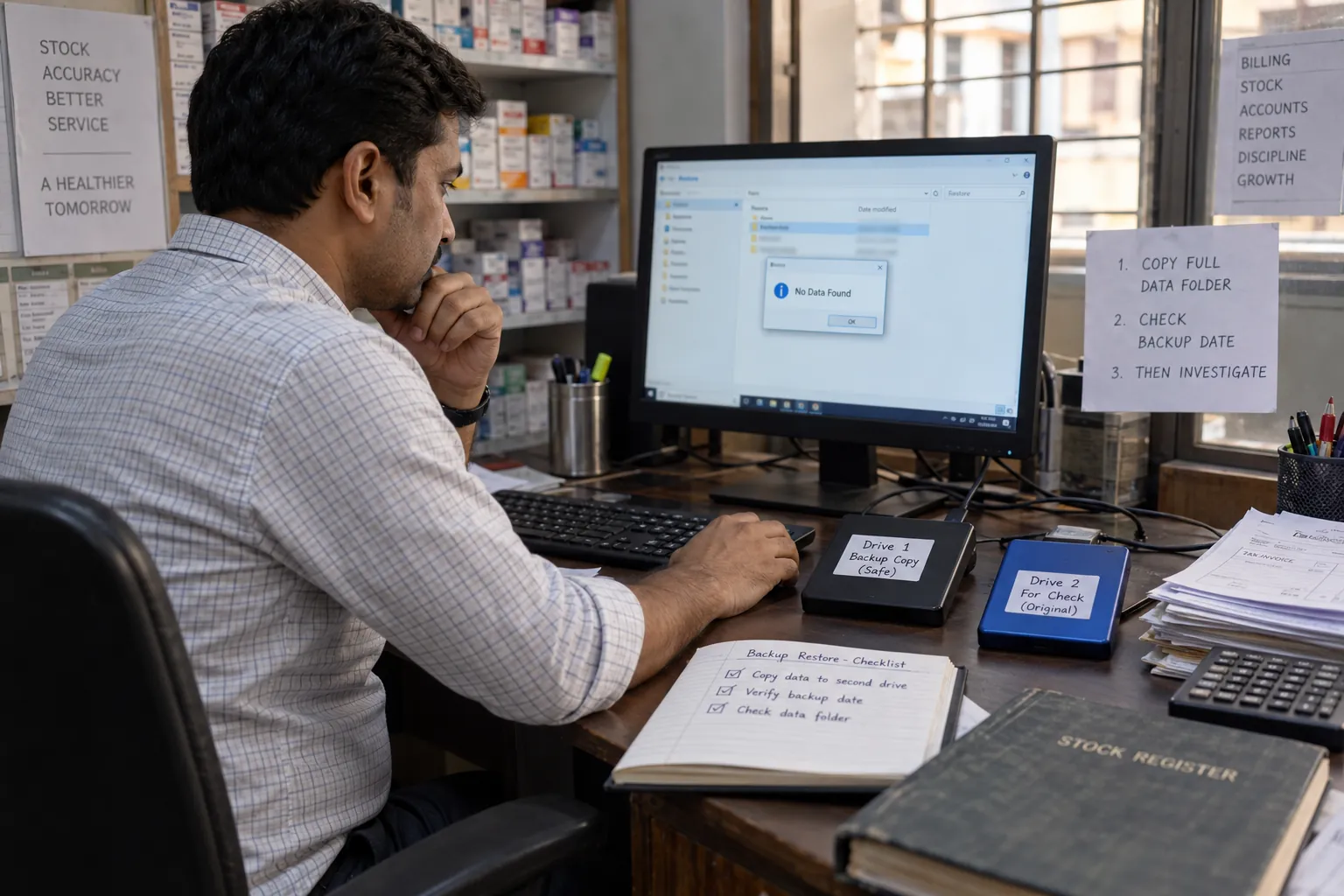
What If Every Backup Shows the Same Alert?
Stop restoring. Each attempt can overwrite files that still hold something readable, so move to a different source. There are three, in this order. Do not skip to the third before you have ruled out the first.
| Source | What to try | What it costs |
|---|---|---|
| An older backup | Restore a date from before the problem began | More lost entries |
| The damaged data itself | Read a copy of the folder with recovery software and keep what survives | Time to review labelled rows |
| A backup read in a spare folder | Restore into an empty spare folder, then open that folder in a viewer | A second Marg install |
Univik Marg Data Recovery Software, a module of Univik Marg Data Recovery Toolkit, covers the second row. It opens a copy of the damaged Data folder and gives every row one of six trust labels, from healthy down to inferred, so you know how far to trust every figure before it goes anywhere near a return. Read how it works on the corrupted data guide.
The recovery layer behind that row was measured, not promised: 178 damage scenarios on real Marg files, 96.9% mean recall, 2 rows wrongly shown as healthy where the raw read had 3,004. The honest part is the third number.
Univik Marg Data Recovery Software works on a copy and never writes to your folder.
Download Free Trial Purchase - From $99Check the folder on Windows 11 or 10 first. Ten items per section save free. Recovery page
- The company name and period are the ones you meant to restore
- The closing balance of cash and bank matches the last printed report
- The last voucher date is the date you expect
- You still hold an untouched copy of the folder from before you started
Fix Common Problems With a Marg Restore
Do this: Take the backup from a different date. If all dates fail, the damage is probably in the backup set. Read the damaged files directly.
Do this: A restore returns the books to the backup date. Entries since then are gone from this copy. The corrupted data guide shows how to read them from the damaged copy.
Do this: Use the MBK file guide. It explains the backup types and how to read a restored copy without touching the live company.
Seeing a different alert? Contact our support team with the exact text and the backup type.
Questions About the Marg No Data Found Alert

Univik supplied the product facts. The two causes and the fix order come from Marg Care, which we read on October 12, 2026. The reading of the wording and the extra safeguards are ours.
Pages we read: Marg Care page on the restore alert · Marg Care page on the Order file