 Email Settings Guide
Quick answer: the Mail.ru IMAP server is imap.mail.ru on port 993. The outgoing server is smtp.mail.ru on port 465. The POP3 server is pop.mail.ru on port 995. All three want SSL/TLS, treated as required rather than optional. Your username is the full email address. The password should be one generated for external applications rather than the one you sign in to the website with.
What Changed Recently#
Related email providers: Yandex email settings, Rambler IMAP settings, Ukr.net email settings, i.ua IMAP settings, Meta.ua email settings, ABV Mail IMAP settings
The servers have been stable for years. What changed was the name above the door. It confuses people more than it should.
Latest update
The company is now VK. The email service is still Mail.ru. Mail.ru Group rebranded to VK in 2021, keeping the Mail.ru name on the mail service itself. Nothing about your mailbox, your address or the servers changed. If you have been reading guides that mention VK and wondering whether they describe a different product, they do not.
Earlier change
Encryption is expected on all three protocols. Published guidance for Mail.ru describes SSL/TLS as required rather than advisable across IMAP, POP3 and SMTP. We could not find a supported plain text route, so a configuration still sitting on a bare port is not one to keep waiting on.
Earlier change
Passwords for external applications are the reliable route. Mail.ru lets you generate a password specifically for outside programs. Setup guidance points you at one of those rather than at your website password. Where two-step verification is switched on, one of these is required outright.
Before You Begin#
Two points to settle before the server values. Neither takes long. The first trips up anyone arriving from a different Russian provider.
1. Use the whole address as the username
Mail.ru wants you@mail.ru in the username field, domain included. That sounds obvious until you have set up Yandex, which wants only the part before the at sign.
Where: Server tables below →
2. Generate a password for external applications
Mail.ru issues separate passwords for outside programs. Giving your client one of those rather than your website password is the route that works reliably.
Where: The password section below →
About Mail.ru Mail#
Mail.ru is one of the largest consumer email services in the Russian speaking world, launched in 1998 and still carrying the name it started with.
Email was the founding product of what grew into a much larger internet company. That company renamed itself VK in 2021. The mail service did not follow. Four domains sit on the same platform, so @bk.ru, @inbox.ru and @list.ru addresses use everything on this page unchanged. Connecting a client is straightforward once you know two things: the username is the whole address. The password should be one generated for outside programs.
| Service Name | Mail.ru Mail |
| Owned By | VK, which was Mail.ru Group until the 2021 rebrand |
| Launched | 1998, as the founding product of the group |
| Email Domains | @mail.ru, @bk.ru, @inbox.ru, @list.ru |
| Webmail URL | e.mail.ru |
| Protocols Supported | IMAP, POP3, SMTP, all on encrypted ports |
| App Password Needed | Generate one for external applications. Required outright once two-step verification is on |
| Free Storage | Not published in a form we could verify, so no figure appears here |
@mail.ru, @bk.ru, @inbox.ru and @list.ru all connect through the hosts on this page. The domain you chose changes the username you type, not the server you point at. Some third party guides do list domain-matching aliases such as imap.bk.ru. We have not been able to confirm those independently. The mail.ru hosts on this page work for all four domains, so those are what we publish.
you@mail.ru and not you. Yandex wants only the part before the at sign. Two large Russian services, two opposite conventions. A habit carried from one to the other produces an authentication failure that reads exactly like a wrong password. Our Yandex Mail settings cover the other side of it.
Mail.ru Webmail Login#
The browser is where your ordinary account password works. It is also where external application passwords are generated:
The Password Your Client Actually Needs#
Mail.ru keeps two kinds of password. One opens the website. The other is issued to outside programs. That second one is what your mail client wants.
- Your account password opens the website and the official Mail.ru apps. That is its job and it does it well.
- External applications get their own password. Mail.ru generates these separately. Setup guidance points mail clients at one of them rather than at your website password.
- With two-step verification on, this stops being optional. An externally generated password is required outright at that point.
- Even without it, generate one anyway. It is the route that works reliably. It also means a mail client on a laptop never holds the credential that opens your whole account.
- The username does not change. Whichever password you use, the username stays the full address including the domain.
Mail.ru IMAP Settings#
IMAP is the incoming protocol most people should use. It keeps your mail on the server so every device shows the same inbox.
| IMAP Server | imap.mail.ru | |
| Port | 993 | |
| Encryption | SSL/TLS (required) | |
| Username | The full address, domain included. you@bk.ru stays you@bk.ru | |
| Password | A password generated for external applications | |
| Authentication | Required |
Mail.ru POP3 Settings#
POP3 downloads mail to 1 device. Pick it only if you want a local copy on a single computer. Not sure? See the comparison below.
| POP3 Server | pop.mail.ru | |
| Port | 995 | |
| Encryption | SSL/TLS (required) | |
| Username | Your full email address | |
| Password | The same external application password |
Mail.ru SMTP Settings#
SMTP carries outgoing mail. On Mail.ru the same credential covers both directions, so a wrong password usually stops sending and receiving together rather than one alone.
| SMTP Server | smtp.mail.ru | |
| Port | 465 with SSL/TLS | |
| Alternate port | 587 with STARTTLS. Several sources treat this as the preferred submission port, so try it where 465 is blocked | |
| Outgoing authentication | Required, using the same details as the incoming server | |
| Encryption | SSL or STARTTLS (required) | |
| Username | Your full email address | |
| Password | Same as incoming. There is no separate outgoing credential | |
| Authentication | Required. Outlook labels this the outgoing server authentication option. |
Check Mail.ru IMAP Settings Online#
You don't need to download anything to check Mail.ru IMAP settings online. This page is the lookup: every value is verified, current and copyable straight from your browser. Not sure your address uses Mail.ru servers? Type it below and find out instantly.
Does my email address use these settings?
Runs in your browser only. Your address is never sent anywhere or stored.
Want to verify the account itself before configuring an app? Sign in at Mail.ru webmail, which confirms your address and password work, then confirm an app password exists. If both pass, any email app connects with the tables above.
Look Up IMAP Settings for Any Email Domain#
This page covers Mail.ru. For every other address, work email on a company domain included, we run a free online lookup database: imapsettings.com.
imapsettings.com
Complete email settings database, by Univik
Enter any email address and get the incoming and outgoing server settings for that domain in 1 step:
The address is inspected within your browser purely to identify the domain. It travels no further.
Generating a Mail.ru External App Password#
One credential opens the website, another is meant for outside programs. Here is which belongs where:
| Where you sign in | Account password | External app password |
|---|---|---|
| Mail.ru webmail in a browser | ✓ Works | Not used here |
| Official Mail.ru mobile apps | ✓ Works | Not used here |
| Outlook, Apple Mail, Thunderbird | Sometimes, not reliably | ✓ The route that works |
| Any client, two-step verification on | ✗ Rejected | ✓ Required |
How to Generate a Password for External Applications
- Sign in to Mail.ru in a browser using your ordinary account password.
- Open the account security area and find the section covering passwords for external applications.
- Create a new one and give it a name you will recognise later, something like Outlook or iPhone Mail. A separate password per device means you can revoke one without disturbing the others.
- Copy it as soon as it appears. Treat any generated password as show-once and write it down before closing the window.
- Enter it in your client with the full address as the username. The same value covers incoming and outgoing.
Set Up Mail.ru in Email Clients#
All four Mail.ru domains take the same hosts and the same credential. Only the menus change. Pick your app:
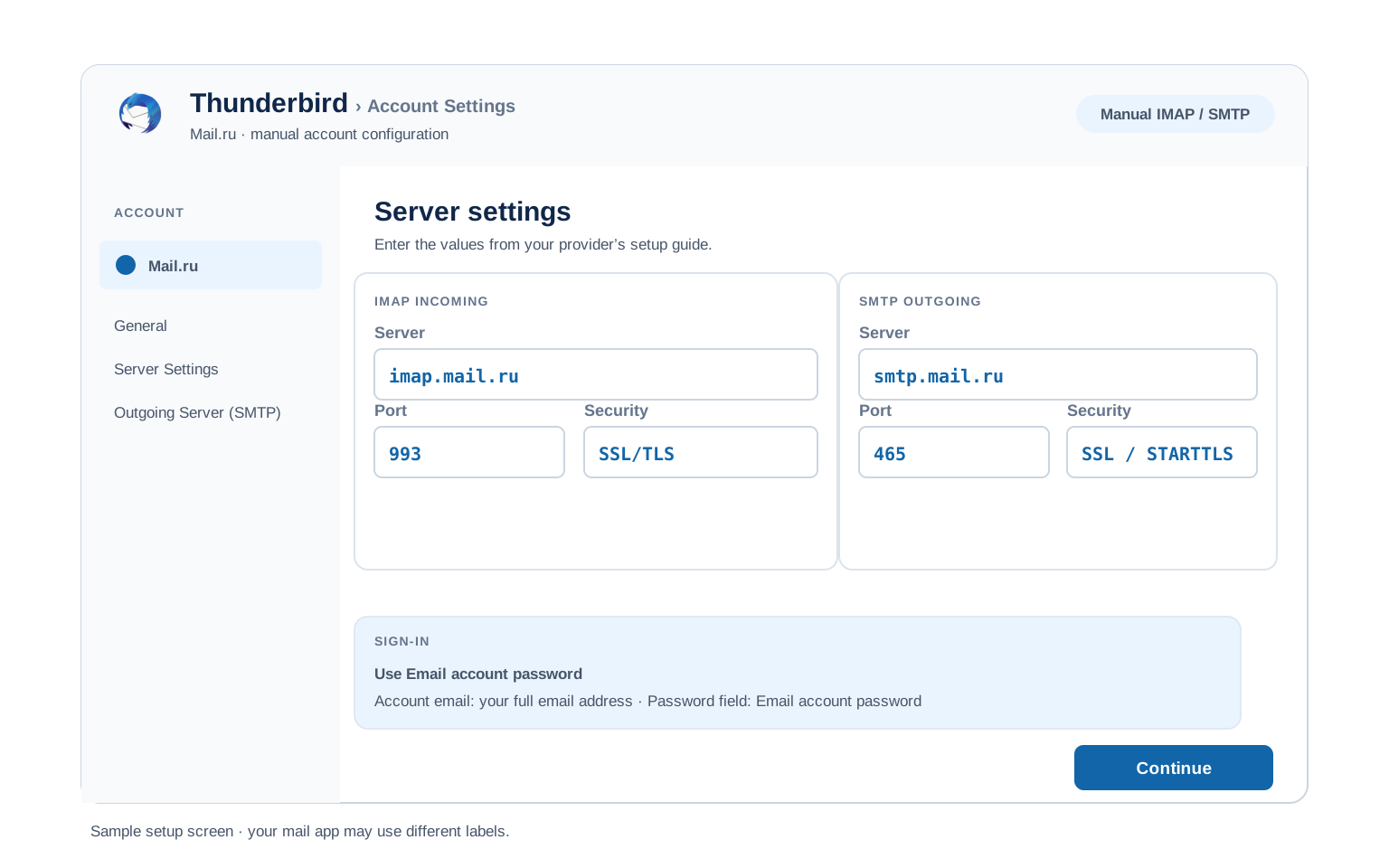
Outlook (Windows and Mac)
- Within Outlook take File, then Add Account. The newer Outlook files this under Settings, then Accounts.
- Enter your Mail.ru address, open Advanced options and check "Let me set up my account manually".
- Choose IMAP and enter
imap.mail.ruon port993, thensmtp.mail.ruon port465. Port 587 with STARTTLS works too. Encryption either way. - Enter the external application password, then tick outgoing server authentication under More Settings.
- Round it off by mailing yourself. A single message settles incoming and outgoing at once.
Apple Mail (macOS)
- Starting in Apple Mail, work along Settings, Accounts, Add Account.
- Choose Other Mail Account. Apple carries no Mail.ru entry among its providers.
- Enter your name, full address and external app password, then continue.
- Prompted for hosts? Both sit in the tables higher up this page.
- Confirm Mail is ticked among the listed services, then finish.
iPhone and iPad
- Starting from iOS Settings, work along Apps, Mail, Mail Accounts, Add Account.
- Tap Other, then Add Mail Account. iOS has no Mail.ru option built in.
- Enter your details using the external app password, then tap Next.
- Stay on IMAP, typing in both hosts wherever iOS requests them.
- Choose Save, leaving iOS a moment to confirm things.
Android
- Start the Android mail app you prefer and take Add account.
- Take Other, followed by IMAP, given Mail.ru is not among the listed providers.
- Supply the full address and your external app password. Should automatic setup come up short, move to Manual setup.
- Enter the servers:
imap.mail.ru993 SSL incoming,smtp.mail.ru465 SSL outgoing. - Round off the wizard, then drag the inbox downward to begin syncing.
Thunderbird
- Starting in Thunderbird, work along Account Settings, Account Actions, Add Mail Account.
- Enter your name, full address and external app password, then select Continue.
- Check what Thunderbird detected, confirming IMAP rather than POP3 and that encryption is on for both hosts.
- Detection producing nothing? Take Configure manually and supply the table values yourself.
- Take Done. Your folder list arrives with the opening sync.
Mail.ru Webmail Settings#
Those values connect your apps. What follows shapes the mailbox itself. All of it sits in Mail.ru webmail rather than inside any client.
Signature
Set from the webmail settings. It applies to messages sent in the browser. Outlook, Apple Mail and Thunderbird each keep separate ones, which is how people end up maintaining two versions without noticing.
Vacation Auto Reply
Give the away message a start and an end date so it switches itself off. It runs on Mail.ru servers, so replies keep going out with every device of yours shut down.
Filters and Folders
Rules built in webmail run server side, filing mail before any device collects it. A rule inside Outlook fires only while Outlook is open, which is why two devices can disagree about where a message went.
Spam and Blocked Senders
Block senders or whole domains from the same settings area. With four domains arriving in one place, server side filtering does more work here than on a single domain mailbox.
Mail.ru POP3 vs IMAP#
| Feature | IMAP | POP3 |
|---|---|---|
| Where mail lives | On the Mail.ru server | Downloaded to 1 device |
| Multiple devices | ✅ Everything stays in sync | ❌ Each device sees different mail |
| Sent and deleted mail | ✅ Synced everywhere | ⚠️ Stays only on that device |
| Offline reading | ⚠️ Cached mail only | ✅ Full local copy |
| Server storage used | Yes, counts against your quota | Can be freed after download |
| Best for | Phone + computer, everyday use | Single PC, local archives |
Mail.ru Requirements and Limits#
Mail.ru publishes requirements more readily than quotas. These are the constraints that shape a client setup:
| Username format | The full address including the domain, unlike Yandex |
| Credential for clients | A password generated for external applications |
| Encryption | Required on all three protocols. No supported plain text path found |
| Domains covered | mail.ru, bk.ru, inbox.ru and list.ru, all on the same servers |
| Mailbox storage | Not published in a form we could verify, so no figure appears here |
| Sending limits | Not published. Treat it as a personal mailbox rather than a sending platform |
Troubleshooting Mail.ru Connections#
Mail.ru problems cluster around the credential and the username. Work through in that order.
| Error you see | What it means | Fix |
|---|---|---|
| Password rejected when you know it is right | The website password is in a mail client | Generate a password for external applications and use that instead. With two-step verification on, this is required rather than advisable. |
| Authentication fails right after switching from Yandex | Only the part before the at sign is in the username field | Mail.ru wants the whole address. Enter you@mail.ru, not you. Yandex is the one that works the other way round. |
| Connection refused on an old configuration | A plain port with no encryption | Move to 993 or 995 for incoming, 465 or 587 for outgoing, then turn encryption on. Guidance for this service treats SSL/TLS as required. We found no working plain text alternative. |
| Cannot connect to server | Wrong port or encryption | Confirm IMAP on 993 with SSL and SMTP on 465, with 587 as a fallback. Security software and VPN clients interfere with these ports often enough to be worth eliminating. |
| Password keeps being asked | Usually the website password, sometimes the username | Swap in an external application password. If that is already right, check the username is the full address. |
| Messages stuck in Outbox | SMTP authentication is off | Enable outgoing authentication and hand it the same sign in details incoming uses. |
Reader Reported Fixes
Carrying the Yandex username habit across. Anyone who has set up a Yandex account recently arrives here trained to strip the domain off, because Yandex genuinely wants only the part before the at sign. Mail.ru wants all of it. The failure looks like a rejected password, so people go off regenerating credentials while the username field quietly stays wrong.
Assuming the VK rebrand broke something. Mail.ru Group became VK in 2021 while the mail service kept its own name, so people encountering VK branding in an account screen sometimes conclude their email has been migrated or discontinued. It has not been. Same mailbox, same address, same servers, different company letterhead.
Four Domains and Moving Your Mail#
Holding a bk.ru, inbox.ru or list.ru address? All three run on the same platform as mail.ru itself, so every value on this page applies unchanged. Only the username differs, because it carries your own domain.
Moving mail off Mail.ru? A migration tool connects over IMAP like any client, so it needs an external application password of its own and the full address as the username. Both are easy to get wrong at the point where a transfer refuses to start.
Keeping a copy instead? Archive the mailbox into files held on your own disk. Better done ahead of any account change than afterwards.
Taking your mail to a new account? The Univik Email Migration Tool copies every folder from the old account to the new one. Enter the IMAP settings from this page for the Mail.ru side and your new provider's settings for the other.
Rather not do it yourself? Our Email Migration Services team shapes the transfer, sees it through, then confirms each folder landed.
Use These Settings in Univik Email Backup#
The same IMAP settings above let you download your complete Mail.ru mailbox to your computer. Univik Email Backup commits the whole mailbox to PST, MBOX, EML or PDF. Whatever lands on your disk stays there regardless of the account.
- Acquire Univik Email Backup and set it up under Windows.
- Mark Mail.ru as the source. Where the brand does not appear, plain IMAP performs identically.
- Sign in with your full email address and an external application password. A backup tool is an IMAP client, so the same rules apply.
- If the tool asks for server details, use
imap.mail.ruwith port993and SSL from the IMAP table above. - Fix on an output format and a destination folder, then set it going. Sizeable mailboxes keep working through quietly.
Univik Tools That Use These Settings#
Readers frequently arrive here midway through a move or an archive. All 3 tools draw on the IMAP values above:

Email Backup
Download your complete Mail.ru mailbox to PST, MBOX, EML or PDF before switching or closing the account.
Email Backup Tool →
Email Migration Tool
Copy every folder from Mail.ru straight into Gmail, Microsoft 365 or any other account. No manual export needed.
Email Migration Tool →
Email Converter Tool
Carrying MBOX, EML or OST from an earlier export? Recast it as PST, PDF or whatever your next app takes.
Email Converter Tool →Prefer to hand the whole migration to experts?
None of this needs to become your specialist subject. Univik's migration team carries the project instead, scoping the work, moving the mail, verifying what arrived, then reporting where every folder came to rest. Operating since 2013, across single mailboxes and complete company moves.
Email Settings Glossary#
IMAP
Internet Message Access Protocol. Reads mail retained on the server, which is what holds inbox, folders and read marks in agreement everywhere.
POP3
Post Office Protocol version 3. Downloads mail to 1 device and can remove it from the server. Older method, still useful for local archives.
SMTP
Simple Mail Transfer Protocol. Sends your outgoing mail. Every account needs it next to IMAP or POP3, which only receive.
SSL / TLS / STARTTLS
Encryption for the connection. SSL/TLS encrypts from the start (ports 993, 995, 465). STARTTLS upgrades a plain connection (port 587).
App Password
A generated code standing in for your real password inside an app. Mail.ru calls these passwords for external applications. One per device means you can revoke a single client without touching the rest.
OAuth
Signing in through a browser window rather than typing a password into the app. Several large providers have moved this way, though on Mail.ru a generated password remains the dependable route for ordinary mail clients.
How We Verify These Settings#
Univik has built email backup, migration and converter software since 2013. Our tools sign in to Mail.ru over IMAP and SMTP every day for thousands of users, so a changed server, port or login rule shows up in our connection logs before most guides notice it.
Every value on this page is confirmed with 3 checks: a live IMAP and SMTP connection from Univik Email Backup, a comparison against published Mail.ru guidance and a sign in run through current webmail. Where sources disagree, we say so on the page rather than picking whichever reads more cleanly. Any announcement triggers a recheck. We revisit quarterly regardless.
Noticed a value drifting from what your screen shows? Raise it with us. We retest, amend, then record the change under what changed recently.
 Help & Support
Frequently Asked Questions
Use imap.mail.ru on port 993 with SSL/TLS. The username is your full address including the domain. The password should be one generated for external applications. The same values serve bk.ru, inbox.ru and list.ru addresses. The full table appears under IMAP settings.
Two things cause this on Mail.ru. The likelier one is that your client holds the password you use on the website, where an external application password is wanted instead. The other is the username. Mail.ru needs the whole address, domain included, which catches out anyone who has recently set up Yandex, since that service wants only the part before the at sign.
IMAP for almost everyone. It keeps your phone, computer and webmail in sync. POP3 fits only a single computer setup where you want a local download. Full comparison here.
Yes. That holds across all four Mail.ru domains too. A bk.ru, inbox.ru or list.ru address takes exactly the same hosts as mail.ru. Only the menu names differ by device, which the client setup guides handle.
Treat any generated password as show-once. If it has gone, delete that entry in your account security settings and create another rather than hunting for the old one. Generating one per device pays off here, since a replacement then affects only the client it belonged to.
Yes. Encryption is mandatory on all three protocols rather than optional, so there is no way to accidentally end up on an unencrypted connection. Using a password generated for external applications adds to that, since your client then never holds the credential that opens the account itself.
A mail client fetches messages over IMAP as it syncs, whereas a purpose built backup tool runs quicker and lays down standard files that open anywhere. See how to back up your Mail.ru mailbox. Left holding an export in an inconvenient format? An email converter recasts it as PST, PDF or whatever comes next.
The usual causes on Mail.ru are a two-step verification switch that now requires an external application password. Failing that, a configuration old enough to be sitting on an unencrypted port. Neither is a fault in your client. See what changed recently.
An email migration tool copies mail directly between the 2 accounts over IMAP. You need the Mail.ru IMAP settings and an external application password for this side, plus the same details for the destination. Use the full address as the username. Every folder, label and date stays intact.
Uneasy about the risk? Staring at a long list of accounts? Our managed email migration service absorbs the whole job.
Other Email Provider Settings
Summary: Mail.ru Settings at a Glance
- IMAP: imap.mail.ru, port 993, SSL/TLS
- POP3: pop.mail.ru, port 995, SSL/TLS
- SMTP: smtp.mail.ru, port 465 or 587
- Username is always your full email address
- Username is the full email address
- Use an external application password
- Encryption is mandatory, no plain ports
- All 4 domains share these hosts