Univik IMAP Backup for Windows

Batch IMAP Backup Software Back up many mailboxes with an email address and a password and save the folders you tick as PST, MBOX, EML, PDF, HTML, TEXT, CSV or SQL Script files

Univik IMAP Backup is IMAP backup software for Windows. It signs in to a mailbox with an email address and a password, lists every folder with a message count beside it and saves the folders you tick as files on your PC. Add one account by hand or load a CSV file to run a batch of mailboxes. A preview shows each message before the backup runs. The Export menu holds 8 file formats and 4 direct targets, so one IMAP backup tool covers files and live mailboxes.

Free to TryAccounts From a CSV FilePreview Before Export8 File Formats

*Trial Edition exports 10 items per folder. That lets you open the result and compare it with the mailbox. A licence removes that limit.

  • Batch Accounts. Add one account by hand or load a CSV file with one email,password pair per line. Only accounts that sign in are added.
  • Folder Tree. Each folder carries its own message count, so INBOX, Sent, Drafts and custom folders can be ticked one by one.
  • 8 File Formats. PST, EML and MBOX for mail, PDF, HTML and TEXT for reading, CSV for sheets and SQL Script for databases, all written to a folder you choose.
  • 4 Direct Targets. Gmail, Office 365, another IMAP mailbox and a Thunderbird profile sit on the same Export menu.
  • Extract Menu. Attachments, contact photos, email addresses, phone numbers and email and phone pairs can be pulled out of the mailbox.
Univik IMAP Backup product box

 Quick Facts

At a Glance Univik IMAP Backup in five numbers: ways to add accounts, file formats, direct targets, extract options and price

2

Ways to Add Accounts

One account by hand or many through a CSV file of email,password lines with a sample file to download.

8

File Formats

Three email formats, three reading formats, one CSV sheet and one SQL Script, each with its own options screen.

4

Direct Targets

Gmail, Office 365 and IMAP mailboxes plus a Thunderbird profile sit beside the file formats on the Export menu.

5

Extract Options

Email addresses, attachments, phone numbers, email and phone pairs and contact photos.

$99

Starting Price

Trial Edition exports 10 items per folder. Paid licences start at $99.

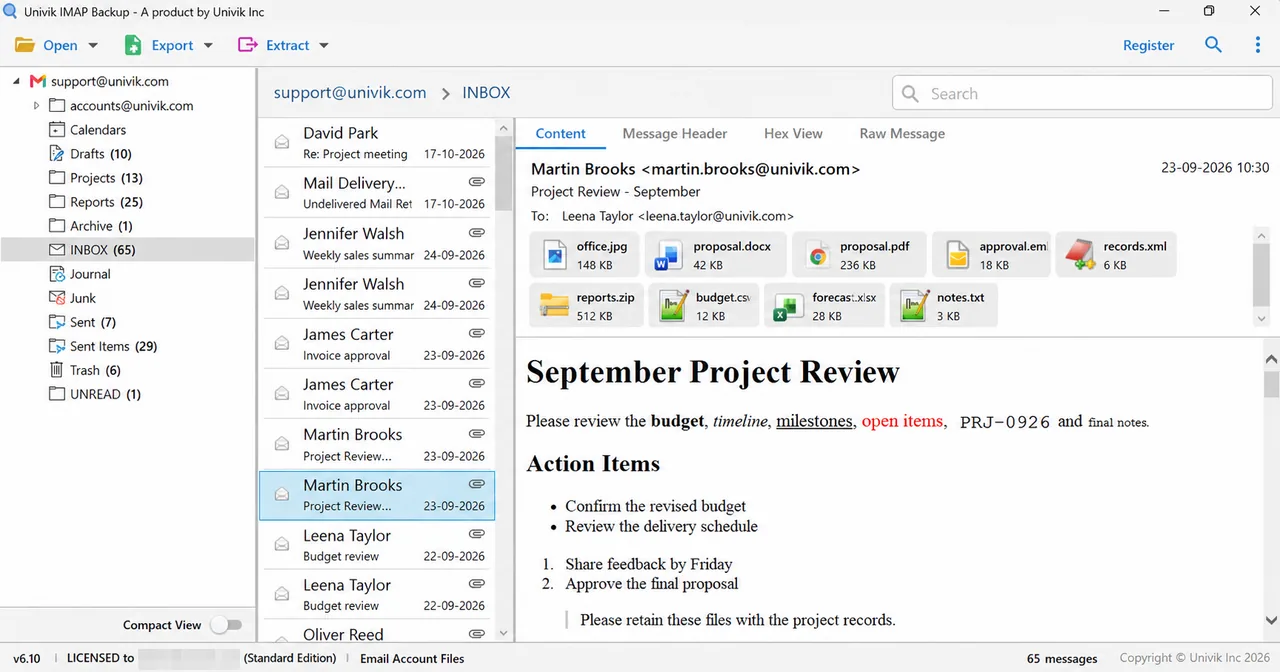
Univik IMAP Backup v6.10 preview window with folder tree and reading pane
Preview window: the folder tree lists message counts. A message opens in one of four tabs, with attachment names and sizes above the text.

 Key Features

What IMAP Backup Software Does Eight tasks in one window, from adding accounts to the Extract menu

Univik IMAP Backup covers eight tasks in one window. Every task here comes with the menu or button behind it.

Adds Many Mailboxes From One CSV File

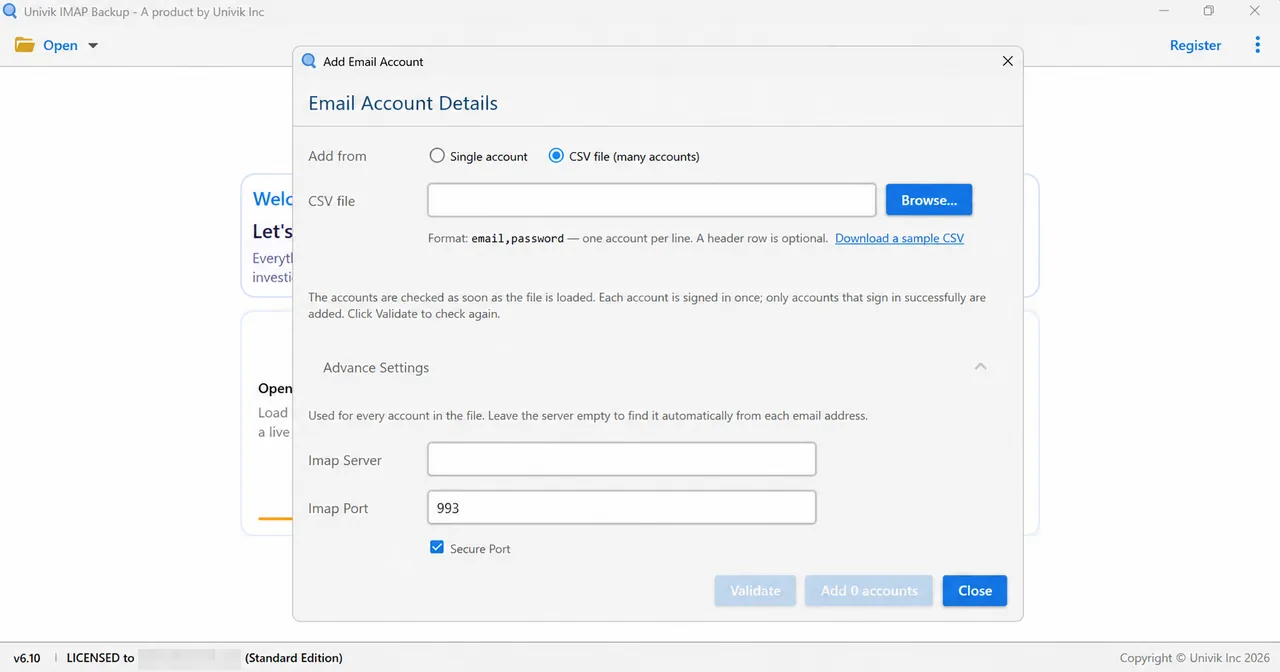
Add accounts from CSV file reads a list with one email,password pair per line and checks each account while the file loads. Each account is signed in once and only accounts that sign in are added. The window offers a sample CSV to download and a Validate button to check the list again.

Finds the Server for an Email Address

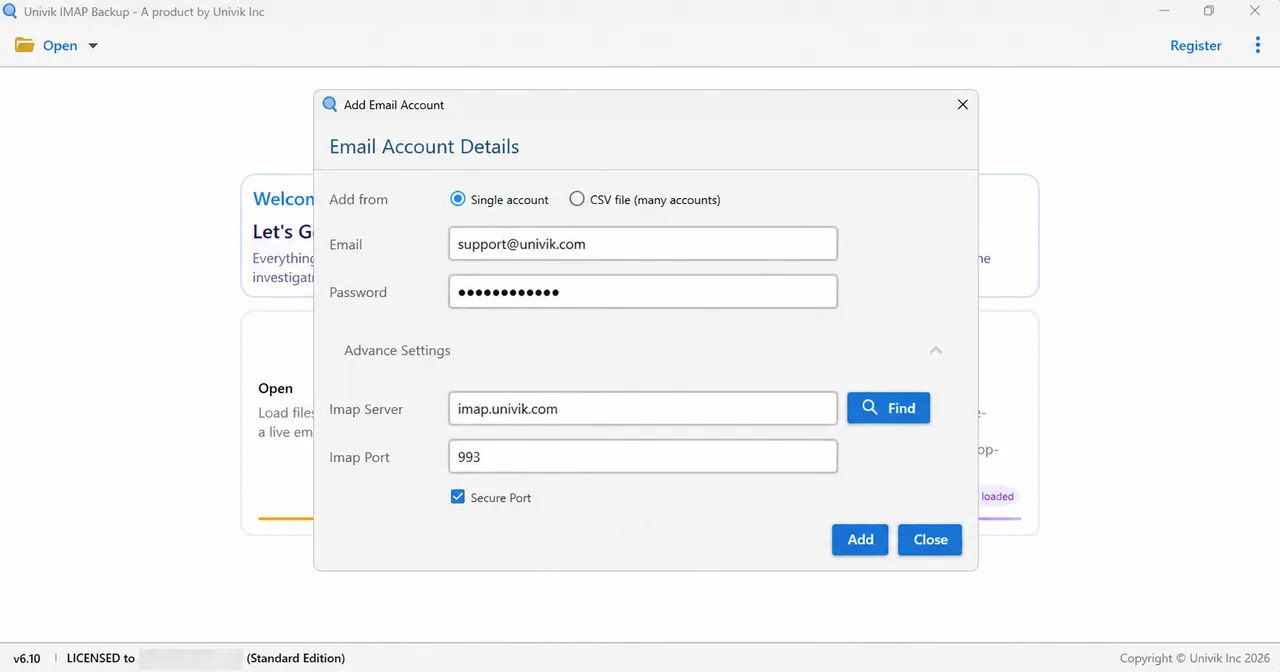
Advance Settings holds Imap Server, Imap Port and Secure Port. The port starts at 993 with Secure Port ticked. The Find button looks the server up from the email address. In a CSV batch an empty Imap Server field makes the software look it up for every address.

Lists Every Folder With Its Message Count

The folder tree of Univik IMAP Backup shows INBOX, Sent, Drafts, Trash and custom folders with a message count beside each. Tick boxes on every export screen choose which folders go into the backup, so a large folder can stay out.

Previews Messages Before the Backup Runs

The preview window of Univik IMAP Backup has a folder tree, a message list and a reading pane. Four tabs show one message in different ways, from the rendered text to the raw source. Attachments appear as chips with a file name and a size. A paperclip marks the messages that carry one.

8 File Formats on the Export Menu

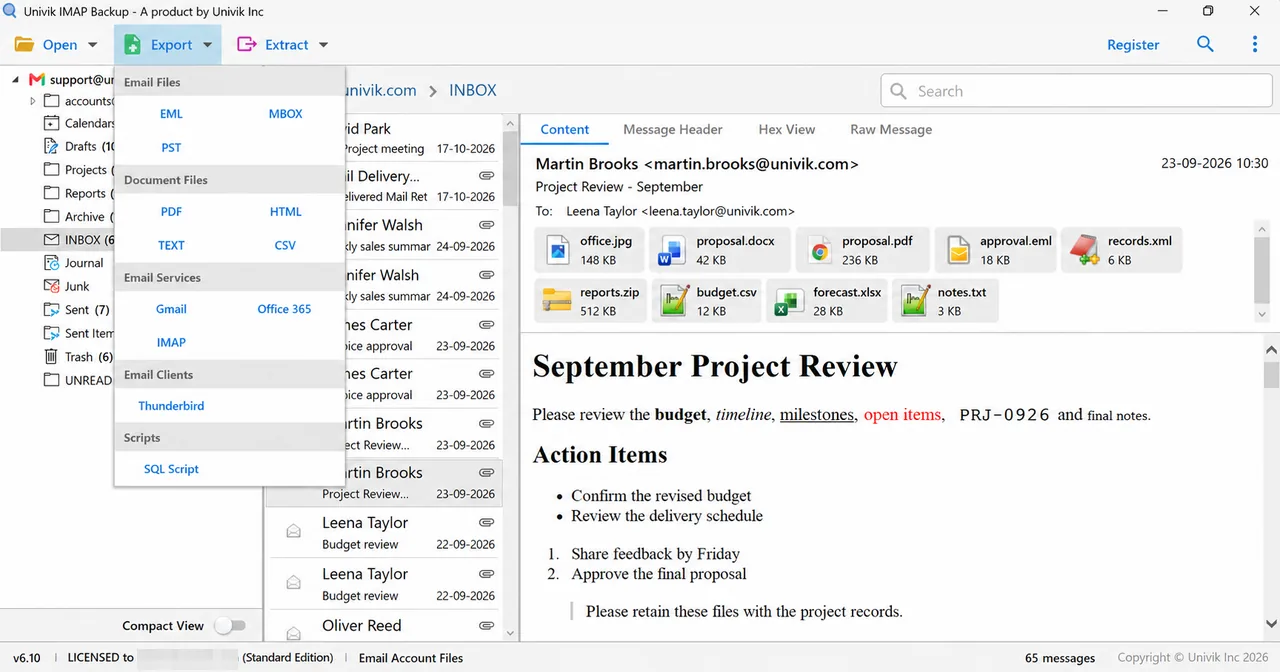
The Export menu groups its entries: EML, MBOX and PST sit under Email Files, Document Files holds PDF, HTML, TEXT and CSV and SQL Script has its own group, Scripts. Every format opens its own screen with a folder tree, a Location box and a Save button. A Show Error Logs tick box sits at the bottom left.

Writes Into Gmail, Office 365 or a Second IMAP Mailbox

Email Services on the Export menu holds Gmail, Office 365 and IMAP. Gmail takes a Sign in with Google switch or a Google app password. Office 365 offers three sign-in methods, among them admin impersonation for many mailboxes through Microsoft Graph. The IMAP entry has a Find my email settings button for the server, port and security fields.

Pulls Out Contact Details and Attachments

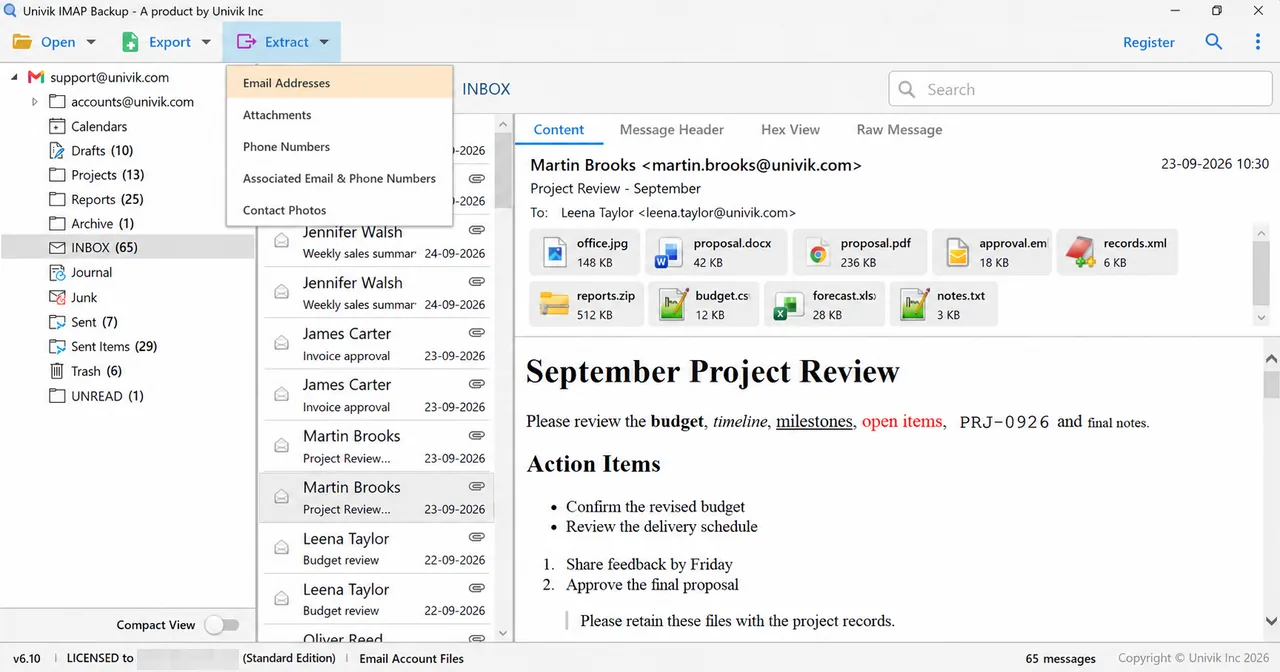
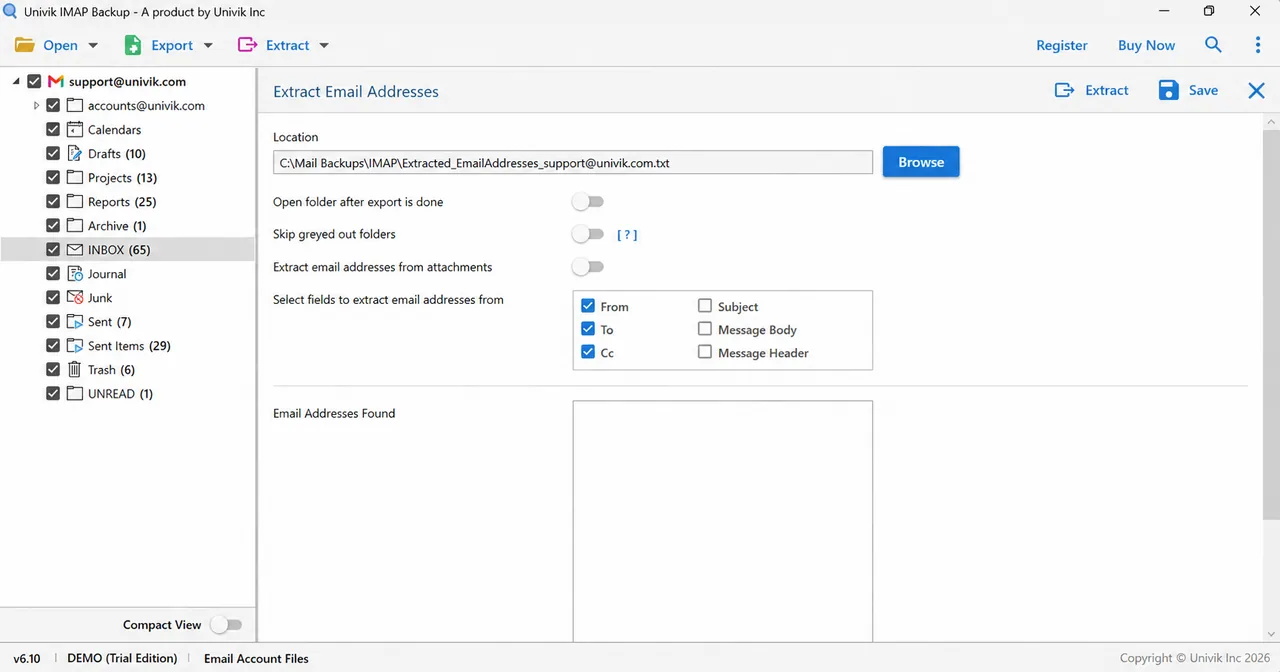
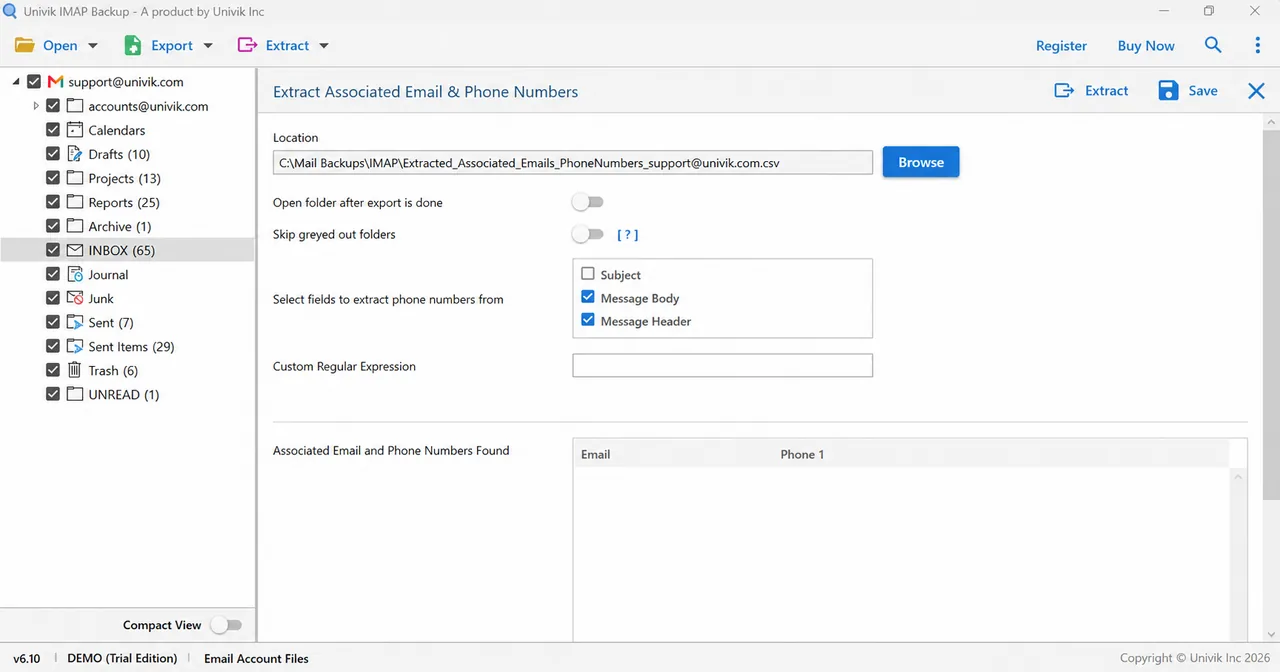
The Extract menu has five entries. Extract Email Addresses and Extract Phone Numbers each write a text file. Associated Email & Phone Numbers writes a CSV file with an Email column and a Phone 1 column. Extract Attachments takes a file extension filter and Contact Photos writes the pictures to a folder you choose.

Options That Change Each Format

Create individual PST file for each folder writes one PST per folder. The CSV export lets you choose Message Body, Raw Message, Message Header, Cc and Bcc fields next to the locked From, Subject and To. The PDF export can number the pages and print the file name above the message.

Univik IMAP Backup Export menu with five groups of output targets
Export menu: five groups, from Email Files to Scripts, hold 12 entries.
Univik IMAP Backup Extract menu with five extract options
Extract menu: five entries for addresses, attachments, phone numbers, pairs and photos.

 Problem

Why Your IMAP Mail Needs a Second Copy

IMAP keeps the master copy of your mail on a server and your mail program only shows it. Two things get in the way of keeping a second copy.

A Closed Account Takes the Mail With It

IMAP stores messages and folders on the mail server. When a hosting plan ends or the provider deletes a mailbox, the messages on that server usually go with it. Only a copy on your own PC survives.

Sign-In Rules Differ by Provider

Google Account Help says app passwords work only with 2-Step Verification turned on. Microsoft Learn says Exchange Online turns IMAP4 off when security defaults are enabled. Each provider needs its own sign-in step before any backup tool can read the mailbox.

Save a Copy of the Mailbox With Univik IMAP Backup

Univik IMAP Backup signs in once with an email address and a password and reads the folders over IMAP. Tick the folders, choose a format and press Save. The files land in a folder on your PC, so a closed account or a lost server no longer takes the only copy with it.

 What It Reads and Writes

What Univik IMAP Backup Reads and Writes

Reads

Mailbox Folders

Univik IMAP Backup reads the folder tree of a mailbox: INBOX, Sent, Drafts, Trash, Archive and custom folders like Projects and Reports. Message counts appear beside each folder, for example INBOX (65) in the test mailbox.

Message Parts

Content, Header, Hex, Raw

Univik IMAP Backup opens each message in four tabs. Content shows the rendered text, Message Header the header fields, Hex View the bytes and Raw Message the source. Attachments show their file names and sizes, for example proposal.pdf at 236 KB.

Writes

Default Output Paths

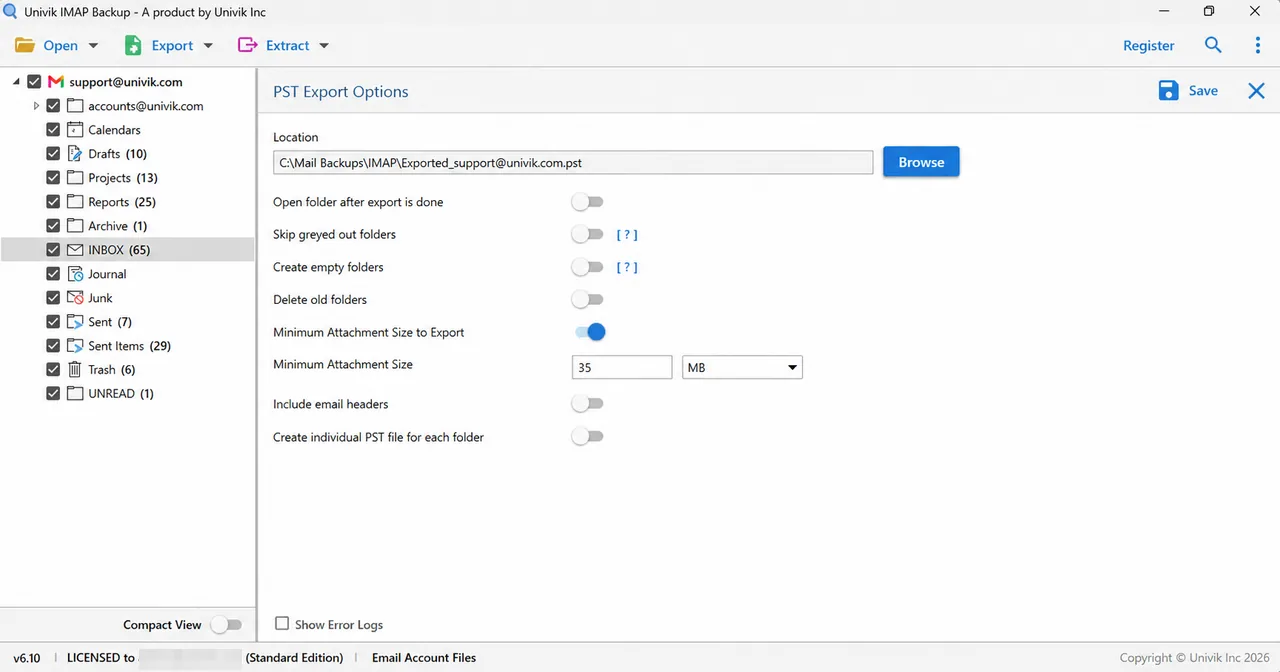
The EML screen suggests C:\Mail Backups\IMAP as the Location. The PST screen suggests a file in that folder named Exported_ followed by the account email address. The Thunderbird screen suggests the Local Folders path of the chosen profile.

OutputWhat its screen offers
EMLThe EML screen offers a Location box, file naming by Subject with a template box, Include email headers, Omit folder structure and Create empty folders.
MBOXThe MBOX screen offers a Location box, Delete old folders, Skip greyed out folders and Include email headers.
PSTThe PST screen takes a file path as Location and adds Create individual PST file for each folder and Include email headers.
PDFThe PDF screen offers Show page numbers, Show file name at top of document, Include raw message, Include hex view, Save attachments in folder and file naming by Subject.
HTMLThe HTML screen offers Include email headers, Include raw message, Include hex view and file naming by Subject with a template box.
TEXTThe TEXT screen offers file naming by Subject with a template box and a folder for attachments that follows the naming option.
CSVThe CSV screen offers Single file for all folders, Include attachment details, a 32,767 character limit for Excel cells and a choice of fields.
SQL ScriptThe SQL Script screen offers Generate create table script, Separate SQL file per email and a Select server list that shows Microsoft SQL Server.
ThunderbirdThe Thunderbird screen asks you to close Thunderbird first and offers a Thunderbird Profile list that starts with the default-release profile.
Extract entryWhat its screen offers
Email AddressesThe Extract Email Addresses screen reads From, To and Cc by default and can add Subject, Message Body and Message Header. Location suggests a .txt file named Extracted_EmailAddresses_ followed by the account email. A switch adds the addresses found inside attachments and starts off.
AttachmentsThe Extract Attachments screen has a File Extensions Filter box with the usage example doc,pdf,xls. Location suggests C:\Mail Backups\IMAP and Delete old folders is a switch.
Phone NumbersThe Extract Phone Numbers screen suggests a .txt file named Extracted_PhoneNumbers_ followed by the account email. A switch adds phone numbers from attachments and a Phone Numbers Found list shows the result.
Associated Email & Phone NumbersThe Extract Associated Email & Phone Numbers screen suggests a .csv file and shows a grid with Email and Phone 1 columns. Message Body and Message Header are ticked by default, Subject is optional and a Custom Regular Expression box follows them.
Contact PhotosThe Extract Contact Photos screen offers a Location folder with Delete old folders, Create empty folders and Skip greyed out folders switches.
Univik IMAP Backup Extract Email Addresses screen with field choices
Extract Email Addresses: From, To and Cc are ticked by default and an Email Addresses Found list follows.
Univik IMAP Backup Extract Associated Email and Phone Numbers screen
Associated Email & Phone Numbers: a grid with Email and Phone 1 columns and a Custom Regular Expression box.

 Three Steps

How to Back Up IMAP Emails in Batch

Univik IMAP Backup needs an email address and a password for each mailbox. With those in hand the whole job takes three steps.

1

Add the Mailbox

Click Open, choose Email Accounts and then Add account. Type the Email and the Password. Open Advance Settings and press Find when the server is unknown. For many mailboxes choose Add accounts from CSV file instead.

2

Tick Folders and Choose a Format

Tick the folders in the tree and open the Export menu. Choose one output: PST suits an Outlook import and MBOX suits Thunderbird. PDF suits a records folder. Gmail, Office 365 and IMAP fill a live mailbox. Check the Location box before you go on.

3

Save and Check the Counts

Press Save in the top right corner to start the backup. Then compare the files in the output folder with the message counts in the tree before you close the old account. The Show Error Logs tick box sits at the bottom left of every export screen.

Univik IMAP Backup Add Email Account dialog with Advance Settings and Find
Add Email Account: type the Email and the Password. Advance Settings holds Imap Server, Imap Port, Secure Port and the Find button.
Univik IMAP Backup PST Export Options with tree, location and Save
PST Export Options: tick the folders, check the Location file path and press Save. Every other output opens its own screen.
Download the Free Trial

Windows · email address and password only · Trial Edition exports 10 items per folder

 Who Uses It

When You Need IMAP Backup Software

Three situations suit Univik IMAP Backup, from a hosting plan that is ending to a long list of mailboxes.

A Hosting Plan or Domain Is Ending

Mail on a hosting or domain plan lives on the provider's server. Before the plan ends, add each address, tick the folders and save them as PST or EML. Outlook opens a PST file and Thunderbird opens EML messages.

A Long List of Mailboxes

An office with many addresses can list them in a CSV file as email,password lines. The tool checks each account while the file loads and adds the ones that sign in. Accounts that fail stay out of the list.

Mail Kept as Records

Contracts and approvals often stay in mail for years. The PDF export can number the pages and print the file name above the message. Include raw message and Include hex view are two more PDF options that add the message source. The CSV export lists From, Subject and To for a spreadsheet.

 Before You Start

What to Check Before a Batch IMAP Backup

Sign-in check

Univik IMAP Backup reads a mailbox through IMAP, so IMAP must be on at the server. Microsoft Learn says Exchange Online has IMAP4 on by default and turns it off when security defaults are enabled. Clients reach Outlook.office365.com on port 993 with SSL/TLS.

Port 993 is the IMAP port for Implicit TLS and port 143 is the cleartext port that can start TLS later, according to RFC 9051. RFC 8314 prefers Implicit TLS for mail access. The Imap Port box of Univik IMAP Backup starts at 993 with Secure Port ticked, which matches the Implicit TLS port.

A Google app password needs 2-Step Verification on the account, says Google Account Help. The Gmail target of Univik IMAP Backup accepts an app password or a Sign in with Google switch.

The Find button fills Imap Server and Imap Port from the email address. When it finds nothing, type the values from your provider's help page by hand. In a CSV file the Advance Settings apply to every account listed.

Univik IMAP Backup Add Email Account dialog in CSV file mode
CSV file mode: format email,password with a sample file to download. Validate checks the list again and the button shows how many accounts will be added.

 Side by Side

Three Ways to Keep a Copy of IMAP Mail

A copy made inside an email program is free and fits one small mailbox. A batch of mailboxes or a set of file formats needs IMAP email backup software, as the table shows.

What you need Copy in an Email Program Provider's Own Export Univik IMAP BackupTRIAL
PriceIncluded with the programOften part of the planFrom $99
Many accounts in one batchFolders copied by handDiffers by providerYes, from a CSV file
Output formatsStore of the mail programDiffers by provider8 file formats
Preview before savingYes, in the programDiffers by providerContent, Header, Hex and Raw tabs
Sends mail to Gmail, Office 365 or IMAPDrag between accountsDiffers by providerYes, from the Export menu

Copying folders between accounts in a mail program is free and works for one small mailbox. However, it stops there once the list of accounts grows or the mail has to leave as PDF or SQL files.

 What You Need

System Requirements Univik IMAP Backup runs on Windows 11 or 10 with .NET Framework 4.8 or higher

Windows Version

Windows 11 or Windows 10. The .NET Framework must be version 4.8 or higher. Current builds of both Windows versions include it.

Mailbox Access

An email address and a password for each mailbox, with IMAP turned on at the server. The Gmail and Office 365 targets add their own sign-in step.

Free Disk Space

The saved files take space on the drive named in the Location box. Webmail shows the mailbox size, which is the number to compare.

Internet Connection

Reading a mailbox and sending mail to Gmail, Office 365 or IMAP need a connection. Saved files open without one.

Software InformationUnivik IMAP Backup
Version6.10 (Latest)
LicenceFree Trial Edition, paid licences from $99
PlatformWindows 11 and Windows 10
Framework.NET Framework 4.8 or higher
ReadsMailboxes on IMAP servers, added one by one or from a CSV file of email,password lines
WritesMail as PST, EML and MBOX, readable copies as PDF, HTML and TEXT and a sheet as CSV. Extract writes TXT and CSV lists. SQL Script writes statements for the database server that the Select server list names
Moves ToGmail and Office 365 mailboxes, other IMAP mailboxes and a Thunderbird profile
Does Not NeedA separate email program to read the mailbox, because the software signs in to the IMAP server itself
Not CoveredMailboxes on servers that have IMAP turned off

 Questions

IMAP Backup Software Questions

Univik IMAP Backup signs in with an email address and a password. Click Open, choose Email Accounts and Add account, tick the folders in the tree, choose a format on the Export menu and press Save. The files land in the Location folder on your PC, for example C:\Mail Backups\IMAP.

Yes. Univik IMAP Backup loads a CSV file with one email,password pair per line through Add accounts from CSV file. Each account is signed in once and only accounts that sign in are added. A sample CSV file is available in the same window and the Advance Settings apply to every account in the file.

Univik IMAP Backup saves 8 file formats: EML, MBOX and PST for email files, PDF, HTML and TEXT for documents, CSV for sheets and SQL Script for databases. The Export menu also holds 4 direct targets: Gmail, Office 365, IMAP and a Thunderbird profile. Every entry opens its own options screen with a Save button.

Not always. The Find button in Advance Settings looks up Imap Server from the email address and the port starts at 993 with Secure Port ticked. When nothing is found, type the server and port from your provider by hand. In a CSV file an empty Imap Server field makes the software look it up for each address.

Yes, from the Export menu under Email Services. Gmail accepts a Sign in with Google switch or a Google app password. Office 365 offers three sign-in methods: a person, admin impersonation for many mailboxes through Microsoft Graph and Microsoft Graph PowerShell for any organization. The IMAP entry targets another IMAP mailbox with a username, password, server, port and security setting.

Yes. The preview window lists the message count of every folder and opens each message in four tabs, from Content to Raw Message. The Hex View tab shows the bytes. Attachment names and sizes show above the text. The Advanced Search icon at the top right runs keyword, date range and sender queries once data is loaded.

Yes. Five entries sit on the Extract menu: Attachments, Contact Photos, Email Addresses, Phone Numbers and Associated Email & Phone Numbers. Extract Email Addresses reads From, To and Cc by default and can add Subject, Message Body and Message Header. Extract Attachments has a File Extensions Filter for lists like doc,pdf,xls.

The CSV screen always writes From, Subject and To. Message Body, Raw Message, Message Header, Cc and Bcc are ticked by default and can be switched off. Single file for all folders joins every folder in one sheet and a character limit option keeps each cell inside the 32,767 characters that Excel allows.

Univik IMAP Backup has a free Trial Edition that exports 10 items per folder, enough to open a PST or an EML file and compare it with the mailbox. A paid licence removes that limit and starts at $99.

 How-To Guides

Guides Around IMAP Mailboxes Server settings, backups before a move and tools to open the saved files

Find Server Settings

4 guides

Back Up and Move Mail

5 guides

Open and Convert Saved Files

4 guides

Compiled by Univik Product team

Menus, options and defaults on this page come from version 6.10 of Univik IMAP Backup. Protocol facts were checked on 27 October 2026 against RFC 9051, RFC 8314, Google Account Help and Microsoft Learn. Screenshots show a Univik test mailbox with the licence address hidden.

The Trial Edition exports 10 items per folder. Licences carry the terms of the Refund and Cancellation policy.

Updated on 27 October 2026

Univik Team Since 2013Checked on Version 6.10Trial Edition Available

Gmail is a product of Google and Office 365 is a product of Microsoft. Univik works independently of both.