Quick Answer
To cancel Google Workspace subscription, sign in to the Admin console and open Menu > Billing > Subscriptions. Click your subscription, choose More > Cancel Subscription and confirm. Cancelling deletes your users' Workspace data for good, so export it first.
Your admin account needs the Billing management privilege to cancel. Your user accounts and groups stay in place until you delete the organization's Google Account, which is a separate step.
If you want to cancel Google Workspace, you probably have a good reason: the cost, a move to another email service or a business that is closing. But cancelling also deletes your users' data, which Google can't bring back. That includes every Gmail mailbox, Calendar entry and Drive file in your domain, so your team's old emails and shared documents go too.
I'd save a copy before you even open the Billing page. Google's Data export tool stops covering core services once you cancel, so your copy has to come first. The export usually takes about 72 hours and can run for up to 14 days, so start early.
Below you'll find the exact clicks for each subscription type, what you pay afterwards and two ways to save your data first. The screenshots come from an Enterprise Plus account with 5 licences, so your menu names may look a little different on your plan.
What Happens to Your Data If You Cancel Google Workspace Subscription?
Google deletes your users' Workspace data when you cancel and can't restore that data afterwards. Google's own cancellation page tells you to export Gmail, Calendar, Chat and Drive data first. After you cancel, core services like Gmail, Calendar and Meet stop working. Services your people added on their own, like YouTube, Google Photos and Google Ads, stay.
Your user accounts, groups and organization structure stay after you cancel, so nobody is removed yet. That only changes when you delete the organization's Google Account, which is a separate step. However, data inside third-party apps that sign users in with Google isn't deleted for you. If you're leaving those apps, export that data and remove it yourself.
| What you do | What happens |
|---|---|
| Cancel the subscription | Cancelling deletes Workspace data for good. User accounts, groups and org units stay. Gmail, Calendar and Meet stop. |
| Keep a Cloud Identity edition after cancelling | Cloud Identity keeps Drive, Docs, Sheets, Slides and Keep available to users. Audits, reporting, sharing policies and alerts go away. Shared drives turn view-only. |
| Delete the organization's Google Account | Deleting the account removes all user accounts, groups and org units. Nobody can undo that. The Admin console and your billing records go with it. Google frees the domain for a new Google Account within 24 hours. |
Cancelling is the step that deletes your data. Deleting the account comes later and removes your people too, so treat them as two separate steps.
Three Situations Behind a Google Workspace Cancellation
Which of these is your week?
Your users are leaving for Microsoft 365 or another mail host. Save and check every mailbox before you cancel.
Save the data first →Your team got smaller. Read the alternatives in Google's cancel flow (reduce or suspend users) before you end the whole subscription.
See the cancel steps →Nobody will use the domain again. Once the subscription is gone, you may also want to delete the organization's account.
See the delete steps →Checks to Run Before You Cancel Google Workspace
Google's own cancellation pages point to five checks that are quick to run and can save you money or data.
- The Billing management privilege You need this privilege to cancel. If your account doesn't have it, ask an admin who does to cancel for you.
- A saved copy of your data Export your Gmail, Calendar, Chat and Drive data before you start, because Google's Data export tool leaves out core service data once a subscription is cancelled or suspended. A desktop backup covers mailboxes only, so keep it as a second copy.
- Third-party apps Apps where your users sign in with Google keep their own data. Export what you need and delete the rest. If you're keeping an app, check that users can still sign in after you cancel.
- Your domain registration If you bought your domain while signing up for Workspace, transfer domain management to Squarespace and turn SSO off before you delete the account. Otherwise you lose access to the domain.
- Invoices and receipts Billing records are out of reach once the account is deleted, so print your payment receipts and save your monthly invoices first.
How Billing Works After You Cancel
Your plan type decides your final bill, which Google sends at the start of next month for any unpaid charges. Also, usage since your last payment can count as unpaid charges.
| Plan | What you pay after cancelling |
|---|---|
| Flexible plan | New charges stop at once and you pay for the days you used, so cancelling on the 15th bills about half a month. |
| Annual or fixed-term plan | You pay the remaining balance of your commitment. |
| Paid Essentials | You pay the full monthly cost for each active user that month. |
If money is left over, you can ask for a refund on Google's refund request page. A 14-day free trial needs no refund because cancelling it costs nothing. Note: Google cancels a trial by itself if you haven't verified your domain within 9 days (Business editions that signed up with a business email are exempt) or haven't set up billing by the end of the trial.
How Do You Export Your Workspace Data With Google's Data Export Tool?
Start the export before anything else, because Google's tool stops covering core services after you cancel. It covers Gmail, Drive, Calendar, Contacts, Chat and Groups, with each service adding to the export time.
- Check who can run it Only a super administrator can start the export. That account has to be at least 30 days old (unless your organization is newer) and needs 2-Step Verification turned on. If your organization has more than 1,000 users or FedRAMP authorization, contact Google Workspace support first.
- Open the Data export page In the Admin console choose Menu > Data > Data import & export > Data export. If you have Enterprise Plus or Education Plus, Google shows a page called Choose the Workspace data you want to export instead.
- Set up the export Click Set up new export and name the job. Then choose your scope: either every user and shared drive in your organization or only selected users by group, org unit or user list. Click Start export.
- Wait for the files Google says an export is available no earlier than 48 hours after it starts. It usually takes about 72 hours and can take up to 14 days. You can't cancel a running export in the console. Only Google Workspace support can stop it.
- Download and check Download the zip files (one zip per user, split by service). If you use Google's own storage bucket, Google deletes them 60 days after the export begins, so subtract the days the export took to find your real deadline. Open a few mailboxes and Drive files before you cancel.
Limitations: Google's tool skips accounts created in the 24 hours before the export starts. It also skips deleted data that Vault didn't retain. Each user's data arrives as zip archives, so you open and check them on your own. Also, Google's page doesn't name a mail format for Gmail data. Check the format before you plan your import into a new platform.
If you're curious about Google's two other export routes, our Google Vault and Takeout comparison explains how they differ from the Data export tool.
How to Cancel Google Workspace Subscription in the Admin Console
These steps follow Google's cancellation page and fit a domain-verified subscription, which is what most business accounts hold. The flow itself is quick, since it takes only six steps. If your subscription is email-verified, the first five steps are the same and the flow then branches, as covered below.
- Sign in to the Admin console Open admin.google.com and sign in with an admin account that has the Billing management privilege.
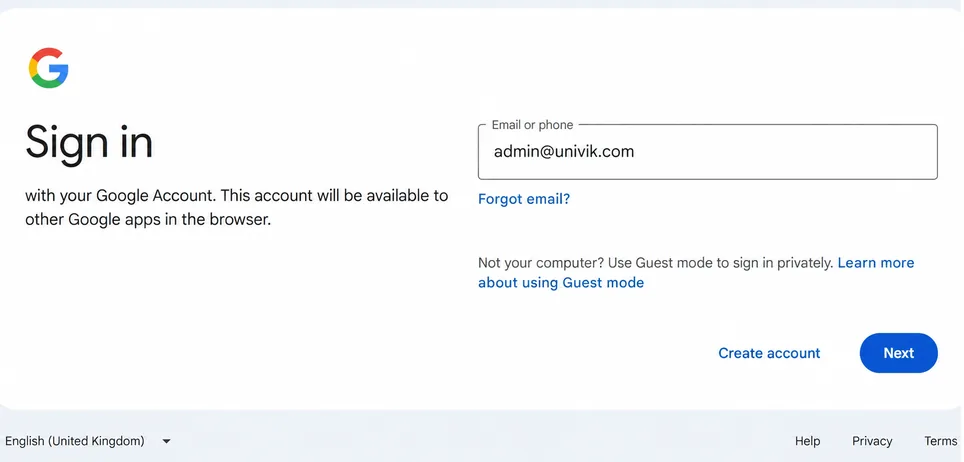
Use an admin account that holds the Billing management privilege. 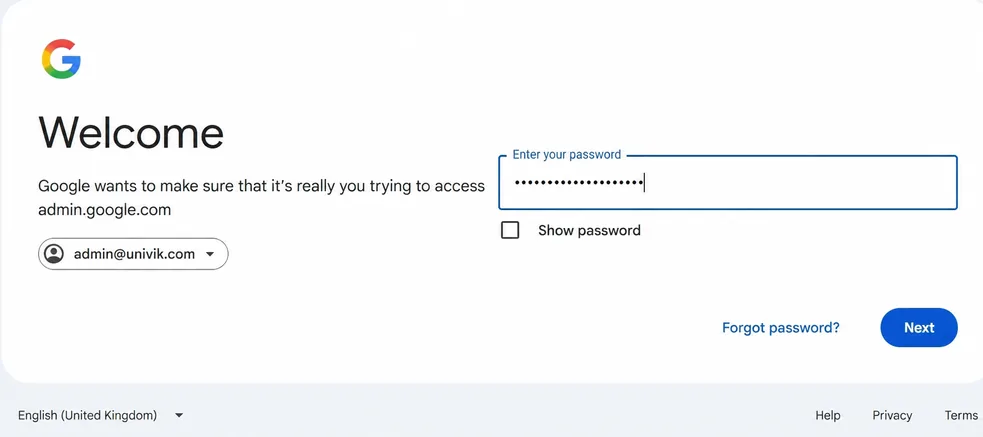
Google can ask for your password again before the console opens. - Open Billing and Subscriptions In the left menu choose Billing, then Subscriptions.
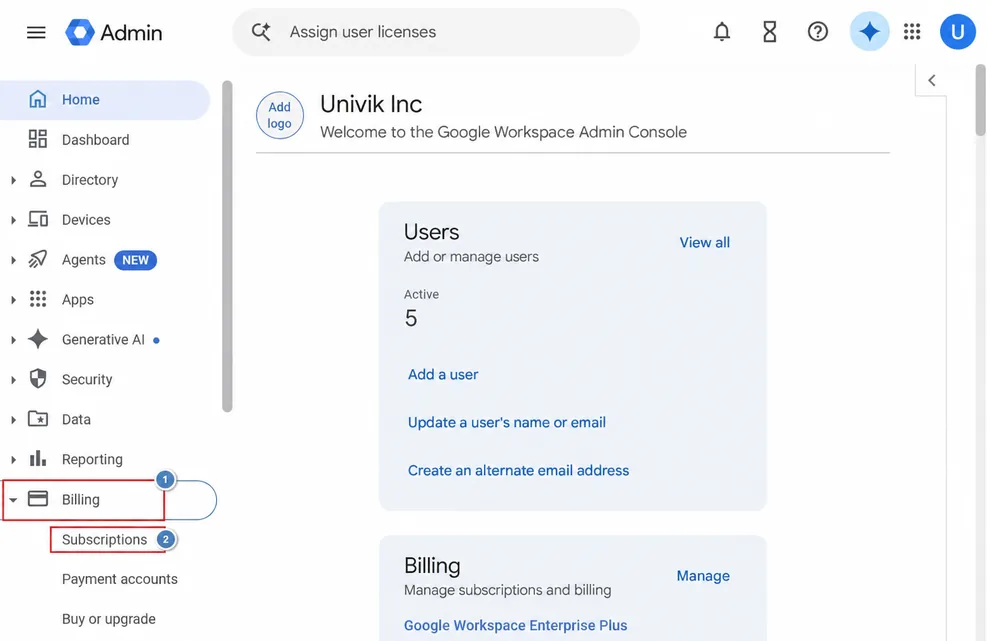
Open Billing first. The Subscriptions link appears beneath it. - Open your subscription Click the name of the subscription you want to end.
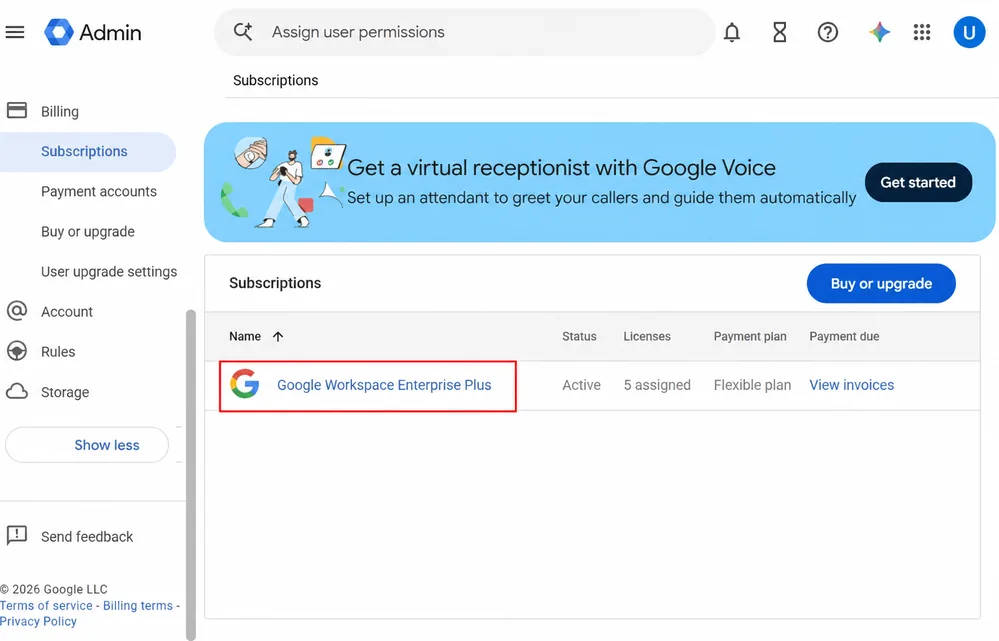
The list shows status, licences, payment plan and payment due for each subscription. - Choose More and Cancel Subscription Click More on the subscription page, then Cancel Subscription. Some accounts show Cancel Subscription without a More menu.
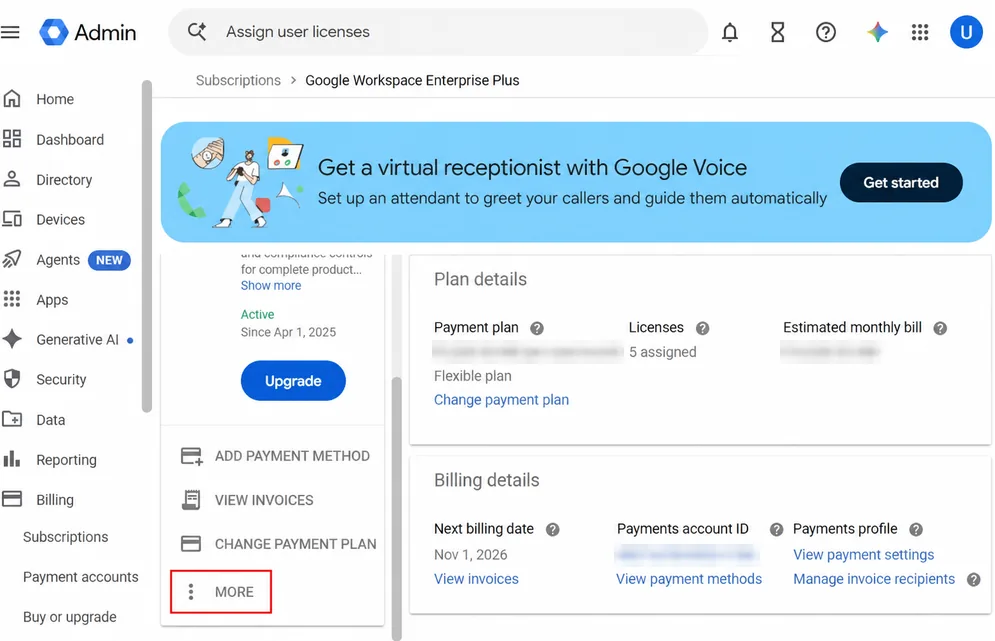
The More button sits under the payment options on the left of the subscription page. 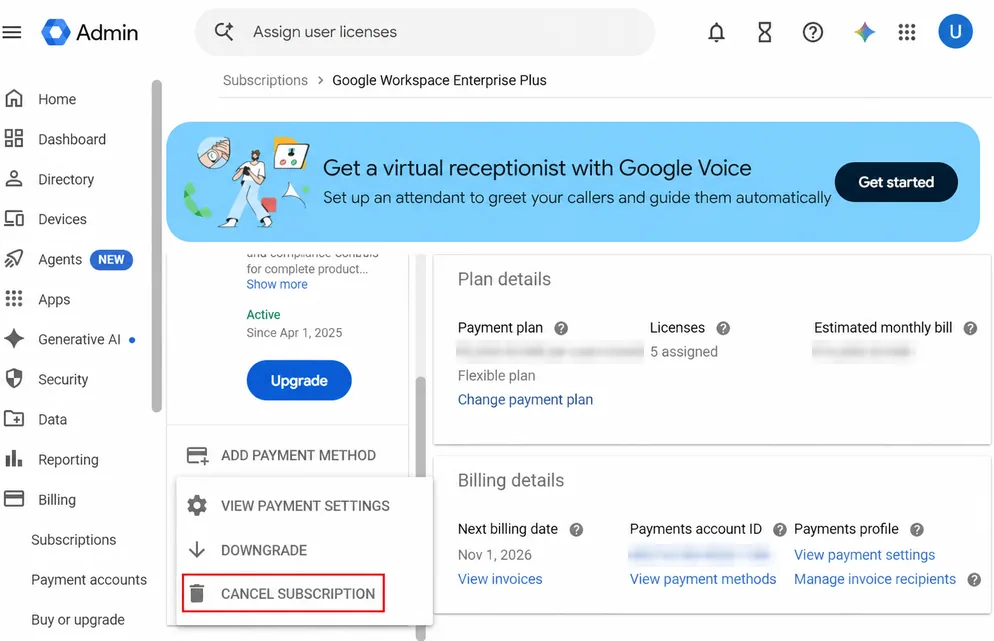
Some accounts show Cancel Subscription without a More menu. - Pick a reason and read the alternatives Select a cancellation reason if Google asks for one and click Continue. Google then offers three alternatives: reduce or suspend users, change your primary domain or chat with support. If none of them fits, click Continue to cancel.
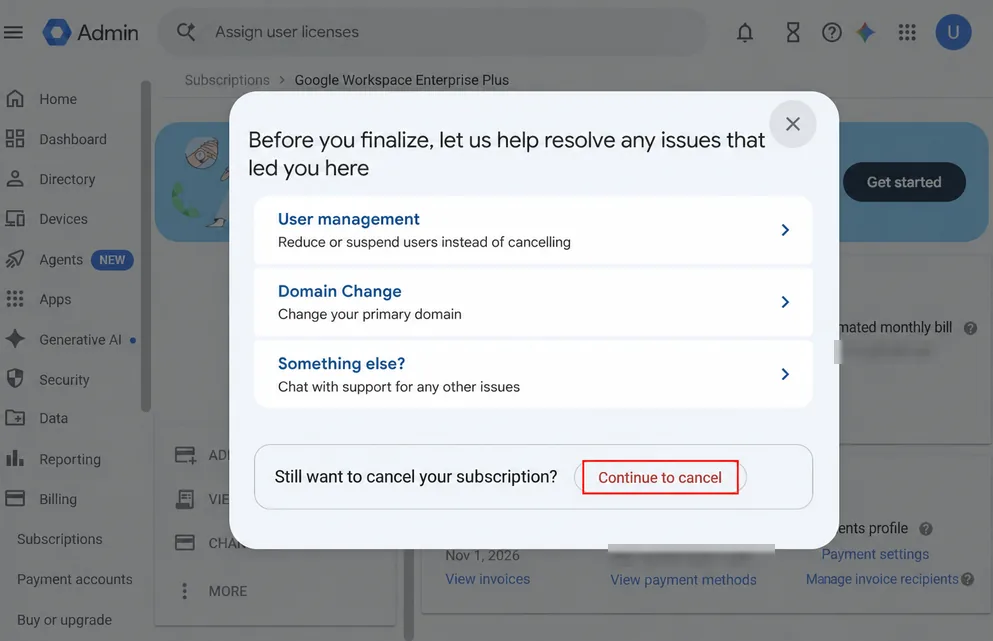
Read the three alternatives before you click Continue to cancel. - Confirm and finish Tick the box that says you read the information. Then type your email address and click Cancel My Subscription.
I'd stop at step 5 for a minute and read those alternatives. If cost is your only problem, one of them may keep your data: you can remove a few users or change your plan. Either choice also avoids the 51-day resubscribe clock.
Email-Verified Subscriptions
An email-verified subscription is one that was never verified with a domain. If that's yours, Google asks after step 5 what should happen to your users' data. Then you pick one of two options.
- Let users keep their data and delete my organization's account: Your users' My Drive data stays with their accounts, which turn into unmanaged consumer accounts with the same sign-in details. You give up the right to manage that data and can't reverse this choice. Google also deletes the organization's account together with its shared drive data, groups, org units and billing records. You are signed out of the Admin console.
- Delete users' data: Google deletes My Drive and shared drive data. This can take up to 90 days. Users can't open Drive in the meantime. Afterwards you can delete the organization's account, which frees the domain within 24 hours. Contacting Google Workspace support speeds up Drive deletion only.
Enter the account email address and click Cancel My Subscription. If you chose to delete the account, tick the box and click Delete Account. When a status message appears, click Close.
- 24 hours After you delete the organization's account, Google frees your domain within 24 hours.
- 51 days If you keep the account, add a new subscription within 51 days to keep your users, groups and org units.
- 84 days The cancellation completes after 84 days. Until then, the Admin console shows Workspace subscriptions as Not Available.
- 90 days Drive data deletion for an email-verified account can take up to 90 days.
Delete the Organization's Google Account as a Separate Step
Cancelling a subscription and deleting the organization's account are two different actions. Google wants every paid subscription cancelled first, so you can delete the account only when Cloud Identity Free is the only subscription left. You also need the Domain settings privilege to delete it.
- Billing records Print receipts and save invoices for every subscription.
- User data Run the Data export tool. Also export or transfer ownership of your YouTube channels, photos and Google Ads accounts, because they are deleted with the account.
- Marketplace apps Open Apps > Google Workspace Marketplace apps > Apps list and uninstall each installed app.
- Google Cloud Delete linked projects and folders. Talk to project owners first, since deleting a project can break a running application.
- Domain registrar login Write down your registrar username and URL so you can still manage your domain after deletion.
- Android management Unlink zero-touch accounts and remove Android EMM bindings. EMM bindings need a super administrator.
Keep the account instead if you hold domain registration from sign-up or a paid Cloud Identity edition. The free Cloud Identity edition stays until you delete the whole account.
- Open Account settings In the left menu choose Account, then Account settings.
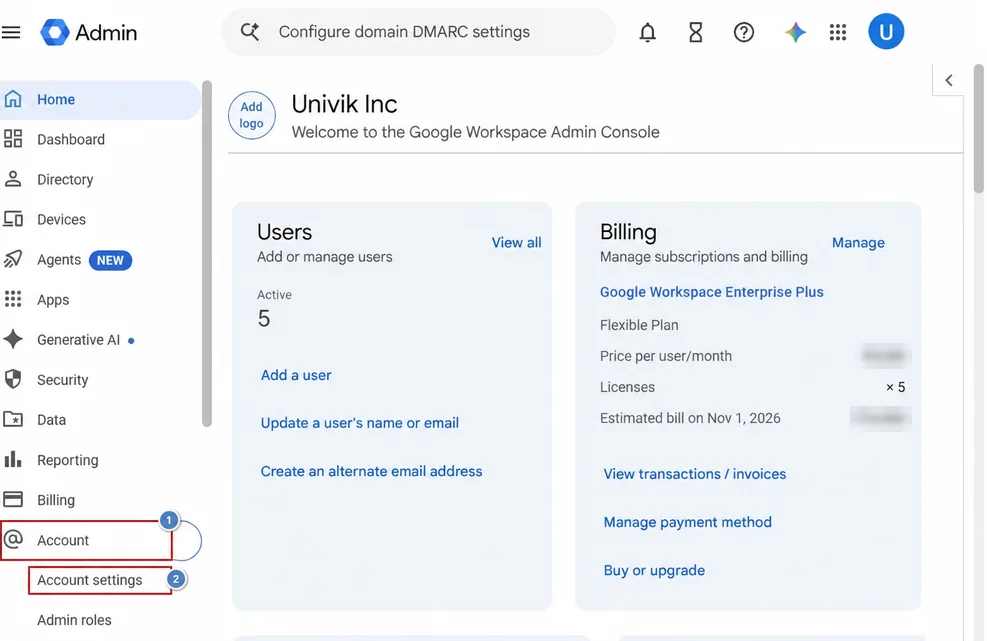
Account settings sits under Account in the left menu. - Open Account management Scroll to the Account management card and click it.
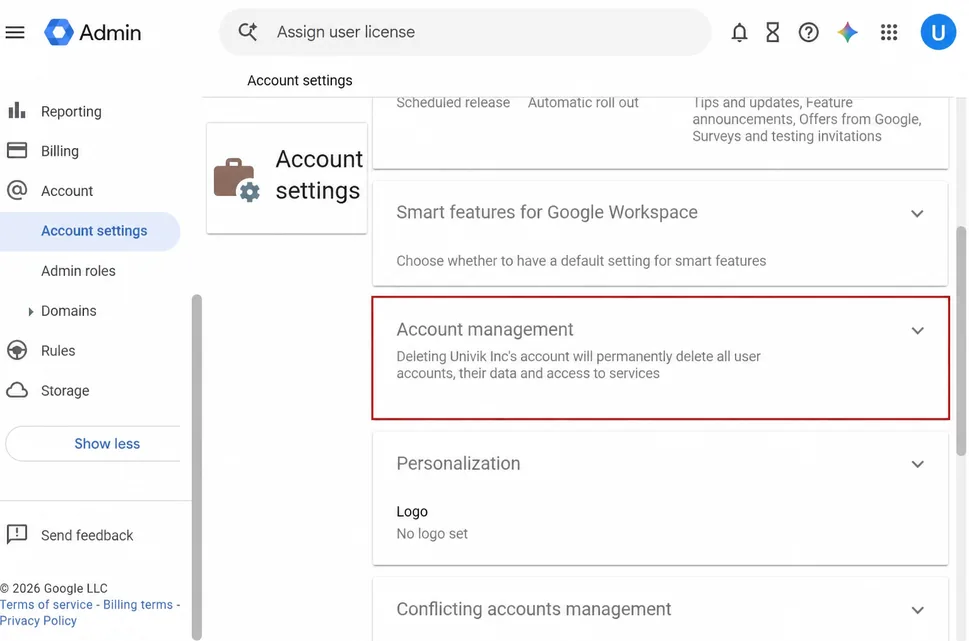
The card repeats that deleting the account removes every user and their data. - Click Delete account The panel lists the Data export tool, a reminder to cancel subscriptions and a Delete account button. Click that button.
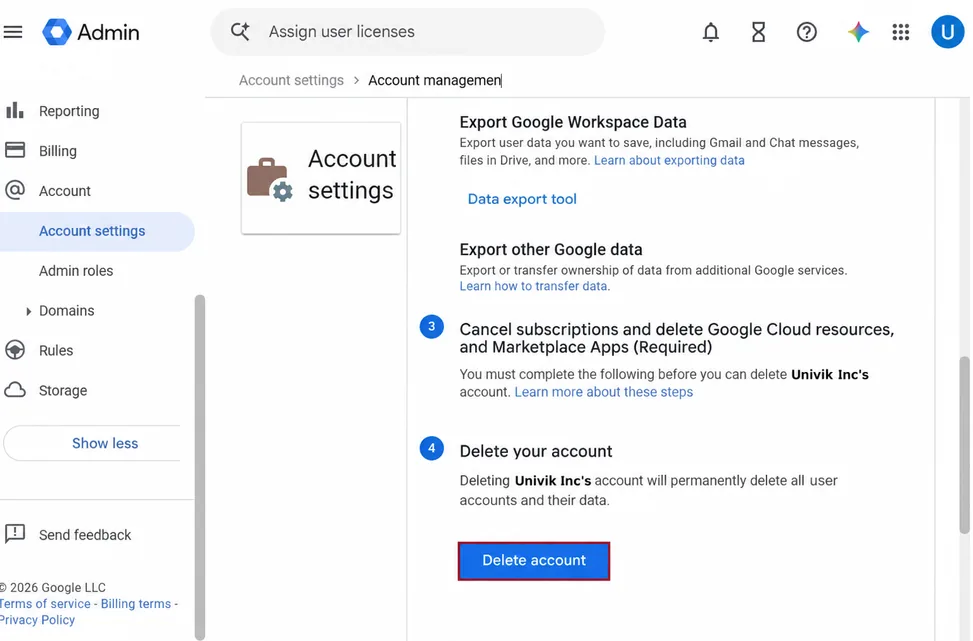
The Data export tool link sits above the Delete account button. - Confirm the deletion Tick the box that says you read the warnings, then click Delete Account again. Google signs you out of the Admin console and sends a final bill. Your domain is free for a new Google Account within 24 hours.
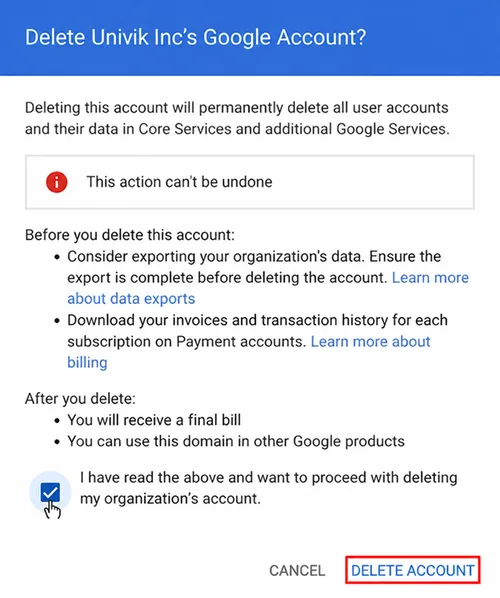
The dialog warns that the action can't be undone and that a final bill follows.
Where Google's Export Falls Short and What a Desktop Backup Adds
Google's Data export tool covers more than mail, but you get zip archives that you check one user at a time. If your team is moving to Microsoft 365 or another mail host, you often need mail as PST or MBOX files instead. A desktop backup is a simple way to produce those files for mailboxes.
Univik Email Backup Software signs in to a mailbox from a Windows PC and saves the mail as PST, PDF, MBOX, EML or MSG (plus 10+ other formats). For Gmail, it signs in through Google's own login window, so no password is stored.
- Sign in to the mailbox Install Email Backup and pick your Google service from the provider list. Sign in on Google's login window with the user whose mail you want to save, then repeat for the next user.
- Tick the folders Email Backup lists every folder with a checkbox before anything downloads, which makes it easy to tick the folders you want and skip Promotions and Spam. If you only need part of a mailbox, add a date range or a sender or subject filter.
- Choose the format Select PST for Outlook or Microsoft 365, MBOX for Thunderbird and EML for single message files. Select PDF when you need readable records. You can also split large PST output by a size you set.
- Start the backup Click Start Backup and watch the live progress. You can pause a job and resume it later. Email Backup also retries dropped connections by itself.
- Read the log Every job ends with a log that lists messages found, messages saved and attachments extracted. That log is a reliable record that your copy is complete, because it counts what was found and saved. Compare its counts with your mailbox in Gmail, then open three or four messages with attachments before you cancel.
Also, if your domain has many users, there is a tenant-wide route on the Google Workspace backup page. You link your domain once, using an admin sign-in together with a service account set up for domain-wide delegation. Email Backup then lists every user and backs up the ones you tick without asking staff for passwords.
Limitations: Email Backup saves mail only, so Drive files, Calendar, Contacts and Chat still need Google's Data export tool. It runs on Windows and needs .NET Framework 4.8, which comes preinstalled on Windows 10 and 11. The free trial saves the first 25 emails per folder.
Email Backup writes each mailbox to your PC as PST, PDF, MBOX or EML and ends every job with a log of saved counts. Try the free trial on one mailbox first.
Download Free Trial Select a Licence - From $99Runs on Windows 11 and 10. The free trial saves the first 25 emails per folder. A Personal licence costs $99 once for 1 PC. See all features.
What to Check After You Cancel
Check your saved copies first. A quick check now is far easier than a repair after your data is gone.
- Mailbox counts in your backup log match the counts you noted in Gmail for your three biggest users.
- Three or four messages open from your saved copy with their attachments intact.
- Google's export files are downloaded and opened well before day 60.
- Mail sent to your domain now lands in your new platform, because Gmail stops when your subscription ends.
- Third-party apps that used Google sign-in still let your users log in.
Finally, keep your backup folder and export files until you have checked your new platform. The right order is export, check, cancel and delete.
Fixes When Cancelling Doesn't Go as Planned
Do this: Check that your account holds the Billing management privilege, because that is the most likely reason the option is missing. Ask an admin who has it to cancel for you. If you bought Workspace through a reseller, Google says to contact that reseller instead.
Do this: Wait. Google's tool leaves out core service data once a subscription is cancelled or suspended. Only Google Workspace support can stop a running export. Download your files and check them first.
Do this: If you kept the organization's account, add a new subscription within 51 days to keep your users, groups and org units. Deleted Workspace data doesn't come back, so restore it from your saved copy.
Do this: Fix your admin sign-in first with Google's troubleshooting steps for the Admin console. Every step in this guide starts there.
Stuck on the backup part? Send Univik support a screenshot of your backup log.
- Cancelling deletes your users' Workspace data for good, so export it before the last click.
- Google's Data export tool usually takes about 72 hours and can take up to 14 days. Start it first.
- Cancelling keeps user accounts and groups. Deleting the organization's Google Account removes them and can't be undone.
- Flexible plans pay for days used. Annual plans pay the remaining balance. Paid Essentials pays a full month per active user.
- A desktop backup saves mailboxes as PST or MBOX files. Check the log counts against Gmail before you cancel.
FAQ: Cancelling Google Workspace
How do I cancel Google Workspace subscription?
Sign in to the Admin console with an account that holds the Billing management privilege and open Menu > Billing > Subscriptions. Click your subscription, then choose More > Cancel Subscription. Select a reason, click Continue to cancel, tick the confirmation box, enter your email address and click Cancel My Subscription. Export your users' data first, because cancelling deletes it for good.
Will I lose my emails if I cancel Google Workspace?
Yes. Google deletes your users' Workspace data when you cancel and can't restore it, so export or back up every mailbox first.
Does cancelling Google Workspace delete user accounts?
No. Cancelling keeps your user accounts, groups and org units. Only deleting the organization's Google Account removes them, together with the Admin console and your billing records.
How long does Google's Data export take?
Google makes an export available no earlier than 48 hours after it starts. It usually takes about 72 hours and can take up to 14 days. If you use Google's own storage, the files are deleted 60 days after the export begins.
Can I back up Google Workspace mailboxes without Google's export tool?
Yes. Univik Email Backup Software signs in to each Gmail or Google Workspace mailbox on a Windows PC and saves the mail as PST, PDF, MBOX, EML or MSG. It saves mail only, so use Google's Data export tool for Drive files, Calendar and Contacts. The free trial saves the first 25 emails per folder.
Can I resubscribe after I cancel Google Workspace?
Yes, if you keep the organization's account. Add a new subscription within 51 days to keep your users, groups and org units. The cancellation completes after 84 days.
How do I get a refund after cancelling Google Workspace?
Google bills unpaid charges at the start of next month. If money is left over after that, you can request a refund on Google's refund request page.
How long does Drive data deletion take after cancelling?
Drive data deletion can take up to 90 days for an email-verified subscription that uses the Delete users' data option. Users can't open Drive in the meantime. Contacting Google Workspace support speeds up Drive deletion only.

Admin console steps come from Google's own Workspace help pages, which we opened on October 27, 2026. The backup software steps were checked against its product page.
Sources we read: