Quick Answer
To migrate Foxmail to IMAP, collect the host, the port and the SSL mode of the new mailbox, switch IMAP access on, then upload a copy of the Foxmail store with a tool that writes over IMAP and compare the folder counts. Zoho and Yahoo both list port 993 with SSL. Gmail and Microsoft 365 follow their own sign-in rules.
Upload one small folder first, because a repeat run may add copies.
To migrate Foxmail to IMAP you send the mail of a Foxmail store to a mailbox on another server, such as a Zoho Mail box, a Yahoo account or a web host. You need three things for that move: a copy of the store, the server details of the new mailbox and a plan for the folders that you want to keep.
I took the server details from our Zoho Mail settings page and our Yahoo Mail settings page, then I read two RFCs on October 21, 2026. I also ran the IMAP route of a converter against two kinds of server myself, so you get an order of steps that I tested from the first folder to the last.
Gmail and Microsoft 365 speak IMAP too, but each one has sign-in rules of its own, so this page leaves both out. Their server details sit on our Gmail settings page and our Microsoft 365 settings page. You find the Gmail route in the guide to move Foxmail emails to Gmail. You find the Microsoft 365 route in the guide to Foxmail to Office 365. Everything on this page fits a plain IMAP host, so the Foxmail steps don't need a special server.
My test store runs Foxmail 7.2.25.563 and carries 2,876 messages in its first IMAP account plus 2,548 in its second. Together those accounts hold 5,424 messages, so you'll have a number to match on the new server once the upload ends.
Which Route Fits When You Migrate Foxmail to IMAP?
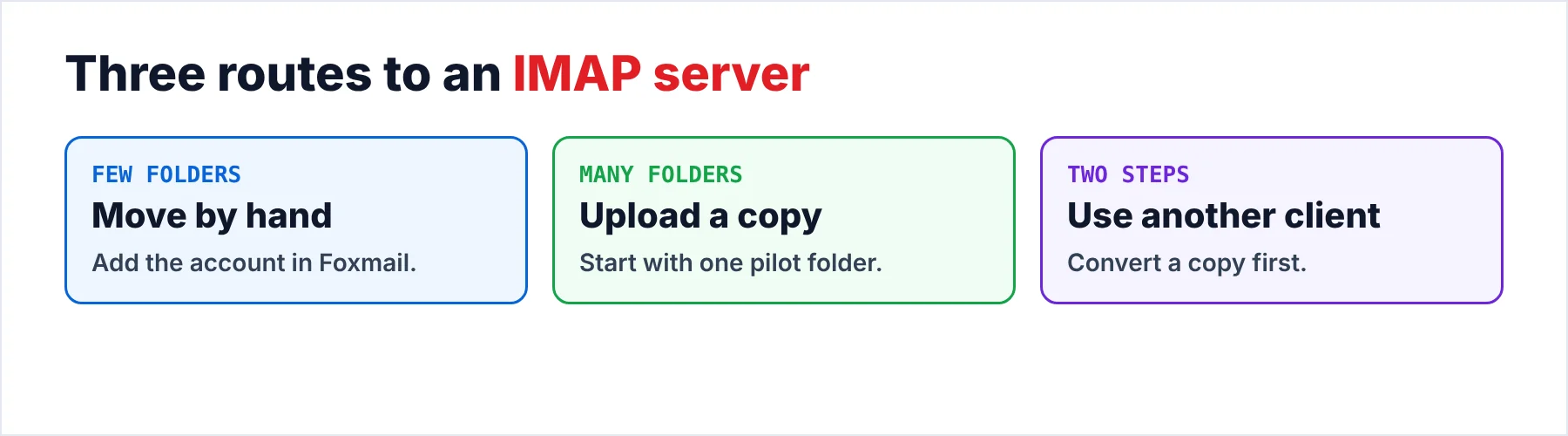
Three routes bring a store to a new server, so the table shows you when each route fits, what each route needs from you and which trap each route hides.
| Route | Fits when | You need | The trap |
|---|---|---|---|
| Move the mail by hand | Only a few small folders | Foxmail with both accounts added | You repeat the move for each folder |
| Upload from a copy | Many folders or a dead old PC | A copy of Storage with FMStorage.list plus the sign-in of the new mailbox | A pilot folder must come first |
| Go through another client | You already work in Thunderbird or Outlook | A converted copy of the Foxmail store plus Thunderbird or Outlook set up with the new account | Two steps need two sets of counts |
Foxmail can add the new account too, because Zoho documents the steps (Zoho page on adding the account to Foxmail), so you may try a small move across by hand. I'd pick the upload from a copy once the Foxmail store has many folders, since a repeated manual move gets tiring fast and invites mistakes. The third route suits you when Thunderbird or Outlook already runs on your PC, because that client can send the mail to the new account after you convert a copy of the store. The Foxmail to Thunderbird and Foxmail to Outlook guides cover that conversion.
Who Moves Old Mail to a New Host?
Three kinds of servers can sit behind the move you plan: a hosting plan that came with your domain, a company server that your IT team runs and a free account at a provider such as Yahoo Mail. Some people own a domain at a web host, so the hosting plan already includes a mailbox for the old mail.
If your team moves to the company server that IT runs, all staff mail ends up in one place. If you want a Zoho Mail box that any app can reach, you need the right details first.
- A web host mailboxYou find the host name in the hosting panel. The server name sits on the welcome email of most plans.
- A company serverYou ask the admin for the host, the port and the sign-in rule, since IT can block IMAP for some users.
- A Zoho Mail or Yahoo Mail accountBoth publish their IMAP settings, which the next section lists and which our Zoho and Yahoo settings pages repeat.
What Must You Know About the Server Before the Upload?
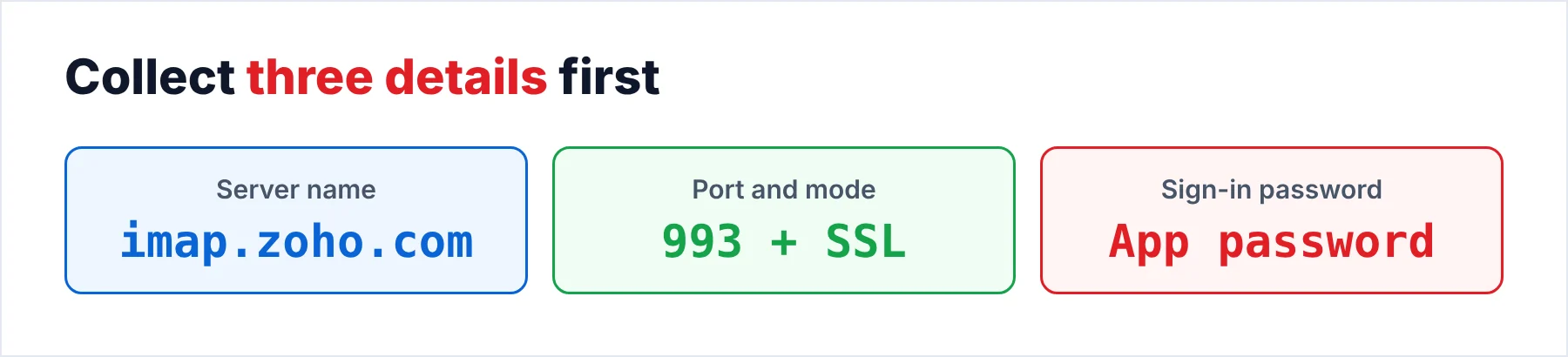
Five details decide whether a Zoho Mail box or any other server accepts the upload, so you collect all five before you start. Wrong details stop the sign-in at once. The table lists the details from our Zoho Mail settings page and our Yahoo Mail settings page.
| Detail | What to enter | Where I read it |
|---|---|---|
| Host | imap.zoho.com for personal Zoho accounts, imappro.zoho.com for paid organization accounts, imap.mail.yahoo.com for Yahoo | Our Zoho and Yahoo settings pages |
| Port and SSL | 993 with SSL | Our Zoho and Yahoo settings pages |
| Username | The full email address | Our Zoho and Yahoo settings pages |
| Password | An application-specific password when two-factor sign-in is on (Zoho), a generated app password (Yahoo) | Our Zoho and Yahoo settings pages |
| IMAP switch | Settings, Mail Accounts, then IMAP Access ticked (Zoho) | Our Zoho settings page and Zoho's Foxmail page |
The table lists port 993 for both hosts. That port starts TLS as soon as the connection opens. RFC 8314 prefers that style of connection over a plain port that upgrades with the STARTTLS command, which makes 993 the value to try first when your host lists more than one. Port 143 is that plain port in RFC 3501, so use 993 with SSL whenever your host offers it, because you get the safer setup.
Zoho keeps two server names. A personal @zoho.com address uses imap.zoho.com, while an organization account on a Zoho-hosted domain uses imappro.zoho.com. Yahoo Mail uses imap.mail.yahoo.com. Check the host before you type it, because a wrong host name stops the connection.
On Zoho you open Settings, pick your address under Mail Accounts and tick IMAP Access in the IMAP section. You then see the same details that the table lists.
Note: Zoho lists 993 with SSL for IMAP, but newly signed-up free plan users don't have IMAP access. Organization users should ask the admin, since a policy may block IMAP for some users. Check that policy before you move the mail of a whole account.
How Do the Foxmail Folders Land on the Server?
Each account in the Storage folder keeps its mail apart. You don't pick the folder names, because the server on the other side decides how each folder name looks. RFC 3501 reserves INBOX for the primary mailbox and treats that name as case-insensitive. RFC 3501 also lets each server pick the character that separates nested folder levels, so a nested folder may show a slash on one server and a dot on another.
Zoho adds a rule for each folder: only the folders that you tick in Folder Settings reach an IMAP client. If an uploaded folder doesn't show in your mail app, you open that setting first. The write-up on where Foxmail stores emails shows how the folders of each account sit on your disk.
Write down the list of Foxmail folders and mark the Foxmail folders that the new mailbox already has. Test one nested folder from that list before you run a whole tree, then take a quick look at its name in webmail, because a name that looks odd on the server is much easier to fix after one folder than after a whole account. That small test costs you a few minutes while a messy tree costs you an afternoon.
How Do You Upload Foxmail Emails to an IMAP Server?
A converter saves you the afternoon, because you tick the folders, which is simpler than dragging each folder across. Univik Foxmail Converter works from a copy of your Foxmail data, meaning the Storage folder plus the FMStorage.list file beside it. The PC that runs the upload needs no Foxmail install. The converter opens the copy read-only, which keeps your original data as it was. The Export menu of the converter lists IMAP in the Email Services group, beside the Gmail and Office 365 routes.
I tested the IMAP route myself against two kinds of server, a free provider mailbox and a custom-host IMAP account. The five steps that follow give you the order I'd use for any IMAP server, since I tested that order.
- Load a copy of the Foxmail storeOpen the copied Storage folder in the converter, with its FMStorage.list file beside it. Your accounts show up as a list that you can tick.
- Tick one small folder as a pilotTick a single small folder before anything else. A pilot folder shows you where the mail lands before you commit a whole account.
- Choose IMAP under Email ServicesOpen the Export menu and pick IMAP in the Email Services group. Then sign in to the new mailbox with the details from your checklist.
- Run the pilot and open webmailRun the pilot folder, then open the mailbox in webmail, which is a quick way to compare the folder name and the message count with Foxmail. Open one email that carries an attachment too.
- Run the rest and compare the countsTick the other folders and run each one once. Write the count of every folder down. My sample store holds 5,424 messages in two accounts, so the new server should show that total after a full run.
I'd run the steps in that order every time, even for a small store, because the pilot shows you the folder name, the count and one attachment. However, the order of the steps matters more than the speed of the run.
Univik Foxmail Converter reads Foxmail 6.x to 7.2 stores from a copy. Foxmail Converter sends the mail of each ticked folder to an IMAP server. The same run can write PST, MBOX, EML or PDF output instead.
Download Free Trial Select a Licence - From $39Foxmail Converter needs 64-bit Windows 10 or 11 plus .NET Framework 4.8 on the PC that sends the mail. The free trial of the converter caps each folder at 10 items.
How Do You Check the Counts for Duplicates?
Count the mail in each folder before every run, because the server won't warn you about a repeat. RFC 3501 explains the repeat: the append step adds a new message to the end of the destination mailbox. That section names no check for an existing message. So a server that receives the same message twice may hold both copies of that message, which is why you count before every second run.
- Count in FoxmailYou note the messages in the folder before the run.
- Count on the serverYou note the mail that already sits in that folder of the Zoho or Yahoo mailbox.
- Count after the runYou should see the Foxmail count plus the old server count on the server.
- Second runStart one only after a failed run. Empty the failed folder on the server first.
Give the last item your full attention, because a second run on top of a half-finished folder is exactly how doubles appear. When the counts differ, sort the folder by subject in the webmail of Zoho Mail or Yahoo Mail, which is an easy way to scan for pairs. I'd never run a folder twice before I've read both counts.
What Goes Wrong With a Server Upload?
Do this: Type the full address into the username field, then add an app password in place of the login password. Zoho asks for an application-specific password when two-factor sign-in is on. Zoho also needs IMAP Access ticked before any client tries the sign-in. Yahoo lists a generated app password for the same sign-in.
Do this: Compare the host and the port with the table of server details. Use port 993 with SSL as Zoho and Yahoo list. A port 143 setup that expects an SSL-only line may never start.
Do this: Open the Folder Settings of Zoho and tick the new folders. Then refresh the folders in your mail app. Webmail is the easy place to see whether the new folders exist on the server.
Do this: Compare Foxmail and the server folder by folder. Look for a folder that held mail before the run. Look for a second run on the same folder too. Empty the failed folder on the server before you run it again.
When the upload keeps failing, send Univik support the host, the port and the message that the server returned.
- Collect the host, the port, the SSL mode and the sign-in first.
- Use port 993 with SSL when the host offers it.
- Run one small Foxmail folder as a pilot and open it in webmail.
- Count before and after every run, since an upload may add copies.
- Gmail and Microsoft 365 keep their own guides.
FAQ: Migrate Foxmail to IMAP

Read on October 21, 2026: Zoho's Foxmail setup page, our Zoho and Yahoo settings pages, RFC 3501 and RFC 8314. My own sample store gave the message counts. My own test of the IMAP route gave the order of the steps.
Pages we read: