Quick Answer
To move Foxmail to Outlook, add the account to Outlook over IMAP when the server still holds the old mail. Otherwise convert the Storage folder to a PST file and import it. Export Mail saves only one folder per pass as .eml or .box files. The new Outlook only displays a dropped .eml file.
Classic Outlook imports the PST under File > Open & Export > Import/Export. The new Outlook uses Settings > Data files > Import.
When you search for this move, most guides stop before the Outlook import. They end after one step: right-click a folder in Foxmail, pick Export Mail and drag the result into Outlook. That step works when you only have a small folder. It falls apart when you have several accounts, a deep folder tree and a Foxmail that no longer starts.
Our own test store held 2 accounts and 86,000 emails, with custom folders on top of the default ones. Export Mail takes one folder per pass, so a store like that turns into an afternoon of right-clicks for you. The routes in this guide start with the cheap ones and end with the one that handles the whole Foxmail store.
Why Is Foxmail to Outlook Not a Direct Move?
Foxmail 7.2 keeps every message as its own file under a Storage folder, with a separate Boxes file that maps messages to folders. Outlook keeps mail inside PST and OST data files, so neither program reads the other's layout, which is why Foxmail mail has to be turned into a format Outlook does read before it can go in, even though both programs sit on the same PC. The table pairs each way you can get Foxmail mail into Outlook with what actually happens.
Mail can also travel the other way. In my copy of Foxmail 7.2 the Import list names Outlook Account, Outlook PST and Outlook Express Account, which bring Outlook mail into Foxmail. This page covers the direction out of Foxmail.
| What you tried | What happens and why |
|---|---|
| Export Mail, then drag the .eml files into classic Outlook | Export Mail writes .eml or .box files for one folder at a time. A few .eml files drag in fine. For a whole store, a PST built from the Storage folder is the better fit. |
| Drop .eml files on the new Outlook | Per Microsoft's documentation on .eml files, a dropped file opens in the reading pane and nothing more. The message is displayed there but never filed in a folder. |
| Add the Foxmail account to Outlook over IMAP | IMAP works when the mail still sits on the server. Mail that Foxmail kept only in local folders often never reached the server, so Outlook cannot download it. |
Two answers come out of that table. The first answer is IMAP, which is the easy one when you know every message still lives on a server, because the server does the copying for you. The second answer is a PST file, which is the reliable one when the mail lives only on this PC.
Who Needs to Make This Move in 2026?
Which setup is yours?
Your setup: the company mailbox lives in Microsoft 365 and Outlook is the standard client. Years of mail still sit in Foxmail on the company desktop. You want that mail in one place before the desktop is retired.
Compare the routes →Your setup: Foxmail still opens on this desktop and Outlook runs beside it. With one or two small folders to move, Export Mail and a few drags are the quick answer for you.
Find the mail first →Your setup: Foxmail won't start. The old PC may be gone too. A copy of the Storage folder on a USB stick is what you have left of the old mail.
Convert the copy →Where Does Foxmail Keep the Mail You Want to Move?
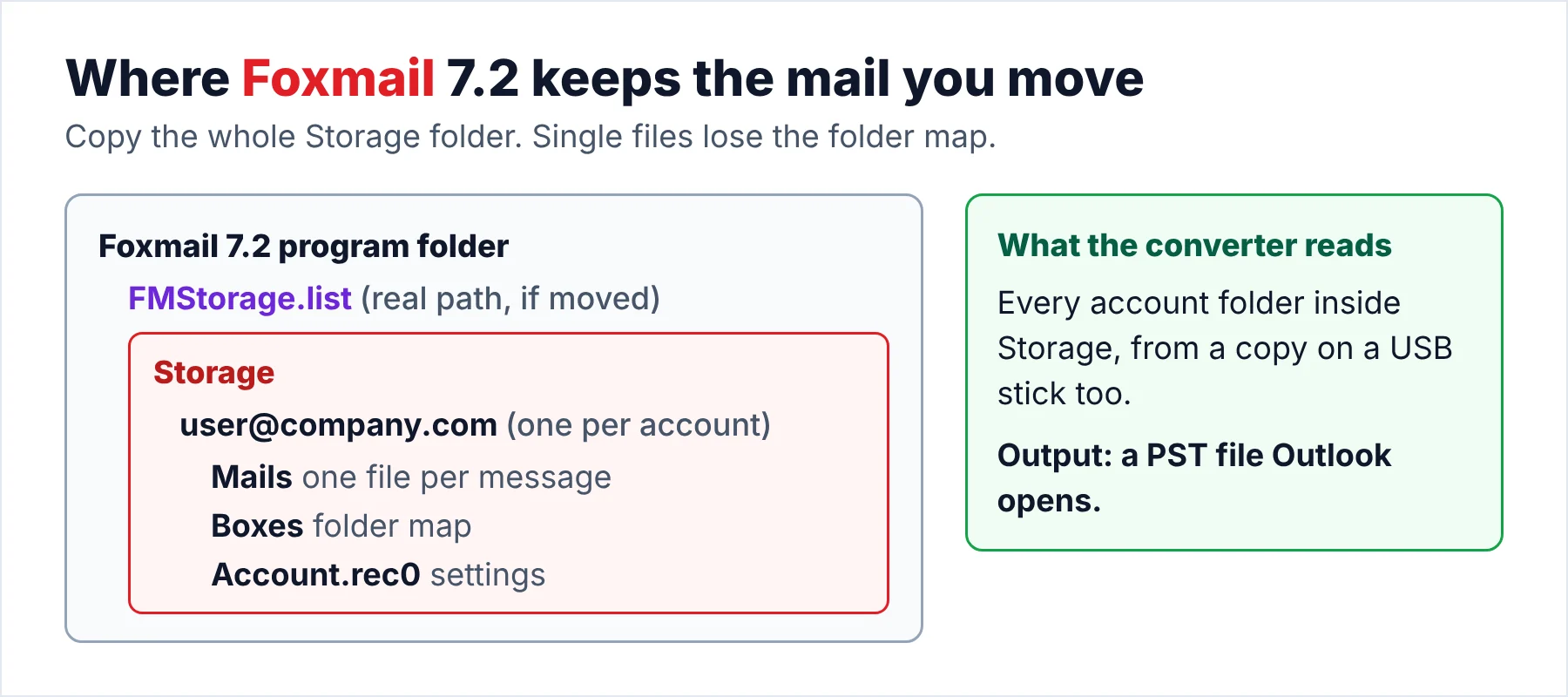
Foxmail 7.x writes its data to a Storage folder inside the program folder, with one subfolder per account named after the email address. A default install usually puts the Storage folder you want at C:\Program Files\Foxmail 7.2\Storage or C:\Foxmail 7.2\Storage. Inside an account folder under Storage, Mails holds one file per message while Boxes maps those messages to folders and Account.rec0 holds the account settings you entered in the client. In our Foxmail 7.2 sample store (version 7.2.25.563) message 2824 sits at Mails\8\24\2824.
When the store was moved off the program folder, the FMStorage.list file records the real path, so check that path on your own copy before you trust it. The guide on where Foxmail stores emails shows how to check that path on your own PC.
- Close FoxmailA running client can hold files open, so shut it before you copy anything.
- Copy the whole Storage folderSingle subfolders lose the Boxes map. The Boxes map is what puts each message back into the Inbox or Sent folder when you import.
- Note your folder countsWrite down the message count of your three biggest folders. You'll compare those counts with Outlook at the end.
Which Foxmail to Outlook Route Should You Choose?
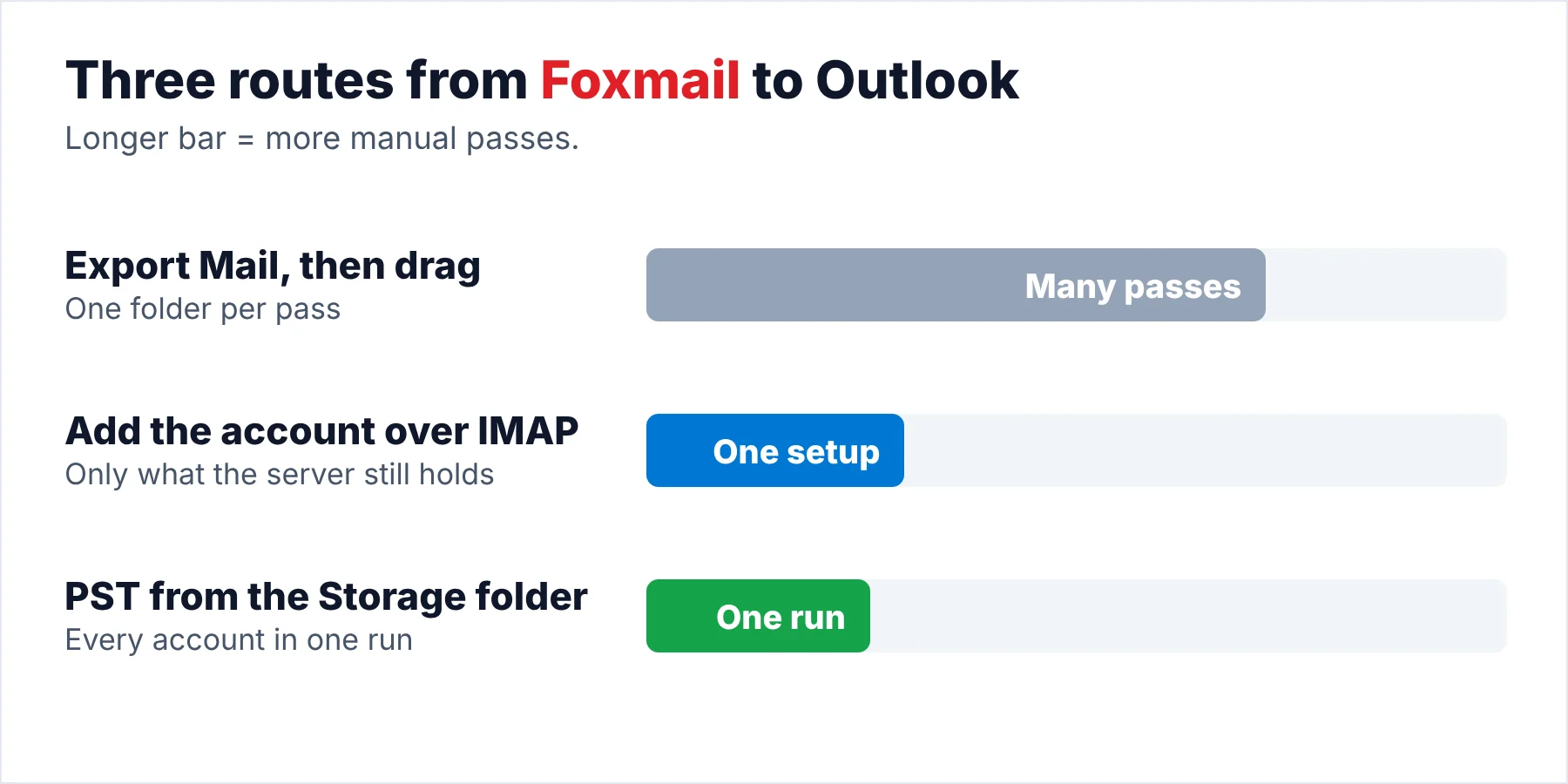
Three routes cover almost every copy of Foxmail mail, so pick the route by what you still have running, because each route needs something different from your old setup.
| Route | Needs | Cost | Result | Catch |
|---|---|---|---|---|
| Export Mail to .eml, then drag into classic Outlook | Foxmail plus classic Outlook on one PC | The Outlook licence you already hold | The messages of the folder you picked | One folder per pass. Foxmail must open. You rebuild the folder tree by hand |
| Add the account to Outlook over IMAP | Outlook only | Nothing extra | A fresh download of whatever the server still holds | IMAP accounts only. Local-only mail stays behind |
| Convert the Storage folder to PST with a desktop converter | One Windows PC | Trial first, paid licence after | A PST per account plus .vcf contacts and .ics calendars | Windows only. The trial saves 10 items per folder |
My advice is to try the IMAP route first if you use an IMAP account and the server still holds your old mail. Log in to the webmail and count the mail in one folder. If the count falls short of Foxmail's count, the Storage folder route is the one that recovers the rest of that mail for you.
Limitations: the first route leaves the rest of the mail for you to drag across by hand. The first route rebuilds nothing, so you create each Outlook folder yourself and drag each batch of .eml files into it. The second route can't see mail that Foxmail kept only on your PC.
How Do You Move Foxmail to Outlook With a PST File?
Univik Foxmail Converter reads the Storage folder directly, so Foxmail doesn't have to be installed or open, which matters most when the old PC no longer runs Foxmail at all. The converter lists each account with its folders and a message count, then writes a PST that Outlook imports for you. The converter runs on your own PC and nothing is uploaded.
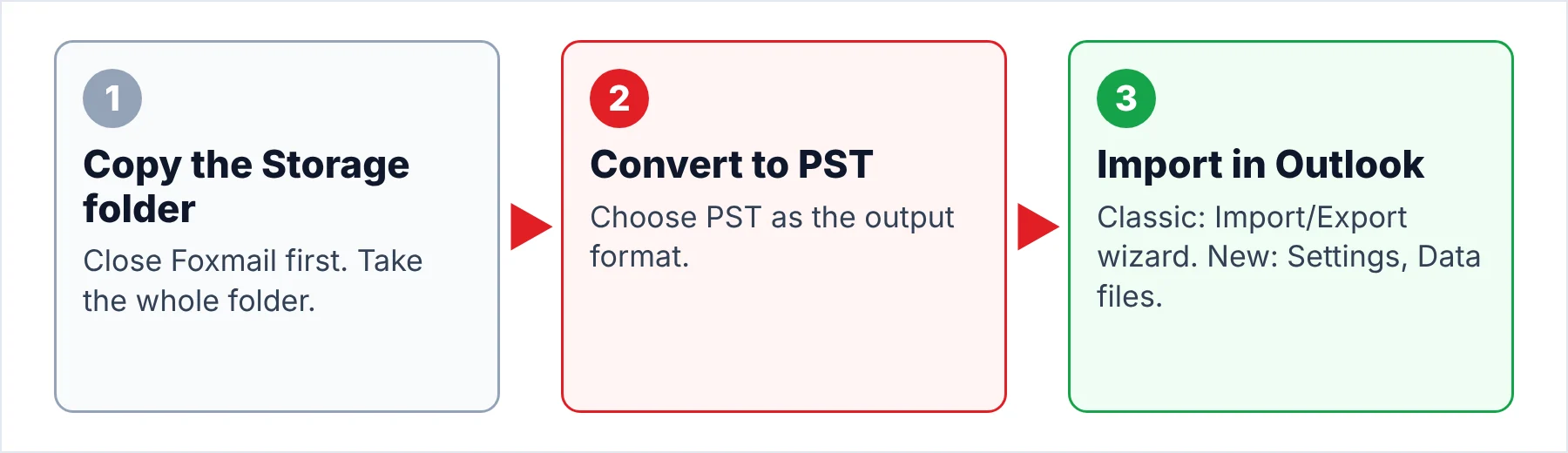
- Copy the Storage folderClose Foxmail, then copy the whole Storage folder from the program folder (for example C:\Foxmail 7.2\Storage) onto a USB stick or an external drive. A full copy is the safe choice. Copy the folder rather than single files, because the Boxes file inside each account keeps the folder map. If Foxmail still opens, write down the message count of your three biggest folders for the check later.
- Load the copied folderOn the new Windows PC, install the converter and start it. When Foxmail ran on this PC, the converter follows FMStorage.list to the mail. On a new PC, click Browse and pick the copied Storage folder. Tick every account and folder you want. Each ticked folder shows a message count.
- Export to PSTOpen the Export menu and select PST under Email Files. Choose an output folder on a local drive, because a USB stick often slows every write and a local drive keeps the run fast. Start the run. Contacts arrive as .vcf files and calendars as .ics files next to the PST.
- Import the PST in OutlookIn classic Outlook open File > Open & Export > Import/Export. In the wizard pick Import from another program or file, click Next, select Outlook Data File (.pst) and browse to the PST. Choose how duplicates are handled, select the folder to import from and keep Include subfolders ticked before you click Finish. In the new Outlook choose Settings > Data files > Import, click Get started under Outlook Data File (.pst) and select the file. Keep Include subfolders ticked, answer the duplicates question, choose the mailbox under Account and a destination folder, then click Import.
- Compare the resultsBrowse the imported folders and set two or three counts against the numbers you wrote down. Next open the oldest message you can think of, plus the one that carries your largest attachment. The dates should match the originals and the attachment should open.
Our test store ran on one PC as one batch: 2 accounts and 86,000 emails, about 5.8 GB, finished in roughly 42 minutes. The batch kept the names of Inbox, Sent and the custom folders in the output. We opened a converted PST from that batch in Outlook as well. Run the trial on your own Outlook version first, because the trial shows the result for your files.
Note: the trial saves 10 items per folder. Ten per folder lets you run one import and look at dates and attachments. Also keep the USB copy untouched until the import counts match, because a second import from the same copy is the quick fix for a mistake.
Univik Foxmail Converter opens a copied Storage folder under Windows 11 or 10 and saves a PST for every account, with no Foxmail installed. The converter also saves your contacts (.vcf) and calendars (.ics).
Download Free Trial Select a Licence - From $39Runs on 64-bit Windows 11 and 10 once .NET Framework 4.8 is present. The trial saves 10 items per folder.
What Should You Check After the Import?
Check the result of the import before you retire the old PC, because these checks take about ten minutes in all and the old machine only has to stay around for one more evening.
- Folder names in Outlook match the tree you saw in Foxmail.
- Counts for two or three folders agree with the numbers you wrote down.
- Your oldest message carries its original date, not today's.
- The largest attachment opens from inside Outlook.
- Searching for a frequent correspondent returns mail from several years.
Contacts and calendars travel separately from the PST because Outlook opens the VCF and ICS files that carry them on their own, so import those files after the mail and check each part. A PST also carries mail only, so you set up your accounts in Outlook again by hand.
Limitations: Microsoft says opening a PST as a separate data file in the new Outlook needs the classic app of the same bitness (32-bit or 64-bit) plus a Microsoft 365 subscription, per its PST page. Importing doesn't carry that requirement in the new Outlook, which is why you import the file here instead.
What If the PST Import Fails?
Do this: Sign in to the new Outlook with the mailbox that will hold the mail, because Data files shows only for a signed-in mailbox. An admin policy is the likely reason, since a policy can hide PST access for that mailbox. If the page stays hidden, ask your admin about it. The Microsoft PST page shows where Data files sits in Settings.
Do this: Copy the Storage folder and convert the copy. The converter reads that folder without Foxmail, so a client that crashes on launch does not block your move.
Do this: The mail most likely went in as dragged .eml files, the usual cause. Delete that mail folder in Outlook and import a PST built from your Storage folder instead. When you only have .eml files left, the guide on converting EML to PST in bulk covers that case.
Do this: A Unicode PST defaults to a 50 GB maximum, as the Microsoft size-limit page lists. Convert one account per PST so none of your files nears that cap. Our two-account test store weighed about 5.8 GB, far under that cap.
Stuck after the import? Send Univik support the counts you noted and a screenshot of the Import dialog.
- Outlook cannot read Foxmail's own files, so the move goes through .eml files or a PST file.
- Export Mail saves .eml files for one folder per pass and needs Foxmail to open.
- A PST built from the Storage folder carries every account and imports through either Outlook.
- Copy the whole Storage folder before anything else and work from that copy alone.
- Compare folder counts after the import, before the old PC is retired.
FAQ: Moving Foxmail Mail to Outlook

Outlook steps come from Microsoft's own support pages, which we opened on October 21, 2026. Converter steps were checked against version 6.10 and its product page.
Sources we read: