Quick Answer
To move Foxmail to a new computer, quit Foxmail, copy the Storage folder and the FMStorage.list file, install Foxmail on the new PC, add each account again and paste both items over the new copies. When the old PC is dead or you want another app, convert the copy instead.
Copy the two items together, because my restore failed with the folder alone.
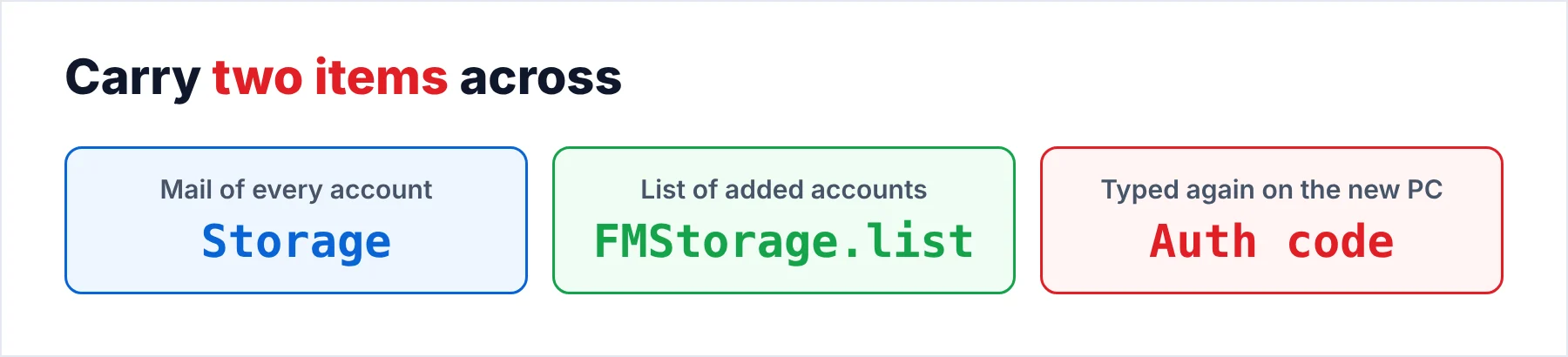
To move Foxmail to a new computer you carry two items across: the Storage folder and the FMStorage.list file. You need both items on the new PC. I tested the restore on another PC myself and read Microsoft's robocopy page on October 21, 2026. The test showed me four problems that each get a card near the end of this guide. The explainer on where Foxmail stores emails shows where both items sit.
The sample store on that PC has two IMAP accounts (version 7.2.25.563). Together the two accounts hold 5,424 messages (2,876 plus 2,548), which gives you a number to match after the move. My biggest test store filled 5.8 GB with 86,000 emails, so you want a drive with that much room (plus some to spare for the log).
Which Route Takes Foxmail to a New Computer?
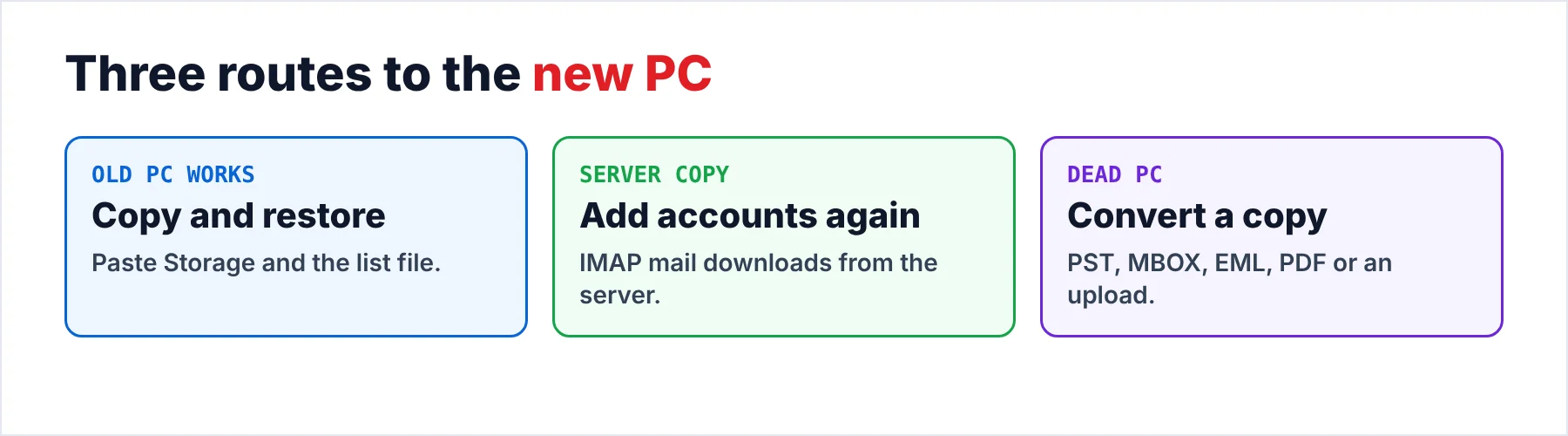
Three routes move a store like mine to a new PC, so the table shows when each route fits, what the route needs from you and which trap it hides.
| Route | Best when | Needs | Watch out for |
|---|---|---|---|
| Copy and restore | The old PC still works | Storage, FMStorage.list and Foxmail on the new PC | Both items must travel together |
| Add the accounts again | Your accounts are IMAP and the server holds the mail | The authorization code of each account | Mail that exists only on the old PC stays behind |
| Convert a copy | The old PC is dead or you want another app | A copy of Storage with its list file | The trial stops at 10 items in each folder |
I'd copy the Foxmail folders first and decide on the route later, because a copy costs you a few minutes while a mailbox that is gone costs far more. A copy is also the safe choice when you don't know yet which route you will take.
Who Moves Foxmail to a New PC?
Three situations bring people to this task: a new laptop, a dead PC or another program. You may have a new laptop that needs your mail by Monday. Your old PC may have died or been wiped before anyone copied the mail. Or your team may be dropping the client for another program such as Outlook or Thunderbird, which usually means a conversion of the mail instead of a restore.
- A laptop replacementYou restore the copy on the new PC, which keeps the folders as you remember them.
- A dead PCYou take the drive out and convert the copied folder, since a restore needs a working install.
- Another mail programYou convert the copy into the format that the new program reads (PST for Outlook, MBOX for Thunderbird), which avoids a Foxmail install.
What Must You Carry Over From the Old PC?
The mail lives in the install folder of Foxmail, so a restore starts there. Foxmail 7.1 stores it in Storage and later releases do the same, while 7.0 and older used a Data folder, so check which one your PC has. A separate guide, where Foxmail stores emails, describes each folder and its subfolders. The table lists what to carry over and what to leave.
| Item | What it holds | Copy it? |
|---|---|---|
| Storage folder | The mail of every account, one folder for each email address | Yes |
| FMStorage.list | The list of added accounts | Yes, with Storage |
| Rest of the install folder | The program files | No, install a fresh copy |
| Authorization codes | Not in the copy | Enter them again |
Give the last row of the table most of your attention when time is short, because the authorization code is not in the copy. The sources I read add each account again with the authorization code. My own accounts asked for the authorization code again after the restore, so it is wise to keep the code within reach before you start.
How Do You Copy the Storage Folder Without Losing Files?
Before you copy anything, close the client first, because a running program may hold files open and the copy can fail. Then copy the folder with robocopy, which is a reliable tool for this job since it retries a failed file and writes a log that you can read afterwards. In Command Prompt run robocopy "C:\Foxmail 7.2\Storage" "E:\FoxmailMove\Storage" /E /R:2 /W:5 /LOG:E:\FoxmailMove\copy.log. Then run copy "C:\Foxmail 7.2\FMStorage.list" E:\FoxmailMove\ to bring the list file along.
Microsoft's page explains the switches. /E copies subfolders including empty ones, /R:2 sets two retries and /W:5 waits five seconds between them. /LOG saves the status of the copy to a file. An exit code of 8 or higher means that at least one file failed, so open the log before you wipe anything on the old PC.
Note: a large store may take hours to copy, so check the log and the free space on the drive in File Explorer before you start (my 5.8 GB test store needs at least that much room).
How Do You Restore the Copy on the New Computer?
The order matters, since the sources I read add each account first and paste the copy second. Five steps take you through the restore in that order. The last of the five steps is an easy check that tells you whether the restore worked.
- Quit Foxmail and copy the dataClose Foxmail on the old PC so that no file stays locked. Copy the Storage folder and the FMStorage.list file from the install folder to an external drive.
- Install Foxmail on the new PCInstall Foxmail 7.2 on the new computer from the Foxmail download page and start it once. Use the same major version as the old PC when you can.
- Add each account againAdd every account in Foxmail with the authorization code from your mail provider, not the login password. Then close Foxmail.
- Paste the copy over the new foldersCopy Storage and FMStorage.list from the drive into the new install folder. Choose to replace the files when Windows asks.
- Start Foxmail and compare the countsOpen Foxmail and compare the message count of each folder with the old PC. Open three old emails with attachments to see that they load.
Quit the program before you paste, so the restore starts from a closed client. I tested the restore on Foxmail 7.2, so on another release copy both items to a spare folder before you paste.
Version 7.2 also has an Import menu with Foxmail Account, Foxmail MailBox and Foxmail Archive entries, which the Foxmail Import menu guide explains entry by entry. This guide follows the paste route that I tested in 7.2. The Import entries are a separate job, so try them only on a copy of your Storage folder.
What If the Old Computer Is Dead or You Want Another App?
Univik Foxmail Converter reads a copy of the same two items, the Storage folder together with its FMStorage.list file, so you need no Foxmail on either PC. The preview lists each configured account with its emails, contacts, calendars and attachments before you export anything. The converter opens the copy read-only, which is a safe way to work on your original data. Its output goes into a separate folder, so your original data stays as it was.
The output goes where you need it. The Export menu holds output for Outlook PST files, Microsoft 365, Gmail, Thunderbird and PDF, with EML and MBOX files as well. The guides for each target are Foxmail to Thunderbird, Foxmail to PDF, Foxmail to Outlook, Foxmail to Office 365 and how to move Foxmail emails to Gmail. The address books come out as VCF or CSV files, so you can export Foxmail contacts in the same run.
I'd convert the contacts with the mail when the old PC is dead, since a restore needs a working Foxmail install while the converter doesn't. I'd restore when the new PC keeps Foxmail, because the folders then look the way you remember them.
Univik Foxmail Converter takes a copied Storage folder plus its FMStorage.list file from Foxmail 6.x to 7.2. It writes PST, MBOX, EML or PDF files from that folder. It also uploads to a mail service.
Download Free Trial Select a Licence - From $39Foxmail Converter installs on 64-bit Windows with .NET Framework 4.8 before it reads that folder. The free trial caps each folder at 10 items.
What Goes Wrong After the Move?
Do this: Quit Foxmail and paste Storage and FMStorage.list over each folder again. Choose to replace the files when Windows asks, then start Foxmail again. The cause is often a client that still reads the empty files it created, so paste again before any sign-in.
Do this: Enter the authorization code from your mail provider instead of the login password, which fixes the sign-in prompt. My accounts showed the same sign-in prompt after the restore, so you will probably see it too.
Do this: Copy the FMStorage.list file as well, because my restore failed with the Storage folder alone. Paste the list file into the install folder and start Foxmail again.
Do this: Compare each folder with the old PC. Open the robocopy log for failed files in each folder and run the copy again. When the old PC is gone, you convert the copy of the folder.
When the move keeps failing, send Univik support the Foxmail version plus the folder where it stops.
- The mail moves with the Storage folder and the FMStorage.list file.
- You add each account again with its authorization code on the new PC.
- Robocopy and its log show you which files failed.
- A converter opens a copy when the old PC is dead.
- You compare the folder counts before you wipe the old PC.
FAQ: Move Foxmail to a New Computer

Read on October 21, 2026: Microsoft's robocopy page. The message counts come from my sample store, not from any page. The restore problems come from my own test on another PC.
Pages we read: