Quick Answer
To recover Windows Live Mail from an old hard drive, connect the drive to a working PC and open Users\<name>\AppData\Local\Microsoft\Windows Live Mail on it. Copy that whole folder off the old drive to the new PC, because the .eml files inside are your messages and those .eml files open without Live Mail installed.
If Windows blocks the old Users folder, take ownership of the Windows Live Mail folder only, since you don't need to change permissions on the whole drive.
A dead PC rarely means dead mail for you, because Windows Live Mail never kept your messages inside the program. It wrote each message to the hard drive as its own .eml file, so the mail survives on that drive as long as the drive still spins or powers up.
The hard part is knowing where to look on the drive. In a 2012 Microsoft Q&A thread, a repair shop copied a failed Dell drive to an external disk and the owner asked which folder held the mail. Nobody in that thread named the folder, so the owner was sent back to the shop instead. This guide fixes that. It names the folder, shows how to get past the permission error that old drives throw and covers what to do with the mail once it's on the new PC.
What Do You Need to Recover Mail From the Old Drive?
You need the old drive, a working Windows 10 or 11 PC and a way to connect one to the other. The connector depends on the drive, so check the drive label or the old laptop model first. Most adapters are cheap.
| Old drive | How to connect it to the working PC |
|---|---|
| 3.5-inch desktop hard drive (SATA) | A SATA to USB adapter that comes with its own power supply. A spare SATA port inside a desktop PC also works. A 3.5-inch drive needs more power than one USB port gives. |
| 2.5-inch laptop drive or SSD (SATA) | A USB SATA adapter or a cheap 2.5-inch enclosure. USB power is enough for these drives, which makes them the easy case for you. |
| M.2 NVMe SSD | An M.2 NVMe to USB enclosure. A SATA-only M.2 enclosure won't read an NVMe drive, so check the enclosure label. |
| Old PC still has power but won't boot | Remove the drive and use one of the options above. Booting the old PC from a USB stick also works if you are comfortable with that. |
Plan for space on the new PC too, because a home Live Mail store is often a few gigabytes and you will keep a second copy of that store while you check the result.
Who Ends Up With Only the Old Drive?
Which of these sounds like your drive?
Something in the old PC failed and Windows stopped booting, maybe the motherboard or the power supply. You pulled the drive and want the mail that was on it.
Find the mail folder →You got the old drive back as a full copy on an external disk. The Users folder is there, but Windows says you don't have permission to open it.
Unlock the old folder →Years of Live Mail sit on a laptop you replaced long ago. The new PC you use today has no Live Mail because Microsoft doesn't offer Live Mail any more.
Read the mail without Live Mail →Where Is the Windows Live Mail Folder on the Old Drive?
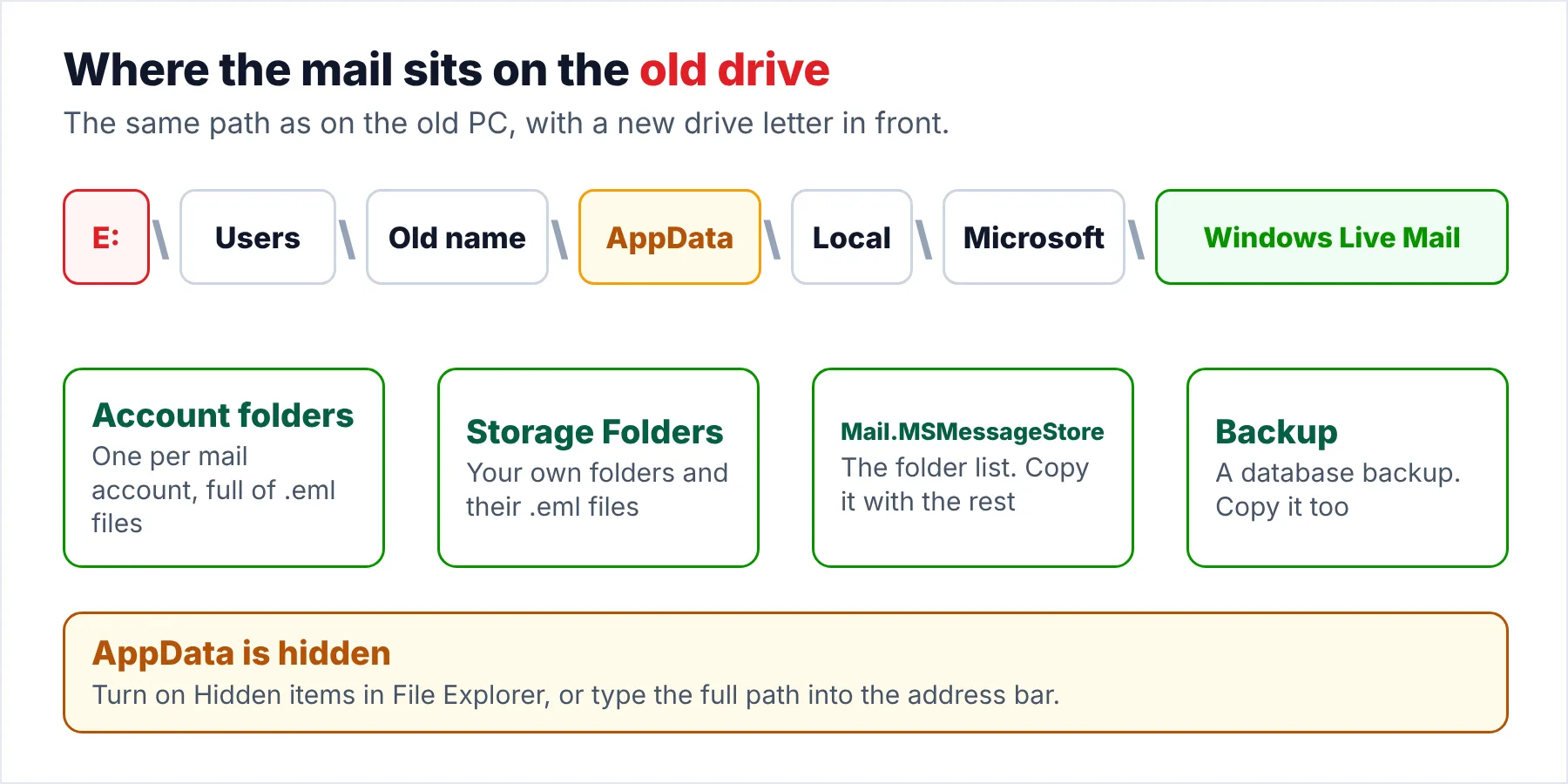
Connect the drive and open This PC, where Windows gives the old drive a letter of its own, usually E: or F:. That drive letter replaces C: in every path below, so you will need to remember it.
- Open the old Users folderOpen the old drive and then its Users folder. You will see one folder for each person who had an account on the old PC.
- Show hidden itemsThe AppData folder is hidden by default on every Windows PC. In Windows 11, click View, Show and tick Hidden items. In Windows 10, tick Hidden items on the View tab.
- Go to the Live Mail folderOpen E:\Users\<old name>\AppData\Local\Microsoft\Windows Live Mail, with your drive letter and the old user name in place of the examples.
- Confirm it is the right folderA Live Mail store has one folder per mail account, a Storage Folders folder, a file named Mail.MSMessageStore and a Backup folder. Open one account folder and you should see .eml files. That's the folder you want.
Note: two situations put the folder somewhere else on the drive you connected. If the old drive has no Users folder, it most likely came from a Windows XP PC, so search the whole drive for a folder named Windows Live Mail. Also, Live Mail let people move the store under Options, Mail, Advanced, Maintenance, Store Folder, which PCWorld documents. A moved store has no trace in AppData, so search the drive for Mail.MSMessageStore and the store is the folder that holds it.
What If Windows Says You Don't Have Permission?
The old files still belong to the user account from the old PC. That account doesn't exist on the new PC, so Windows blocks the old Users folder and shows a permission message. A 2023 Q&A thread shows the same error on a drive moved from a Windows 10 PC to a new Windows 11 build.
Take ownership of the Windows Live Mail folder only, not the whole drive. Speed matters here. A smaller folder is quick and finishes in seconds, while the whole Users folder can take hours, as Windows Report warns.
- Open the folder securityRight-click the old Windows Live Mail folder, choose Properties, open the Security tab and click Advanced.
- Change the ownerNext to Owner, click Change, type your Windows user name, click Check Names and then OK.
- Apply it to everything insideTick Replace owner on subcontainers and objects, click Apply and wait until Windows finishes every file.
If you prefer the command line, open Command Prompt as administrator and run the two commands below with your own drive letter and old user name. The first command takes ownership, while the second command gives your account full control of the files you now own.
takeown /f "E:\Users\OldName\AppData\Local\Microsoft\Windows Live Mail" /r /d y
icacls "E:\Users\OldName\AppData\Local\Microsoft\Windows Live Mail" /grant "%USERNAME%":F /t
I checked the parameters against Microsoft's takeown reference on October 20, 2026. The /r switch covers every sub-folder, while /d y answers the prompt for folders you can't read and only works together with /r. The 2023 thread also suggested giving Everyone full control of the old folder. However, I would keep the change to your own account, which is safe because only you get access to private mail.
Limitations: if Windows asks for a recovery key when you plug the drive in, the old drive is encrypted with BitLocker. No ownership change you make gets past that BitLocker prompt. The key is the only way in. Microsoft's BitLocker recovery key page lists where the key may be saved, starting with aka.ms/myrecoverykey for the Microsoft account that set up the old PC.
How Should You Copy the Windows Live Mail Folder?
Copy the whole Windows Live Mail folder across in a single pass, which is quick because one folder copies far faster than the whole drive. Do the copy before anything else, because a drive from a dead PC may not last. Every extra hour of reading wears an old drive further.
- Copy the Windows Live Mail folder first, then the Contacts folder, then anything else you want from the drive.
- Put the copy in a plain folder such as D:\Old-drive-mail, not inside the new PC's AppData.
- Compare the size of the copy with the size of the folder on the old drive before you disconnect it, a quick and reliable check that nothing was skipped.
- Stop if the drive clicks, disconnects or Windows reports read errors, because a failing drive gets worse with every retry.
The same copy rules apply when you recover Windows Live Mail from old hard drive backups that a repair shop already made. A drive that throws read errors is a job for a data recovery service that images the disk first. Repeated copy attempts on a failing drive often destroy the files you were trying to save. Stop early instead.
How Do You Read the Old Mail on the New PC?
Once the copy is on the new PC, you have three ways to read the old mail. Most people who recover Windows Live Mail from old hard drive copies in 2026 no longer have Live Mail itself. The right one depends on whether you still have Live Mail and on how much mail you want back.
| Route | What you need | What you get | Catch |
|---|---|---|---|
| Import into Live Mail | Live Mail installed on the new PC | The old folders under Imported Folder, through File, Import messages, Windows Live Mail | Microsoft removed the installer in 2017, so copies come from third-party sites |
| Open single .eml files | Any program that opens .eml files | One message at a time, with its attachments | No folder view and no search across thousands of messages |
| Convert the copied folder | A converter that reads the Live Mail store | All accounts and folders as PST, MBOX or PDF | Paid for the full store, with a 10-item trial per folder |
The import route is the one the moderator described in the 2012 thread. It still works if you happen to have Live Mail on the new PC. For most people in 2026, the converter route is the practical and fast one, because Live Mail itself has been gone from Microsoft's site since support ended on 10 January 2017, according to Microsoft's Windows Essentials page.
Can Univik Windows Live Mail Converter Open the Old Store?
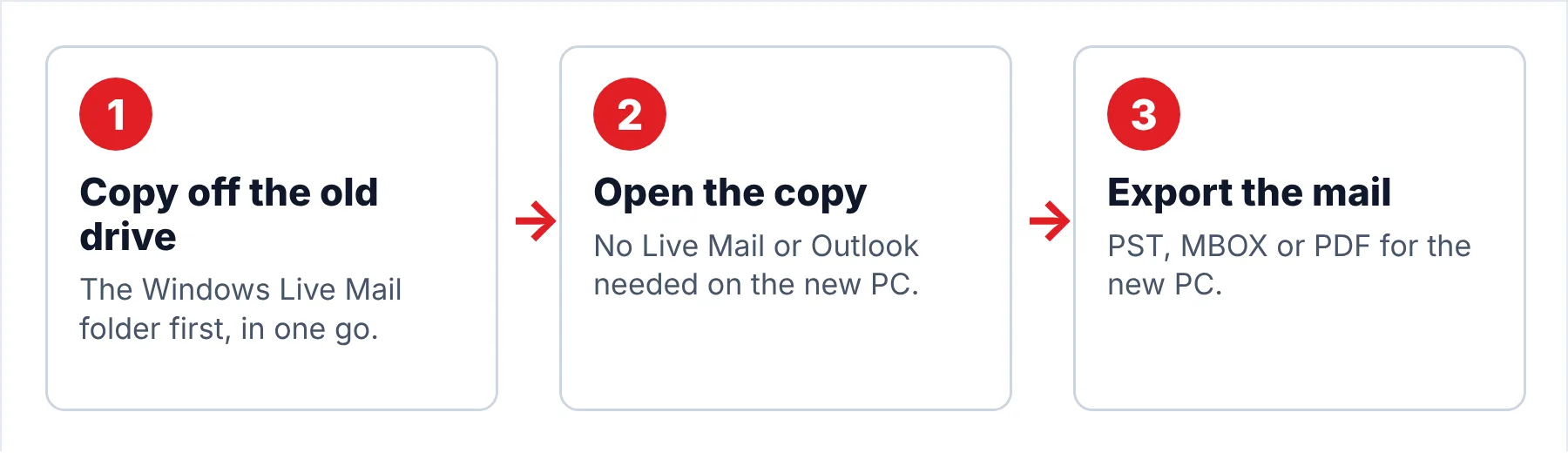
Univik Windows Live Mail Converter opens a Windows Live Mail folder copied off an old drive, with no Live Mail and no Outlook on the new PC. You see the old accounts and folders before you export anything. Nothing is hidden. The copy you point the converter at stays as it was.
- Copy the folder to the new PCCopy the Windows Live Mail folder from the old drive to a folder on the new PC, for example D:\Old-drive-mail. Keep it outside your own AppData, so nothing on the new PC writes into it.
- Start the converter on the copySet up the converter and choose the copied folder. You don't need Live Mail or Outlook on the new PC, because the converter reads the old store by itself.
- Check the old account foldersEach account from the old PC shows up with its folders and a message count. Open a few messages from the oldest year you remember, an easy test that tells you the copy off the drive came through complete.
- Export what you want to keepChoose PST if you use Outlook, MBOX if you use Thunderbird or PDF when you want a record you can print. You can export every account at once or tick only the folders you need.
Note: trial output covers 10 items per folder which is enough to check that messages from the old drive open with their dates and attachments before you buy. Test before you pay.
The converter opens the copied store without Live Mail and turns the old mail into PST, MBOX or PDF files you can keep.
Download Free Trial Select a Licence - From $29For 64-bit Windows 11 and 10 PCs with .NET Framework 4.8. Each folder exports 10 items in the free trial.
Where Are the Contacts on the Old Drive?
Your Live Mail contacts are not in the mail folder. Live Mail 2011 and 2012 keep them in a separate Windows Live Contacts database called contacts.edb, under Users\<old name>\AppData\Local\Microsoft\Windows Live\Contacts. Copy that whole Contacts folder off the old drive while it's connected.
Getting the contacts out of contacts.edb is harder than getting the mail out. Triple S Computers used NirSoft's free LiveContactsView to export contacts.edb to a CSV file. The author found that this export only worked for him on the original PC. A reader in the same post replaced the Contacts\Default folder on a new PC that had Live Mail installed and the contacts came back for that reader. Univik Windows Live Mail Converter reads mail only, so plan the contacts separately. Copy them anyway.
What Goes Wrong After You Copy the Drive?
Do this: You probably copied the folder from the wrong user name, although sometimes the old store was moved to another place on the drive. Check every folder under the old Users folder, then search the old drive for Mail.MSMessageStore as described above.
Do this: The .eml files may be there while the index lost track of them. Our article on missing Live Mail folders covers the view fixes and the index rebuild.
Do this: Convert to PST first, because the new Outlook doesn't import .eml folders. Our guide to moving Live Mail into the new Outlook covers the convert and import steps.
Not sure which folder holds your mail? Send Univik support the folder names you see under the old Users folder.
- The old mail sits under Users\<name>\AppData\Local\Microsoft\Windows Live Mail on the old drive.
- Copy that whole folder to the new PC in one pass, then leave the old drive alone.
- If Windows blocks the folder, take ownership of the Windows Live Mail folder only.
- The .eml files open on the new PC without Live Mail installed.
- Contacts sit in a separate contacts.edb under Windows Live\Contacts, so copy that folder too.
FAQ: Recover Windows Live Mail From an Old Hard Drive

Paths and commands were checked against Microsoft documentation and two Microsoft Q&A threads on October 20, 2026. The connector table reflects common drive types, not a tested list of adapters. The converter steps you see here are written for version 6.9.
Sources we read:
- Retrieve contacts and emails from a restored external drive, Microsoft Q&A
- I cannot access my user folder from a previous hard drive, Microsoft Q&A
- takeown command reference, Microsoft Learn
- Find your BitLocker recovery key, Microsoft Support
- Support for Windows Essentials apps, Microsoft Support
- How to access the user folder on an old hard drive, Windows Report
- Windows Live Mail stores your messages, but where, PCWorld
- Recover Windows Live Mail contacts to a new computer, Triple S Computers
- Restore Windows Live Mail, Backblaze