Quick Answer
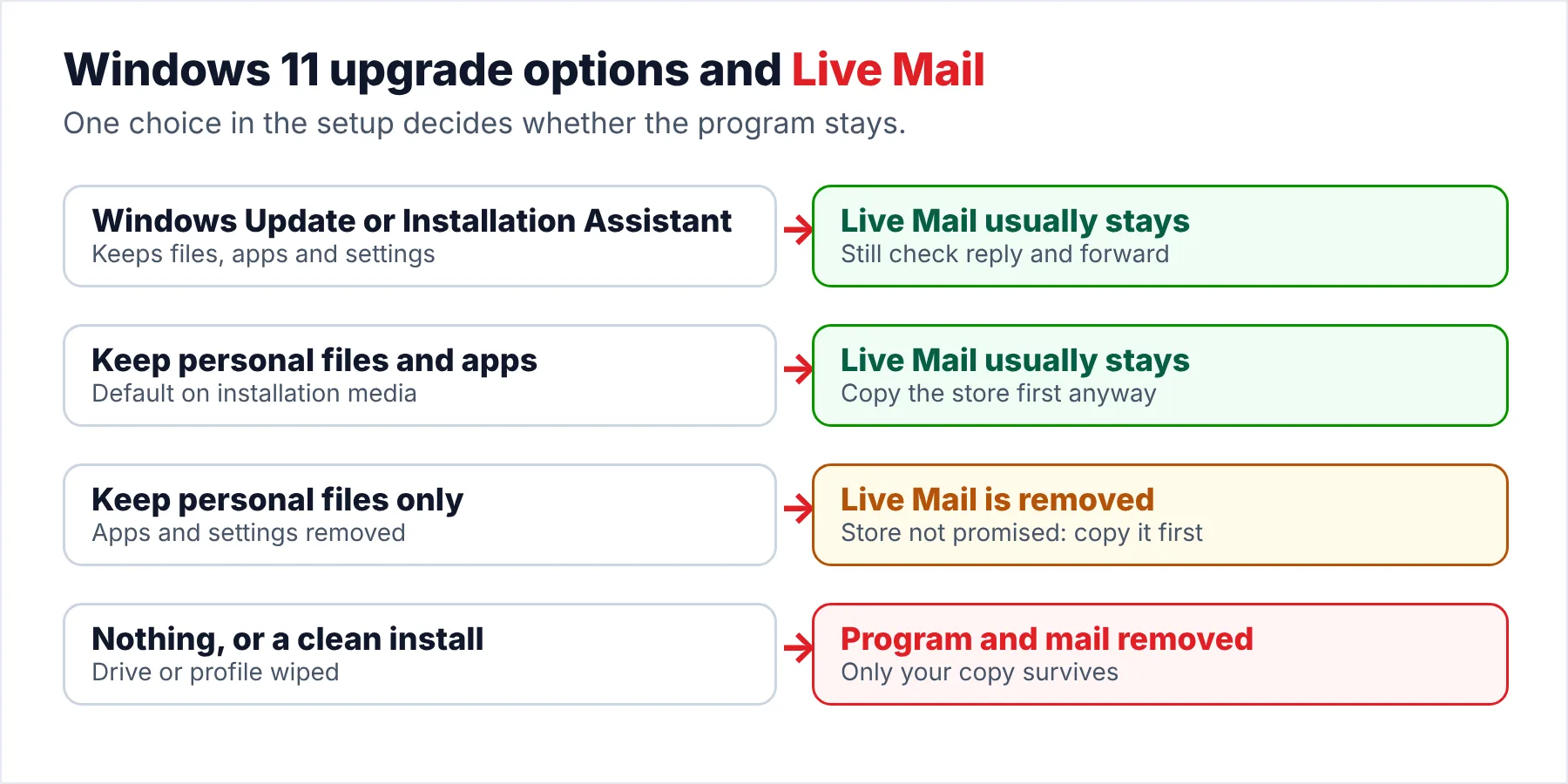
Before upgrading to Windows 11, copy the Windows Live Mail store folder from AppData, export your contacts to a CSV file and write down your account settings. The default upgrade usually keeps the program, while Keep personal files only and a clean install remove it. Microsoft no longer offers Live Mail for download (since 2017).
The store folder copy is the one that matters most, because it holds every message you have.
Windows 10 support ended on 14 October 2025, according to Microsoft's end of support page. That date pushed a lot of PCs that still run Windows Live Mail toward the Windows 11 upgrade. Some of those upgrades carry Live Mail across untouched, while others remove the program you rely on. The program has had no official download since Microsoft ended support for Windows Essentials 2012.
Which outcome you get depends on one choice in the Windows 11 setup. This guide shows what each choice does to Live Mail, then covers the three copies to make before you click Install and the checks to run afterwards.
What Does Each Windows 11 Upgrade Option Do to Live Mail?
Microsoft's Ways to install Windows 11 page describes three install routes and three keep options. I read that page on October 20, 2026, so the table maps each option to what happens to the program and to your message store.
| Upgrade route or option | Live Mail program | Mail store in AppData |
|---|---|---|
| Windows Update or the Installation Assistant | Usually kept, because these routes keep files, apps and settings | Usually kept in place |
| Installation media, Keep personal files and apps | Usually kept. Microsoft lists this as the default option | Usually kept in place |
| Installation media, Keep personal files only | Removed, because apps and settings don't carry over | Not promised. Live Mail data sits with app data, not in Documents |
| Installation media, Nothing | Removed | Removed. Microsoft says to back up personal files first |
| Booting from installation media | Removed | Removed. Microsoft says it wipes the whole drive |
| New PC that came with Windows 11 | Never installed | Still on the old PC only |
The word usually in the first two rows of the table is deliberate on my part. A kept program can still break after the upgrade as the Q&A threads below show. That is why the copies in the next sections matter even on the default route.
Who Is About to Upgrade a Windows Live Mail PC?
Which of these is your upgrade?
The upgrade banner keeps appearing on your Windows 10 PC. You plan to accept it and hope Live Mail comes along for the ride.
Make the three copies →You want to wipe the PC and install Windows 11 from a USB stick. That route removes Live Mail and everything in AppData.
Save the mail first →The old PC goes back or gets recycled soon. Your Live Mail archive has to leave the old PC before the old PC leaves you.
Turn the store into files →What Should You Copy Before the Windows 11 Upgrade?
Each copy protects a different part of what the program holds for you while all three copies are quick to make. Make all three on Windows 10 (the free upgrade needs version 22H2) while the program still opens for you. Store them on a USB stick or another drive instead of the PC you are about to upgrade.
- 1. The store folderClose Live Mail and copy the whole %LOCALAPPDATA%\Microsoft\Windows Live Mail folder (paste the path into Windows + R to open it). This copy holds every message in every account and storage folder.
- 2. The contactsIn Live Mail, open Contacts, click Export and choose Comma separated values (a .csv file you can open in any spreadsheet). Contacts live in a separate database, so the store copy does not include them.
- 3. The account settingsFor each account, open its Properties and note the incoming server, outgoing server, ports and security settings (SSL or TLS). A screenshot of each tab is enough because a screenshot is fast and reliable.
The contacts step and the store folder step both come from the accepted answer in a 2016 Q&A thread, which more than 30 people marked helpful. That answer also says a restored store brings back accounts and saved passwords when it goes back to the same path under the same Live Mail version. However, a Windows 11 PC without Live Mail has nowhere to restore it, so the server settings note is your fallback.
If you also want the messages as plain files, Live Mail has its own export. Click File, Export email, Email messages, pick the format, browse to an empty folder and choose the folders to export, as a 2020 Q&A answer describes. The export is a useful and easy second copy. It does not replace the store folder copy, because the store folder copy keeps every account exactly as Live Mail had it.
Is the Backup Folder Inside the Store a Real Backup?
Every Live Mail store has a folder named Backup, a name that tricks many people into thinking their messages are safe. In a 2014 Q&A thread, a user listed what sat inside Backup\new: a Mail.MSMessageStore file, a Mail.pat file and an edb00001.log file. That set is a copy of the index database, which the program uses to rebuild its folder list.
Your messages are not in that folder at all, because the messages are the .eml files in the account folders and in Storage Folders, so a copy of the Backup folder alone would save the folder list and lose every email. Copy the whole store folder instead, Backup folder included.
What Should You Check Right After Upgrading to Windows 11?
Run these checks on the first day of Windows 11, while the 10-day go-back window (counted from the upgrade) from Microsoft's go-back page is still open. Going back to Windows 10 is under Settings, System, Recovery, Go back. Going back only works while the windows.old and $windows.~bt folders stay in place.
- Live Mail starts and shows every account and storage folder you had on Windows 10 (including any folders you created yourself).
- A folder you use often shows roughly the message count you remember.
- You can open, reply to and forward a message, then send a test email to yourself.
- New messages arrive for each account you use, so if one account fails you know which provider no longer accepts the program.
- Your three copies from before the upgrade are still on the USB stick, untouched.
The reply and forward check is there for a reason. A 2021 Microsoft Q&A thread, where over a hundred users reported the same problem, describes Live Mail receiving mail but doing nothing on reply or forward after the upgrade. Also, a 2024 24H2 thread links later sign-in failures to providers that require modern sign-in, which no fix inside Live Mail can solve.
Note: if you used Keep personal files only and Live Mail is gone, the old Windows folders usually sit in windows.old for those same 10 days. Look for C:\Windows.old\Users\<name>\AppData\Local\Microsoft\Windows Live Mail before Windows cleans windows.old away then copy the folder out if you find it there.
How Do You Turn the Store Into Files That Outlive Live Mail?
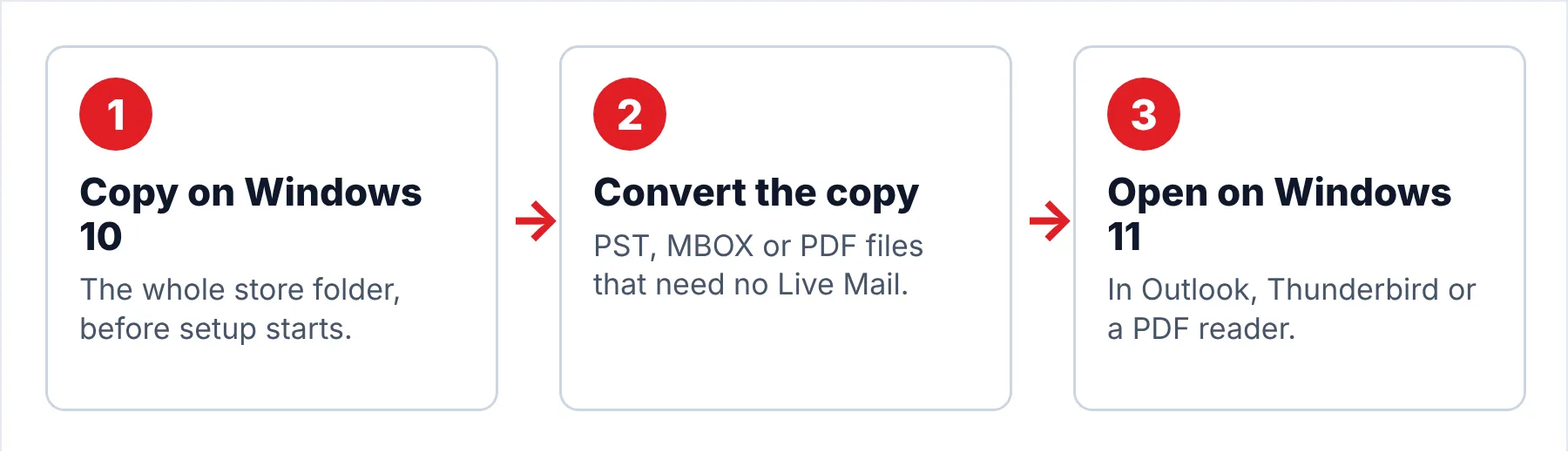
The safest plan for you is to stop needing the program at all. Univik Windows Live Mail Converter takes the store folder copy you made and writes the mail out as PST, MBOX or PDF. You can run the converter on Windows 10 before the upgrade or on Windows 11 afterwards, because the converter works from the copy, not from the program itself.
- Copy the store before the upgradeClose Live Mail and copy %LOCALAPPDATA%\Microsoft\Windows Live Mail onto a USB stick or another drive. Do this on Windows 10, before you start the Windows 11 setup.
- Load the store copyRun the converter on Windows 10 now or on Windows 11 later and select the copied folder. The converter shows each account and folder with a message count.
- Pick the format for life after Live MailChoose PST if Outlook is next, MBOX if you are moving to Thunderbird or PDF for a fixed record. You can export every account in one run if you want everything.
- Keep both copies until Windows 11 settlesKeep the store copy and the exported files side by side for a few weeks. If anything looks wrong after the upgrade, you can run the export again from the same copy.
Note: the trial saves 10 items from each folder. That is enough for you to confirm the export opens in the program you plan to use on Windows 11 before you buy.
The converter reads the copied store on Windows 10 or 11 and writes the mail out as PST, MBOX or PDF files.
Download Free Trial Select a Licence - From $29Runs on Windows 11 and 10 (64-bit only) once .NET Framework 4.8 is present. Trial exports stop at 10 items per folder.
What Goes Wrong After the Upgrade?
Do this: Check windows.old within 10 days, then fall back to your store copy. The copy opens in a converter without Live Mail. Our guide to recovering Live Mail from an old drive covers the folder and permission steps.
Do this: The program's indexes often need a rebuild after a big Windows change. Our article on missing Live Mail folders has the registry values and the rebuild steps.
Do this: Our start-up error guide matches each error code to its cause. Your store copy keeps every message safe while you try the fixes.
Unsure which upgrade option you used? Ask Univik support and include the Windows 11 version shown in Settings, System, About.
- Copy the store folder, export the contacts to CSV and note your account settings before the upgrade.
- The default upgrade usually keeps the program, while Keep personal files only and a clean install remove it.
- Microsoft has not offered Live Mail for download since 2017, so a removed copy is hard to get back.
- The Backup folder inside the store is not a copy of your messages.
- Run your checks inside the 10-day go-back window after the upgrade.
FAQ: Windows Live Mail Before Upgrading to Windows 11

Upgrade options and dates come from Microsoft's own support pages. The Live Mail steps come from Microsoft Q&A answers. I read all of them on October 20, 2026. Version 6.9 of the converter was used for the steps.
Sources we read:
- Ways to install Windows 11, Microsoft Support
- Go back to the previous version of Windows, Microsoft Support
- Windows 10 support has ended on October 14, 2025, Microsoft Support
- Windows Essentials end-of-support notice, Microsoft Support
- Microsoft Q&A thread on backing up and restoring Live Mail before a reinstall
- Microsoft Q&A thread on exporting Live Mail folders to another disk
- Microsoft Q&A thread on the Live Mail database recovery loop
- Microsoft Q&A thread on reply and forward failures after Windows 11
- Microsoft Q&A thread on Live Mail sign-in after Windows 11 24H2