Quick Answer
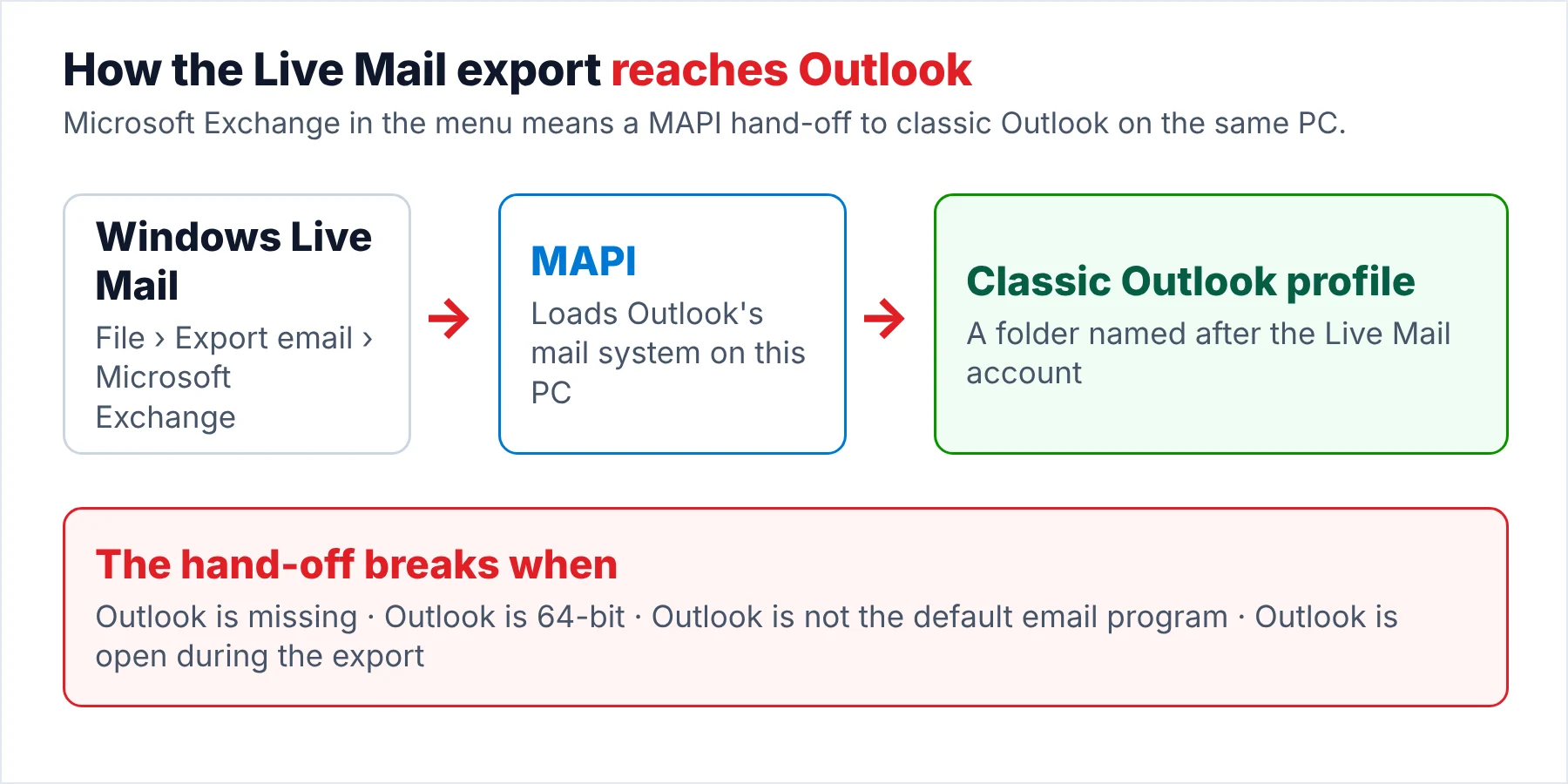
When the Windows Live Mail export is not working, the error text tells you the cause. A MAPI error means Live Mail cannot reach classic Outlook, usually because Outlook is missing, 64-bit or not the default email program.
An export that runs and then stops on one message points to a damaged email instead. Fix the setting that matches your error, close Outlook and run the export again.
Live Mail's export to Microsoft Exchange sounds like a server job, but the export never talks to a server, even if you have never touched Exchange in your life. The export opens classic Outlook on your PC through MAPI (the old Windows mail interface) and pours each email into your Outlook profile. Every error you can hit in this guide is that same hand-off failing at a different point along the way from Live Mail to Outlook.
I read the Microsoft Q&A threads where people pasted the exact error text. The same four messages come up again and again in those threads, so you'll probably recognise yours.
Why Is the Windows Live Mail Export Not Working?
Find the error you got in the left column. The right column names the cause and links the thread or Microsoft page where that cause was reported, so you can read the original post yourself and compare it with what you see.
| Error or symptom | Cause and where it was reported |
|---|---|
| "There is no email program associated to perform the requested action", then "An error occurred while initializing MAPI" | Classic Outlook is missing from the PC or isn't the default email program. A user moving from a Windows 10 PC hit both pop-ups in a January 2025 Q&A thread. The Microsoft support reply in that thread says the export "works by connecting to classic Outlook". |
| "The export could not be performed. Your default MAPI store could not be opened." | Outlook is open while you export or has no working profile yet. In the Q&A thread on this error closing Outlook before the export fixed it for one user. Setting Outlook as the default program fixed it for another. |
| "An error occurred while initializing MAPI" with Outlook installed and set as default | A 64-bit Outlook. Microsoft's MAPI developer page says a 32-bit MAPI program "cannot load a 64-bit Msmapi32.dll file". Microsoft 365 installs 64-bit unless you pick 32-bit, per its Office edition page. |
| Live Mail closes, reopens and writes nothing | Reported in a February 2024 thread after three attempts, with no answer from Microsoft. The pattern fits a MAPI load failure, so check the three rows above first. |
| "Message cannot be found. The contents of this message cannot be found." | A damaged message in the store. A technician on Technibble deleted each one and watched the export stall on the next, across "thousands upon thousands" of messages. |
| Export stops when the PST reaches a round size | The PST ceiling. Microsoft's data file size page sets 50 GB for Outlook 2010 and later and 20 GB for Outlook 2007. The same Technibble thread hit the 20 GB wall with a 30 GB store. |
The first three rows are settings you can change in a few minutes, which makes them the quick wins. However, the last two rows are about the mail itself, so no setting you change on the PC will fix those rows.
Who Runs Into a Failing Live Mail Export?
Which of these matches the screen in front of you?
You picked Microsoft Exchange, pressed Next and got a MAPI error on your screen before a single email moved. That error is a settings problem, which is good news because settings are easy to change.
Run the three checks →The export copied a few hundred emails and froze on one message. Sometimes the export ends with a "Message cannot be found" box instead.
See the manual fixes →Your new PC has only the new Outlook. Or your old PC no longer starts Live Mail cleanly enough to export.
Skip the export →What Should You Check Before Running the Export Again?
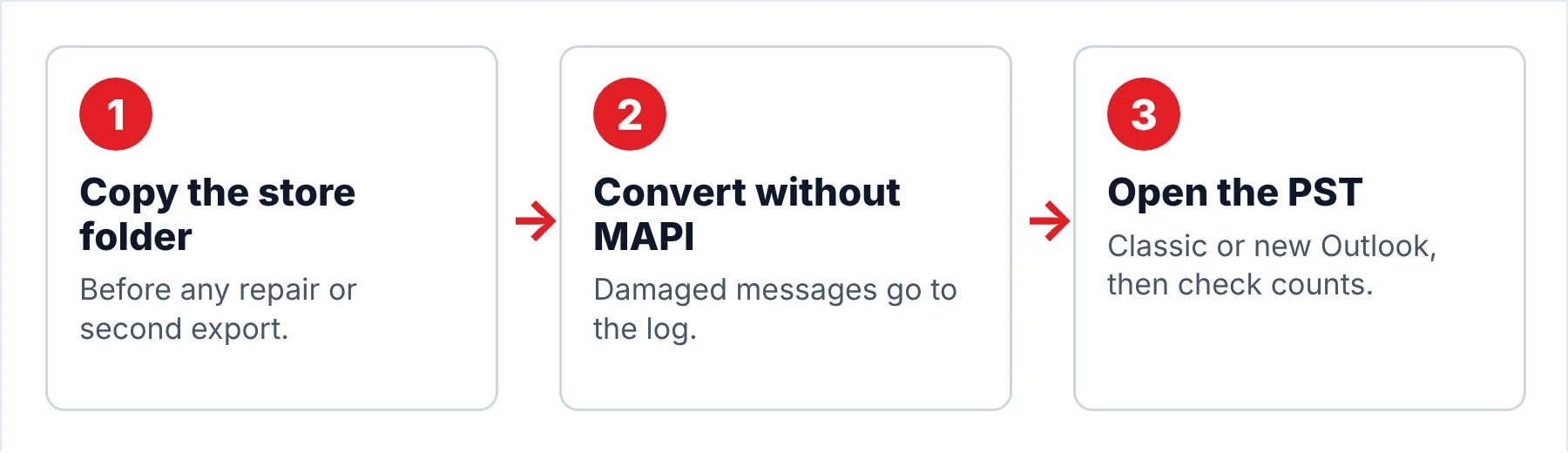
Each check takes you a minute. Together the three checks rule out the first three rows of the error table before you spend an evening on anything harder. Before you start, copy your store folder to a second drive, because a repair or a failed run should never cost you mail you can't get back.
- Check the Outlook editionOpen classic Outlook and go to File > Office Account > About Outlook. The Microsoft version page says the window shows 32-bit or 64-bit on its first line. If yours says 64-bit, that explains a MAPI error that survives every other fix you try.
- Make Outlook the default email programIn Windows 11 open Default apps, select Outlook and set it as the default for email links and files. In Windows 10 open Default apps > Email and choose Outlook. Microsoft's default program page lists both paths.
- Close Outlook before the exportOpen Outlook once so your profile exists, then close Outlook completely. An Outlook that is still running locks the default MAPI store, which is the "could not be opened" error you saw.
I checked Microsoft's MAPI page on October 20, 2026. The page puts the rule plainly: a 32-bit MAPI program is not supported with 64-bit Outlook. Every MAPI call except sending a single email fails in that setup. Also, Microsoft's Office edition page lists "32-bit MAPI applications for Outlook" as a reason to install the 32-bit edition. The HowTo-Outlook guide tells Live Mail users to do exactly that during the move, which is the reliable fix when your About Outlook window says 64-bit.
How Do You Fix Each Live Mail Export Error?
The fixes below are free and use only what you already have: Windows, Office and Live Mail. Work down the table in order, since the quick fixes come first and the reinstall you may want to avoid comes last.
| Fix | Where you do it | Fixes which error | Time | Limit |
|---|---|---|---|---|
| Set Outlook as the default email program | Windows Settings, Default apps | No email program associated, initializing MAPI | 2 minutes | Needs classic Outlook installed |
| Close Outlook, then export | Task bar and Task Manager | Default MAPI store could not be opened | 1 minute | Outlook must have a profile first |
| Reinstall Office in its 32-bit edition | Microsoft 365 account page, Office installer | Initializing MAPI with 64-bit Outlook | 30 to 60 minutes | Changes Office for every user of the PC |
| Repair Live Mail | Programs and Features, Windows Essentials 2012, Repair all Windows Essentials programs | Live Mail closing during the export | 10 minutes | Needs the original installer files on the PC |
| Export folder by folder | Live Mail export, Selected folders | Message cannot be found, export stalls | Hours on a big store | You hunt damaged messages one at a time |
| Raise the PST size limit | Registry value MaxLargeFileSize under the Outlook PST key | Export stops at 20 GB or 50 GB | 5 minutes | Large PST files open slowly in Outlook |
| Read the store with a converter | A Windows 11 or 10 PC | All of the above | Minutes plus the run | Free trial, then a licence |
The repair option name comes from a Chron guide to repairing Live Mail. The registry value name comes from Microsoft's data file size page. The 32-bit advice comes from the HowTo-Outlook migration guide, which also says the exported mail lands in a folder named after the Live Mail account.
Limitations: every manual fix still depends on Live Mail starting cleanly and on classic Outlook sitting on your PC. A store with many damaged messages turns the folder-by-folder fix into a long evening of export, wait, find the bad message, delete it and export again. Also, the 32-bit reinstall changes Office for everyone who uses that PC.
Can You Skip the Export When Windows Live Mail Export Is Not Working?
Univik Windows Live Mail Converter reads the .eml files and the Mail.MSMessageStore index straight from the store folder. The converter never calls MAPI, so your default email program, your Outlook edition and an open Outlook window make no difference to the run. A damaged message goes into the converter log and the run carries on with the next one, which is the fix the technician in the Technibble thread never found after deleting message after message by hand.
- Copy the store folderClose Live Mail. Then copy the folder %LOCALAPPDATA%\Microsoft\Windows Live Mail onto a second drive. The copy is your safety net if a repair or an export goes wrong. The converter works from that copy too.
- Open the copy in the converterInstall the converter, click Open and point it at your copy. Loading is quick because nothing is converted yet. Your account folders and Storage folders load with a count each. A damaged .eml file shows up in the log instead of stopping the run.
- Pick the foldersThen tick the folders you want. When your export kept failing on one folder, start with that folder alone, then add the rest once your first PST looks right.
- Export to PSTClick Export, select PST under Email Files and choose an output folder with enough free space. PST is the safe pick here, since both editions of Outlook open it. For a store above 20 GB, export one account folder per PST so each file stays under the Outlook 2007 ceiling.
- Open the PST and compare countsIn classic Outlook choose Open Outlook Data File, found under File > Open & Export. In the new Outlook use Settings > Data files > Import. Finally, pick three folders and check that Outlook shows you the same number of emails as the converter did.
Note: the free trial writes 10 items per folder, enough to test the folder that kept failing before you buy. The converter works on your copy of the store, which leaves the original folder exactly as Live Mail last wrote it. Then you can rerun from that copy as often as you need.
The converter works through the store folder copy without MAPI and produces PST files that classic and new Outlook both open.
Download Free Trial Select a Licence - From $29Works on 64-bit Windows 11 or 10 with .NET Framework 4.8. The free trial writes 10 items per folder.
What Do You Get Once the Mail Is Out?
Whichever route worked for you, your mail now sits in Outlook as normal items with their original dates and attachments. Check the result before you delete anything on your old PC, because a partial export looks complete from the outside until you open the folder you care about most.
- The folder named after your Live Mail account holds the same folder tree you had.
- Three folder counts match the counts in Live Mail or in the converter.
- The folder that kept failing for you now holds every message except the damaged ones.
- The oldest email shows its original date and opens with its attachment.
- The PST file is under 20 GB for Outlook 2007 or under 50 GB for later versions.
Limitations: neither the export nor a converter can rebuild a message whose .eml file is broken on disk. Those messages stay lost unless an older backup of your store holds a good copy. Note: the store's Backup subfolder is that older copy, so keep it with the rest of your copy.
What Goes Wrong After a Successful Export?
Do this: Look for a folder named after your Live Mail account at the same level as Inbox. The export writes there and leaves your Outlook Inbox alone, which the HowTo-Outlook guide notes too, so the mail you are looking for is usually one folder away.
Do this: Convert your store to PST on any Windows PC, then import the PST under Settings, Data files, Import. The guide on moving Windows Live Mail to the new Outlook walks through that route step by step.
Do this: Those emails were dragged in as .eml files, not exported, so Outlook stored them for you as attachments. Delete that folder and rebuild it from the store folder. For loose files on your desktop, follow the EML to PST conversion guide.
Still seeing an error? Write to Univik support with the exact error text and the Outlook edition from About Outlook.
- The error text tells you the cause when your Live Mail export fails.
- A MAPI error means Live Mail cannot reach classic Outlook, usually because Outlook is missing, 64-bit or not the default email program.
- If your export stops on one message, you are looking at a damaged email, not a wrong setting.
- Run the three checks and close Outlook before you start the export again.
- Reading the store folder directly skips MAPI, so your Outlook edition stops mattering.
FAQ: Windows Live Mail Export Not Working

Error texts come from Microsoft Q&A threads and a Technibble thread. The causes come from Microsoft's MAPI, Office edition and data file pages, all opened on October 20, 2026. The converter steps follow the version 6.9 product page.
Sources we read:
- Building MAPI applications on 32-bit and 64-bit platforms, Microsoft Learn
- Choose between the 64-bit or 32-bit version of Office, Microsoft Support
- What version of Outlook do I have, Microsoft Support
- Make Outlook the default program for email, contacts and calendar, Microsoft Support
- Configure the size limit for Outlook data files, Microsoft Learn
- Moving Windows Live Mail to Outlook MAPI error, Microsoft Q&A
- Export email messages from Windows Live Mail (MAPI error), Microsoft Q&A
- Windows Live Mail export MAPI error, Microsoft Q&A
- Windows Live Mail hangs on export to Exchange Outlook 2007 PST, Technibble
- Migrate from Outlook Express or Windows (Live) Mail to Outlook, HowTo-Outlook