Quick Answer
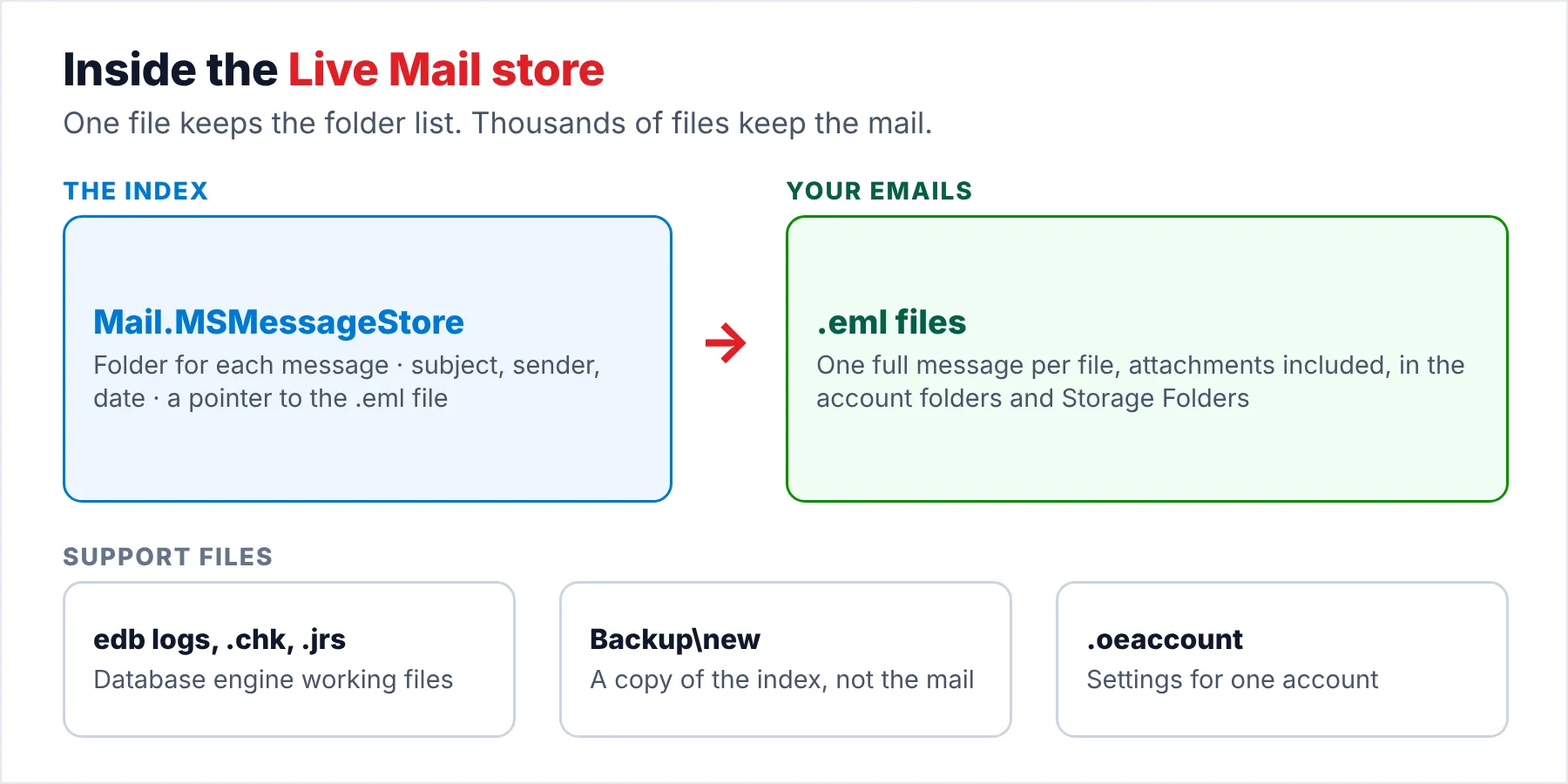
Mail.MSMessageStore is the index database that Windows Live Mail keeps in its store folder. It records which folder each message belongs to, along with the subject, sender and date. It also points to the .eml file that holds the message itself.
Your emails are the .eml files. Live Mail can rebuild the index from them, but nothing rebuilds the emails from the index.
Open the Windows Live Mail store folder once and you'll see a file list that looks nothing like the folders you use in the program. You get files with random names, log files, a Backup folder and one large file called Mail.MSMessageStore. In a 2015 Microsoft Q&A thread titled "Windows Live Mail storage folders are a mystery", a user who had rearranged folders in Live Mail found that the files on disk followed none of those changes.
The mystery has an easy answer. Live Mail keeps the messages and the folder list in two separate places. Only one of those places holds your email. This guide explains every file you will meet in your store folder, what each file does and which files you should never touch.
What Is Each File in the Windows Live Mail Store?
You will find the store folder at %LOCALAPPDATA%\Microsoft\Windows Live Mail on Windows Vista and later (Windows 7, 8, 10 and 11 use the same path). The table covers what you will find inside your copy on a typical Live Mail 2011 or 2012 install.
| Item | What it is | Holds your emails? |
|---|---|---|
| Account folders | One folder per mail account, often named after the mail server. Each one holds that account's message files and its settings file. | Yes, inside them |
| .eml files | One file per message, in the standard MIME email format (RFC 5322), with a generated name instead of the subject. Attachments travel inside the same file. | Yes. These are your emails |
| account{...}.oeaccount | An XML file with the settings for one account, such as server names and ports, according to grot3. | No, settings only |
| Storage Folders | The local folders that belong to no account: your own folders plus Drafts, Sent Items and Deleted Items for local mail. | Yes, inside it |
| Mail.MSMessageStore | The message index, an Extensible Storage Engine database. It maps every message to a folder and stores its header details. | No. It can be rebuilt from the .eml files |
| edb log files, .chk, .jrs and Mail.pat | Working files of the database engine: transaction logs, a checkpoint file, reserved logs and a small patch file. | No |
| Backup\new | Live Mail's own copy of the index file, with Mail.pat and a few log files. | No. It copies the index, not the emails |
| Calendars | Calendar data in WLCalendarStore.edb, plus feed views on some installs. | No, calendar only |
You won't find contacts in that table for a reason. Your address book lives in contacts.edb, a Windows Live Contacts file outside the mail store, which Triple S Computers found when it recovered a client's contacts.
How Does Mail.MSMessageStore Work?
The index is a database, not a mailbox you can open. For every message you receive, the database holds a record with the subject, sender, recipients and date, the folder Live Mail should show it in and a pointer to its .eml file. A 2020 Q&A answer describes the index in exactly those terms. A 2011 answer about WindowsMail.MSMessageStore, the same kind of file from Windows Mail on Vista, makes the same point: it holds headers and no messages.
The folders you see in Live Mail come from that database, not from the disk. One answer in the 2015 thread put it plainly, saying the folders in the program and the folders on disk share "only a superficial resemblance". When you drag a message to another folder inside Live Mail, the program usually updates the index (the record changes) and leaves the .eml file where it was.
The database engine behind the file is the Extensible Storage Engine, the same engine Windows uses for other built-in databases. Microsoft's ESE file documentation explains the companion files you see next to the index (the edb log files, edb.chk and the .jrs files).
I checked that page on October 20, 2026: the edb log files record operations so the database can recover after a crash, the checkpoint file marks how far those logs have been applied, while the reserved .jrs logs exist only so the engine can shut down cleanly when the disk is full.
Who Ends Up Reading About These Files?
Which of these brought you to the store folder?
The index file and the Backup folder take up a lot of room on your disk. You want to know which files are safe to remove before you delete anything.
See what to leave alone →Headers show in your message list, but opening a message gives you an error. That pattern points straight at the index.
Fix a broken index link →Live Mail is gone from your PC, but you still have a copy of the store folder. You want to know which files to open and how.
Read the .eml files →Can You Move or Delete Mail.MSMessageStore?
Windows hides your store folder for a reason. Live Mail manages every file in it. The Q&A helpers who answer Live Mail questions tell you the same thing in thread after thread: change the mail inside the program, never in File Explorer.
- .eml filesIf you move them by hand, you break the link between the index and the message, so Live Mail shows the header and can't open the message.
- The index fileDeleting it hides every folder you created. Live Mail then has to rebuild the index from scratch.
- edb log and checkpoint filesThe engine may still need them to finish writing the index, especially in the minute after you close Live Mail.
- The Backup folderA 2018 Q&A answer calls it the program's backup copy of the index and warns against putting your own files in it.
Size is the usual reason you end up looking at these files. In that 2018 thread the index was about 88 MB and the Backup copy about 86 MB, which the helper read as a sign of tens of thousands of messages. However, a large index is normal if you keep a large mailbox. If you need space, delete messages inside Live Mail and let the program compact its database (Live Mail offers this on exit), rather than deleting files in the store yourself.
Note: one answer in the 2015 thread adds a practical limit. Deeply nested folders can stop showing once the full file path grows past roughly 225 characters, so keep your own folders near the top of Storage Folders.
What Happens When Mail.MSMessageStore and the .eml Files Disagree?
Most strange Live Mail behaviour you'll see comes from the index pointing at the wrong place. If you see the error "Message cannot be found", the index still has the header but lost the link to the .eml file. The 2020 answer says the .eml file itself is usually unharmed.
| What you see | What the index is doing and the fix |
|---|---|
| "Message cannot be found" on a few messages | The pointer to the .eml file is broken. Drag the message from Live Mail to your desktop, then drag it back into a storage folder, so Live Mail reads it again. |
| .eml files on disk that Live Mail doesn't list | The index never recorded them. Drag those .eml files from File Explorer into a storage folder in Live Mail to index them. |
| Whole folders missing from the folder pane | The index lost or hid the folders. See our guide to missing Live Mail folders for the view settings and a full rebuild. |
| Live Mail rebuilds the database at every start | The index or its logs are damaged. Copy the store folder before anything else, then follow the rebuild steps in the same guide. |
The drag-out and drag-back trick is quick and safe and works because it makes Live Mail write a fresh index record for each message. For a whole folder, you can select every message (Ctrl+A) and drag them together, as the 2020 answer suggests.
How Do You Read the .eml Files Without Live Mail?
Because each email is a complete .eml file, your mail outlives the program you used to read it. You can double-click one .eml file and read that message in whatever program handles the format. Our guide to the .eml file format explains what is inside one. The problem you hit is scale. A store with years of mail holds thousands of files with generated names. Only the index knows which file belongs in which folder.
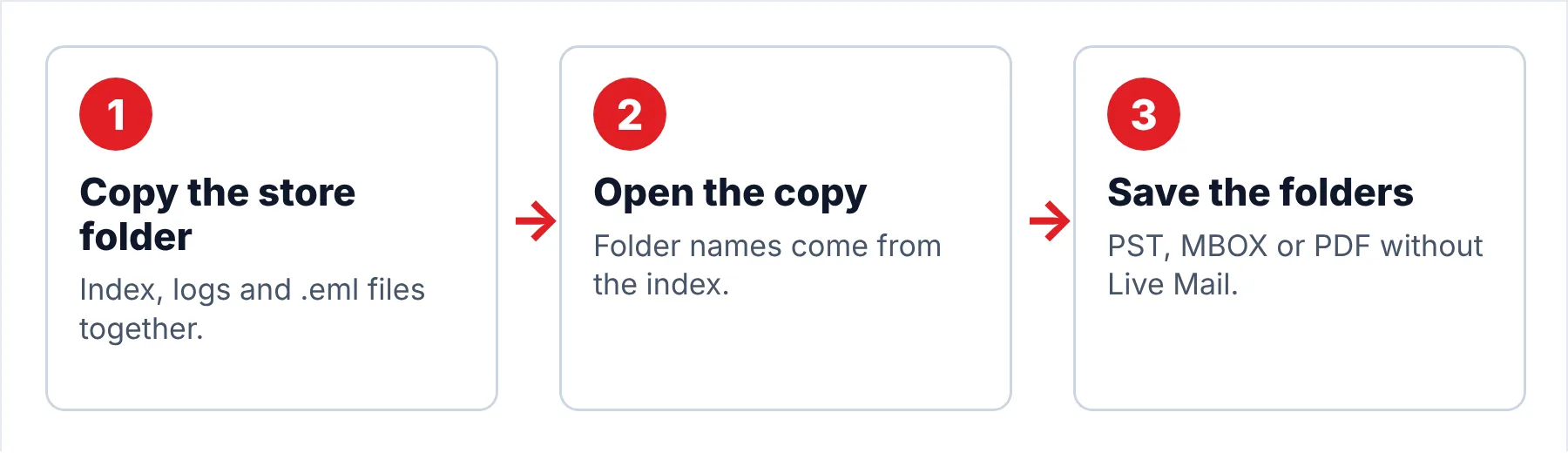
Univik Windows Live Mail Converter reads the copied store as a whole. The converter takes the folder names from the index when it is there and the messages from the .eml files, then saves everything in a format current programs open.
- Copy the whole store folderWith Live Mail closed, copy %LOCALAPPDATA%\Microsoft\Windows Live Mail with every file in it, index and logs included. Work only on the copy from here on.
- Load the copy into the converterStart the converter on Windows 11 or 10 and pick the copied folder. Live Mail itself doesn't need to be installed, because the converter reads the files directly.
- Compare the folder tree with Live MailThe converter lists the account folders and storage folders with a message count for each. A count close to what Live Mail showed tells you the .eml files and the index agree.
- Save the folders you wantPick PST, MBOX or PDF and choose an output folder. Every export comes from the copy, so the original store stays exactly as it was.
Note: trial runs write 10 items per folder, which lets you check that the folder names and the messages line up before you buy a licence.
The converter reads the .eml files and the folder list from a copied store, ready for Outlook, Thunderbird or a PDF reader.
Download Free Trial Select a Licence - From $29Built for Windows 11 and 10, 64-bit, with .NET Framework 4.8 in place. Ten items per folder in the trial.
What Do People Ask After Seeing These Files?
Do this: The messages you copied are safe, but the folder names are not. Copy the whole store folder, index file included, if you still can, because the index is what tells a converter which message sat in which folder.
Do this: Old drives usually block the Users folder when you plug them in, with a permission error. Our guide to Live Mail on an old hard drive covers taking ownership of the store folder.
Do this: Not as they are, because the new Outlook takes PST, not .eml folders. Our new Outlook migration guide for Live Mail shows the conversion.
Found a file this guide doesn't cover? Send Univik support the file name and its size.
- Mail.MSMessageStore is the index. It maps each message to its folder, subject, sender, date and .eml file.
- The .eml files are your emails. The program can rebuild the index from them, but nothing rebuilds the emails from the index.
- Leave every file in the store folder where it is while Live Mail manages it.
- A "Message cannot be found" error means the index lost the link to an .eml file.
- Each .eml file opens on its own without Live Mail.
FAQ: Mail.MSMessageStore and Windows Live Mail Files

File roles come from Microsoft's Extensible Storage Engine documentation, Microsoft Q&A answers and two independent write-ups, all checked on October 20, 2026. Microsoft never published a file reference for Live Mail itself, so community answers are labelled as such. Converter steps follow version 6.9.
Sources we read:
- Extensible Storage Engine files, Microsoft Learn
- Windows Live Mail storage folders are a mystery, Microsoft Q&A
- Message cannot be found in Windows Live Mail, Microsoft Q&A
- The Windows Live Mail Backup folder, Microsoft Q&A
- Exporting Live Mail messages to another disk, Microsoft Q&A
- WindowsMail.MSMessageStore, Microsoft Q&A
- Windows Live Mail file notes, grot3
- Windows Live Mail contacts recovery case study, Triple S Computers