Quick Answer
When Windows Live Mail emails disappeared but the .eml files still sit in the store folder, your mail isn't lost. Live Mail has hidden those folders or lost track of them in its index. A view setting, an import or an index rebuild brings them back.
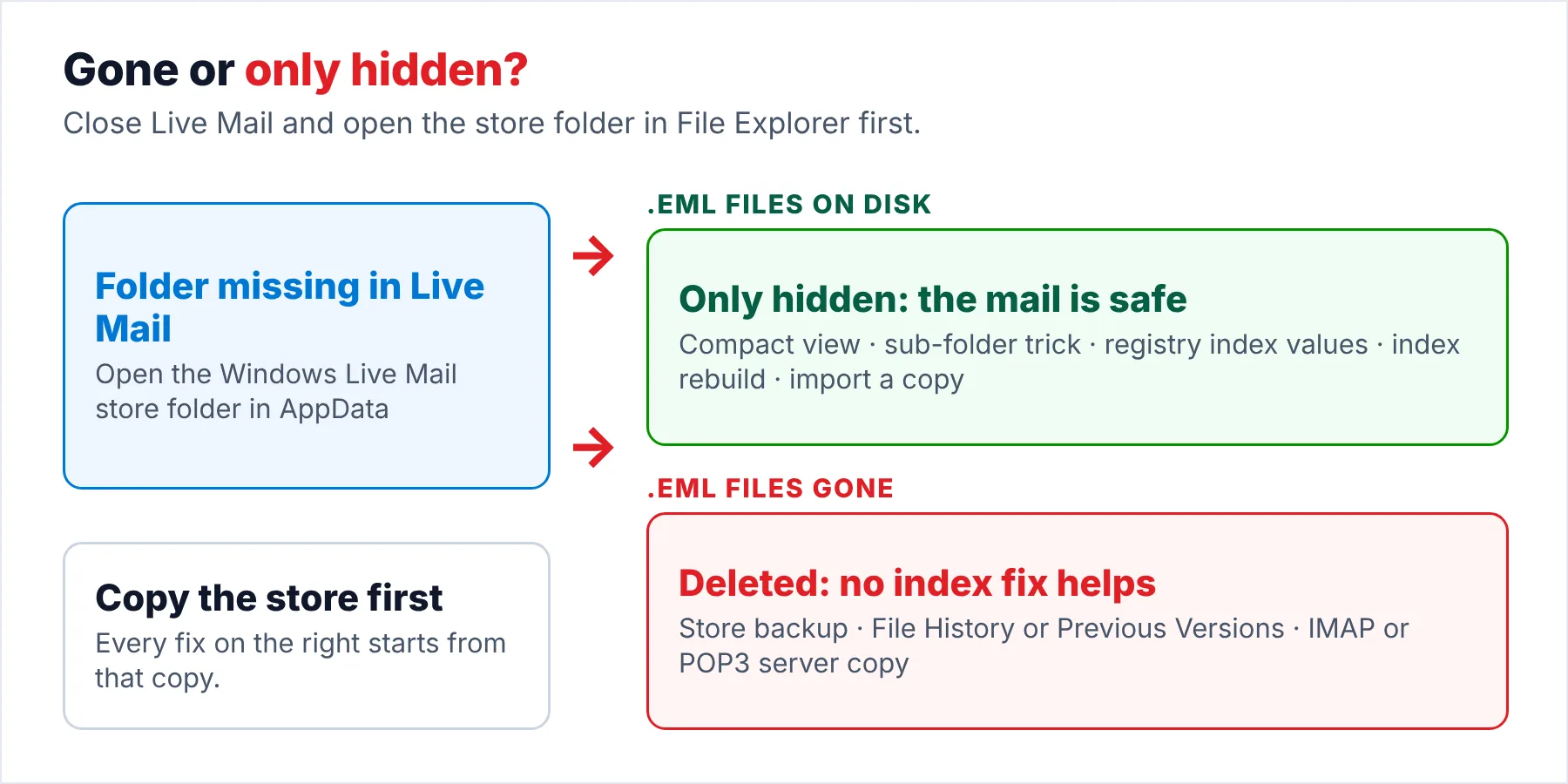
Look in the store folder before you change any setting. If the .eml files are missing from the store folder too, those messages were deleted and only a backup can return them.
Windows Live Mail keeps two records of every message you receive. Each message itself sits as one .eml file inside the store folder. The list of folders you see on the left comes from a separate index file called Mail.MSMessageStore, an Extensible Storage Engine database that the program reads every time it starts.
When that index stops matching the files on disk, folders usually vanish from the folder pane while every .eml file stays where it was, which is why so many people who lose folders find their emails again. In a 2011 Microsoft Q&A thread a user deleted one empty storage folder and watched the folders around it disappear. Two of the answers that brought those folders back have more than 100 helpful votes each.
Are Your Live Mail Emails Gone or Only Hidden?
One look in File Explorer, with Live Mail closed, answers that question before you try any fix. Open the Run box with Windows + R, enter %LOCALAPPDATA%\Microsoft\Windows Live Mail in the box and click OK. In that Windows Live Mail folder you will see one folder per account plus a Storage Folders folder. Each of those folders holds the .eml files for its sub-folders.
| What you find on disk | What it means and where to go |
|---|---|
| The missing folder is there, full of .eml files | Live Mail is most likely hiding the folder or has lost it from its index, which means your messages are safe and you can start with the light fixes in the table further down. |
| The messages sit under Storage Folders, in a folder named Recovered items | The program most likely restored or rebuilt its database and couldn't put every message back in place. Move the messages, not the folders, back where you want them. |
| The folder is there but holds few files or none | The messages were probably moved or deleted inside the program. Search the other account folders on disk before you assume the worst. |
| The folder and its .eml files are gone from disk | Those messages were deleted. No index fix helps you here, so go to the section on deleted mail near the end of this guide. |
The first row of the table, a full folder on disk, is by far the most common case in the Q&A threads I read. Windows Live Mail storage folders missing from the program while the same folders sit full on disk is the sign of an index problem, not a lost mailbox.
When Do Storage Folders Go Missing in Live Mail?
Which of these folder problems happened on your PC?
You removed an empty folder or dragged a folder to a new place. The folders around it vanished from the folder pane. Those folders aren't in Deleted items either.
Try the light fixes →After the account came back, your Inbox and Sent items start on the day you added it again. A 2017 Q&A thread shows the older POP3 messages from before that day were still on disk.
Rebuild the index →You saw "Recovering the Windows Live Mail database" or an unexpected error. When Live Mail opened again, your folders were there but empty.
Reset the indexes →Why Copy the Store Before You Touch the Index?
Every fix below changes what the program believes about your folders, while a few of the fixes rewrite the index completely. A copy of the store folder turns a failed index fix into a quick five-minute restore, so copy the store folder first.
Copying is easy, but close Live Mail and give it a minute before you copy. A 2014 Q&A answer warns against shutting the PC down right after you close the program, because the program does its housekeeping on exit. Once the program has finished, copy the whole Windows Live Mail folder, including Mail.MSMessageStore and the Backup folder, to a USB stick or a second drive. The copy you make now is also what you open in a converter later if no fix works.
How Do You Recover Lost Storage Folders in Live Mail?
Go through the table row by row and stop at the first fix that brings your folders back. The top four fixes in the table are quick and safe for you to try, because they change nothing on disk while the last three rebuild or replace the index. Use the last three rows of the table only with a copy of the store on hand.
| Fix | How | Use it when | Source |
|---|---|---|---|
| Show the hidden storage folders | Live Mail 2011 and 2012: View, Compact view, green plus sign, tick the folders, OK, then Compact view again. Live Mail 2009: Alt+M, Layout, Folder pane, Show Storage folders. | You see whole storage folders missing from the folder pane | Q&A (100+ votes), Appuals, Microsoft support reply |
| Create a temporary sub-folder | Add a sub-folder named a in each folder that lost its sub-folders. Close and reopen the program, then delete the a folders. | Sub-folders vanished but their parent folder shows | Q&A quoting a 2013 forum fix |
| Move one message into the lost folder | Right-click a message, choose Move to folder and pick the missing folder from the list. Once the folder reappears, move the message back. | The folder shows in the Move dialog but not in the folder pane | Q&A (2017, Windows 10) |
| Reset the three index values | Registry values under HKEY_CURRENT_USER, then a full restart. Full steps in the next section. | Folders show but messages will not open or come up empty after an update | Q&A community answer |
| Import a copy of the folder | File, Import messages, Windows Live Mail, browse to your copy, pick Selected folders. The mail lands under Imported Folder. | You have a copy of the store and want one folder back without a rebuild | Appuals |
| Restore from the database backup | Close Live Mail, check that Backup\new holds a Mail.MSMessageStore file, rename the main Mail.MSMessageStore and start Live Mail. | The index is damaged but a recent backup exists | Q&A answer (2014) |
| Rebuild the index from the .eml files | Rename Mail.MSMessageStore to Mail.old, move the Backup folder out, go offline and start Live Mail. | Nothing above worked and the .eml files are on disk | Accepted Q&A answer (2017) |
The Compact view route at the top of the table comes from the 2011 thread and from Appuals, which also documents the import route. The Alt+M route is what a Microsoft support reply gave in 2015. The same route appears on WebDevelopersNotes. However, commenters on that page say the Alt+M menu isn't there in the ribbon versions, so on Live Mail 2011 or 2012 the Compact view button is the route to use.
How Does the Registry Index Fix Work?
Three registry values tell the Live Mail program to rebuild its folder, message and download indexes at the next start. The values come from a 2020 Q&A answer written after Windows 10 version 2004 left many users unable to open messages. A 2021 Windows 11 thread with more than 100 people asking the same question later confirmed the same values.
- Close Live MailMake sure wlmail.exe isn't running by checking Task Manager if you're not sure, because the fix does nothing for you while the program is still open.
- Open the registry in your own accountSign in to the Windows account you use for Live Mail and run regedit. The values sit under HKEY_CURRENT_USER, so an administrator account would change the wrong user.
- Go to the Live Mail keyOpen HKEY_CURRENT_USER\SOFTWARE\Microsoft\Windows Live Mail.
- Create or edit three DWORD valuesAdd RecreateFolderIndex, RecreateStreamIndex and RecreateUIDLIndex as DWORD (32-bit) values. If you find them already there, set each one to 1.
- Restart WindowsRestart the whole PC. The answer calls this step essential and says restarting Live Mail alone isn't enough.
- Open Live Mail and check the valuesThe program rebuilds the indexes on the first start and sets the three values back to 0. If your folders still look wrong, the answer suggests running all the steps a second time.
If you prefer a file, the same answer publishes the values as a .reg file. Save the text below as wlm-index.reg, double-click it, confirm the prompt and restart.
Windows Registry Editor Version 5.00

[HKEY_CURRENT_USER\Software\Microsoft\Windows Live Mail]
"RecreateFolderIndex"=dword:00000001
"RecreateStreamIndex"=dword:00000001
"RecreateUIDLIndex"=dword:00000001
Note: I checked both threads on October 20, 2026. One user in the 2020 thread confirmed that the values went back to 0 after the reboot and that the program worked normally again. Also, export the Windows Live Mail key before you change the values, using File > Export, so you can undo the change.
How Do You Rebuild the Live Mail Index From Your .eml Files?
A rebuild is the heaviest change you can make, but a rebuild is also the change that still works when the index is beyond any repair. During a rebuild the program reads every .eml file in the store folder again and writes a new Mail.MSMessageStore. Your copy of the store must exist before you start, because a rebuild can't be undone from inside the program.
- Try the backup firstClose Live Mail. If Backup\new holds a Mail.MSMessageStore file, rename the main Mail.MSMessageStore and start the program, which then restores its index from that backup.
- Force a full rebuildIf the backup is missing or the problem stays, rename Mail.MSMessageStore to Mail.old and move the Backup folder out of the store.
- Go offline and waitDisconnect from the internet so the program doesn't try to sign in, then start it and leave it alone until it finishes the new index.
- Sort Recovered itemsRebuilt messages appear in sub-folders of Recovered items under Storage folders. Move the messages into new folders, not the Recovered items folders themselves.
Limitations: a large store can take hours to index, while POP3 accounts may also download messages a second time during the rebuild. Also, instead of a rebuild, one user in a 2012 Q&A thread ran the Windows esentutl tool on Mail.MSMessageStore and got error 0x800C0155 at the next start, then had to restore a copy. I would skip esentutl and use the rename route instead, because renaming is reliable and you can undo it in seconds.
What If Live Mail Still Hides the Folder?
Some stores never come back right even after a rename and a rebuild, which is the moment when the copy of the store folder you made earlier becomes worth everything to you. Univik Windows Live Mail Converter reads the folders and .eml files in that copy, so it can show you a folder that Live Mail itself refuses to list. You get your messages out of that copy without asking the broken index for permission.
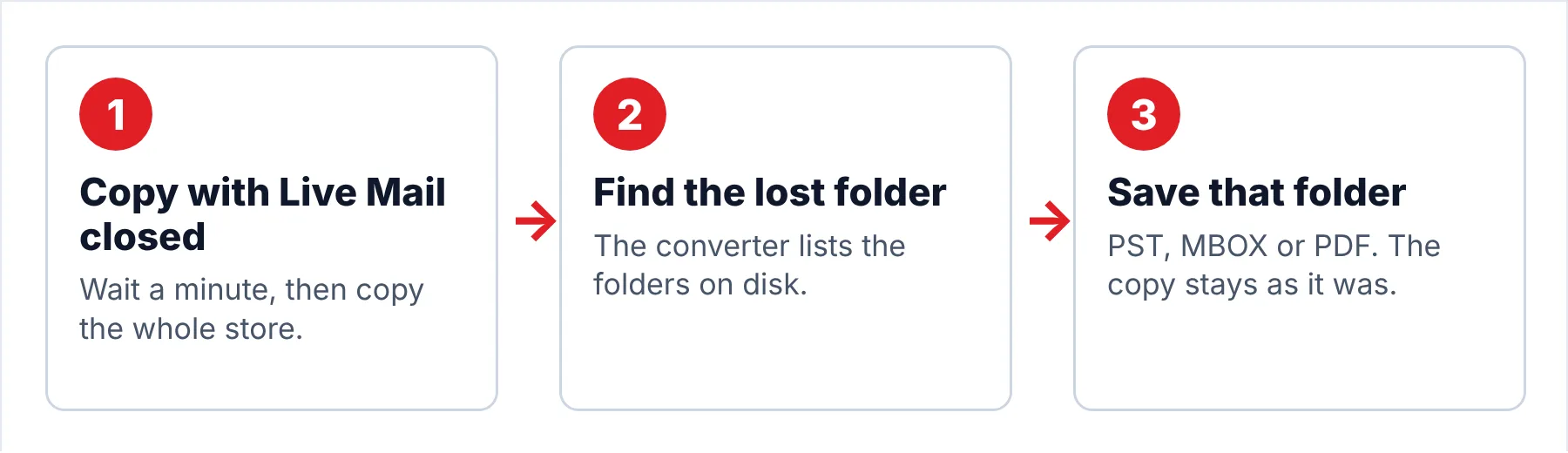
- Copy the store with Live Mail closedClose Live Mail, wait a minute and copy %LOCALAPPDATA%\Microsoft\Windows Live Mail to a USB stick or a second drive. Waiting gives Live Mail time to finish writing its database, which the 2014 Q&A answer warns about.
- Point the converter at the copyStart the converter on any PC with Windows 11 or 10 and choose the copied folder. The converter lists each account folder and each storage folder it finds on disk, with a message count, including folders that Live Mail itself stopped showing you.
- Find the folder Live Mail lostOpen the folder you were missing and click through its messages in the preview pane. You can compare the count with the number of .eml files you saw in File Explorer, so you know the converter found every message you expected.
- Save that folder to a format you can useTick only the folders you need and pick PST, MBOX or PDF. The output goes to a new folder that you choose, while the copied store stays as it was for a second attempt.
Note: trial output covers 10 messages per folder. That limit lets you check that the folder you lost really comes out, with dates and attachments, before you decide on the full licence.
The converter lists every folder it finds in a copied store and saves the ones you pick in PST, MBOX or PDF format.
Download Free Trial Select a Licence - From $29The converter needs .NET Framework 4.8 and a 64-bit edition of Windows 11 or 10. The free trial of the converter saves 10 items from each folder.
What If the .eml Files Are Gone From Disk Too?
If the folder or its .eml files are missing from the store folder, the mail was deleted rather than hidden. That usually happens when Deleted items is emptied, when an IMAP server removes messages and the program syncs the change. It also happens when someone deletes the folder itself. No view setting and no index rebuild can bring back a folder or file that's no longer on disk.
- Any backup of the Windows Live Mail folder you made, including the copy from an earlier fix.
- Windows File History or Previous Versions on the store folder, if you turned either one on before the loss.
- The mail server, for IMAP accounts and for POP3 accounts set to leave a copy on the server.
- The Recovered items folder, if Live Mail rebuilt its database at some point after the loss.
- An old PC or old drive you still have that holds a store from before the deletion.
Check those places in that order, because the first two are fast and return the exact folder structure you had. Also, stop using the program on that PC until you've checked those places, so new messages don't overwrite what a recovery tool might still find.
What Goes Wrong After the Folders Come Back?
Do this: A rebuild or an import can place a message in Recovered items or Imported Folder while the original folder holds the same message. Sort that folder by subject and date, check that both copies of each message open, then delete one set. Keep your copy of the store until you are sure.
Do this: Put Mail.old back as Mail.MSMessageStore from your copy. Our guide to a Live Mail that refuses to start matches each start-up error to its cause.
Do this: The new Outlook takes PST files. Our Live Mail to new Outlook guide walks through the copy, convert and import route.
Still missing a folder? Write to Univik support with the folder names and the number of .eml files you see on disk.
- If the .eml files are still in the store folder, your messages are hidden, not lost.
- Look in the store folder with File Explorer, with Live Mail closed, before you change any setting.
- Copy the store folder before any index fix.
- Start with the lightest fix. The registry values and a full rebuild come last.
- If the .eml files are gone from disk too, only a backup brings those messages back.
FAQ: Windows Live Mail Emails Disappeared

The fixes come from seven Microsoft Q&A threads and two independent guides. I read all seven threads and both guides on October 20, 2026. Community answers are labelled as such, because Microsoft never published official steps for these problems. The converter steps match version 6.9.
Sources we read:
- How to recover lost storage folders in Windows Live Mail, Microsoft Q&A
- Folders disappeared in Windows Live Mail, Microsoft Q&A
- Windows Live Mail inbox emails lost after removing and adding account, Microsoft Q&A
- Recovering the Windows Live Mail database, Microsoft Q&A
- I cannot open email messages in Windows Live Mail, Microsoft Q&A
- Live Mail 2012 problems after moving to Windows 11, Microsoft Q&A
- Will recreating the mail database recover my Storage Folders, Microsoft Q&A
- Recover missing or lost folders in Windows Live Mail, Appuals
- Storage folders missing or disappeared from Windows Live Mail, WebDevelopersNotes