Quick Answer
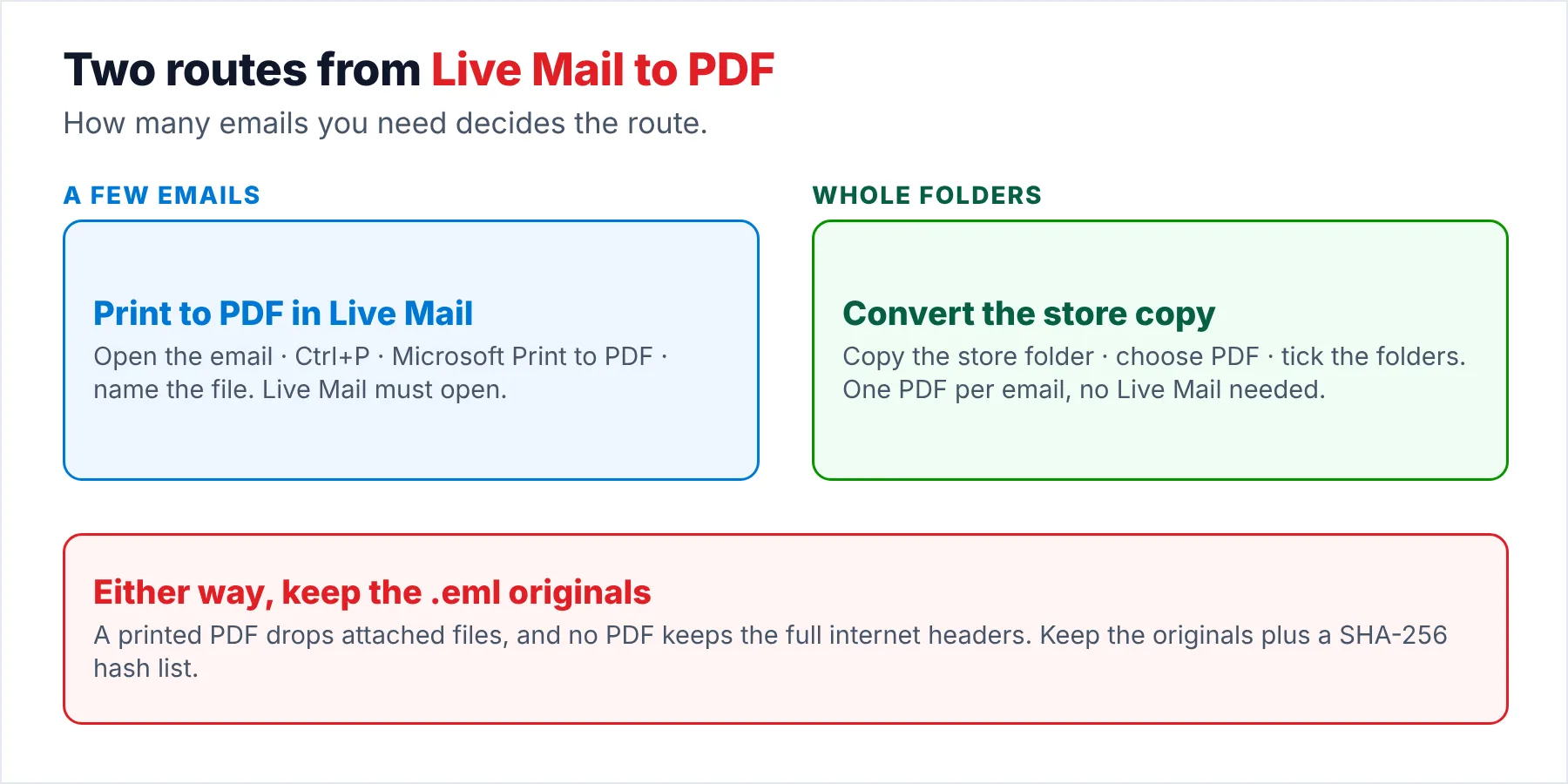
To save a Windows Live Mail email as PDF, open the message, press Ctrl+P and select the Microsoft Print to PDF printer. That works one email at a time while Live Mail still opens. For whole folders, convert a copy of the store folder to PDF in one run.
A printed PDF keeps the text and basic headers. Attached files and the full technical headers stay in the original .eml file.
You probably want Windows Live Mail emails as PDF files for one of three reasons. You may need to hand a few emails to someone else, while at other times you need a fixed record of those emails for an audit or a dispute that other people will read. Or you are leaving Live Mail and want your old emails in a form that opens anywhere. Each reason calls for a different route to PDF, while Live Mail itself only offers one route.
This guide covers the one-email route through Microsoft Print to PDF and the whole-folder route for when you have hundreds of emails. It also covers the part most PDF guides skip, which you will want before you make records: what a PDF of an email leaves out, plus why you should keep the original .eml file next to the PDF.
Which Way Should You Save Windows Live Mail Emails as PDF?
The right route to PDF depends on how many emails you need and on whether Live Mail still opens on your PC, so start with those two questions. The table compares the three PDF routes side by side, from one email to whole folders.
| Route | Needs | Good for | Limits |
|---|---|---|---|
| Print to PDF inside Live Mail | Live Mail that opens, plus the Microsoft Print to PDF printer | One to twenty emails | One email per PDF, by hand. Attached files are not included |
| Open the .eml file elsewhere, then print | A program that opens .eml files and can print | A few emails when Live Mail is gone | Still one email at a time. You have to find the right .eml file first |
| Convert the store folder to PDF | A copy of the store folder and a converter | Whole folders, years of mail | Paid for the full store. The trial saves 10 items per folder |
Opening one .eml file by hand is not as easy as you might expect, because the folders on disk give few clues. Live Mail gives each file a generated name, as a 2020 Microsoft Q&A answer notes, so the subject never appears in the file name. Our guide to the Live Mail store files explains why those folders look so different.
Who Needs Old Emails as PDF Files?
Which of these PDF tasks sounds like yours?
Your solicitor, your bookkeeper or a relative needs copies of specific emails. Live Mail still opens on your PC, so you only need a handful of email PDFs.
Print one email to PDF →The emails are part of a dispute, an audit or a tax file. The PDFs of those emails have to stay readable for years. Someone may also question whether those PDFs match the original emails.
Keep the originals too →You are leaving Live Mail behind and want every folder as PDF files you can open on any device. Those PDF files shouldn't need an email program.
Save whole folders →How Do You Print One Live Mail Email to PDF?
Live Mail has no Save as PDF option, but your Windows 10 or 11 PC already includes a virtual printer called Microsoft Print to PDF that you can use from almost any program. Printing to that printer writes a PDF file instead of paper, so you use the PDF printer from Live Mail exactly like any other printer you have on your PC.
- Open the emailDouble-click the message in Live Mail so it opens in its own window, which is the reliable way to print the header lines. A message opened this way prints with its header lines at the top.
- Start printingPress Ctrl+P in the message window to open the print dialog.
- Choose the PDF printerSelect Microsoft Print to PDF in the printer list and click Print.
- Name and save the fileWindows then asks you where to save the PDF. Use a name that tells you what the email is, such as the date and the sender, so you can find the right PDF later among dozens of others.
If Microsoft Print to PDF isn't in the list, the Windows feature is switched off. A 2026 Microsoft Q&A thread gives the fix: press Windows + R, type optionalfeatures, tick Microsoft Print to PDF and click OK. Once Windows has added it (restart if Windows asks), the PDF printer appears under Settings, Bluetooth & devices, Printers & scanners, ready for Live Mail.
Note: this printer route only works while Live Mail still opens. Microsoft stopped offering Windows Essentials 2012 for download after support ended, according to its Windows Essentials page, so a PC that loses Live Mail can't get Live Mail back from Microsoft.
What Does a PDF of a Live Mail Email Keep and Drop?
A PDF is a picture of the email as you see it on screen. That picture is easy for you to read and share. It also means part of the email does not make it into the PDF.
| Part of the email | In a printed PDF? |
|---|---|
| Message text and inline pictures | Yes, as they appear on screen |
| From, To, Date and Subject lines | Yes, when the message prints from its own window |
| Attached files | No. Save the attachments separately and keep them with the PDF |
| Full internet headers | No. The route, the server names and the message ID stay in the .eml file |
| The ability to reply or forward | No. A PDF is a fixed page, not an email |
For most of your uses that trade is fine, because a PDF is quick to open on any phone or PC. For records, the missing email headers matter, because those headers are what shows when and through which servers a message really travelled.
Is a PDF Enough for Records and Legal Use?
When your email records may be questioned later, treat each PDF as the readable copy of the record, not the only copy. The .eml file is the original email with every header, so you should keep it next to the PDF and record a fingerprint of it that anyone can check later against the original.
- OriginalsCopy the .eml files for the matter into one folder, a safe step because copying never changes the originals. A copy of the whole store folder also works.
- Readable copiesSave the same emails as PDF, ideally as PDF/A when the files must stay readable for years.
- FingerprintsRecord a SHA-256 hash of every original with the PowerShell command below and keep the list with both folders.
Get-ChildItem "D:\Live-Mail-PDF\originals" -Recurse -File | Get-FileHash | Export-Csv "D:\Live-Mail-PDF\hashes.csv"I checked the command against Microsoft's Get-FileHash reference on October 20, 2026. Get-FileHash is fast and uses SHA-256 by default, while the same reference warns against MD5 and SHA-1 for files that need protection from tampering. For the PDF files themselves, the Library of Congress describes PDF/A-1 as a form of PDF meant for the long-term preservation of page-oriented documents, which is exactly what an email record is.
Limitations: this guide is not legal advice on email evidence. Courts and auditors set their own rules for email evidence, so you should ask the person who will receive your records what format they accept before you produce hundreds of PDFs.
How Do You Save Whole Live Mail Folders as PDF?
Printing is quick for a handful of emails, but printing becomes a full day's work for you at a few hundred emails. For a few hundred emails, a converter is the faster route. Univik Windows Live Mail Converter saves every email in the folders you choose as its own PDF file, from a copy of the store folder. You don't need Live Mail installed for this, so the same route also covers a PC where Live Mail no longer opens at all after an update or an upgrade.
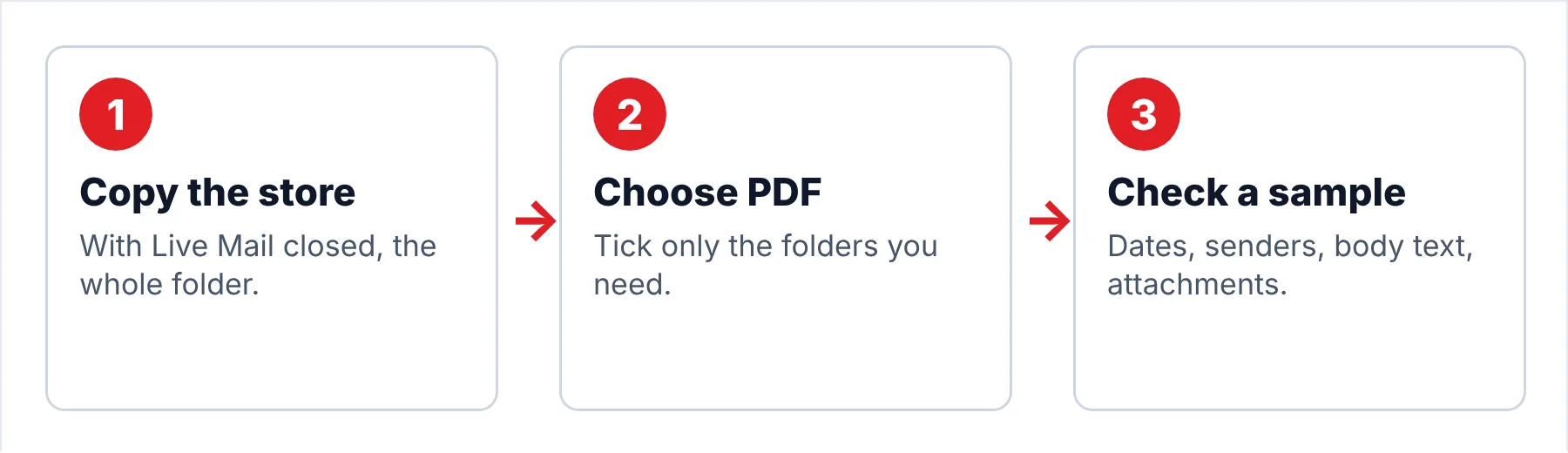
- Copy the Live Mail storeClose Live Mail first, then copy %LOCALAPPDATA%\Microsoft\Windows Live Mail into a folder on your PC or onto a USB stick. Every PDF will come from this copy.
- Load the copy into the converterOpen the converter on your PC and pick that copied store. You will see each account and storage folder listed, each with its number of emails.
- Pick PDF and the folders you needChoose PDF as the output and tick only the folders you need, for example one client's folder or one year of Sent Items. Then choose an output folder on your local drive.
- Check a few PDFs against the originalsOpen three or four PDFs and compare them with the same emails in Live Mail or a viewer, so you catch any problem before you send the PDFs to anyone. Check the date, the sender, the body text and how the attachments came out.
Note: the converter trial writes 10 PDFs per folder. Use those 10 PDFs to check file names, dates and attachments before you convert a folder that matters, which is the reliable way to spot a problem early.
The converter reads a copied store and writes one PDF per email for the folders you tick, so each folder becomes a set of PDFs.
Download Free Trial Select a Licence - From $29Requirements: .NET Framework 4.8 on 64-bit Windows (11 or 10) while the free trial of the converter writes ten PDFs per folder.
What Goes Wrong When Making the PDFs?
Do this: Live Mail's index may point to the wrong .eml file. A 2020 Q&A answer fixes it by dragging the message to the desktop and back into a storage folder, then printing again.
Do this: Copy the store folder first, then try the fixes in our start-up error guide. The converter route works from the copy either way.
Do this: PDF is the wrong format for working mail in Outlook. See our Live Mail to new Outlook guide for the PST route instead.
Need PDFs for a specific case? Tell Univik support how many folders and roughly how many emails are involved.
- For one email, press Ctrl+P and pick the Microsoft Print to PDF printer.
- The program has no Save as PDF option of its own.
- A printed PDF keeps the text and basic headers, while attachments and full headers stay in the .eml file.
- For records, keep the original .eml file next to each PDF.
- For whole folders, convert a copy of the store folder to PDF in one run.
FAQ: Windows Live Mail to PDF

Print and hash steps follow Microsoft's documentation and Microsoft Q&A. The PDF/A note follows the Library of Congress format page. I read each source on October 20, 2026 and checked each source against the steps. This guide is not legal advice. The converter steps match version 6.9 of the converter.
Sources we read: